

DisplayFusion is the tool many power users reach for when Windows’ built‑in multi‑display controls no longer cut it: it adds per‑monitor taskbars, fine‑grained wallpaper control, window positioning profiles, scripted automations and a long list of niceties that turn a clumsy multi‑monitor desktop into a predictable, repeatable workspace. This guide explains how to set up DisplayFusion, breaks down the key features you’ll actually use, validates technical details you should know before installing, and offers practical pro tips and troubleshooting advice gathered from official documentation and community experience to help you get the most from a multi‑monitor workflow.
DisplayFusion is developed by Binary Fortress Software and is purpose‑built for multi‑monitor Windows setups. It runs on Windows 10 and Windows 11 (and Windows Server), supports both Free and Pro licensing tiers, and ships as a single installer that can run the full feature set during a 30‑day Pro trial before reverting to the Free feature subset. The vendor lists the app as compatible with x86, x64 and ARM64, and the installer will automatically install required runtimes (the Microsoft .NET 8 desktop runtime and Microsoft WebView2) if they are missing. Why choose DisplayFusion? At its core, DisplayFusion solves three recurring multi‑monitor pain points:
DisplayFusion is not magic, but it is the most practical toolbox most Windows multi‑monitor users will encounter: predictable profiles, smaller friction for window placement, and powerful automation turn repeated chores into one‑click actions. Use the installer and runtime guidance above to deploy it safely, try the Free edition first, and lean on Triggers and Window Position Profiles only after you’ve validated behavior with your hardware and drivers. The payoff is a more consistent, productive multi‑monitor experience that lets your displays be part of the workflow instead of an obstacle.
Source: Windows Report DisplayFusion Explained: Setup, Key Features, and Pro Tips
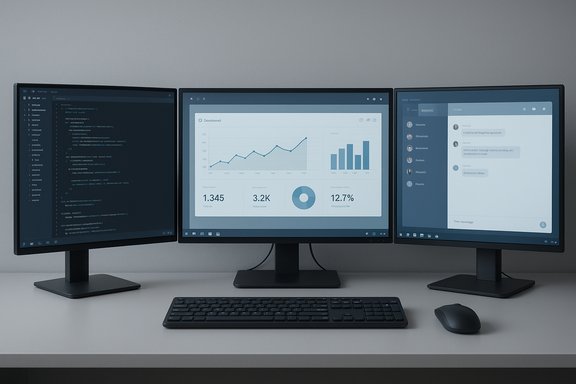 Background / Overview
DisplayFusion is developed by Binary Fortress Software and is purpose‑built for multi‑monitor Windows setups. It runs on Windows 10 and Windows 11 (and Windows Server), supports both Free and Pro licensing tiers, and ships as a single installer that can run the full feature set during a 30‑day Pro trial before reverting to the Free feature subset. The vendor lists the app as compatible with x86, x64 and ARM64, and the installer will automatically install required runtimes (the Microsoft .NET 8 desktop runtime and Microsoft WebView2) if they are missing. Why choose DisplayFusion? At its core, DisplayFusion solves three recurring multi‑monitor pain points:- Predictably place windows and save complete monitor layouts as named profiles.
- Give each monitor its own taskbar and wallpaper behavior so each screen can be treated as an independent workspace.
- Automate repetitive display and window tasks with hotkeys, triggers and scripted functions.
How to install DisplayFusion on Windows (verified steps)
Follow these numbered steps for a reliable installation and first run. These steps reflect the official download and beginner’s documentation and include the runtime requirements that the installer may add automatically.- Download the installer
- Go to DisplayFusion’s download page and grab the official installer (the same installer supports Free and Pro trial modes). The site publishes the latest version and provides MSI options for large deployments. The installer includes a 30‑day Pro trial.
- Check prerequisites
- The installer requires the .NET 8 desktop runtime and WebView2; if they’re not present the installer will add them automatically. Confirm that your system is running a supported Windows build (Windows 10 1607+ or Windows 11).
- Run the installer
- Double‑click DisplayFusionSetup.exe, accept the license, choose installation folder, and complete the install. If you want DisplayFusion to be available as soon as Windows starts, allow it to run at login (this is the normal choice for multi‑monitor tools).
- First launch and trial activation
- On first run you’ll get the Pro trial enabled by default (30 days). If you have a Pro license key, you can enter it in Settings > About to unlock Pro permanently. If you bought via Steam, licensing behaviour differs slightly (Steam licenses are managed via Steam), so be mindful which channel you used to purchase.
- Enterprise deployment (optional)
- For large environments use the MSI installer and supplied ADMX templates to push settings via Group Policy for consistent behavior across multiple workstations. The vendor documents silenced installs and ADMX usage for IT teams.
First configuration: get displays and profiles right
Once DisplayFusion is installed, these quick steps will make your arrangement repeatable and restoreable:- Open Monitor Configuration (right‑click the tray icon → Monitor Configuration). Arrange physical screens to match how they sit on your desk, set your primary/secondary displays and, critically, save that arrangement as a named Monitor Profile such as “Work – Dual” or “Docked.” Monitor Profiles let you swap between setups when you dock/undock or move between locations.
- Create Window Position Profiles. After arranging and sizing windows the way you like (for example: code editor centered on the ultrawide, chat apps on the small portrait), save a Window Position Profile so you can restore the exact layout later. This is invaluable when displays are added/removed or when connecting to a projector.
- Configure Wallpaper Profiles. Use Wallpaper Settings to map unique images or slideshows to specific monitors, or span a single image cleanly across multiple displays. DisplayFusion supports many online sources and local folders for images.
Key features explained (what you’ll actually use)
Below is a feature‑by‑feature breakdown with practical notes on when and why each matters.Multi‑Monitor Taskbars
- What it does: adds a Windows taskbar to each monitor; taskbars can show all windows or only windows on the same monitor.
- Why use it: it reduces window hunting when your apps span multiple screens and gives each monitor an independent workspace feel.
- Caveats: some users report odd taskbar focus interactions in full‑screen apps (tweak the “Show taskbar in front of full screen applications when they lose focus” option if a game or video is interrupted). Community reports and the vendor’s settings menu document these options.
Wallpaper Management
- What it does: assign different images per monitor, create slideshows, pull images from online sources, or span single images across multiple displays.
- Why use it: quick visual cues to distinguish contexts (e.g., work vs entertainment desktop), and better control for multi‑resolution setups.
Monitor Splitting (virtual monitors)
- What it does: split a large physical display into multiple virtual monitors (each with its own taskbar and window bounds).
- Why use it: great for ultrawide displays where you want “virtual” monitor zones without physically adding hardware. Useful for streamlining layout across ultrawides or large single displays.
Window Snapping, Functions & HotKeys
- What it does: powerful window snapping and a library of built‑in Functions (move to monitor, resize and position, send to preconfigured zones) with user‑assignable hotkeys and TitleBar buttons.
- Pro tip: map frequently used moves (send browser to monitor 2, maximize to left third) to a single hotkey for instant layout changes.
Triggers & Automation
- What it does: run actions automatically when triggers fire (window creation, application focus, desktop unlock, system idle, etc.. Actions can run built‑in functions or custom scripts.
- Why use it: automate common tasks like always moving a specific application to a particular monitor when it opens. Triggers are a Pro‑only area that unlocks high productivity via automation.
Remote Control (mobile)
- What it does: remote mobile apps can trigger DisplayFusion Functions on your PC (change wallpapers, move windows, run scripts).
- Security note: by default remote discovery is local‑network only; you can allow Internet access by forwarding TCP port 21452 if you want remote Internet control—this requires care with firewall and router settings. The vendor documents options to enable security codes for pairing.
Mouse Management & Monitor Fading
- Mouse wrapping, cursor stickiness, and fading inactive monitors are included to smooth cross‑monitor cursor motion and visually emphasize the active screen. These small features often produce outsized usability gains.
Alt+Tab Handler, Desktop Icon Profiles
- Alt+Tab replacement options let you show only windows on the current monitor, and Desktop Icon Profiles restore icon layouts when monitor arrangements change—handy when hot‑plugging displays.
Free vs Pro: what you get and when to upgrade
DisplayFusion’s Free edition provides the essentials; Pro unlocks automation and remote features. The vendor’s feature list is explicit about which capabilities are Pro‑gated:- Free edition includes:
- Wallpaper management per monitor
- Basic monitor profiles and configuration
- Multi‑monitor taskbars (basic options)
- Window management tools (limited hotkeys)
- Pro edition adds:
- Triggers (automation)
- Remote control (mobile apps)
- Advanced scripted Functions and full hotkey access
- Automated Window Position Profiles and advanced icon/profile features
Performance, compatibility and resource usage — what to expect
System requirements and runtime details are documented by the developer: Windows 11/10 (1607+), .NET 8 and WebView2 are required and the installer will add them if needed. For enterprise deployment there’s an MSI and ADMX templates. Real‑world performance notes and community experience:- Many reviews and users find DisplayFusion lightweight in everyday use; older reviews showed memory use measured in the low megabytes during simple wallpaper tests. However, feature‑heavy workflows (multiple triggers, animated or video wallpapers, remote scripts) increase memory and CPU usage.
- Some community threads report intermittent slowdowns when loading certain profile changes or when interacting with specific GPU drivers or fullscreen games; these are generally solvable by toggling the DisplayFusion Taskbar feature when launching games or by adjusting settings. If you see unexpected behavior, try temporarily disabling multi‑monitor taskbars or the wallpaper engine to isolate the source.
Pro tips and advanced workflows
- Create named Monitor Profiles for every physical configuration you use (docked, undocked, travel). Then bind profiles to hotkeys so switching is instant. This is the single best productivity multiplier for people who move laptops between setups.
- Combine DisplayFusion with Windows PowerToys FancyZones. Use FancyZones for keyboard‑centric tiling and DisplayFusion for taskbar and wallpaper controls. Many power users run both, letting each tool do what it does best. The WindowsForum community documentation on FancyZones and Windows snapping provides practical guidance on mixing these tools.
- Use Triggers to automate app placement. Example: when Slack opens, trigger a function to move it to monitor 3 and resize to a fixed width. Scripted Functions let you chain multiple steps (move, resize, focus). This reduces friction for recurring workflows.
- Protect fullscreen apps: if a fullscreen game or video loses focus, test the DisplayFusion setting “Show taskbar in front of full screen applications when they lose focus” or create a Trigger to disable the multi‑monitor taskbar before launching the title. Community threads discuss this common gaming interaction and vendor settings to mitigate it.
- Remote control wisely: enable security codes and keep remote access limited to your local network unless you know how to secure remote port forwarding on your router and firewall. The help documentation explains pairing codes and optional internet access via TCP port 21452—don’t open that port without considering security implications.
- Run with matching privileges when you need to manage elevated windows. If you want DisplayFusion to reposition or control UAC‑elevated apps, run DisplayFusion with the same elevated permissions or use functions that operate after elevation. This mirrors the advice for PowerToys FancyZones and elevated process interactions.
- Backup your profiles. Export Monitor, Wallpaper and Window Position profiles regularly so a restore after an OS or GPU driver update is painless.
Troubleshooting and risks
- Conflicts with full‑screen or DRM‑protected apps: certain full‑screen apps or games may behave differently when a multi‑monitor taskbar is active. If you see focus or alt‑tab issues, test launching the app with DisplayFusion’s taskbar temporarily disabled. Community reports show toggling taskbar behavior resolves many cases.
- Driver and hardware variance: some oddities (cursor path confusion, window resizing) happen when displays use different DPI scaling or when GPU drivers have bugs. Keep graphics drivers up to date and test profile switches after major driver or Windows updates. If a problem appears after an update, try rolling back the driver or testing a beta DisplayFusion release if the vendor has identified fixes.
- Resource usage and complexity: turning on many simultaneous features (animated/video wallpapers, lots of triggers, remote calls) increases memory and CPU demands. If your workstation is older, enable only the features you need. Third‑party comparison sites and community feedback call out resource concerns for heavier configurations—tune accordingly.
- Licensing and security cautions: avoid “cheap Pro keys” from unverified sources. Unauthorized license keys and cracked software are illegal and introduce security risks; they also bypass vendor support and updates. If cost is a concern, the Free edition + PowerToys can cover many common workflows without violating licensing. This claim about cheap third‑party keys is common in discussion forums but should be treated with caution and avoided. (Flagged as risky/unverifiable.
Alternatives and when not to use DisplayFusion
DisplayFusion is best when you need deep multi‑monitor customization beyond what Windows provides. If your needs are limited to window tiling and snapping, Microsoft PowerToys (FancyZones) is free and integrates well with Windows’ keyboard habits. For wallpaper-only needs, Windows’ built‑in settings or lightweight wallpaper apps may suffice. Community comparisons frequently recommend using DisplayFusion alongside PowerToys—DisplayFusion for taskbar and profile management, PowerToys for keyboard‑centric window grids.Final assessment — strengths and what to watch
DisplayFusion’s strengths are its depth and polish: multi‑monitor taskbars, robust wallpaper controls, monitor splitting, and automation triggers give power users granular control missing from Windows itself. The app is supported by mature documentation and enterprise deployment tools (MSI and ADMX), making it usable in both single‑user and managed environments. Potential drawbacks are environmental rather than conceptual: driver oddities, occasional fullscreen interactions, and higher resource use when many advanced features are active. The community discussion echoes these points—DisplayFusion is powerful, but with power comes configuration responsibility. Test your exact setup (GPU driver, games, and monitors) before locking into a complex ruleset. If you rely on multiple screens daily—especially irregular mixes of ultrawides, 4K panels and laptops—DisplayFusion is a worthwhile upgrade. Start with the Free edition, build a few monitor and window profiles, and evaluate whether Triggers and Remote Control are worth the Pro license for your workflow. The vendor’s free 30‑day Pro trial makes that decision low‑risk.DisplayFusion is not magic, but it is the most practical toolbox most Windows multi‑monitor users will encounter: predictable profiles, smaller friction for window placement, and powerful automation turn repeated chores into one‑click actions. Use the installer and runtime guidance above to deploy it safely, try the Free edition first, and lean on Triggers and Window Position Profiles only after you’ve validated behavior with your hardware and drivers. The payoff is a more consistent, productive multi‑monitor experience that lets your displays be part of the workflow instead of an obstacle.
Source: Windows Report DisplayFusion Explained: Setup, Key Features, and Pro Tips
