

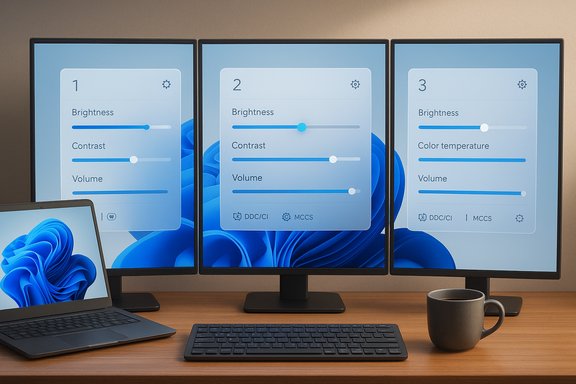
Microsoft is rolling out what may be the most practical, long‑overdue quality‑of‑life upgrade for multi‑monitor users: a PowerToys module (internally referred to as Power Monitor or PowerDisplay) that promises to put per‑monitor brightness, contrast, color temperature, and even speaker volume controls directly into Windows 11 — accessible from a single system‑tray flyout rather than tiny physical OSD buttons or fragmented vendor utilities.
Background / Overview
For years Windows has offered convenient brightness controls for built‑in laptop panels but not for the majority of external monitors. That gap has spawned a thriving niche of third‑party apps — Monitorian, Twinkle Tray, DisplayBuddy and others — which speak to monitors using industry standards to change settings. Microsoft’s PowerToys, a community‑driven toolbox for power users, now appears to be preparing a native, first‑party solution that centralizes those controls inside Windows and makes them available to a broader audience. A Microsoft program manager publicly teased the work on social media and screenshots and an early GitHub proposal have circulated, showing a neat flyout listing connected displays with per‑monitor sliders for brightness, contrast and color temperature — and a volume slider when monitors include speakers. Multiple outlets have reported the teaser and community discussion, and PowerToys team conversation suggests a goal of shipping a preview in an upcoming release cycle (some reporting cites a tentative January delivery target, which remains unofficial).Why this matters: the everyday pain point PowerToys is solving
Most desktop monitors still hide basic settings in slow, awkward on‑screen display (OSD) menus navigated with tiny physical buttons. For users with two or more screens — a growing norm for home offices, creators and traders — tuning each monitor by hand is disruptive and inefficient.A unified software surface provides immediate, recurring benefits:
- Time savings: Quick, per‑monitor sliders let users match brightness across displays or dim everything for evening work with a couple of clicks.
- Standardized UX: A consistent Microsoft‑maintained UI avoids the patchwork of manufacturer tools and inconsistent behaviors.
- Automation and shortcuts: Software can expose hotkeys, profiles and scheduling to adapt screens automatically across workflows.
How monitor control actually works (technical explanation)
Understanding the limitations and likely behavior of Power Monitor requires a brief primer on the standards that let a PC talk to a monitor.DDC/CI and MCCS: the plumbing under the UI
- DDC/CI (Display Data Channel / Command Interface) is the bidirectional communication channel that allows a host (your PC) to query and send commands to a monitor over the display link. If DDC/CI is present end‑to‑end, software can request the monitor’s capabilities and set parameters.
- MCCS / VCP (Monitor Control Command Set / Virtual Control Panel) defines the specific commands — called VCP codes — used to change functions like brightness (commonly VCP 0x10), contrast (0x12), color temperature and speaker volume. Which VCP codes a monitor implements determines what the software can control.
Practical compatibility factors
- Monitor support: Not every display exposes the same VCP codes. Basic brightness is widely supported, but contrast, precise color‑temperature adjustments and volume are more varied. Expect per‑model differences.
- Connection path: DDC/CI travels over HDMI, DisplayPort and USB‑C alt‑mode. Some docks, inexpensive adapters, or DisplayLink/USB graphics chains do not forward DDC/CI reliably, preventing software control. Direct GPU connections are the most reliable.
- Drivers and firmware: GPU drivers, monitor firmware and Windows updates can affect EDID/DDC/CI responses. Changes here sometimes break third‑party tools until fixes are released. The same will apply to PowerToys.
What the early previews show (and what’s plausible)
From leaked screenshots, GitHub drafts and developer teasers, the initial PowerToys monitor module is shaping up as a compact system‑tray flyout with:- Per‑monitor brightness sliders (one per detected display).
- Contrast sliders shown for monitors that expose the control.
- Color temperature / white balance adjustment (warm ↔ cool). This shows up in proposals and PR discussion but is more likely to be model‑dependent at launch.
- A volume slider for monitors with built‑in speakers or audio passthrough.
- Potential for profiles, quick presets and keyboard shortcuts in later updates.
Strengths and opportunities
Power Monitor — if implemented well — brings meaningful advantages that go beyond convenience.- First‑party trust and distribution: As a Microsoft‑maintained, open‑source module included in PowerToys, it will be easier for many users and enterprises to adopt than random third‑party binaries. Updates, code signing and deployment via Microsoft’s channels simplify management.
- Unified UX across brands: Instead of learning multiple vendor UIs, users get a consistent interface that follows Windows patterns. That reduces friction and support calls.
- Incubation path to Windows: PowerToys is often a testing ground; a successful module could inform future native OS features or tighter integration with Quick Settings.
- Improved multi‑monitor workflows: Creators, editors and gamers who regularly switch display modes could save repeated manual adjustments and use profiles or hotkeys to instantly change modes.
Risks, limits and realistic expectations
While the UI convenience is clear, several important constraints and risks must be kept in mind.1) Hardware cannot be changed by software
A Microsoft UI cannot make a monitor implement a VCP code it doesn’t support. If a monitor simply doesn’t expose color‑temperature VCPs, no slider will make it work. That’s a hardware/firmware reality.2) Docking stations and adapters remain weak links
Many real‑world failures with third‑party brightness tools come from hubs and docks that don’t forward DDC/CI. Users who rely on inexpensive USB‑C adapters or DisplayLink docks should test those chains; Power Monitor will face the same constraints unless vendors update their firmware/drivers.3) Color‑critical workflows need care
Software changes to brightness or color temperature can invalidate a monitor’s calibration. Photographers, video colorists and designers should re‑calibrate with a hardware colorimeter after major adjustments or treat software changes with caution. Power Monitor could add convenience, but it’s not a replacement for proper calibration workflows.4) Security and enterprise policies
Giving software control over external hardware expands the potential attack surface. Administrators should review how the module authenticates control requests, what permissions it needs, and how telemetry is handled before broad deployment in managed environments. PowerToys is open source, which helps with auditing, but governance practices are still necessary.5) Timeline uncertainty and scope creep
Several outlets report an optimistic January preview target, but that date is unofficial and dependent on code review, bug fixes and QA. Treat any date in reporting as provisional until PowerToys publishes release notes or a GitHub release.How to prepare now (practical checklist)
Users and administrators can take simple steps to maximize the chances Power Monitor will work on their setups.- Check monitor OSDs for a DDC/CI or “External Control” toggle and enable it if present.
- Prefer direct DisplayPort or HDMI connections from the GPU to the monitor when possible; avoid low‑end USB‑C hubs for initial testing.
- Test your monitors today with existing apps (Twinkle Tray, Monitorian, DisplayBuddy). If those tools can control the monitor, Power Monitor is likely to, too.
- For dock users, check vendor driver/firmware release notes and ensure DisplayLink or dock firmware is up to date; some vendors have added brightness forwarding in recent updates.
- For enterprise rollouts, pilot on representative hardware and document which monitor/dock combinations are supported before broad deployment.
The competitive landscape: why native matters
Third‑party applications have demonstrably filled the gap and remain excellent stopgaps. However, a native, Microsoft‑maintained solution matters for several reasons:- Trust and manageability: Enterprises prefer vetted, signed components they can deploy centrally. PowerToys’ Microsoft stewardship lowers the barrier for corporate adoption.
- Consistent updates: Vendor utilities are uneven in maintenance and compatibility. A central PowerToys module is likely to be updated more consistently and tested across Windows versions.
- Path to OS integration: Features developed in PowerToys have historically migrated into or inspired Windows UX improvements; a successful monitor module could inform future Quick Settings behavior.
What to watch next (milestones)
- A merged GitHub pull request or an official PowerToys issue marked as active rather than draft will be the clearest technical sign of imminent availability.
- A PowerToys preview (Dev/Canary) release that contains the module will let the community map compatibility and report regressions.
- Release notes that document supported VCP codes or a compatibility matrix would be particularly helpful for IT teams and power users.
Final assessment: practical, not magical
Power Monitor (aka PowerDisplay) is a pragmatic, high‑value addition that will remove a recurring annoyance for many Windows users. When it works — and for the majority of modern monitors connected directly to a GPU — it will be fast, reliable and immediately useful. As a PowerToys module, it benefits from Microsoft stewardship and the project’s open, iterative development model.However, it does not change the immutable realities of hardware standards: if a monitor or the connection chain doesn’t expose DDC/CI/MCCS VCPs, no software UI can make the monitor do more. The likely launch will therefore deliver significant wins for many users while leaving edge cases (certain docks, older displays, vendor‑specific features, and color‑critical professional workflows) needing additional vendor coordination or calibration work.
Microsoft’s PowerToys team is actively iterating on the UI and code, and a preview release may appear in the near term. Until then, users should test their monitors with existing DDC/CI apps and prepare direct GPU connections if they want the smoothest experience once the PowerToys module arrives.
Power Monitor is not a promise of universality — it’s a practical step toward a more usable Windows for multi‑monitor setups, and for many users it will make adjusting displays effortless for the first time.
Source: russpain.com Microsoft unveils long-awaited feature: Adjusting monitor brightness and contrast will soon be effortless
