

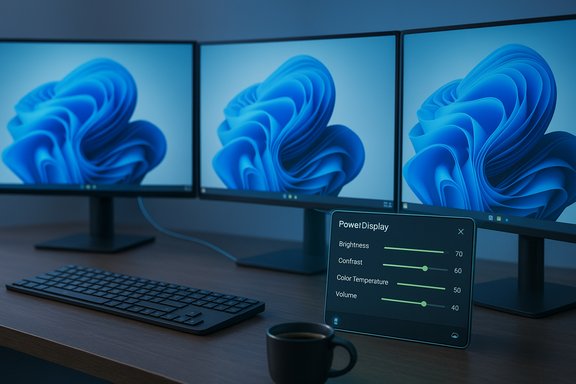
Microsoft’s PowerToys team has quietly teased what may be the most practical single addition to the suite in years: a native monitor-control utility — shown as PowerDisplay (also referred to in community threads as Power Monitor) — that promises per‑monitor brightness, contrast, color temperature and even volume controls from a system‑tray flyout, a long‑overdue convenience for Windows 11 multi‑monitor users.
PowerToys has long been Microsoft’s public sandbox for small, high‑value utilities that fill usability gaps Windows leaves open. Over the past few years the project has moved quickly from hobby‑level experiments into a supported, actively maintained collection distributed via GitHub and the Microsoft Store. The PowerDisplay concept was first surfaced publicly in late November 2025 when a Microsoft PowerToys program manager shared a screenshot and teased the work on X; subsequent reporting and an early GitHub patch/draft confirm the project is actively being worked. What the teaser shows is deceptively simple: a compact control panel accessible from the taskbar that lists attached displays and offers sliders for brightness, contrast and color temperature plus per‑monitor volume where available. That simplicity addresses a painful, everyday problem: while laptop panels have integrated brightness controls in Quick Settings, most external monitors still require fiddly, inconsistent on‑screen display (OSD) menus navigated with tiny hardware buttons. Third‑party tools already bridge this gap, but a first‑party, Microsoft‑maintained option promises broader trust, easier distribution and better integration with Windows workflows.
The most important caveat: the January ship target reported around the teaser is optimistic and should be considered tentative until a release appears on the official PowerToys channels. In the meantime, users can prepare by enabling DDC/CI on their monitors, testing with existing utilities, and preferring direct connections over hub chains that may block DDC. When it arrives, PowerDisplay could become the simplest, most trustworthy option for everyday multi‑monitor brightness and basic color adjustments on Windows 11 — a small change with outsized daily benefits.
Source: PCWorld Microsoft teases transformative upgrade for Windows 11 multi-monitor users
 Background / Overview
PowerToys has long been Microsoft’s public sandbox for small, high‑value utilities that fill usability gaps Windows leaves open. Over the past few years the project has moved quickly from hobby‑level experiments into a supported, actively maintained collection distributed via GitHub and the Microsoft Store. The PowerDisplay concept was first surfaced publicly in late November 2025 when a Microsoft PowerToys program manager shared a screenshot and teased the work on X; subsequent reporting and an early GitHub patch/draft confirm the project is actively being worked. What the teaser shows is deceptively simple: a compact control panel accessible from the taskbar that lists attached displays and offers sliders for brightness, contrast and color temperature plus per‑monitor volume where available. That simplicity addresses a painful, everyday problem: while laptop panels have integrated brightness controls in Quick Settings, most external monitors still require fiddly, inconsistent on‑screen display (OSD) menus navigated with tiny hardware buttons. Third‑party tools already bridge this gap, but a first‑party, Microsoft‑maintained option promises broader trust, easier distribution and better integration with Windows workflows. What PowerDisplay aims to do
- Per‑monitor brightness control — individual sliders for each connected display.
- Contrast and color temperature adjustments — basic color tuning without opening vendor OSD menus.
- Per‑monitor volume — control speakers built into monitors when supported.
- Quick profiles / presets — suggested by community discussion and early mockups as possible future additions.
- System‑tray / taskbar flyout — a context menu or flyout to control displays without opening Settings or vendor apps.
Why this matters for Windows 11 multi‑monitor users
For many multi‑monitor setups — especially desktops with external displays — adjusting brightness is a chore that breaks workflow. A software control surface:- Removes the need to reach for tiny hardware buttons.
- Standardizes controls across brands.
- Enables keyboard shortcuts and automation (brightness hotkeys, scheduling).
- Helps people working in mixed‑lighting environments quickly match displays for consistent comfort and color.
How it works (technical underpinnings)
At the technical level, software control of external monitors relies on industry standards that let a host send commands over the display cable:- DDC/CI (Display Data Channel / Command Interface) — a communications channel between PC and monitor used to send commands and read monitor status.
- MCCS / VCP (Monitor Control Command Set / Virtual Control Panel) — a set of standardized VCP codes that represent specific monitor functions (brightness, contrast, color temp, etc..
Compatibility and real‑world limits
Expect a mixed compatibility landscape on day one. The main factors that determine whether a monitor is controllable by software are:- Monitor support for DDC/CI and the specific VCP codes for the requested features.
- Whether the display connection path preserves the DDC/CI channel (direct DisplayPort/HDMI vs. low‑end USB‑C hubs and adapters).
- Docking stations and DisplayLink/USB‑graphics chains — some do not forward DDC commands or require specific drivers to support brightness control.
- Graphics driver and OS changes — updates occasionally alter how EDID/DDC queries behave and can temporarily break support.
- HDR, local dimming and color‑critical workflows — changing brightness or color temperature in software can clash with calibration or HDR pipelines used by color professionals.
Timeline and verification
Microsoft’s PowerToys program manager publicly teased PowerDisplay in late November 2025 and said the team hopes to "ship in January," with a likely inclusion in a near‑release PowerToys milestone (0.98 mentioned in community discussion). That timeline is an optimistic target — a plan, not a firm ship date. PowerToys releases are frequent and public, but the Po/werDisplay module remains under review, with code and UI changes still in progress. Treat January as a reasonable expectation but not a guarantee until a release note or the official GitHub release appears. Cross‑verification: multiple independent outlets reported the teaser and the January target, and an early GitHub proposal/pull request exists in the PowerToys repository showing the draft UI and feature discussion. Those three touchpoints — social post from a program manager, coverage by independent tech outlets, and a visible GitHub entry — form the basis for the timeline claim. Still, community and Microsoft commentary explicitly call the date provisional.What to expect at launch (realistic feature list)
Based on the public mockups and the GitHub discussion, anticipate the following in an initial preview or release:- Brightness sliders for every detectable display.
- Contrast slider and color temperature (warm/cool) control on a per‑display basis.
- Volume control for displays with speakers or audio passthrough.
- A taskbar or system‑tray flyout for quick access and possible right‑click context menu integration.
- Basic keyboard shortcuts and an overlay OSD similar to the Windows volume indicator.
- Compatibility fallbacks and a note about hardware limitations in the release notes.
Enterprise and IT considerations
PowerDisplay arriving as a PowerToys module changes the calculus for enterprises and IT pros. Key points to weigh:- Deployment: PowerToys is available via Microsoft Store, GitHub releases and winget. For enterprise rollouts prefer signed installers and validated update channels.
- Governance: PowerToys supports telemetry opt‑outs and can be managed through Group Policy/MDM in controlled deployments, but administrators should validate module behavior before wide rollout.
- Compatibility matrix: IT teams should pilot on representative hardware (monitors, docks, GPUs) to document which models/dock combinations work reliably.
- Security & trust: PowerToys is Microsoft‑maintained and open source, which reduces trust friction versus unknown third‑party binaries — but code review and vulnerability scanning remain best practice.
- Helpdesk impacts: A new control surface can both reduce calls (no more OSD button instructions) and create new ones if certain monitors behave unexpectedly; pre‑release communication and FAQs help reduce churn.
Practical preparation checklist (what users should do today)
- Check whether your monitor supports DDC/CI and enable it in the monitor OSD if it’s off.
- Prefer direct GPU connections (DisplayPort or HDMI) over cheap third‑party hubs when possible.
- Test your monitors with one of the established third‑party tools (Twinkle Tray, Monitorian, DisplayBuddy). If those tools can control your monitor, PowerDisplay is likely to work too.
- For USB‑C dock or DisplayLink users, check vendor release notes and drivers — recent updates sometimes add DDC/CI forwarding support.
- Install PowerToys from a trusted channel and enable automatic updates to get the module as soon as it’s released.
Strengths — what PowerDisplay brings to Windows 11
- High daily value: Quick, reliable brightness and basic color adjustments are used multiple times a day; the time saved is immediate and cumulative.
- First‑party trust: Microsoft stewardship reduces risk relative to random third‑party binaries and simplifies enterprise adoption.
- Unified UI: One consistent control surface avoids the fragmented experience of vendor tools and varying OSD layouts.
- Potential OS influence: PowerToys historically incubates features that later influence Windows (FancyZones influenced snapping; Light Switch prefigured OS theme work). PowerDisplay could similarly inform future native Windows capabilities.
Risks and limitations — what will not magically change
- Hardware is the gatekeeper: If a monitor or cable chain refuses to forward DDC/CI, no software can force control.
- Inconsistent VCP implementations: Not all monitors expose the same VCP codes; some only allow brightness while others expose a richer set.
- Dock and adapter behavior: Many problems reported with third‑party tools stem from hubs or low‑end adapters that do not forward DDC, and the same will affect PowerDisplay.
- Color‑critical workflows: For photographers, video colorists, and designers using calibrated profiles and HDR, software changes can complicate accurate color reproduction; re‑calibration may be required after adjustments.
- Timing and QA: The January ship target is provisional; shipping quality and support for edge cases depend on the community preview and bug triage.
How PowerDisplay could change workflows (examples)
- A video editor working across two displays can instantly match brightness and color temperature between a reference monitor and the editing monitor without stepping through multiple OSD menus.
- A hybrid worker moving between bright daylight and evening can use a hotkey or scheduled preset to reduce combined display brightness and color temperature for comfort.
- IT support teams can reduce time spent walking users through physical OSD navigation and instead provide instructions for a single software control panel.
What to watch next
- A GitHub pull request merge and a PowerToys release note announcing PowerDisplay will be the definitive sign it’s ready for public use.
- Early community reports from preview users will quickly reveal which monitor models and docks work or fail.
- Notes about HDR handling, local dimming, and color profile interactions — these areas are the most likely to generate nuanced guidance for professionals.
- Microsoft’s official distribution channels — GitHub releases, Microsoft Store, and winget — for the actual release and version number.
Conclusion
PowerToys’ PowerDisplay promises to be one of those deceptively small features that materially improves daily life for multi‑monitor users. By packaging per‑monitor brightness, contrast, color temperature and volume controls into a simple, taskbar‑accessible flyout, Microsoft is tackling a persistent usability gap. The technical approach will rely on established standards (DDC/CI and VCP commands), which means success will hinge on hardware cooperation — direct GPU connections and monitor DDC/CI support will be the reliable path to smooth operation.The most important caveat: the January ship target reported around the teaser is optimistic and should be considered tentative until a release appears on the official PowerToys channels. In the meantime, users can prepare by enabling DDC/CI on their monitors, testing with existing utilities, and preferring direct connections over hub chains that may block DDC. When it arrives, PowerDisplay could become the simplest, most trustworthy option for everyday multi‑monitor brightness and basic color adjustments on Windows 11 — a small change with outsized daily benefits.
Source: PCWorld Microsoft teases transformative upgrade for Windows 11 multi-monitor users
