

Dual-booting Windows 11 and Linux remains one of the most practical ways to get the best of both operating systems on a single machine. Windows 11 gives you broad hardware compatibility, gaming support, and mainstream commercial software, while Linux offers deep customization, strong developer tooling, and a cleaner path for experimentation. The catch is that dual booting is not a casual install-and-forget task: it changes partitions, boot records, and firmware settings, so a careful plan matters far more than most quick guides admit. Microsoft’s own Windows 11 requirements make the underlying compatibility story clear: UEFI, Secure Boot capability, and TPM 2.0 are central to the platform, and those same elements shape how smoothly Linux can coexist beside it.
What makes this topic especially relevant in 2026 is that the boot stack on modern PCs is becoming more security-sensitive, not less. Windows 11 expects a modern firmware environment, and Ubuntu’s own documentation continues to frame dual booting in UEFI terms, including Secure Boot support and shared EFI partitions. That means the old “just install another OS” mindset is risky; today’s dual boot setup is really a firmware-aware storage and startup configuration project. Done well, it is reliable, fast, and reversible. Done poorly, it can leave you with boot loops, missing menu entries, or a machine that appears to have lost one operating system altogether.
Dual booting has been around for decades, but the rules changed as PCs moved from Legacy BIOS to UEFI. In the BIOS era, operating systems often fought over the master boot record, and one installer could easily overwrite another. UEFI shifted boot management into firmware, introduced a standardized EFI System Partition, and made multi-OS setups more structured—but also more dependent on consistent boot modes and signed boot components. The modern dual-boot story is therefore less about “which OS installs last” and more about whether both operating systems speak the same firmware language.
For Windows users, the biggest change is that Windows 11 is no longer relaxed about platform security. Microsoft documents TPM 2.0, UEFI, and Secure Boot as core requirements, and the company’s support guidance continues to emphasize that those settings are managed in UEFI firmware and vary by device manufacturer. That matters because Linux installers generally expect to share the same firmware environment rather than replace it. In other words, if Windows 11 is installed in UEFI mode, Linux should also be installed in UEFI mode to avoid inconsistent boot paths.
Linux distributions have also grown more user-friendly. Ubuntu, Fedora, and Linux Mint all offer installers that can detect an existing Windows installation and create a dual-boot arrangement with less manual effort than before. Ubuntu’s guidance on UEFI and Secure Boot reflects that reality, noting that modern Linux boot flows can work with the same EFI partition Windows already uses. The experience is far easier than it was ten years ago, but the convenience does not remove the need for discipline around backups, partition sizing, and boot order.
The reason dual booting still matters is simple: it offers native performance on both sides. Unlike a virtual machine, which shares CPU, memory, and storage resources with a host OS, dual booting gives each system the full machine when it is running. That is why developers, gamers, security researchers, and power users continue to rely on it. It is also why the setup process must be handled with a level of care that matches the stakes.
For many users, the choice is not “Windows or Linux” but “Windows for this task, Linux for that task.” A developer may need Linux for local testing and package workflows but Windows for Adobe tools or a specific VPN client. A gamer may want Windows 11 for anti-cheat compatibility and Linux for server administration or scripting. Dual booting preserves both ecosystems in their native forms, which is why it remains popular even as WSL and containerized environments improve.
At the same time, dual booting is less convenient than running Linux under WSL inside Windows. You have to reboot to switch environments, and that makes the setup best suited to people who actually need a second OS rather than merely want to sample one. For occasional Linux commands, WSL may be enough. For a full Linux desktop and full hardware access, dual booting is still the cleaner answer.
Key reasons users choose dual booting include:
The safest approach is to back up everything you care about before resizing a disk. Partition work always carries some risk, and even though Windows Disk Management is reliable, mistakes happen. If BitLocker or device encryption is enabled, suspend or disable it before changing partitions so you do not end up in a recovery-key headache after rebooting. That step is especially important on laptops and newer desktops where encryption is turned on by default or enabled quietly during setup.
You should also inspect the existing EFI System Partition. On a Windows 11 machine, it will usually already exist. Linux can typically reuse it without formatting, which is one reason dual booting is easier today than in the BIOS era. The important rule is simple: use the EFI partition, but do not wipe it.
Checklist before proceeding:
An 8 GB USB drive is the practical minimum, and larger is better if you keep multiple installers or want room for a rescue environment. The process erases the USB, so do not use a drive with data you still need. Once the media is written, it is worth testing it immediately rather than waiting until installation day. A bootable stick that fails to start defeats the purpose of all your earlier planning.
For many readers, Ubuntu is still the path of least resistance. It has mature UEFI support, broad documentation, and good Secure Boot behavior on standard consumer hardware. If your system uses unusual wireless chips or graphics hardware, though, you should check compatibility before committing.
A practical media-creation sequence is:
Do not create a new Windows partition in that space. Leave it unallocated. The Linux installer will use it more intelligently, whether you choose an automatic guided install or manual partitioning. This is a subtle but important point: unallocated space gives the Linux installer freedom, while a new NTFS partition can constrain what the installer offers.
A practical allocation model is:
This stage is where careful users distinguish themselves from lucky ones. Dual booting is very forgiving when planned well, but it punishes improvisation.
Once Windows is installed and updated, the Linux installer can use the unallocated space and the existing EFI partition. Most mainstream installers will offer a friendly “Install alongside Windows Boot Manager” option. That is the simplest route for most users because it automates partitioning and bootloader placement. If you are comfortable with manual partitioning, you can use “Something else” or equivalent advanced options to control exactly where root, swap, and home go.
A basic manual layout often looks like this:
The boot strategy is equally important. If the machine boots directly into Windows after installation, that is often just a firmware boot-order issue, not a failed installation. You can usually fix it by setting the Linux boot entry first in UEFI, or by allowing GRUB to take control of startup again. The point is not merely to install two systems, but to make sure the firmware knows how to reach both.
Still, not every machine behaves identically. Some systems ship with firmware bugs, custom OEM settings, or unusual trust chains. If the Linux installer refuses to boot or the machine drops to a black screen, temporarily disabling Secure Boot can help you complete the install. In many cases you can re-enable it afterward if your distro’s boot chain is supported. That makes Secure Boot less of a “yes or no” choice and more of a compatibility checkpoint.
Important firmware-related cautions include:
In everyday use, GRUB is less a problem than a control point. You can set the default entry, change the timeout, and decide how long the menu remains visible. If you want Linux to boot by default but still allow a quick switch to Windows, a short timeout is ideal. If you boot Windows most mornings and Linux only occasionally, you may prefer the reverse.
Common GRUB maintenance tasks include:
For advanced users, custom GRUB entries can be useful, but they also introduce maintenance overhead. Keep customization modest unless you have a specific reason to deviate from the defaults. The more standard your setup, the easier it is to recover later.
The best troubleshooting mindset is to ask, “Did the bootloader fail, or did the firmware simply stop pointing to it?” Many users assume the former when the latter is true. If Linux is installed properly but hidden behind a changed boot order, the fix is usually in UEFI settings rather than in the filesystem itself.
A useful recovery checklist is:
For users who share files between systems, the bigger danger is Windows behavior around mounted partitions. Fast Startup can leave NTFS volumes in a semi-hibernated state, which may confuse Linux when it mounts them. That is why many dual boot guides recommend disabling Fast Startup on the Windows side. It reduces the chance of filesystem inconsistencies and makes shared drives behave more predictably.
Practical habits that help:
In enterprise settings, the stakes are much higher. A dual boot workstation can complicate policy enforcement, encryption, compliance, and patching. IT departments generally prefer standard images because they simplify support and reduce the number of moving parts. Windows 11’s security model, including TPM and Secure Boot, is part of why enterprises want predictable platform behavior, not ad hoc startup combinations.
Still, there are legitimate enterprise use cases. Security researchers, developers, and system engineers sometimes need native access to both Windows and Linux tooling on the same hardware. In those cases, the organization often provides a managed, documented dual boot template rather than leaving the setup to individual employees.
In consumer use, the freedom is the selling point. In enterprise use, control is the priority. That difference explains why the same technical design can be celebrated in one context and discouraged in another.
The biggest opportunities come from using each OS for what it does best. Windows remains the safe harbor for proprietary apps, consumer gaming, and wide device support. Linux becomes the power tool for development, scripting, containers, server work, and customization.
The second risk is complexity creep. A dual boot setup can start simple and become difficult to maintain if you add unusual partition layouts, encryption schemes, or custom bootloader tweaks. The more bespoke the system, the harder it is to troubleshoot when something breaks.
The near-term future is also shaped by security expectations. With Windows 11 leaning heavily on TPM, Secure Boot, and UEFI, any dual boot design that ignores firmware discipline will age poorly. At the same time, Linux distributions are increasingly comfortable in signed-boot environments, which makes the coexistence story better than it was in the past.
If you are planning a new dual boot machine, focus on these priorities first:
Dual booting Windows 11 and Linux remains a smart choice for users who value both compatibility and control. The setup process is more approachable than it used to be, but the fundamentals have not changed: respect the firmware, plan your storage, and treat boot configuration as infrastructure rather than decoration. If you do that, the result is a stable, high-performance machine that can switch identities at the press of a key—and that flexibility is still one of the most compelling features a PC can offer.
Source: 9meters Dual Boot Windows 11 and Linux: Step-by-Step Guide - 9meters
What makes this topic especially relevant in 2026 is that the boot stack on modern PCs is becoming more security-sensitive, not less. Windows 11 expects a modern firmware environment, and Ubuntu’s own documentation continues to frame dual booting in UEFI terms, including Secure Boot support and shared EFI partitions. That means the old “just install another OS” mindset is risky; today’s dual boot setup is really a firmware-aware storage and startup configuration project. Done well, it is reliable, fast, and reversible. Done poorly, it can leave you with boot loops, missing menu entries, or a machine that appears to have lost one operating system altogether.
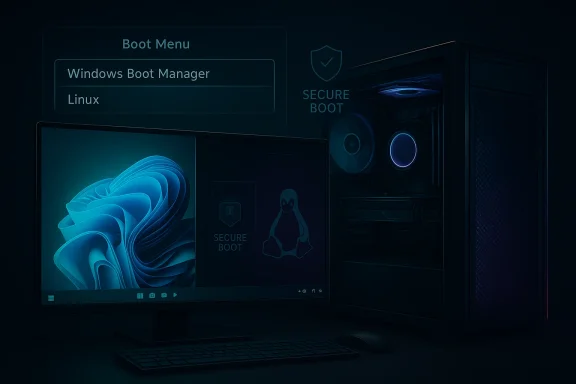 Background
Dual booting has been around for decades, but the rules changed as PCs moved from Legacy BIOS to UEFI. In the BIOS era, operating systems often fought over the master boot record, and one installer could easily overwrite another. UEFI shifted boot management into firmware, introduced a standardized EFI System Partition, and made multi-OS setups more structured—but also more dependent on consistent boot modes and signed boot components. The modern dual-boot story is therefore less about “which OS installs last” and more about whether both operating systems speak the same firmware language.For Windows users, the biggest change is that Windows 11 is no longer relaxed about platform security. Microsoft documents TPM 2.0, UEFI, and Secure Boot as core requirements, and the company’s support guidance continues to emphasize that those settings are managed in UEFI firmware and vary by device manufacturer. That matters because Linux installers generally expect to share the same firmware environment rather than replace it. In other words, if Windows 11 is installed in UEFI mode, Linux should also be installed in UEFI mode to avoid inconsistent boot paths.
Linux distributions have also grown more user-friendly. Ubuntu, Fedora, and Linux Mint all offer installers that can detect an existing Windows installation and create a dual-boot arrangement with less manual effort than before. Ubuntu’s guidance on UEFI and Secure Boot reflects that reality, noting that modern Linux boot flows can work with the same EFI partition Windows already uses. The experience is far easier than it was ten years ago, but the convenience does not remove the need for discipline around backups, partition sizing, and boot order.
The reason dual booting still matters is simple: it offers native performance on both sides. Unlike a virtual machine, which shares CPU, memory, and storage resources with a host OS, dual booting gives each system the full machine when it is running. That is why developers, gamers, security researchers, and power users continue to rely on it. It is also why the setup process must be handled with a level of care that matches the stakes.
Why Dual Booting Still Makes Sense
The strongest argument for dual booting is that it solves a real workflow problem without forcing you to compromise on hardware performance. Windows 11 remains the best fit for a wide range of commercial applications, game launchers, and vendor utilities. Linux, by contrast, is often the better environment for shell work, package management, automation, container tools, and system-level customization. Using both on one machine is not redundancy; it is a practical division of labor.For many users, the choice is not “Windows or Linux” but “Windows for this task, Linux for that task.” A developer may need Linux for local testing and package workflows but Windows for Adobe tools or a specific VPN client. A gamer may want Windows 11 for anti-cheat compatibility and Linux for server administration or scripting. Dual booting preserves both ecosystems in their native forms, which is why it remains popular even as WSL and containerized environments improve.
Native Performance Versus Convenience
A dual boot system avoids the overhead of virtualization. That means direct access to the GPU, the full storage stack, and all the firmware features your hardware offers. It is especially valuable for workloads that are sensitive to latency, graphics performance, or driver behavior.At the same time, dual booting is less convenient than running Linux under WSL inside Windows. You have to reboot to switch environments, and that makes the setup best suited to people who actually need a second OS rather than merely want to sample one. For occasional Linux commands, WSL may be enough. For a full Linux desktop and full hardware access, dual booting is still the cleaner answer.
Key reasons users choose dual booting include:
- Full native performance in each operating system.
- Better hardware access for GPU-heavy or driver-sensitive tasks.
- Cleaner separation between work environments.
- Freedom to test Linux without abandoning Windows.
- Preservation of Windows-only software alongside open-source tools.
Preparing the Machine Correctly
Preparation is where most dual boot projects succeed or fail. Before touching partitions, verify that your machine is actually suitable for the job. Windows 11’s official requirements point to UEFI, Secure Boot capable firmware, and TPM 2.0, while the storage requirement is at least 64 GB just for the OS itself. Linux can be lighter, but modern desktop distributions still need enough space to remain comfortable after updates, packages, and user data are installed.The safest approach is to back up everything you care about before resizing a disk. Partition work always carries some risk, and even though Windows Disk Management is reliable, mistakes happen. If BitLocker or device encryption is enabled, suspend or disable it before changing partitions so you do not end up in a recovery-key headache after rebooting. That step is especially important on laptops and newer desktops where encryption is turned on by default or enabled quietly during setup.
Check Firmware and Disk Layout
Open the firmware settings and confirm that your system is booting in UEFI mode, not Legacy BIOS mode. Also verify that the disk uses GPT rather than MBR, because modern Windows 11 installs are built around GPT and UEFI. If your disk is already GPT, you are in much better shape; if not, conversion is possible in some cases, but it adds complexity you do not want during a first dual-boot setup.You should also inspect the existing EFI System Partition. On a Windows 11 machine, it will usually already exist. Linux can typically reuse it without formatting, which is one reason dual booting is easier today than in the BIOS era. The important rule is simple: use the EFI partition, but do not wipe it.
Checklist before proceeding:
- Confirm Windows 11 is installed in UEFI mode.
- Verify the disk is GPT.
- Make sure Secure Boot status is understood.
- Disable or suspend BitLocker/device encryption temporarily.
- Leave enough unallocated space for Linux.
- Keep a recovery USB handy for Windows.
Creating Safe Installation Media
The Linux installation USB is your bridge into the second operating system, and it should be created carefully. Download the ISO from the official website of your chosen distribution and write it with a trusted imaging tool such as Rufus or Etcher. For most modern PCs, you want a GPT partition scheme and UEFI target system when writing the USB, because that matches the Windows 11 firmware model.An 8 GB USB drive is the practical minimum, and larger is better if you keep multiple installers or want room for a rescue environment. The process erases the USB, so do not use a drive with data you still need. Once the media is written, it is worth testing it immediately rather than waiting until installation day. A bootable stick that fails to start defeats the purpose of all your earlier planning.
Choosing the Right Linux Distribution
Not every Linux distribution is the same for first-time dual booters. Ubuntu and Linux Mint tend to be the most forgiving because their installers offer a guided “install alongside Windows Boot Manager” path. Fedora is also a strong option, especially for users who prefer a more current kernel and a more upstream-oriented stack. The best choice is usually the one whose installer and hardware support match your comfort level.For many readers, Ubuntu is still the path of least resistance. It has mature UEFI support, broad documentation, and good Secure Boot behavior on standard consumer hardware. If your system uses unusual wireless chips or graphics hardware, though, you should check compatibility before committing.
A practical media-creation sequence is:
- Download the Linux ISO from the distro’s official site.
- Verify the file if checksums are published.
- Use Rufus or a similar tool to write the USB in UEFI/GPT mode.
- Safely eject the stick.
- Boot from it once before the real install to confirm it works.
Shrinking Windows Without Breaking It
The best practice is to make space for Linux from inside Windows, not from the Linux installer. Windows understands its own filesystem and can shrink NTFS partitions more safely than a third-party tool guessing at occupied blocks. Open Disk Management, right-click the main Windows partition, and shrink it enough to create unallocated space for Linux. For most people, 50 GB to 100 GB is a sensible starting point for Linux, though heavy users may want more.Do not create a new Windows partition in that space. Leave it unallocated. The Linux installer will use it more intelligently, whether you choose an automatic guided install or manual partitioning. This is a subtle but important point: unallocated space gives the Linux installer freedom, while a new NTFS partition can constrain what the installer offers.
How Much Space Should Linux Get?
The answer depends on how you plan to use it. A casual Linux desktop can function in 30 GB, but that is tight once you add applications, updates, and files. If you intend to compile software, use containers, or keep project data locally, more space is worth the upfront cost. A dual boot setup with only a tiny Linux partition often feels cramped within months.A practical allocation model is:
- 30–50 GB for a minimal Linux install.
- 60–100 GB for a comfortable general-purpose desktop.
- More than 100 GB if you plan to build, test, or store data locally.
This stage is where careful users distinguish themselves from lucky ones. Dual booting is very forgiving when planned well, but it punishes improvisation.
Installation Order and Boot Strategy
The classic advice still holds: install Windows first, Linux second. Windows installers are notorious for reclaiming boot control when they are installed after Linux. By installing Windows first, you let Linux detect Windows Boot Manager during its own installation and add it cleanly to the GRUB menu. Microsoft’s and Ubuntu’s firmware guidance align with that shared UEFI approach, which is why the order matters so much.Once Windows is installed and updated, the Linux installer can use the unallocated space and the existing EFI partition. Most mainstream installers will offer a friendly “Install alongside Windows Boot Manager” option. That is the simplest route for most users because it automates partitioning and bootloader placement. If you are comfortable with manual partitioning, you can use “Something else” or equivalent advanced options to control exactly where root, swap, and home go.
Automatic Versus Manual Partitioning
Automatic partitioning is ideal if your goal is reliability, not experimentation. The installer will create the necessary ext4 partitions, mount the EFI partition, and configure GRUB to list both systems. Manual partitioning is best for users who want separate/home storage, special encryption, or more control over mount points.A basic manual layout often looks like this:
- A root partition
/for the operating system. - A home partition
/homefor personal files. - Optional swap space if you want a swap partition instead of a swap file.
- The existing EFI System Partition mounted, not formatted.
The boot strategy is equally important. If the machine boots directly into Windows after installation, that is often just a firmware boot-order issue, not a failed installation. You can usually fix it by setting the Linux boot entry first in UEFI, or by allowing GRUB to take control of startup again. The point is not merely to install two systems, but to make sure the firmware knows how to reach both.
Secure Boot, BitLocker, and Firmware Realities
Secure Boot used to sound like an optional advanced feature. In 2026, it is part of the mainstream startup model. Microsoft explicitly positions Windows 11 around Secure Boot-capable UEFI firmware, and many modern Linux distributions support Secure Boot with signed boot components and signed kernels. That means Secure Boot is often compatible with dual booting rather than an obstacle to it.Still, not every machine behaves identically. Some systems ship with firmware bugs, custom OEM settings, or unusual trust chains. If the Linux installer refuses to boot or the machine drops to a black screen, temporarily disabling Secure Boot can help you complete the install. In many cases you can re-enable it afterward if your distro’s boot chain is supported. That makes Secure Boot less of a “yes or no” choice and more of a compatibility checkpoint.
BitLocker and Startup Encryption
BitLocker introduces another layer of complexity. If the Windows partition is encrypted and you change firmware settings, the system may prompt for a recovery key on the next boot. That is not a disaster, but it is an avoidable interruption. Suspend BitLocker before installation and re-enable it once the dual boot configuration is stable.Important firmware-related cautions include:
- Secure Boot may need a temporary change during installation.
- BitLocker should be suspended before partition changes.
- Boot mode should remain consistently UEFI.
- Recovery keys should be saved before any major change.
- Firmware updates can reset boot order or security toggles.
Living with GRUB and the Boot Menu
Once Linux is installed, GRUB usually becomes the main boot menu. It detects Linux, Windows Boot Manager, and sometimes other installed systems, then presents a menu at startup. This is convenient because one menu can lead you to either operating system, but it also means the bootloader itself becomes a critical component of your setup. If GRUB breaks, the machine may still be fine—but your path to one of the operating systems may be hidden until you repair it.In everyday use, GRUB is less a problem than a control point. You can set the default entry, change the timeout, and decide how long the menu remains visible. If you want Linux to boot by default but still allow a quick switch to Windows, a short timeout is ideal. If you boot Windows most mornings and Linux only occasionally, you may prefer the reverse.
Updating and Repairing GRUB
One of the most useful Linux commands in a dual boot environment issudo update-grub. It refreshes the bootloader configuration and often restores missing Windows menu entries after updates or changes. If Windows no longer appears, this is usually the first thing to try. Ubuntu’s UEFI documentation and related community guidance continue to frame GRUB as the standard UEFI-era bootloader for dual booting.Common GRUB maintenance tasks include:
- Running
sudo update-grubafter boot changes. - Checking whether os-prober is enabled if Windows is missing.
- Reinstalling GRUB from a live USB if the bootloader is damaged.
- Verifying the EFI partition is still mounted correctly.
- Adjusting the default boot entry for convenience.
For advanced users, custom GRUB entries can be useful, but they also introduce maintenance overhead. Keep customization modest unless you have a specific reason to deviate from the defaults. The more standard your setup, the easier it is to recover later.
Common Problems and How to Think About Them
Dual boot problems often look dramatic but have ordinary causes. One of the most common issues is Windows not appearing in GRUB. Another is Windows booting directly because a firmware update or setup reset changed the boot order. A third is time drift, where Linux and Windows disagree about whether the hardware clock is stored in local time or UTC. These are nuisances, not catastrophes.The best troubleshooting mindset is to ask, “Did the bootloader fail, or did the firmware simply stop pointing to it?” Many users assume the former when the latter is true. If Linux is installed properly but hidden behind a changed boot order, the fix is usually in UEFI settings rather than in the filesystem itself.
Typical Faults and Practical Fixes
A few straightforward habits solve a surprising number of issues. Keep a Linux live USB in your drawer, because it can repair GRUB, inspect partitions, and confirm whether Windows is still detected. Use Windows recovery tools if the Windows boot path itself is damaged. And if a recent update changed behavior, remember that boot settings are one of the first things firmware or vendor utilities may reset.A useful recovery checklist is:
- Boot into Linux and run
sudo update-grubif Windows is missing. - Use a live USB to reinstall GRUB if the bootloader is damaged.
- Check UEFI boot order if the wrong OS starts automatically.
- Disable Windows Fast Startup if shared partitions act strangely.
- Fix time synchronization if the clocks disagree across OSes.
Windows Updates and Linux Compatibility
Windows updates are the one recurring event that can unexpectedly disturb a dual boot setup. They do not usually delete Linux, but they can change boot priority, modify firmware settings, or shift the default recovery path. This is especially true after major feature updates or manufacturer-level firmware changes. The good news is that Windows itself is rarely the true enemy; the challenge is simply that it expects to stay in control of its own boot environment.For users who share files between systems, the bigger danger is Windows behavior around mounted partitions. Fast Startup can leave NTFS volumes in a semi-hibernated state, which may confuse Linux when it mounts them. That is why many dual boot guides recommend disabling Fast Startup on the Windows side. It reduces the chance of filesystem inconsistencies and makes shared drives behave more predictably.
How to Reduce Update Surprises
A stable dual boot setup does not mean you ignore Windows updates. It means you prepare for them. Keep recovery media, know how to reach UEFI settings, and assume that a future update may reorder boot entries or prompt for encryption recovery. None of that means dual booting is unsafe; it means the system is dynamic and should be treated that way.Practical habits that help:
- Turn off Windows Fast Startup.
- Reboot after major Windows updates and confirm the boot menu.
- Keep one Linux live USB available.
- Store recovery keys for BitLocker and firmware.
- Avoid unnecessary custom bootloader tweaks.
Enterprise and Consumer Impact Are Not the Same
For consumers, dual booting is usually about convenience, learning, or gaming. You may want Linux for privacy, development, or curiosity, while keeping Windows for software compatibility. In that environment, the risk is mostly personal downtime. If the machine fails to boot cleanly, the consequences are inconvenient but manageable.In enterprise settings, the stakes are much higher. A dual boot workstation can complicate policy enforcement, encryption, compliance, and patching. IT departments generally prefer standard images because they simplify support and reduce the number of moving parts. Windows 11’s security model, including TPM and Secure Boot, is part of why enterprises want predictable platform behavior, not ad hoc startup combinations.
Why Businesses Are Cautious
A dual boot machine can frustrate endpoint management tools if one OS is not visible from the other. It can also complicate disk encryption and recovery procedures, especially when employees are not disciplined about firmware changes. That is why dual boot is much more common in labs, developer workstations, and special-purpose systems than in general employee fleets.Still, there are legitimate enterprise use cases. Security researchers, developers, and system engineers sometimes need native access to both Windows and Linux tooling on the same hardware. In those cases, the organization often provides a managed, documented dual boot template rather than leaving the setup to individual employees.
In consumer use, the freedom is the selling point. In enterprise use, control is the priority. That difference explains why the same technical design can be celebrated in one context and discouraged in another.
Strengths and Opportunities
Dual booting is not just a workaround; it is a flexible computing model that gives users more options without forcing them into cloud-only compromises. When it is set up carefully, it can support a better daily workflow than either OS alone. It is also a good way to learn Linux without discarding the comfort and compatibility of Windows.The biggest opportunities come from using each OS for what it does best. Windows remains the safe harbor for proprietary apps, consumer gaming, and wide device support. Linux becomes the power tool for development, scripting, containers, server work, and customization.
- Native performance in both systems.
- Better software coverage across Windows-only and Linux-only tools.
- Improved learning path for new Linux users.
- Flexible recovery options when one OS needs repair.
- Strong fit for developers who need cross-platform testing.
- No virtualization overhead for performance-sensitive tasks.
Risks and Concerns
The primary risk is still data loss, and that risk is real because partitioning always carries consequences. A mistake during resize, an accidental format, or a firmware change can create a recovery headache. Even if the installation itself succeeds, later changes from Windows updates or firmware updates can disrupt the startup path.The second risk is complexity creep. A dual boot setup can start simple and become difficult to maintain if you add unusual partition layouts, encryption schemes, or custom bootloader tweaks. The more bespoke the system, the harder it is to troubleshoot when something breaks.
- Partition mistakes can destroy existing data.
- BitLocker recovery prompts may appear after firmware changes.
- Secure Boot incompatibility can block some installers.
- Windows Fast Startup can destabilize shared NTFS access.
- Boot order resets can make Linux appear to disappear.
- Hardware driver gaps may affect Wi-Fi, graphics, or sleep behavior.
Looking Ahead
Dual booting is likely to remain relevant because the software world is not converging fast enough to eliminate it. Windows continues to dominate compatibility and gaming, while Linux continues to dominate flexibility and many engineering workflows. That split is unlikely to disappear soon, which means shared hardware access will keep its value. Modern firmware architecture has made the arrangement more orderly, but not less important.The near-term future is also shaped by security expectations. With Windows 11 leaning heavily on TPM, Secure Boot, and UEFI, any dual boot design that ignores firmware discipline will age poorly. At the same time, Linux distributions are increasingly comfortable in signed-boot environments, which makes the coexistence story better than it was in the past.
If you are planning a new dual boot machine, focus on these priorities first:
- Back up everything before partitioning.
- Install Windows first, Linux second.
- Use UEFI and GPT consistently.
- Reuse, don’t format, the EFI partition.
- Keep a Linux live USB for recovery.
Dual booting Windows 11 and Linux remains a smart choice for users who value both compatibility and control. The setup process is more approachable than it used to be, but the fundamentals have not changed: respect the firmware, plan your storage, and treat boot configuration as infrastructure rather than decoration. If you do that, the result is a stable, high-performance machine that can switch identities at the press of a key—and that flexibility is still one of the most compelling features a PC can offer.
Source: 9meters Dual Boot Windows 11 and Linux: Step-by-Step Guide - 9meters
