

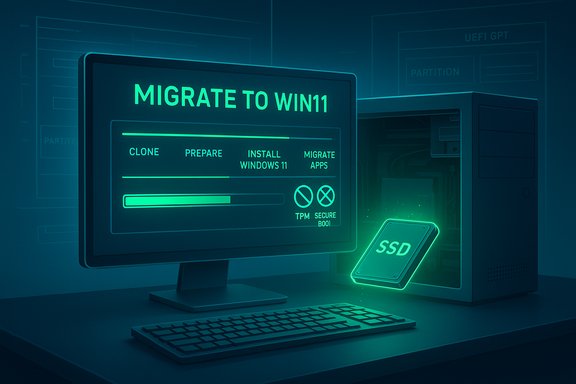
EaseUS’ latest Disk Copy 6.9.0 pushes a bold gamble into the Windows migration market by combining disk cloning and a one‑step Windows 11 migration into a single workflow — the “Migrate to Win11” mode promises to clone your drive, upgrade the OS in place on the target disk, and even bypass common hardware checks such as TPM and Secure Boot where required, all while preserving files, applications and settings.
Windows 10 reached its widely publicized end‑of‑support milestone in mid‑October 2025, forcing many users and small IT teams into a migration decision: upgrade in place to Windows 11, replace hardware, or accept the security and compliance risks of running an unsupported OS. Microsoft’s Windows 11 platform introduced stricter hardware gates — UEFI + Secure Boot, TPM 2.0, a modern CPU baseline and a minimum disk/ram footprint — which left a significant portion of the installed base needing more than just a software update. Vendors have responded with tools and playbooks to make migrations smoother: image first, prepare the disk (MBR→GPT and UEFI/Secure Boot), and then migrate apps and data. EaseUS has packaged those steps into a coordinated pitch across its imaging, partition and migration products — and now folds the three tasks into Disk Copy’s new migration mode.
If organizational compliance or regulatory rules stipulate supported OS configurations or require official update channels, avoid bypassing Microsoft’s hardware checks for production machines. Using the tool to produce a test image or to migrate to supported hardware is a lower‑risk operational choice.
However, the feature is not a magic bullet. Bypassing Windows 11 hardware checks introduces a support and update risk that organizations and cautious users must weigh carefully. The right place for the tool is in prepared, controlled migrations where verified rollback images and pilot runs are used to manage risk — not as a last‑minute shortcut on production machines that require guaranteed update paths and vendor support.
Source: us.acrofan.com EaseUS Disk Copy 6.9.0 Adds
 Background
Windows 10 reached its widely publicized end‑of‑support milestone in mid‑October 2025, forcing many users and small IT teams into a migration decision: upgrade in place to Windows 11, replace hardware, or accept the security and compliance risks of running an unsupported OS. Microsoft’s Windows 11 platform introduced stricter hardware gates — UEFI + Secure Boot, TPM 2.0, a modern CPU baseline and a minimum disk/ram footprint — which left a significant portion of the installed base needing more than just a software update. Vendors have responded with tools and playbooks to make migrations smoother: image first, prepare the disk (MBR→GPT and UEFI/Secure Boot), and then migrate apps and data. EaseUS has packaged those steps into a coordinated pitch across its imaging, partition and migration products — and now folds the three tasks into Disk Copy’s new migration mode.What EaseUS Is Claiming in Disk Copy 6.9.0
EaseUS presents Disk Copy 6.9.0 as an all‑in‑one solution that removes most manual steps from a Windows 10 → Windows 11 transition during a disk upgrade or replacement. The headline claims are:- One‑step migration and upgrade: Clone or migrate the system to a new drive and perform an in‑place Windows 11 upgrade automatically on the target disk.
- Compatibility bypass: The tool can bypass TPM/Secure Boot and other Windows 11 compatibility checks so the upgrade proceeds on otherwise unsupported hardware.
- Cleaner target image: Migration excludes temporary files, caches and junk data to reduce bloat and reduce transfer time.
- Read‑only source: The original disk remains untouched during migration, offering a fallback if something goes wrong.
- Performance and reliability improvements: The 6.9.0 engine includes multithreaded read/write operations, 4K sector alignment and smarter error recovery for robust cloning.
The Technical Reality: How “Migrate to Win11” Likely Works
At a high level, the new mode combines established techniques:- Clone the system partition(s) to the target drive (sector‑by‑sector or intelligent file copy).
- Ensure target disk alignment and partition layout is UEFI/GPT ready (MBR→GPT conversion or creation of EFI/Recovery partitions if required).
- Deliver or trigger Windows 11 installation media on the target and perform an in‑place upgrade with compatibility checks modified or bypassed.
- Post‑install: expand partitions, reapply drivers and finalize user settings so the system boots as Windows 11 on the new drive.
Cross‑Checking Key Claims
Two independent clusters of evidence corroborate major parts of EaseUS’ announcement:- EaseUS’ official documentation and product pages describe a “Migrate to Win11” workflow that downloads Windows 11 and performs migration during cloning. This is the vendor’s authoritative description.
- Third‑party technical guides and reporting confirm that bypassing TPM/Secure Boot and other checks is technically feasible (via registry edits, customized installation media such as Rufus, or other workarounds). These sources repeatedly caution that doing so places the device in an unsupported state that may affect updates and security posture. Tom’s Hardware and Windows Central both document these bypass methods and warn of the trade‑offs.
Notable Strengths
- Workflow consolidation: Pulling imaging, partition prep and OS upgrade into a single guided wizard addresses a real pain point for consumers and small IT teams that lack structured migration playbooks. This reduces the number of manual steps and the chance of operator error during complex migrations.
- Rollback safety when used correctly: EaseUS emphasizes read‑only operations on the source disk and stresses verified images and WinPE rescue media — core best practices that materially reduce irreversible failures when followed.
- Practical for common scenarios: The feature set is well‑suited to real tasks like migrating from HDD→SSD with a Windows 11 target, or upgrading a machine during a hardware refresh without reinstalling all apps and settings.
- Technical optimizations: 4K alignment, multithreaded transfer and improved error recovery are genuine engineering improvements that can shorten clone windows and increase success rates on modern SSDs.
Real Risks and Important Caveats
While the feature set is attractive, several non‑trivial risks deserve emphasis.1. Unsupported hardware = potential update and security restrictions
Microsoft’s policy is clear: installing Windows 11 on unsupported hardware (by bypassing TPM/Secure Boot/CPU checks) can place devices outside the vendor’s supported update path and may mean that cumulative updates or feature updates are restricted. Independent coverage highlights that running Windows 11 on unsupported systems is possible, but Microsoft does not guarantee updates or support and such machines can be at higher security risk. This is not a theoretical problem — it’s a policy and lifecycle reality.2. Partition and boot fragility
Converting MBR→GPT, changing firmware boot modes (Legacy→UEFI), and moving system partitions are operations with real failure modes. Even tools that offer “non‑destructive” conversions can fail on complex layouts (dynamic disks, unusual recovery partitions, BitLocker‑protected drives). EaseUS documents these caveats — but the bottom line is that you must have verified images and WinPE rescue media before attempting conversions.3. App licensing, DRM and driver reactivation
Automated migration tools can move user files and many desktop apps, but license ties, DRM, kernel drivers and machine‑bound software often require manual reactivation or reinstallation. Expect to re‑enter activation keys and to re‑install vendor drivers after migration. EaseUS and independent reviewers both flag this as a normal post‑migration step.4. Vendor product quality, upsells and support experiences
Community reports about EaseUS products are mixed. While many users have successful migrations, there exist complaints about aggressive upsell prompts, trial limitations that block full functionality, and occasional support frustrations. There are also documented cases where EaseUS products interfered with Windows upgrades until they were uninstalled. Those reports are important operational signals that organizations should not ignore during planning.5. Encryption and key management risk
If you encrypt images — a recommended practice — losing the encryption passphrase means the backup is irrecoverable. EaseUS stresses this, and it’s a common point of catastrophic failure in many migration projects. Key management must be treated like a first‑class migration artifact.Practical Migration Checklist (for reliable results)
- Run Microsoft PC Health Check on every machine and document TPM, Secure Boot and CPU blockers.
- Create a verified, mountable full disk image and keep a second offline/offsite copy; verify by restoring a file or performing a bare‑metal test on a spare system or VM.
- Export licensing keys for Windows, Office, Adobe and other critical software. Catalog hardware‑tied drivers.
- Build a WinPE rescue USB and verify it boots on representative hardware.
- Pilot the EaseUS “Migrate to Win11” flow on one non‑critical machine, validating the post‑migration boot, drivers, app activations, and Windows Update behavior.
- If migrating fleet devices, run small batches with rollback windows and keep the validated image available until you’re fully satisfied.
- Enforce encryption key policies and store passphrases in a hardware or enterprise password vault. Do not rely on memorized passwords alone.
Recommended Use Cases (Where EaseUS Makes Sense)
- Replacing an aging HDD with a larger SSD when you want Windows 11 on the target but avoid reinstalling dozens of apps.
- Upgrading an eligible machine in place while moving to a new drive and preserving user state.
- IT administrators needing a GUI‑driven migration tool for small batch migrations where imaging + partition prep + migration are handled by a single operator.
Enterprise Considerations and Licensing
EaseUS’ free and trial versions are useful for testing, but real migrations at scale typically require paid Pro or Technician licenses to remove transfer limits and unlock automation features. Budget for licenses, test time, and the labor required to verify images and handle post‑migration reactivations. Independent reviews and EaseUS’ own documentation stress that free tiers are intentionally limited for commercial migrations.If organizational compliance or regulatory rules stipulate supported OS configurations or require official update channels, avoid bypassing Microsoft’s hardware checks for production machines. Using the tool to produce a test image or to migrate to supported hardware is a lower‑risk operational choice.
How to Validate EaseUS’ Claims in Your Environment
- Perform a controlled trial: migrate a throwaway machine that mirrors your fleet’s common configurations. Validate Windows Update behavior for at least one cumulative update cycle.
- Test booting the migrated system onto representative firmware variants (HP, Dell, Asus, Lenovo OEMs often differ in UEFI quirks).
- Recreate failure scenarios: unplug the rescue media and ensure your WinPE tool can restore the verified image.
- Confirm licensing re‑activation workflows for mission‑critical apps (Office, Adobe, accounting and industry software).
Verdict — Who Should Use Disk Copy 6.9.0 “Migrate to Win11”
EaseUS Disk Copy 6.9.0’s “Migrate to Win11” is a practical, ambitious feature that will speed straightforward migrations and is particularly helpful for home users and small IT teams looking to consolidate steps into a GUI‑driven flow. Its engineering improvements and guided process are genuine productivity gains when used with disciplined backups and verification.However, the feature is not a magic bullet. Bypassing Windows 11 hardware checks introduces a support and update risk that organizations and cautious users must weigh carefully. The right place for the tool is in prepared, controlled migrations where verified rollback images and pilot runs are used to manage risk — not as a last‑minute shortcut on production machines that require guaranteed update paths and vendor support.
Final Recommendations
- Use the new “Migrate to Win11” mode for controlled migrations, pilot testing, and when moving to supported hardware whenever possible.
- If you must use a compatibility bypass, document the resulting device state, evaluate update behavior for several update cycles, and maintain a verified image as the immediate rollback plan.
- Budget for licenses and test time; do not assume free/trial editions will scale to multi‑device projects.
- Keep encryption keys and recovery passwords in an enterprise vault and verify the decryption path before you need it.
Source: us.acrofan.com EaseUS Disk Copy 6.9.0 Adds
