

Microsoft Edge’s new Copilot-led toolset aims to change the way you browse: instead of just loading pages, Edge can now summarize, remember, and even act on your behalf — but these capabilities are not always turned on by default, and some remain preview features that require careful, privacy-aware enablement.
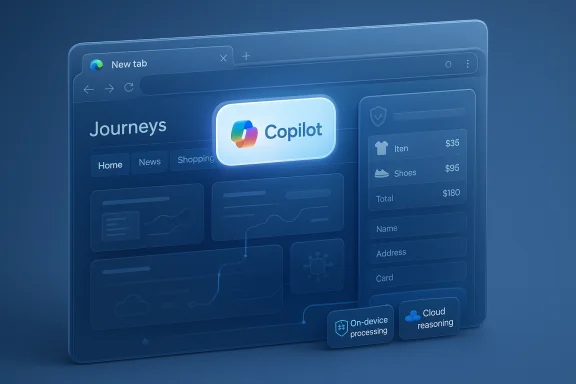
Microsoft has folded an evolving set of AI capabilities into Edge to create what the company calls an AI browser — a browsing environment where a contextual assistant (Copilot) can read pages, synthesize content across tabs, store research as resumable sessions, and perform multi‑step tasks when granted permission. These capabilities are delivered in three headline features you can enable today: Copilot Mode, Journeys, and Actions. The rollout is staged: Copilot Mode is broadly available where Copilot is supported, while Journeys and Actions have been released in limited preview and may be region- or platform-restricted.
Why this matters: Edge’s AI features are not simply novelty chat windows. They change the browser’s trust and automation model by allowing an assistant to read your tabs, remember browsing projects, and — when permitted — interact with websites on your behalf. That’s a major productivity boost for research and repetitive workflows, but it also raises new privacy, security, and reliability trade-offs that every Windows 11 user and IT administrator should understand.
Key points:
Other items to verify before acting on them:
Recommended posture:
Source: Windows Central https://www.windowscentral.com/micr...atures-you-must-enable-now-on-microsoft-edge/
 Background and overview
Microsoft has folded an evolving set of AI capabilities into Edge to create what the company calls an AI browser — a browsing environment where a contextual assistant (Copilot) can read pages, synthesize content across tabs, store research as resumable sessions, and perform multi‑step tasks when granted permission. These capabilities are delivered in three headline features you can enable today: Copilot Mode, Journeys, and Actions. The rollout is staged: Copilot Mode is broadly available where Copilot is supported, while Journeys and Actions have been released in limited preview and may be region- or platform-restricted.Why this matters: Edge’s AI features are not simply novelty chat windows. They change the browser’s trust and automation model by allowing an assistant to read your tabs, remember browsing projects, and — when permitted — interact with websites on your behalf. That’s a major productivity boost for research and repetitive workflows, but it also raises new privacy, security, and reliability trade-offs that every Windows 11 user and IT administrator should understand.
What the three features do (quick summary)
- Copilot Mode — embeds a unified AI command box into Edge (new-tab prompt and a pinned flyout). It interprets natural-language requests across browsing context, offers reasoning modes (Quick response, Think Deeper, Deep Research, Real talk, Study and learn, Smart/GPT), and supports voice and Vision inputs.
- Journeys — automatically groups past browsing sessions and related pages into topic- or project-centered storylines so you can resume research without hunting through history or dozens of tabs. The assistant also stores summaries and metadata (titles, URLs, searches) for each Journey.
- Actions — an agentic automation layer that can interact with webpages and services to complete tasks (translate text, create shopping carts, fill forms, and potentially book reservations), operating under explicit permission and with configurable strictness levels. Actions are currently experimental and gated.
Copilot Mode — what it is, why enable it, and how to enable it
Copilot Mode brings the assistant front-and-center in Edge, turning the new tab into a command line that can choose between returning a web result, opening a site, or generating an AI answer based on context. It offers multiple reasoning styles and can be summoned from a persistent button in the browser. It can also search your history and find open tabs — effectively acting as a smart, session‑aware omnibox.Benefits
- Faster research: synthesize content from many tabs into concise comparisons or summaries.
- Reduced context switching: ask the assistant to find the tab with a specific review or recall what you searched last week.
- Accessibility: voice input and Vision support let you interact hands-free or ask the assistant to “see” page content for contextual help.
How to enable Copilot Mode (step-by-step)
- Open Microsoft Edge.
- Click the main menu (top-right) and choose Settings.
- In the left pane choose AI innovations (or the equivalent AI settings entry).
- Turn on the Copilot Mode toggle.
- Optionally enable Copilot new tab page so the Copilot prompt appears every time you open a new tab.
Practical notes and caveats
- Copilot offers different reasoning modes (the default Smart mode, Think Deeper, Deep Research, Real talk, Study and learn, Quick response) that influence depth and style of answers. Availability of specific models (claims such as “GPT‑5”) may be stated in some write‑ups but should be treated with caution until Microsoft’s official technical documentation confirms model names and versions. The practical effect for users is a slider for depth vs. speed. Treat model labels as product marketing until verified.
Journeys — organize, resume, and re-surface research
Journeys is designed to remove the friction of revisiting research or multi‑page projects. Instead of relying on a linear browser history or bookmarked lists, Journeys groups related pages automatically and creates a short summary for each Journey using the assistant’s analysis of your browsing. This makes it easier to resume whether you were shopping, planning a trip, or doing academic research.Benefits
- Project-based memory: saves the cognitive effort of reconstructing the chain of pages and searches that led to a decision.
- Automatic summaries: creates short, task-focused summaries for faster reorientation.
- Searchable sessions: you can ask the assistant to locate past Journeys rather than sift through the raw history.
How to enable Journeys (step-by-step)
- Open Microsoft Edge and go to Settings > AI innovations.
- Ensure Copilot Mode is enabled.
- Choose Explorer Journeys or toggle Journeys (name may vary across versions).
Privacy and storage considerations
- Journeys analyzes and stores summaries of pages you visit and related metadata (page titles, URLs, searches, chats). This creates convenience but increases the volume of stored, indexable context tied to your browsing. Journeys is opt‑in; review the opt‑in prompts carefully and inspect what the assistant stores and for how long before enabling it for sensitive tasks.
Actions — agentic automation and the future of web tasks
Actions aims to let the assistant perform multi-step tasks on your behalf — from filling carts to starting bookings or processing repetitive web workflows. Microsoft frames Actions as permissioned agents that operate within scoped permission envelopes and require explicit user consent before accessing credentials or taking transactional steps. Early demos show the assistant assembling an Instacart cart from a recipe or filling form fields across pages.Benefits
- Huge time saver for repetitive workflows (shopping lists, simple bookings, form completion).
- Consistency: Actions can reduce manual errors by following the same sequence reliably.
- Integration: can coordinate across multiple sites when connectors or form flows are compatible.
How to enable Actions (step-by-step)
- Open Edge and go to Settings > AI innovations.
- Ensure Copilot Mode is turned on.
- Select Explorer Actions or Actions in Edge Preview (naming varies).
- Turn on Actions in Edge Preview.
- Choose the assistant’s task strictness: Light, Balanced (recommended), or Strict.
- Use the Add site controls to explicitly block or allow URLs that Actions can access.
Practical limitations and safety gates
- Actions is previewed in limited regions and platforms; Microsoft emphasizes that Actions will not act without user confirmation for critical steps, especially payments. Many early Actions preserve a final user confirmation before purchase or credential use.
- You can and should set per‑site permissions — Actions ships with a default allowlist, but you must add any sites you explicitly want to deny or tightly control. This model minimizes configuration work while still giving users control over sensitive domains.
The security and privacy picture: hybrid, permissioned, and local inference
Microsoft’s implementation is hybrid: lightweight detection (wake-word spotting, some Vision pre-processing) can run locally on device while heavier reasoning and multi-step orchestration may go to cloud models with consent. On-device acceleration (Copilot+ PCs with NPUs) is part of Microsoft’s strategy to deliver low-latency, private workloads for certain features. At the same time, Actions and Journeys depend on storing and sharing browsing context, which creates new data surface area.Key points:
- Opt‑in permissions: Copilot requires explicit permission to access history, credentials, or vision content. Always review prompts carefully.
- Local spotting + cloud reasoning: microphone wake-word detectors and basic image analysis can run locally; more complex processing may send data to cloud models after consent.
- Administrative controls: enterprises should expect audit logs, approval flows, and role-based controls for agentic Actions in managed environments. Plan pilots with explicit guardrails.
Verification, claims to watch, and unverifiable items
Several write-ups mention model names and versions (for example, claims that Copilot Mode uses GPT‑5 as the default “Smart” model). Product marketing sometimes lists model labels that may change between preview and GA. Until Microsoft publishes explicit technical documentation or release notes confirming model versions and exact local inference limits, treat specific model-name claims as tentative. Cross-check product release notes and Microsoft documentation before building dependencies on a named model.Other items to verify before acting on them:
- Exact regional availability for Actions and Journeys (staged rollouts are common — these features have been reported as U.S.-first in previews). Confirm your region and client platform (Windows 11 vs macOS) before expecting access.
- Hardware gating for Copilot+ experiences: features that rely on on‑device NPUs may be restricted to Copilot+ PCs and devices meeting certain TOPS thresholds. If a specific local feature is critical to your workflow, verify device compatibility.
Practical recommendations and best practices
Follow these practical steps to get the productivity benefits while minimizing risk.- Start small and opt in selectively. Enable Copilot Mode first, and test Journeys or Actions on non-critical tasks.
- Use the Actions strictness slider conservatively. Choose Balanced for general use or Strict for sensitive browsing. Confirm every payment or credential use manually.
- Audit what Journeys stores. If you research sensitive topics (legal, medical, personnel), disable Journey logging or clear stored sessions.
- For enterprises: pilot with a small cohort, insist on visible confirmation for transactional actions, and map Actions to existing governance and logging tools. Expect admin controls and role-based permissions for preview/managed deployments.
- Keep Edge updated and review the AI innovations settings after each update. Rollouts are staged and behavior or UI naming may change between Insider, preview, and general release channels.
Real user scenarios: quick wins and practical examples
- Research and comparison shopping: open product pages in multiple tabs and ask Copilot to compare specs, prices, and top reviews — the assistant synthesizes across tabs and returns a concise recommendation. This saves hours of manual tab‑checking.
- Recipe-to-grocery workflow: open a recipe page, ask Copilot to list ingredients and add them to an Instacart cart (demoed in previews). Actions can assemble the cart and present the checkout page for confirmation. Useful for recurring grocery tasks.
- Project continuation with Journeys: research a vacation itinerary over several sessions; Journeys can group and summarize flights, hotels, and articles so you can resume where you left off without re-tracing your steps.
Limitations and what to expect next
- Expect gradual, region-based rollouts. Actions and Journeys have been previewed with U.S.-first access and staged platform availability. Don’t assume immediate global availability.
- Agentic automation will remain permission-first. Early previews preserve final confirmation steps for payments and credentials — a safety design likely to remain while trust and reliability mature.
- Edge’s AI experience depends on an evolving mix of local and cloud models; features and naming conventions may shift as Microsoft updates the service and integrates on‑device accelerators (Copilot+ PCs). Validate important claims against Microsoft release notes before making operational decisions.
Final analysis — weigh the productivity gains against new trade-offs
Microsoft Edge’s Copilot Mode, Journeys, and Actions represent a meaningful shift: the browser becomes an assistant platform rather than a passive renderer. For everyday users and power researchers, the productivity gains are real — faster synthesis, automated repetitive flows, and session memory that finally tames tab sprawl. For administrators and privacy-conscious users, those gains come with new considerations: more stored context, agentic interactions with third‑party sites, and a hybrid local/cloud processing model that requires careful permissioning.Recommended posture:
- Enable and experiment with Copilot Mode now if you want immediate productivity benefits. Journeys and Actions are compelling but should be introduced gradually and under controlled conditions while you verify availability and permissions.
- Treat model/version claims and availability notes as provisional until Microsoft publishes formal documentation or release notes. On critical workflows, require human confirmation and logging for agentic actions.
Source: Windows Central https://www.windowscentral.com/micr...atures-you-must-enable-now-on-microsoft-edge/
