

Microsoft has taken another significant step toward turning the browser into an active workplace companion: at Ignite 2025 the company detailed a Copilot-centric refresh for Microsoft Edge for Business that bundles an agentic “Copilot Mode,” smarter New Tab experiences, multi-tab reasoning, and a raft of enterprise-grade data-protection controls — while also previewing targeted management features aimed at contractor and mixed‑device scenarios.
Microsoft’s push to “Copilot‑ify” the browser is part of a broader strategy to stitch conversational AI into core productivity surfaces. Copilot Mode reframes the New Tab as a combined chat/search interface, adds an agent layer that can act inside web pages, and offers session memory that helps users resume work. These features are positioned for business use inside Edge for Business, where Microsoft emphasizes enterprise controls and integration with Microsoft 365 services. Independent reporting and Microsoft’s own blog coverage confirm the high‑level direction: Edge is moving from a passive renderer of content to a contextual assistant that reasons across tabs and, with permission, executes multi‑step workflows. The announcements at Ignite 2025 package productivity gains and new security tooling side‑by‑side — a deliberate signal to enterprise IT: this is not a consumer gimmick but a managed capability designed for organizational rollout. Petri’s coverage distilled the headline items (Copilot Mode’s agentic workflows, history search, YouTube summarization, and new data‑protection controls) and outlined admin‑facing management changes arriving across preview channels.
Caveat — verification status: Microsoft’s public docs and Edge blog confirm expanded MAM and session‑policy controls for unmanaged devices, plus Defender for Cloud Apps session protections, but the specific schedule and exact contractor‑managed device workflow referenced by Petri (including the January 2026 start date) could not be independently verified at the time of writing in Microsoft’s published release notes or message center posts. Treat the January 2026 date as a reported timeline; IT teams should confirm timing in the Microsoft 365 admin center or message center for their tenant.
Adoption will hinge on two things: the robustness of permissions and audit models that keep human oversight front and center, and the clarity of Microsoft’s operational guarantees (timelines, telemetry rules and license boundaries). Organizations that test carefully, tighten defaults, and require human confirmation for consequential actions will likely glean the most benefit while keeping the new attack surface under control. Independent reporting from outlets like The Verge and Reuters, as well as Microsoft’s own product blog, corroborate the major technical directions described in the previews — but some schedule details and tenant rollout specifics reported by industry outlets still require validation in Microsoft’s admin message center before enterprise‑wide enablement. Key practical next steps for IT teams: pilot Copilot Mode with conservative defaults, confirm license entitlements for advanced features, and coordinate with security and compliance teams to map Copilot’s telemetry and retention controls into existing governance frameworks. Only then can organizations safely capture the productivity upside while keeping sensitive data where it belongs.
Source: Petri IT Knowledgebase Microsoft Edge for Business Gets Copilot Mode, Security Features
 Background / Overview
Microsoft’s push to “Copilot‑ify” the browser is part of a broader strategy to stitch conversational AI into core productivity surfaces. Copilot Mode reframes the New Tab as a combined chat/search interface, adds an agent layer that can act inside web pages, and offers session memory that helps users resume work. These features are positioned for business use inside Edge for Business, where Microsoft emphasizes enterprise controls and integration with Microsoft 365 services. Independent reporting and Microsoft’s own blog coverage confirm the high‑level direction: Edge is moving from a passive renderer of content to a contextual assistant that reasons across tabs and, with permission, executes multi‑step workflows. The announcements at Ignite 2025 package productivity gains and new security tooling side‑by‑side — a deliberate signal to enterprise IT: this is not a consumer gimmick but a managed capability designed for organizational rollout. Petri’s coverage distilled the headline items (Copilot Mode’s agentic workflows, history search, YouTube summarization, and new data‑protection controls) and outlined admin‑facing management changes arriving across preview channels.What Copilot Mode in Edge for Business actually delivers
Three high‑level components (how Microsoft describes the feature)
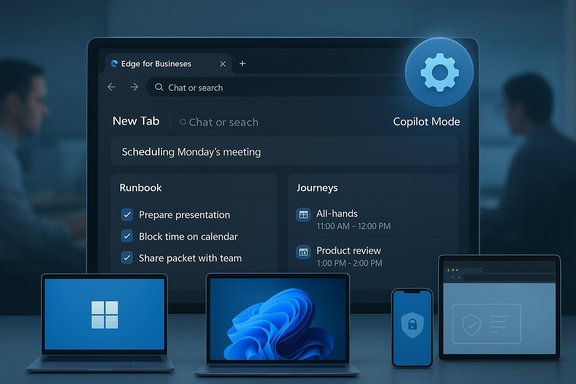
- Agent Mode (Copilot Actions): an automation engine that can run multi‑step tasks (open pages, fill forms, click through booking or unsubscribe flows) on approved web sites. It surfaces a runbook-style plan and asks for user confirmation for sensitive steps.
- Copilot‑inspired New Tab Page: a unified search + chat entry point with quick access to files, recent prompts, and prompts personalized to your work context. This becomes the primary entry for natural‑language queries and for resuming Journeys (see below).
- Daily Briefing / Journeys: a session‑memory layer that leverages Microsoft Graph and opt‑in browsing context to summarize meetings, tasks and priorities — grouping related tabs and past activity into resumable “Journeys.”
New AI browsing features in preview
- Multi‑tab reasoning: Copilot can answer questions by synthesizing content across all open tabs and authorized organizational content.
- Natural‑language history search: users can retrieve previously visited pages using plain English prompts (for example, “find the lodging I looked at last month”).
- YouTube summarization: short summaries and question‑answering over video content, enabling fast consumption of video lessons or product demos.
Security features: watermarking, protected clipboard and more
Watermarking and inline data protections
Edge for Business is adding visual watermarking on sensitive files and web pages — driven by sensitivity labels or DLP policies — so a persistent overlay appears on exported or viewed assets to deter accidental sharing. This is a classic “nudge” control that increases user awareness before content leaves a protected boundary, and it can be enabled centrally through Edge management. The watermarking capability was included in Ignite coverage and reported in business‑targeted previews.Protected clipboard and paste‑warnings
Admins will be able to apply policies that warn or block users when pasting protected content outside of managed boundaries or into untrusted web apps. The protected clipboard is intended to reduce the most common exfiltration pathway — copy/paste — by surfacing clear runtime warnings and restricting paste destinations in managed web applications. Petri reported the protected clipboard arriving in preview later the same month as the Ignite announcement.Screenshot prevention and inline DLP
Edge for Business has been expanding screenshot prevention in managed contexts: when applicable policies are active, attempts to capture protected content return a black screen rather than the content. Microsoft positions this as a way to stop simple exfiltration, including copying Copilot responses or prompt content. This functionality integrates with Microsoft Purview DLP, Microsoft Defender for Cloud Apps, and Intune MAM controls. Microsoft’s Edge blog and related reporting confirm the screenshot prevention expansion.Device and access management: contractor scenarios, Intune MAM and governance
Microsoft is previewing more granular ways to expose organizational resources safely to externally managed or contractor devices. Petri’s report indicates that admins will be able to configure an Intune Mobile Application Management (MAM) profile on externally‑managed (contractor) devices — creating a controlled browsing environment where downloads are shunted to OneDrive for Business and copy/paste can be restricted to prevent local exfiltration. This is described as an extension of MAM beyond classic BYOD patterns and is intended to start rolling in early 2026 per the Petri piece.Caveat — verification status: Microsoft’s public docs and Edge blog confirm expanded MAM and session‑policy controls for unmanaged devices, plus Defender for Cloud Apps session protections, but the specific schedule and exact contractor‑managed device workflow referenced by Petri (including the January 2026 start date) could not be independently verified at the time of writing in Microsoft’s published release notes or message center posts. Treat the January 2026 date as a reported timeline; IT teams should confirm timing in the Microsoft 365 admin center or message center for their tenant.
Browser management and IT controls: cross‑platform policies and Enterprise Preview
Later this month Edge for Business will get two management updates:- Cross‑platform security policies in Microsoft 365 admin center — admins can manage Edge settings for macOS, iOS, and Android directly from the Microsoft 365 admin center, simplifying policy application across a mixed‑device fleet. This aligns with the cross‑platform management direction Microsoft has emphasized for Edge for Business.
- Enterprise Preview inside Stable Edge: Beta/preview builds will be delivered inside the Stable Edge app, enabling IT to assign preview builds and control rollbacks without installing separate preview apps. This is designed to streamline internal testing and controlled rollouts. Petri highlighted this as a change that reduces friction for enterprise pilots.
Why this matters for security teams and IT admins
- New attack surface from agentic automation. When a browser can click, fill and submit on your behalf, the boundary between user action and software action blurs. That introduces new abuse vectors: malicious pages could attempt to trick an agent into performing unwanted actions unless permission gating and UI confirmation flows are ironclad. Early hands‑on reviews already caution that automations can misreport success or fail silently on complex sites.
- Data‑in‑prompt and telemetry concerns. Any assistant that can access browsing history, open tabs or organizational connectors raises questions about telemetry, retention, and what is logged for audits. Microsoft emphasizes opt‑in Page Context toggles and admin controls, but organizations should demand clear telemetry documentation and test retention/exportability before enabling memory features broadly.
- Regulatory and compliance considerations. In regulated industries, agentic actions that operate on PII or financial systems may create liability if actions are automated incorrectly. Security and legal teams should define acceptable use cases, restrict agentic actions on regulated systems, and require audit trails for any automated transactions.
- Governance wins require layered controls. Microsoft’s approach bundles browser‑level inline protection, Purview DLP, Defender session policies and Intune MAM. That layered approach is sensible, but it places heavy operational responsibility on IT teams to map policies correctly across connectors and identity mappings. Misconfiguration of connectors can lead to inadvertent exposure in assistant responses.
Practical rollout checklist for IT teams
- Pilot group selection: start with a small non‑critical business unit and focus on use cases where agentic automation is high‑value and low‑risk (e.g., unsubscribing newsletters, summarizing research).
- Policy lock‑down: enforce Page Context off by default, and whitelist only the sites where Copilot Actions are permitted.
- Audit and logging: enable logging of Copilot actions and test that logs are accessible, immutable, and consistent with eDiscovery/compliance requirements.
- Train users: run briefings and publish clear guidance on what the assistant can and cannot do, emphasizing manual verification for bookings, payments, or credential reuse.
- Validate connectors: test every third‑party connector in a staging tenant to confirm ACLs and identity mapping are correct before making connected content available to Copilot.
Strengths and benefits: where Edge for Business shines
- Ecosystem integration. Edge’s Copilot connects with Microsoft 365, Entra ID and OneDrive in ways that non‑Microsoft browsers cannot match. For organizations invested in Microsoft cloud services, that integration can deliver real productivity leaps.
- Enterprise policy depth. Inline DLP, screenshot prevention, and Defender/Intune integration provide a layered protective posture that many enterprises require prior to adopting AI assistant features.
- Productivity improvements. Multi‑tab reasoning, Journeys for session recovery, and YouTube summarization reduce cognitive load and speed routine research tasks — measurable benefits for knowledge workers. Independent coverage and hands‑on previews report meaningful time savings on structured tasks.
Risks and open questions
- Automation fragility. Early reports show Copilot Actions succeed on simple, predictable flows but fail on complex or dynamic pages. Organizations must assume “assistant outputs are drafts” until automation reliability improves.
- Telemetry and retention transparency. Administrators should demand explicit documentation of what Copilot stores (screenshots, Journeys metadata, action logs), retention windows and export/deletion mechanics. Several preview writeups note that these details are not always fully documented in consumer release notes.
- Licensing and feature gating. Some advanced Copilot capabilities require Microsoft 365 Copilot or specific Copilot licensing. IT teams must confirm license entitlements before rolling features out — the exact licensing boundaries can be nuanced. Petri and other outlets note that some Copilot Mode features require Microsoft 365 Copilot licenses. Validate entitlements with Microsoft account teams.
- Unverified timelines. The Petri piece reports general availability of some features in February 2026 and a contractor MAM profile rollout beginning January 2026. Those dates should be treated as reported schedule targets; Microsoft’s admin message center and product docs are the authoritative sources for tenant‑level rollout timing and may show staggered availability by region and channel. Confirm dates in your tenant message center.
How Copilot Mode compares with competing AI browsers
The broader market of “AI browsers” — including OpenAI’s ChatGPT Atlas and other agentic browsers — converged on similar primitives: persistent assistants, opt‑in memories, and agent modes. Microsoft’s strategic advantage is distribution across Windows and deep Microsoft 365 integration; competitors may tout model transparency or different privacy tradeoffs, but for enterprises already tied to Microsoft services, Copilot Mode’s platform fit is compelling. Comparative reporting by multiple outlets highlights that Edge’s unique selling point is integration and admin controls rather than raw agentic novelty.Recommendations for organizations evaluating Copilot Mode now
- Treat Copilot Mode as a controlled productivity pilot, not a run‑and‑scale feature. Limit agentic workflows to curated sites and monitor behavior closely.
- Insist on transparency: require documentation from Microsoft on telemetry, retention and whether screenshots or action traces are used for model training.
- Update your incident response and audit playbooks to include agent‑driven activities and add Copilot action logs to SIEM ingest if available.
- Use Edge management service to centralize policy deployment and take advantage of the Enterprise Preview delivery model to test builds under admin control.
Conclusion
Ignite 2025’s Edge for Business updates signal a clear evolution: the browser is being repositioned as an integrated, managed assistant that can reason, remember and — when explicitly allowed — act across the web. For enterprises, the promise is tangible productivity gains through multi‑tab reasoning, Journeys, and agentic automations tightly integrated with Microsoft 365. At the same time, the arrival of watermarking, protected clipboard, screenshot prevention and expanded MAM/session controls shows Microsoft understands the governance burden this shift creates.Adoption will hinge on two things: the robustness of permissions and audit models that keep human oversight front and center, and the clarity of Microsoft’s operational guarantees (timelines, telemetry rules and license boundaries). Organizations that test carefully, tighten defaults, and require human confirmation for consequential actions will likely glean the most benefit while keeping the new attack surface under control. Independent reporting from outlets like The Verge and Reuters, as well as Microsoft’s own product blog, corroborate the major technical directions described in the previews — but some schedule details and tenant rollout specifics reported by industry outlets still require validation in Microsoft’s admin message center before enterprise‑wide enablement. Key practical next steps for IT teams: pilot Copilot Mode with conservative defaults, confirm license entitlements for advanced features, and coordinate with security and compliance teams to map Copilot’s telemetry and retention controls into existing governance frameworks. Only then can organizations safely capture the productivity upside while keeping sensitive data where it belongs.
Source: Petri IT Knowledgebase Microsoft Edge for Business Gets Copilot Mode, Security Features
