

For years, Notepad was the little, instant-open tool you reached for when you needed a scratch, a quick edit, or a place to paste a one-off command—no sign‑in, no telemetry prompts, no bloated menus. That era is changing, and the shift is more than cosmetic: Microsoft has steadily reworked Notepad into a modernized, Copilot‑enabled app with tabs, Markdown-aware formatting, and AI actions, prompting a growing exodus of users who prefer predictability and performance. In response, long-standing open‑source alternatives and fresh community forks are reclaiming the idea of a true “digital scratchpad.” This feature explains what changed, what it costs you (performance and privacy), why alternatives like Notepad++ and the new Legacy Notepad resonate, and the concrete steps you can take today to restore the experience you miss.
Notepad’s evolution in Windows 11 has been deliberate and visible. Over the last couple of years Microsoft rolled out updates through the Windows Insider program and broader channels that add features previously reserved for richer editors: tabbed windows, a visible formatting toolbar that supports Markdown, spellcheck, and a set of generative AI actions—Rewrite, Summarize, and Write—that surface Copilot functionality inside the app. Those AI features can run locally on compatible Copilot+ machines or route to cloud models depending on your device and settings, and some capabilities require a Microsoft account and AI credits tied to Microsoft 365 or Copilot tiers. Microsoft documents these additions in the Windows Insider release notes and support pages, which also explain how the features behave and how to disable them.
This is not abstract change: it alters the app’s core tradeoffs. Notepad used to be an instantly disposable environment—open, type, close, and the session disappears. Modern Notepad introduced tabs and session persistence that, for many users, converts a temporary scratchpad into a persistent workspace. Add a persistent UI and AI hooks, and the app becomes both heavier and more intrusive in workflows that prizededictable behavior. Community discussion has been intense: some users appreciate the power, while others see the additions as feature creep and a marketing surface for Microsoft’s AI stack.
Important technical caveat: memory and startup benchmarks vary by environment (developer build vs stable channel, active background processes, difference between launching a packaged app vs an on‑disk EXE). I verified that community snapshots drove the coverage and that the underlying claim originates from the projects’ own screenshots and tests; independent testing on your own hardware is the only way to prove parity for your environment.
Why this matters: beyond nostalgia, these projects demonstrate a demand signal. Microsoft steps toward integrating AI across the inbox apps; the community responds by restoring local-first tools. If you want a minimal, AI-free Notepad experience but don’t want to tinker with aliases or system binaries, a lightweight open‑source clone may be the cleanest path.
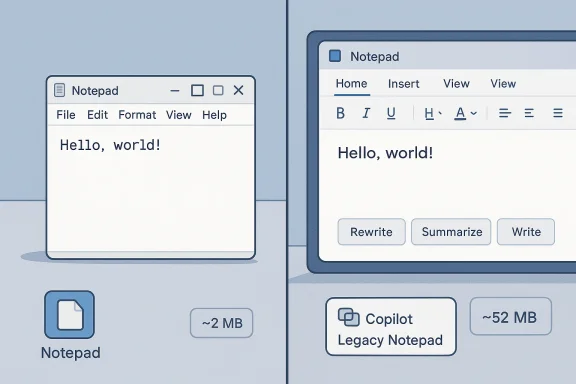
Don’t take memory or launch snapshots as universal truth. Measurements like “Notepad uses 2MB vs 52MB” are context‑dependent: Windows build, background services, measurement tools, and whether you’re comparing a packaged app to an on‑disk binary all matter. If performance is critical for you, run your own tests on the systems that matter and measure startup latency and resident set size with reliable tools (Task Manager, Process Explorer). That will give you actionable data for your environment rather than relying on third‑party screenshots.
The good news is the Windows ecosystem still supports choice. Whether you restore the classic notepad.exe, adopt Notepad++ for a fast, extensible editor, or try a boutique community fork that explicitly rejects AI hooks, the tools exist to reclaim the experience you prefer. Do your due diligence—measure performance on your own hardware, vet third‑party installers and plugins, and pick the option that preserves your workflow and privacy. At the end of the day, the best editor is the one that gets out of your way and lets you get work done—without surprises.
Source: How-To Geek I’m done with Windows Notepad: Why I went back to this 20-year-old open-source tool
 Background / Overview
Notepad’s evolution in Windows 11 has been deliberate and visible. Over the last couple of years Microsoft rolled out updates through the Windows Insider program and broader channels that add features previously reserved for richer editors: tabbed windows, a visible formatting toolbar that supports Markdown, spellcheck, and a set of generative AI actions—Rewrite, Summarize, and Write—that surface Copilot functionality inside the app. Those AI features can run locally on compatible Copilot+ machines or route to cloud models depending on your device and settings, and some capabilities require a Microsoft account and AI credits tied to Microsoft 365 or Copilot tiers. Microsoft documents these additions in the Windows Insider release notes and support pages, which also explain how the features behave and how to disable them. This is not abstract change: it alters the app’s core tradeoffs. Notepad used to be an instantly disposable environment—open, type, close, and the session disappears. Modern Notepad introduced tabs and session persistence that, for many users, converts a temporary scratchpad into a persistent workspace. Add a persistent UI and AI hooks, and the app becomes both heavier and more intrusive in workflows that prizededictable behavior. Community discussion has been intense: some users appreciate the power, while others see the additions as feature creep and a marketing surface for Microsoft’s AI stack.
From simple scratchpad to feature-laden editor
What Microsoft added (and when)
Microsoft’s own Windows Insider posts confirm the timeline of additions: tabs landed as an Insider preview in early 2023, followed by incremental formatting and AI features rolled out across 2024–2026 previews. Recent Insider posts show continued enhancement of AI behaviors (streaming results, more Markdown options, even table support), which indicates Microsoft treats Notepad as a living inbox app rather than a static utility. For users who prefer minimalism, that’s the core friction: Notepad is no longer “one thing done extremely well,” but a multi‑feature inbox app.Where Copilot and AI fit in
Notepad’s AI features are presented as helpers—Rewrite, Summarize, Write—but they’re integrated under the Copilot umbrella and, depending on device and configuration, can run locally or in the cloud. Microsoft’s support pages and Insider notes explicitly say the features may require sign‑in and AI credits for cloud generation; Microsoft’s on‑device NPU support on Copilot+ PCs enables local generation without subscription in some scenarios. That mixed model is the technical reason you sometimes see sign‑in prompts and sometimes do not. In short: the UI treats generative AI as a first‑class feature of Notepad, and that design choice is the real departure from the original app’s promise of lightweight, offline editing.The real costs: performance, privacy, and predictability
Performance: expectations vs. reality
Many users have noticed slower launch times and a measurable increase in memory and resident set size since Notepad moved to the modern packaged app model. Community comparisons—some performed by independent developers and journalists—show a substantial delta in memory usage between legacy Notepad and the Store/UWP/WinUI variant used by Windows 11. For example, early community screenshots comparing a newly released tiny open‑source "Legacy Notepad" to Microsoft’s modern Notepad reported memory readings like ~2.1 MB vs ~52.3 MB in that specific test. Those numbers are useful as indicative snapshots, but they depend heavily on OS build, background services, and measurement tools; treat them as directional rather than definitive. If raw startup speed and a tiny resident footprint matter to you, the engineered lean‑C++ design of alternatives like Notepad++ (and ultra‑light clones) remains compelling.Important technical caveat: memory and startup benchmarks vary by environment (developer build vs stable channel, active background processes, difference between launching a packaged app vs an on‑disk EXE). I verified that community snapshots drove the coverage and that the underlying claim originates from the projects’ own screenshots and tests; independent testing on your own hardware is the only way to prove parity for your environment.
Privacy and telemetry concerns
When an app surfaces AI features that may call cloud services, your data path changes: selected text can be routed to models, account tokens may be required, and telemetry surfaces expand. Microsoft documents which features require sign‑in and AI credits, and you should assume that cloud‑backed rewriting or generation will involve outbound calls unless your machine supports on‑device generation. If your workflow involves sensitive snippets, credentials, or personally identifiable information, the safest posture is to (a) disable AI within Notepad’s settings, (b) use the classic notepad.exe binary, or (c) use an open‑source local editor that never phones home unless you explicitly install a plugin that does. Those options are covered in community guides and Microsoft’s own docs for managing Notepad features.Why Notepad++ (and similar open‑source editors) remain the gold standard
Architecture and design philosophy
Notepad++ has earned its reputation through consistent engineering choices: it’s written in C++ using pure Win32 API calls and the Standard Template Library (STL), with the Scintilla editing component at its core. That combo favors small binary size, fast execution, and low overhead—exactly the qualities that made the classic Notepad attractive in the first place. The project’s site and user manual emphasize that design and list an extensive set of supported languages and features. In other words: Notepad++ is explicitly engineered for speed and efficiency, not for bundling every possible convenience into one monolithic UI.What you get out of the box
Notepad++ ships with a practical feature set that balances lightness and power:- Syntax highlighting and code folding for roughly 80–90 languages.
- Powerful Find/Replace with full Regular Expression (PCRE) support, and the ability to search across directories.
- Macroeconomics: record/playback macros for repetitive edits.
- Multi-editing and a document map for navigating large files.
- Plugin system and Plugin Admin, so extra functionality is opt‑in rather than entangled into the core app.
Customization without forced bloat
Notepad++’s plugin ecosystem is its secret sauce: instead of shipping a single, bloated binary, it offers a curated plugin manager where you choose the extras you want. That preserves a small baseline footprint while enabling power users to construct a full IDE‑like environment when needed. The contrast is stark: modern Notepad frequently presents features in the main UI that some users never asked for, while Notepad++ asks the user to opt into complexity. That opt‑in model respects user choice and aligns with the original spirit of a scratchpad that can scale up only when required.New community options: Legacy Notepad and the return to minimalism
A recent wave of grassroots projects explicitly aims to restore classic Notepad behavior. One of the more visible efforts—often discussed in community threads—is a small open‑source app dubbed Legacy Notepad, which deliberately avoids any Copilot integration, keeps the UI classic, and advertises a tiny memory footprint. Coverage and community threads highlight why these forks matter: they’re tactical responses to users who want the old experience back without registry hacks or store uninstalls. The community attention also pushed mainstream outlets to reproduce developer benchmark screenshots showing dramatic memory differences—again, useful for conversation but not a universal benchmark.Why this matters: beyond nostalgia, these projects demonstrate a demand signal. Microsoft steps toward integrating AI across the inbox apps; the community responds by restoring local-first tools. If you want a minimal, AI-free Notepad experience but don’t want to tinker with aliases or system binaries, a lightweight open‑source clone may be the cleanest path.
How to get your classic Notepad experience back—practical steps
If Microsoft’s Notepad update broke your scratchpad flow, you have three pragmatic, supported options. Pick the one that matches your comfort level.- Toggle the packaged app alias off (recommended, reversible)
- Open Settings (Win + I) → Apps → Advanced app settings → App execution aliases.
- Find the entry for Notepad (or notepad.exe) and toggle it Off.
- Launch the classic Notepad by running C:\Windows\notepad.exe (or C:\Windows\System32\notepad.exe). Create a shortcut and pin as required.
- Notes: This prevents the packaged app from hijacking the notepad.exe command name and is fully reversible. Community guides and Microsoft documentation explain this as the safest path.
- Install and use an alternative (Notepad++, Legacy Notepad, Notepad2, etc.)
- Download from the official project pages or trusted repositories.
- For Notepad++, use the official installer or PortableApps packages and add only plugins you trust.
- Benefits: instant control over features and no built-in Copilot/AI hooks; many of these tools respect local files and encodings by default.
- Use system management for fleets (enterprises)
- Standardize on a policy: deploy a curated editor via Group Policy or a software management tool and document the alias toggle in user training.
- If compliance matters, test any third‑party editor and vet plugin security before deployment. Community advisories and enterprise best practices recommend a pilot and rollback plan.
Risks, tradeoffs, and things to watch
Plugin security and supply‑c flexibility is powerful—but it can introduce supply‑chain and plugin risks. Notepad++’s plugin manager is convenient, but users should audit plugins, prefer signed or well‑maintained plugins, and avoid running unknown binaries in privileged contexts. For enterprises, centralizing plugin policy or restricting plugin installs reduces risk.
Support, updates, and ecosystem lock‑in
Choosing a third‑party app is a commitment: you’re responsible for applying updates and validating compatibility with internal tools. Microsoft may continue to refine Notepad (and push inbox app updates via system channels), and some workflows may start to expect features that only modern Notepad provides. Balance the immediate UX benefit against future compatibility requirements in man## Benchmarks are environment-dependentDon’t take memory or launch snapshots as universal truth. Measurements like “Notepad uses 2MB vs 52MB” are context‑dependent: Windows build, background services, measurement tools, and whether you’re comparing a packaged app to an on‑disk binary all matter. If performance is critical for you, run your own tests on the systems that matter and measure startup latency and resident set size with reliable tools (Task Manager, Process Explorer). That will give you actionable data for your environment rather than relying on third‑party screenshots.
Practical recommendations
- If you want the classic, disposable notepad experience with minimal fuss: toggle the app execution alias off and keep using the system notepad.exe. It’s the safest, fully reversible option.
- If you want a lightweight but power‑user editor that scales: install Notepad++, keep plugins to vetted ones, and configure a minimal UI theme when you want a scratchpad. The app is engineered for speed and local control.
- If you want a pure minimal clone with zero AI hooks and the tiniest footprint: evaluate community projects (Legacy Notepad and similar forks), but verify build provenance and run your own memory/performance checks before adopting widely. Community coverage pointed out early wins, but independent verification is essential.
Conclusion
Notepad’s transformation is a cautionary tale about tradeoffs. Microsoft’s decision to make features like tabs, Markdown formatting, and Copilot actions ubiquitous inside a once‑minimal tool makes sense from the perspective of a company that wants generative AI to be available everywhere. But that same strategy clashes with the core values that made Notepad indispensable: instant, local, and predictable.The good news is the Windows ecosystem still supports choice. Whether you restore the classic notepad.exe, adopt Notepad++ for a fast, extensible editor, or try a boutique community fork that explicitly rejects AI hooks, the tools exist to reclaim the experience you prefer. Do your due diligence—measure performance on your own hardware, vet third‑party installers and plugins, and pick the option that preserves your workflow and privacy. At the end of the day, the best editor is the one that gets out of your way and lets you get work done—without surprises.
Source: How-To Geek I’m done with Windows Notepad: Why I went back to this 20-year-old open-source tool
