

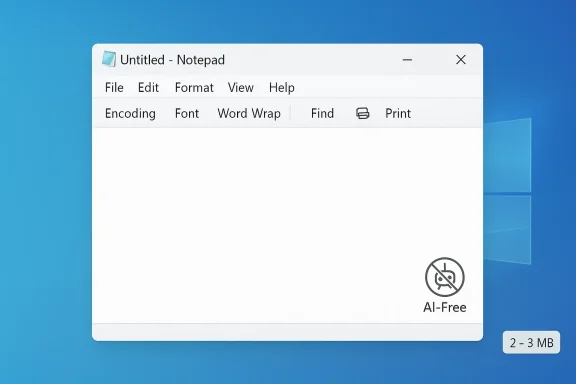
Windows power users who’ve been muttering about Notepad’s "Copilotification" finally have a grassroots alternative: a community-built app called Legacy Notepad that restores the classic, lightweight Notepad experience while adding a few sensible modern conveniences — and it’s already touching a raw nerve in the Windows community. The project’s author says they built it “because Microsoft won't stop adding AI bloatware to notepad.exe,” and early coverage highlights the app’s tiny memory footprint, classic UI, and a modest feature set that intentionally excludes Copilot integration.
Microsoft’s Notepad has evolved from the tiniest text box in Windows into a richer editor with tabs, Markdown-aware formatting, and Copilot-powered actions such as Rewrite, Summarize, and Explain. Those additions have been rolled out through Insider channels and public updates, but they’ve also introduced account prompts and subscription-gated AI features that many longtime users find unnecessary in a tool that once promised instant local editing. The community response has been split: some welcome richer helpers; others want the old determinism back.
Into that divide stepped a hobby developer who published Legacy Notepad on GitHub as a deliberate, minimal replacement for the modern Notepad package. The project aims to reproduce the familiar, no-frills UI while keeping resource use low and offering practical editing features that don’t require cloud sign‑in or AI credits. Early writeups in mainstream Windows outlets have documented the project and community reaction.
1.) Locate the repository and confirm authorship
At the same time, the episode underscores responsibilities: developers who build replacements must consider security and maintainability, while platform vendors must balance innovation with the expectations of a long-standing user base. The healthiest outcome is coexistence: Microsoft continues to innovate with AI where it provides real value, and the community continues to offer local-first alternatives for users who prefer that model.
If you try it, measure memory use on your own machine, inspect the source or build locally, and prefer reversible integration methods (file associations) rather than replacing system binaries. That way you keep your options open and your system secure while enjoying the simple pleasure of a Notepad that behaves like Notepad.
Source: XDA Someone made an unofficial "Legacy Notepad" app after getting sick of Copilot
 Background
Microsoft’s Notepad has evolved from the tiniest text box in Windows into a richer editor with tabs, Markdown-aware formatting, and Copilot-powered actions such as Rewrite, Summarize, and Explain. Those additions have been rolled out through Insider channels and public updates, but they’ve also introduced account prompts and subscription-gated AI features that many longtime users find unnecessary in a tool that once promised instant local editing. The community response has been split: some welcome richer helpers; others want the old determinism back.Into that divide stepped a hobby developer who published Legacy Notepad on GitHub as a deliberate, minimal replacement for the modern Notepad package. The project aims to reproduce the familiar, no-frills UI while keeping resource use low and offering practical editing features that don’t require cloud sign‑in or AI credits. Early writeups in mainstream Windows outlets have documented the project and community reaction.
What Legacy Notepad is — and what it isn’t
The promise: calm, classic, local-first editing
Legacy Notepad advertises a simple, nostalgic interface: a single-window editor, immediate launch, and no built-in Copilot actions or AI prompts. It’s intentionally focused on the core use case that made Notepad useful for decades — quick text, config edits, script tweaks, and short notes — but it does add a handful of modern conveniences that power users expect.The practical features it keeps
According to project documentation and press coverage, Legacy Notepad’s notable features include:- Multi-encoding support: UTF-8, UTF-8 BOM, UTF-16 LE/BE, and ANSI, with line-ending selection.
- Rich but familiar editing: word wrap toggle, font selection, zoom controls, time/date stamp, find/replace, and Go To line.
- Backgrounds: optional background images with tile/stretch/fit/fill/anchor modes and opacity control (developer notes mention known issues).
- Printing: print and page setup dialogs, mimicking classic Notepad behavior.
What Legacy Notepad deliberately leaves out
- No Copilot, no built-in AI assistants, and no subscription-gated features. That absence is the whole point for users who don’t want sign-in prompts inside a tiny text editor.
Why this matters: a short cultural and technical analysis
Microsoft’s decision to fold AI into inbox apps is strategic: it surfaces generative helpers where many users already work. But that strategy collides with long-standing expectations for small, deterministic utilities like Notepad. The tension has three practical consequences:- Usability: Some users now face sign-in prompts or extra clicks for features that used to be frictionless. That reduces the "open‑and‑type" speed that Notepad provided.
- Resource expectations: Modern, packaged apps can consume more RAM and CPU than the old Win32 binary, sparking debates about resource bloat versus capability. The Legacy Notepad author emphasized a much smaller memory footprint in public screenshots, which helped attract attention. Readers should treat those numbers as illustrative rather than authoritative.
- Ecosystem choice: The result is a healthier ecosystem: users can choose the Microsoft modern app, restore the classic system binary, or pick third‑party/community projects like Legacy Notepad or feature-rich editors such as Notepad++.
Verifying the claims: what’s confirmed and what needs caution
Journalistic verification matters here because the story mixes user emotion, screenshots, and third‑party builds. I verified the following:- Microsoft has added formatting, Markdown features, tabs, and Copilot actions to Notepad in recent Insider and public updates; several independent tech outlets and Microsoft’s documentation confirm that rollout.
- The Legacy Notepad GitHub project exists and positions itself explicitly as a lightweight alternative; early press coverage reproduces the feature list and community reaction.
- The memory/CPU comparison that the project author posted (e.g., a screenshot showing Legacy Notepad using ~2–3 MB vs the modern Notepad using ~50 MB) is an author-supplied benchmark. Screenshots and single-run Task Manager snapshots are useful signals but not definitive measurements — differences in Windows builds, background services, and the specific Notepad variant (packaged vs classic) affect numbers. Readers should measure memory and CPU themselves on their hardware.
- Community GitHub “star” counts and claimed adoption milestones are transient by nature. Stars indicate interest, not security or enterprise readiness. Treat those as indicators, not guarantees.
Security, supply chain, and maintenance: real risks you must consider
Community projects can be liberating, but they carry trade-offs that every IT professional and cautious enthusiast must weigh.Supply-chain and binary trust
- Open-source ≠ instantly safe. Small projects frequently lack formal code review, automated CI, reproducible builds, or binary signing. The visibility of source code helps, but only if someone inspects it.
- Practical mitigations: Prefer to build from source locally when possible, run new binaries in a sandbox or disposable VM first, and scan release artifacts with endpoint security tools before installing on production machines.
Maintenance and longevity
- Single-author hobby projects are vulnerable to bit rot. If the maintainer stops updating the project, future Windows changes could break compatibility. For critical or corporate deployments, have a fallback plan: trusted alternatives or an internal fork you can maintain.
Telemetry and unexpected dependencies
- Even small apps can include telemetry or third‑party libraries with differing licenses. Inspect the repository for network calls, telemetry code, or packaged DLLs before you trust a prebuilt executable. If you can’t perform that audit yourself, run the app in isolation.
How to evaluate, install, and test Legacy Notepad safely (step-by-step)
If you want to try Legacy Notepad but prefer to be cautious, follow these steps.1.) Locate the repository and confirm authorship
- Verify the GitHub username, README, release tags, and any release signatures. Look for a clear license (MIT, BSD, GPL, etc.).
- Clone the repo and build locally. Building locally gives you visibility into compile flags and linked libraries and reduces reliance on a possibly untrusted binary.
- Run the built binary inside a disposable VM, container, or sandbox. Monitor network activity, file writes, and process behavior.
- Use your usual endpoint protection stack to scan for known threats. Combine static analysis (virus scanners) with runtime monitoring during the sandbox test.
- Use Task Manager or Process Explorer to record private working set and CPU utilization under a few realistic scenarios. Compare Legacy Notepad to the classic notepad.exe and to the packaged Windows 11 Notepad app as observed on your machine. Don’t rely on screenshots alone.
- If you want Legacy Notepad as your default .txt handler, change file associations rather than replacing system files; this is reversible and preserves Windows update paths. Use the “Open With” dialog or the Settings → Default apps flow to change associations.
Restoring classic behavior in Microsoft’s Notepad (alternatives to third-party installs)
If your main goal is to avoid Copilot and return to a pure local editor, you don’t have to install third-party software immediately. Windows provides supported knobs:- Toggle the App execution alias for the packaged Notepad so Windows prefers the on-disk binary (C:\Windows\notepad.exe). This is reversible and safe. Several community how-tos and Microsoft guidance document this approach step‑by‑step.
- Disable AI features in the modern Notepad app settings (in-app toggle) or sign out of the Microsoft account to remove Copilot actions for that user. This avoids a binary change and keeps Microsoft updates intact.
- For enterprise control, deploy the Notepad ADMX that includes a policy such as DisableAIFeaturesInNotepad via Group Policy or Intune. That enforces the behavior across managed devices. Administrators should pilot the policy and confirm the targeted Notepad package version first.
How Legacy Notepad compares to other popular choices
Legacy Notepad vs classic notepad.exe
- Legacy Notepad reproduces the classic UI while adding encoding controls, find/replace, and optional backgrounds. It’s a friendly middle ground for those who want more control than the untouched system binary but less bloat than the packaged app. Claims about RAM savings exist but require independent measurement on your hardware.
Legacy Notepad vs Notepad++
- Notepad++ is a mature, battle-tested editor with macros, plugin ecosystems, syntax highlighting, and long-term maintenance. It’s the pragmatic choice for power users who need extensibility, automation, or regex-based workflows. Legacy Notepad targets a different audience: users who want the classic single-file simplicity plus a few modern niceties, not a full scripting and plugin platform. If you need robust enterprise support, Notepad++ and similar tools have a more proven track record.
Strengths and weaknesses — a quick critical breakdown
Strengths
- Familiar UI and instant-open behavior: restores the quick, local editing experience many users miss.
- Small, focused feature set: gives you the essentials — encoding controls, find/replace, printing — without Copilot.
- Transparent positioning: the project makes no secret of its goal: a non‑AI, lightweight Notepad replacement. That clarity helps users choose.
Weaknesses and risks
- Supply chain and trust: prebuilt binaries on GitHub can be abused or contain unintended dependencies; users must verify or build locally.
- Maintenance uncertainty: hobby projects can stop receiving updates, leaving compatibility or security gaps.
- Not a one‑size‑fits‑all solution: if you rely on AI-assisted writing, Markdown rendering, or advanced plugin ecosystems, Legacy Notepad deliberately won’t meet those needs.
Practical recommendations for different audiences
- For the casual user who dislikes AI prompts: toggle off Copilot in Notepad’s settings or use the App execution alias trick to restore classic notepad.exe. This is simple, supported, and reversible.
- For the privacy- and control-minded enthusiast: clone the Legacy Notepad repo, build locally, and run in a sandbox before making it a daily driver. This balances nimbleness with safety.
- For enterprise and IT admins: use the ADMX policy to disable AI features centrally or standardize on a vetted alternative (signed Notepad++ builds, company-compiled forks). Maintain a software policy and a clear rollout plan.
- For power users who need extensibility: stick with Notepad++ or similar mature editors that have long-term community and plugin support. Legacy Notepad is not intended as a plugin host or automation platform.
What this episode reveals about software, identity, and ecosystems
Legacy Notepad’s rapid pickup is a small but telling example of how platform changes spark community alternatives. When a vendor repositions the identity of a tiny utility — by folding in AI, telemetry, or subscription prompts — a segment of users vote with their time or forks. Open-source projects, classic binary fallbacks, and mature third-party editors are the natural checks and balances in the Windows ecosystem: they preserve choice, enforce diversity of tools, and signal what subsets of users still value most — determinism, local-only behavior, and minimal resource use.At the same time, the episode underscores responsibilities: developers who build replacements must consider security and maintainability, while platform vendors must balance innovation with the expectations of a long-standing user base. The healthiest outcome is coexistence: Microsoft continues to innovate with AI where it provides real value, and the community continues to offer local-first alternatives for users who prefer that model.
Conclusion
Legacy Notepad is an elegant, community-driven corrective to the Copilotification of Microsoft’s Notepad: it restores the calm, minimal interface many users still want while adding practical, local-first features like multi-encoding and printing. That mix explains the project’s resonance and the attention it has received. But it is not a drop-in enterprise-grade replacement without trade-offs; supply-chain risk, unproven maintenance trajectories, and the need for local validation mean cautious adoption is prudent. For most users, the simplest path is to either restore the classic notepad.exe via the App execution alias or adopt a mature alternative like Notepad++; for those who want a tiny, nostalgic editor with a few modern conveniences and are willing to do the due diligence, Legacy Notepad is a welcome option worth testing in a sandbox.If you try it, measure memory use on your own machine, inspect the source or build locally, and prefer reversible integration methods (file associations) rather than replacing system binaries. That way you keep your options open and your system secure while enjoying the simple pleasure of a Notepad that behaves like Notepad.
Source: XDA Someone made an unofficial "Legacy Notepad" app after getting sick of Copilot
