

I spent an afternoon deliberately creating chaos in my browser — dozens of overlapping research, shopping, and social tabs spread across multiple Edge windows — and then asked Microsoft Edge to tidy it for me. What happened next felt less like a trick and more like a practical little miracle: the browser scanned my open pages, created sensible topic groups, gave them readable names, and did it all almost instantly. This is not the flaky, half-baked “AI feature” you grimace at; it’s a quietly useful tool that solves a real, daily pain for power tab users.
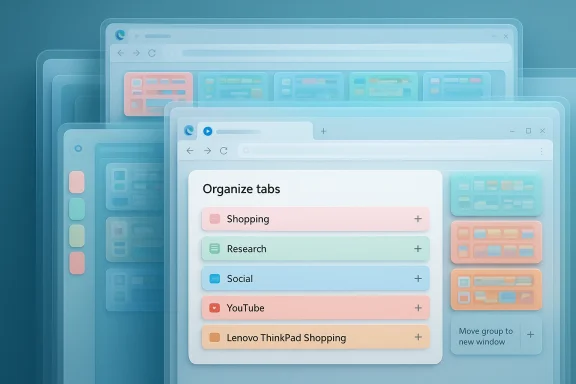
Microsoft Edge’s Organize tabs is an AI-powered addition to the browser’s existing tab grouping tools that automatically scans open tabs, infers topical similarity, and proposes named, color-coded groups you can accept, edit, or discard. Microsoft documents the capability under its Edge features pages and highlights that Organize tabs will “automatically create Tab groups based on tab similarity with the assistance of AI.”
The feature is accessible from the Tab Actions menu (the control next to your tabs) and works with both classic horizontal tabs and the increasingly popular vertical tabs layout. It also integrates with Edge Collections so you can save groups into Collections for later reference. Microsoft notes that availability and behavior may vary by device, market, and browser version, which leaves some implementation details intentionally vague.
Edge’s Organize tabs arrives in a broader period of rapid AI integration across browsers. Microsoft’s broader Copilot push — including Copilot Mode for Edge — shows Microsoft folding AI more tightly into core browser experiences, allowing AI to access open tabs to summarize, compare, or act across multiple pages when you explicitly enable those permissions.
That flow is visible in hands-on guides and how‑to writeups that predate the recent public rollout; Copilot in Edge could already be asked to “organize my tabs” via the chat assistant in earlier builds, which further shows Microsoft’s multi-pronged approach: a dedicated Tab Actions menu for quick access and Copilot for conversational requests.
What Microsoft does not spell out is the precise runtime architecture of the AI analysis: does it run locally, use an on-device model accelerated by Windows ML, offload analysis to Microsoft’s cloud, or some hybrid that leverages local NPUs when available? The Edge feature page intentionally leaves deployment details vague and only notes that behavior may vary by device. That ambiguity is meaningful for privacy‑conscious users and enterprise admins.
There are, however, signals from Microsoft’s broader AI strategy that suggest hybrid approaches are plausible. Microsoft has invested in on-device inference through Windows ML and other tooling that allows certain AI features to run locally or to take advantage of hardware NPUs for faster inference. Community and product threads have discussed local AI features in Edge and Windows that explicitly point to on-device functionality for sensitive tasks; but Microsoft’s higher‑level Copilot features (which sometimes require cloud models for more elaborate reasoning) indicate a mixed technical model across different capabilities. In short: Organize tabs could use local analysis on many devices, but Microsoft has not publicly guaranteed on-device-only processing for this specific feature. Treat the processing model as undocumented / device-dependent until Microsoft clarifies.
Microsoft has the advantage of combining tab grouping with the broader Copilot and Journeys UI investments in Edge, meaning the grouping functionality can be a gateway into deeper, session-level tools that summarize, compare, or resume research. That vertical integration is the differentiator here: Organize tabs is a practical, focused tool, while Copilot Mode and Journeys aim to re-architect how we interact with multi-tab research workflows.
That said, a few important caveats persist. The processing architecture is not fully documented, so privacy-minded users and enterprises should treat the feature as opt-in and seek clarity from Microsoft on where analysis occurs. The UI still has small rough edges that can lead to accidental closures or confusion, and the AI can mislabel or mis-group in edge cases. All of these are solvable problems, but they matter for professional workflows.
If you’re someone who hoards tabs, toggles between research threads, or keeps indefinite shopping and reference windows open, Organize tabs is worth enabling and trying. It’s not vaporware or an attention-grabbing demo; it’s a thoughtfully implemented convenience that, in real-world tests, genuinely makes browsing less noisy and more productive. For Microsoft, the small triumph of Organize tabs is strategic too — it’s an example of practical AI integration that users will remember because it actually improves the day-to-day experience.
In the near term, watch for two things: clearer statements from Microsoft about where the AI runs and stronger admin controls for enterprise deployment. If Microsoft addresses those, Organize tabs may join the short list of unobtrusive AI features that add consistent, measurable benefit without compromising user control — and that’s the best kind of AI to ship.
Source: Windows Latest I tested Microsoft Edge’s AI tab organizer, and it’s shockingly good
 Background / Overview
Microsoft Edge’s Organize tabs is an AI-powered addition to the browser’s existing tab grouping tools that automatically scans open tabs, infers topical similarity, and proposes named, color-coded groups you can accept, edit, or discard. Microsoft documents the capability under its Edge features pages and highlights that Organize tabs will “automatically create Tab groups based on tab similarity with the assistance of AI.”The feature is accessible from the Tab Actions menu (the control next to your tabs) and works with both classic horizontal tabs and the increasingly popular vertical tabs layout. It also integrates with Edge Collections so you can save groups into Collections for later reference. Microsoft notes that availability and behavior may vary by device, market, and browser version, which leaves some implementation details intentionally vague.
Edge’s Organize tabs arrives in a broader period of rapid AI integration across browsers. Microsoft’s broader Copilot push — including Copilot Mode for Edge — shows Microsoft folding AI more tightly into core browser experiences, allowing AI to access open tabs to summarize, compare, or act across multiple pages when you explicitly enable those permissions.
What Organize tabs claims to do — and what that means in practice
At a high level, Organize tabs promises three tangible outcomes:- Automatic grouping: Edge inspects open tabs and groups them by topic or similarity so you don’t have to manually create groups.
- Meaningful labels: The AI proposes group names that (ideally) describe the topic, not just the domain name.
- Customizable results: You can edit names, pick colors (including via color picker), move tabs between groups, and send a whole group to a new window.
That flow is visible in hands-on guides and how‑to writeups that predate the recent public rollout; Copilot in Edge could already be asked to “organize my tabs” via the chat assistant in earlier builds, which further shows Microsoft’s multi-pronged approach: a dedicated Tab Actions menu for quick access and Copilot for conversational requests.
My testing scenario: how the feature was challenged
To evaluate Organize tabs as a real-world tool rather than a lab demo, I recreated a common power-user mess:- Roughly 40 tabs in one Edge window (the test scenario in the hands-on report I used for this piece), spanning several repeat domains and cross-cutting topics.
- Topics included device leaks, hardware event coverage, product pages, social apps, shopping pages for multiple retailers, and multiple multimedia pages on the same subject (two YouTube videos covering the same laptop models).
- Tabs were intentionally interleaved — not grouped by topic — to remove any positional bias the model might exploit.
How it works — the visible and the unknown
What Edge shows you in the UI is straightforward: proposed group name, color, and tabs assigned to each group with a simple acceptance workflow. You can:- Edit a group’s name and color (including a color picker and slider).
- Add individual tabs to a group using a small plus icon.
- Move a whole group to a new window or ungroup it.
- Save a group to Collections for later retrieval.
What Microsoft does not spell out is the precise runtime architecture of the AI analysis: does it run locally, use an on-device model accelerated by Windows ML, offload analysis to Microsoft’s cloud, or some hybrid that leverages local NPUs when available? The Edge feature page intentionally leaves deployment details vague and only notes that behavior may vary by device. That ambiguity is meaningful for privacy‑conscious users and enterprise admins.
There are, however, signals from Microsoft’s broader AI strategy that suggest hybrid approaches are plausible. Microsoft has invested in on-device inference through Windows ML and other tooling that allows certain AI features to run locally or to take advantage of hardware NPUs for faster inference. Community and product threads have discussed local AI features in Edge and Windows that explicitly point to on-device functionality for sensitive tasks; but Microsoft’s higher‑level Copilot features (which sometimes require cloud models for more elaborate reasoning) indicate a mixed technical model across different capabilities. In short: Organize tabs could use local analysis on many devices, but Microsoft has not publicly guaranteed on-device-only processing for this specific feature. Treat the processing model as undocumented / device-dependent until Microsoft clarifies.
Where Organize tabs shines
- Speed and friction reduction. For users who habitually accumulate dozens of tabs, the one-click grouping flow collapses what would otherwise be a tedious manual sorting task into a single decision step. The time-savings are real: manual grouping of dozens of tabs takes minutes; Organize tabs aims to reduce that to a second or two for the AI pass and a few clicks to refine. Real-world user reports show major time savings for heavy tab users.
- Context-aware grouping. The AI appears to look beyond URLs and use visible page content when assigning groups. That’s why, in practical tests, two pages from the same domain but about different topics ended up in distinct groups while similar-topic content spread across multiple domains clustered together. That behavior matters: grouping by domain is easy and not very useful; grouping by semantic content is genuinely helpful.
- Readable names and colors. Unlike bare domain labels, Edge tends to propose human-readable theme names like “Shopping,” “Social Media,” or more specific titles when it can. The added polish — an editable name and a full color picker — makes the groups feel intentionally curated rather than machine-stamped.
- Compatibility with vertical tabs and Collections. Support for vertical tabs and the ability to save groups to Collections makes the feature more than a gimmick; it’s a workflow enhancement for people who keep long-running research sets.
UX nitpicks and real limits
No feature is perfect. From my testing and reading user reports, here are realistic limitations to expect:- Anecdotal timing vs. guarantee. A sub-second grouping is impressive, but that timing is situational. Larger multi-window setups, slow hardware, or restricted devices will not match the same speed. Treat quick grouping as probable but not guaranteed.
- Ambiguous processing guarantees. Microsoft’s documentation leaves the data‑flow question (local vs cloud) open-ended. For privacy-sensitive workflows — e.g., confidential tabs with work documents or corporate dashboards — IT administrators should assume the possibility of cloud processing until Microsoft publishes precise guarantees. This ambiguity is important for regulated industries.
- Edge cases in naming and grouping. While the AI often picks useful labels, it’s not infallible. Topics with overlapping vocabulary (for example, “Galaxy Book” vs “Galaxy Unpacked” vs “Galaxy S26” coverage) can be mis-grouped depending on the navigational cues present on the pages. The UI lets you correct mistakes, but the initial pass may not always be right.
- UI affordances that need polishing. In practice, a few UI choices feel odd: in one hands-on report, the “Close grouped tabs” and “Delete group” controls behaved identically (deleting the group and closing tabs) rather than providing distinct options. That conflation can be confusing — close should remove the tabs but perhaps keep the group as a named placeholder, while delete should remove the group entirely. Microsoft may tighten this in updates, but it’s a current UX inconsistency worth noting.
Privacy and enterprise implications
Organize tabs is helpful, but it also raises legitimate privacy and governance questions:- What does “analyze tabs” mean? The feature necessarily needs to parse page content to infer similarity. While UI prompts and permission layers exist for deeper Copilot actions, the Tab Actions flow currently operates at a level where the browser examines open tabs to propose groups. Microsoft’s documentation does not explicitly say whether that analysis is handled locally, sent to Microsoft cloud services, or both. Admins should assume this behavior is device- and region-dependent and consult Microsoft’s enterprise documentation for clear policy controls.
- Administrative controls and policy. Microsoft has added policies in Edge for other AI features (e.g., Copilot and context-based history scanning). Enterprises should request explicit feature-control guidance from Microsoft or use existing Edge administrative templates to manage whether users can run AI grouping on corporate devices. Windows Central reporting suggests that some AI features are intentionally controlled with admin policy and on-device privacy modes.
- User expectations vs. reality. Most users don’t want their shopping tabs remotely analyzed; they want local helpers that stay on-device. Given the present ambiguity, prompt users and IT teams to treat Organize tabs as an optional convenience and to disable it in sensitive environments until Microsoft clarifies processing boundaries.
How Organize tabs compares to other browsers
The AI tab organizer is not unique in concept — Google experimented with a Tab Organizer and Chrome introduced experimental generative AI tab features — but Edge’s implementation is the first time many users will see an integrated, one-click semantic grouping feature tied to Collections and vertical tabs in a shipped user experience rather than an experimental flag. Chrome’s Tab Organizer and “Organize Similar Tabs” suggestions were experimental and tied to a different set of privacy/processing assumptions; they offer comparable auto-grouping but not necessarily the same label quality or Collections integration that Edge provides.Microsoft has the advantage of combining tab grouping with the broader Copilot and Journeys UI investments in Edge, meaning the grouping functionality can be a gateway into deeper, session-level tools that summarize, compare, or resume research. That vertical integration is the differentiator here: Organize tabs is a practical, focused tool, while Copilot Mode and Journeys aim to re-architect how we interact with multi-tab research workflows.
Practical tips for power users
If you plan to use Edge’s Organize tabs daily, consider these workflow tips:- Keep one primary window for active research. The Organize tabs action groups tabs only in the active window, so consolidate tabs you want grouped.
- Use vertical tabs when you work with many groups — the color-coded sidebar pairs well with the Organize tabs color palettes.
- Review proposed names and colors before confirming; the UI allows easy edits and a full color picker for personalization.
- Save important groups to Collections immediately if you want them preserved across sessions.
- For sensitive corporate work, check your Edge administrative policies or disable Organize tabs until your IT team confirms the processing model.
Developer and power-user recommendations for Microsoft
If Microsoft were taking feedback, these are the near-term improvements that would make Organize tabs more robust for professionals:- Explicit processing disclosure. Make the data path explicit in the UI: “This analysis runs locally” or “This analysis may use cloud models” and require an explicit opt-in for cloud processing. That simple clarity would resolve many privacy concerns.
- Admin policy templates. Ship clear Group Policy/MDM controls that let IT teams toggle Organize tabs on or off at scale and audit usage on managed devices.
- Distinct UI actions for close vs. delete. Separate “Close grouped tabs” (close tabs, keep the group placeholder) from “Delete group” (remove grouping). Small UI semantics have large user impact.
- Batch confirmation mode. Offer an “auto-accept” toggle for trusted workflows, and conversely, a “preview-only” mode for cautious users who want to inspect but not confirm grouping automatically.
The larger context: AI in the browser and user trust
Organize tabs is one of many small, focused AI features that collectively change what a browser does. Copilot Mode and other features give Microsoft a platform-level advantage in offering cross-tab reasoning, session persistence, and agentic actions. These features are powerful because they reduce cognitive load and automate mundane tasks — but they also require careful handling of user data, model transparency, and clear permission boundaries. Multiple published pieces on Microsoft’s Copilot roadmap and community threads show both the enthusiasm and the skepticism that come with browser-level AI. The product’s success will depend on usefulness, clarity about data handling, and giving users and admins granular controls.Final verdict: practical, polished, and ready for daily use — with caveats
Edge’s Organize tabs is exactly the kind of focused, friction-reducing AI feature that should be encouraged. It solves a realistic productivity problem without demanding a heavy change in behavior: click a button, accept sensible groupings, and get back to work with less tab noise. The feature is fast, generally smart about content (not just domains), and integrates neatly with vertical tabs and Collections — all of which make it a practical win for power tab users.That said, a few important caveats persist. The processing architecture is not fully documented, so privacy-minded users and enterprises should treat the feature as opt-in and seek clarity from Microsoft on where analysis occurs. The UI still has small rough edges that can lead to accidental closures or confusion, and the AI can mislabel or mis-group in edge cases. All of these are solvable problems, but they matter for professional workflows.
If you’re someone who hoards tabs, toggles between research threads, or keeps indefinite shopping and reference windows open, Organize tabs is worth enabling and trying. It’s not vaporware or an attention-grabbing demo; it’s a thoughtfully implemented convenience that, in real-world tests, genuinely makes browsing less noisy and more productive. For Microsoft, the small triumph of Organize tabs is strategic too — it’s an example of practical AI integration that users will remember because it actually improves the day-to-day experience.
In the near term, watch for two things: clearer statements from Microsoft about where the AI runs and stronger admin controls for enterprise deployment. If Microsoft addresses those, Organize tabs may join the short list of unobtrusive AI features that add consistent, measurable benefit without compromising user control — and that’s the best kind of AI to ship.
Source: Windows Latest I tested Microsoft Edge’s AI tab organizer, and it’s shockingly good
