

PowerToys quietly does the heavy lifting Windows should be doing for you — and if you only use PowerToys Run or FancyZones, you’re missing a suite of small, focused utilities that shave minutes off everyday tasks and solve annoyances most Windows users accept as “just how it is.” A recent roundup reminding readers that many of PowerToys’ best modules fly under the radar is a perfect prompt to dig deeper: here are eight overlooked tools that earn a permanent place on your PC, why they matter, and how to use them safely and efficiently.
PowerToys began as an experimental toolbox for power users decades ago and was revived as an open-source project that Microsoft maintains alongside the Windows developer community. Its modular design means you can enable exactly the utilities you want without installing unrelated features, and the project’s cadence continues to add new modules and polish old ones. That balance of Microsoft stewardship and community-driven development is why PowerToys is both widely adopted and frequently updated.
PowerToys is not a single app so much as a collection of targeted micro‑apps: some replace or upgrade built‑in Windows behaviors, others fill productivity gaps, and a few are outright workflow game‑changers. Below I focus on eight utilities that most readers will find immediately useful beyond the headline favorites like the Command Palette or Workspaces. These picks emphasize practicality — faster daily work, fewer clicks, and fewer context switches.
PowerToys continues to be a pragmatic set of utilities that correct many small but persistent Windows UX gaps. The suite’s modular design, active maintenance, and the practical payoffs these eight tools provide make it a no‑regret install for power users, creators, and anyone who dislikes repetitive desktop chores. For readers who want to dig deeper, start by enabling one new module and integrating it into a single, well‑defined task until it becomes habit. The productivity gains accumulate quickly from there.
PowerToys won’t replace heavyweight applications when you need professional features — but for everyday friction, these eight tools are the low‑drag way to level up your Windows experience. Test them, keep experimental features contained, and customize conservatively: in aggregate, the suite transforms many small annoyances into a smoother, faster desktop.
Source: MakeUseOf You’re only using a fraction of PowerToys — these 8 tools are worth your time
 Background
PowerToys began as an experimental toolbox for power users decades ago and was revived as an open-source project that Microsoft maintains alongside the Windows developer community. Its modular design means you can enable exactly the utilities you want without installing unrelated features, and the project’s cadence continues to add new modules and polish old ones. That balance of Microsoft stewardship and community-driven development is why PowerToys is both widely adopted and frequently updated.PowerToys is not a single app so much as a collection of targeted micro‑apps: some replace or upgrade built‑in Windows behaviors, others fill productivity gaps, and a few are outright workflow game‑changers. Below I focus on eight utilities that most readers will find immediately useful beyond the headline favorites like the Command Palette or Workspaces. These picks emphasize practicality — faster daily work, fewer clicks, and fewer context switches.
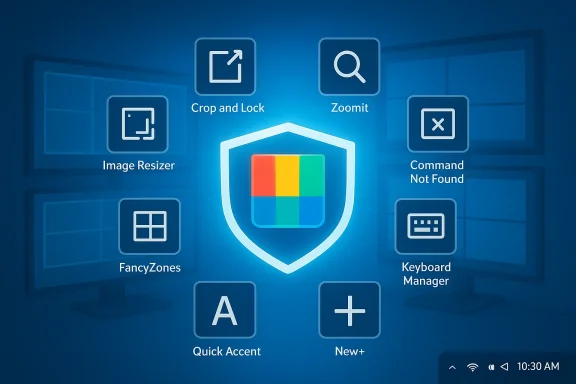
Overview of the eight tools covered
- Image Resizer — quick, bulk image resizing from File Explorer.
- Crop and Lock — interactive, application‑aware snipping and cropped window views.
- ZoomIt — live zoom and annotation for screencasts and demos.
- Command Not Found — helpful WinGet suggestions when CLI commands fail.
- FancyZones — custom window layouts and tiling tailored to your screen.
- Quick Accent — fast access to accented characters without switching layouts.
- New+ — template‑driven entries in the New context menu.
- Keyboard Manager — remap keys and shortcuts system‑wide.
Image Resizer: batch resizing without leaving Explorer
What it does
Image Resizer adds a right‑click option to File Explorer that resizes one or many images instantly. You select files, pick from preset sizes (or create your own), and PowerToys writes resized copies alongside the originals.Why it matters
Resizing images is one of those repetitive chores that steals time. You don’t need a full image editor or an upload‑only web tool every time you prepare assets for social media, emails, or quick documentation. Image Resizer is fast, local, and respects your folder structure.How to get the most from it
- Create custom size presets for your common outputs (web banner, social post, document).
- Use batch selection to process dozens of images in a single operation.
- Keep “Overwrite” turned off by default to avoid accidental data loss.
Caveats and verification
Image Resizer manipulates files locally; always double‑check your preset settings the first few times. Community testing consistently finds it reliable for trivial and bulk tasks.Crop and Lock: three modes of focused screenshots
What it does
Crop and Lock gives you several ways to capture parts of windows or applications — from static screenshots to interactive cropped windows that mirror the original content in real time.Modes explained
- Interactive snippet: captures a live, cropped view of an application area that continues to reflect changes in the source window.
- Cropped window with embedded original: creates a cropped view that embeds and mirrors the original window inside the crop.
- Static capture: a typical screenshot of a selected window region.
Strengths
- Useful for tutorial creators, developers documenting UI flows, or anyone who wants to isolate a dynamic portion of an app without switching contexts.
- The interactive mode can be especially helpful for live demos where you want a focused pane that updates as you work.
Risks and limitations
- The interactive/embedded modes are still experimental and may show blank screens or fail for some apps (particularly those with hardware acceleration or complex rendering pipelines). If you rely on this feature for critical workflows, test it with the specific applications you plan to use.
ZoomIt: the swiss‑army tool for demos and tutorials
What it does
ZoomIt is built for presenters and creators. It supports screen zoom, live on‑screen drawing/annotation, and timed break reminders. It works in full‑screen or windowed modes and reacts to hotkeys for instant activation.Why creators keep it pinned
- Precise, low‑latency zoom and draw functions make it easy to highlight UI elements or annotate live during a recording or meeting.
- Lightweight and focused — it does a few things, and does them well.
Practical tips
- Configure annotation colors and pen thickness before your session.
- Map ZoomIt to a convenient hotkey and rehearse the flow once.
- Use the “draw” mode sparingly — over‑annotation can be distracting.
Command Not Found: a lifesaver for CLI troubleshooting
What it does
When the Command Prompt or PowerShell returns a “command not found” error, PowerToys’ Command Not Found module suggests Windows packages you can install — often via WinGet — that provide the missing command.Why it’s valuable
Instead of hunting online forums to discover which package provides a command, this module surfaces relevant matches and fast‑tracks installation. For users following tutorials or troubleshooting errors, that can shave a frustrating detour off the workflow.Security and accuracy considerations
- The tool suggests packages available via the system package manager; those packages are not vetted or bundled by PowerToys. Always review package sources before installing.
- Suggestions are only as good as the WinGet package catalog and may not exist for older or niche utilities.
FancyZones: make snapping actually work for you
What it does
FancyZones replaces static snap layouts with fully customizable zones. You can design grids, canvases, and overlapping regions, then use a modifier key plus drag to snap windows into those predefined spaces.Why it’s better than default snapping
- Custom layouts let ultrawide and multi‑monitor setups become productive workspaces rather than chaotic window piles.
- Templates speed up repeated workflows: writing, reference research, communication apps, and monitoring tools each get their own saved layout.
Practical setup tips
- Start simple: 2–3 zones per monitor is often more usable than 6–8. Complex layouts can make window stacking and focus behave unpredictably.
- Use the Canvas option when you need non‑uniform, overlapping panes.
- Save multiple layouts and switch between them for different tasks.
Quick Accent: type accented characters without layout juggling
What it does
Quick Accent brings a mobile‑style accent picker to Windows. Hold a letter and press Space (or your configured hotkey) to show possible accented variants, then choose the one you need.Why learners and multilingual typists like it
- You can write words like müde, résumé, or schön without switching keyboard layouts or copy‑pasting.
- The module can be tuned to show accents only for the languages you care about.
Good to know
This small quality‑of‑life feature removes a tiny but persistent friction for language learners and casual multilingual typing. It’s unobtrusive and instantly rewarding.New+: add useful templates to the New context menu
What it does
New+ extends the right‑click New menu so you can add custom templates — a prebuilt folder structure, a blank document, or any template file you use regularly.Best uses
- Create a project starter folder with README, subfolders, and placeholder files.
- Add preformatted documents (notes, invoices, templates) for quick creation without digging through templates or copying old files.
Workflow tips
- Store templates in a dedicated folder and point New+ to that directory.
- Use descriptive names for templates so the New menu remains scannable.
- When teamwork is involved, keep common templates in a shared folder to ensure consistency.
Keyboard Manager: remap keys and create system‑wide shortcuts
What it does
Keyboard Manager lets you remap individual keys or create custom shortcuts that work across applications and games. It’s an integrated alternative to third‑party remappers.When to use it
- Replace a broken modifier or remap an awkward layout for comfort.
- Create custom shortcuts that launch apps or trigger common file operations.
Important security note
For security reasons Windows disallows remapping of certain secure combinations (for example, Ctrl+Alt+Del and Win+L are not remappable). Also, be mindful when applying remaps on shared machines: remapping system keys can confuse other users and complicate remote support.Safety, privacy, and maintenance: what you should know
PowerToys is free, open‑source, and maintained with contributions from Microsoft and the wider community. That model brings transparency, but it also means modules can change quickly and experimental features arrive in builds before being hardened for enterprise environments. Use these guidelines:- Always install PowerToys from official, trusted channels and keep it updated. Community reporting suggests the project is actively maintained and frequently improved.
- Treat experimental modules (marked as such in the PowerToys settings) as potentially unstable; test them before relying on them in production workflows, especially Crop and Lock’s live modes.
- When modules interact with files, the clipboard, or the OS (for example, Image Resizer or Text Extractor), confirm where temporary data is stored and whether logs are kept. If your work is sensitive, prefer local, offline modules and hold off on features that upload or sync content to the cloud.
- With modules that suggest package installs (Command Not Found), always inspect the suggested WinGet packages before installation to verify publisher and integrity. The module speeds discovery, but it does not inherit trust guarantees for third‑party packages.
Installation and safe configuration (quick step‑by‑step)
- Download and install PowerToys from your system’s preferred trusted source.
- Launch PowerToys and open the General settings to enable auto‑start if you want persistent availability.
- In the Modules list, enable only the tools you plan to use. Start with Image Resizer, FancyZones, and Keyboard Manager.
- Configure each module:
- Image Resizer: define your presets and confirm output behavior.
- FancyZones: create a simple 2–3 zone layout and save it.
- Keyboard Manager: test one remap at a time.
- Update PowerToys regularly; major modules receive improvements frequently.
- For enterprise or multi‑user environments, evaluate stability on a test machine before broad deployment.
Alternatives and when to prefer them
PowerToys is intentionally lightweight. For deep, professional workflows, specialized apps may be preferable:- For advanced image processing, full editors like Photoshop or Affinity Photo remain the right choice.
- For professional window tiling on Linux‑style workflows, dedicated tiling managers or commercial tools sometimes offer finer control than FancyZones.
- For enterprise key remapping or device management, centralized IT tools and policies are the safer option.
Final verdict: which modules should you enable today?
If you install PowerToys right now, enable these first for the largest immediate payoff:- FancyZones — better multi‑tasking and screen real estate management.
- Image Resizer — fast, local bulk image processing.
- Keyboard Manager — restore productivity on imperfect keyboards or create fast shortcuts.
- ZoomIt — if you present, record, or teach regularly.
PowerToys continues to be a pragmatic set of utilities that correct many small but persistent Windows UX gaps. The suite’s modular design, active maintenance, and the practical payoffs these eight tools provide make it a no‑regret install for power users, creators, and anyone who dislikes repetitive desktop chores. For readers who want to dig deeper, start by enabling one new module and integrating it into a single, well‑defined task until it becomes habit. The productivity gains accumulate quickly from there.
PowerToys won’t replace heavyweight applications when you need professional features — but for everyday friction, these eight tools are the low‑drag way to level up your Windows experience. Test them, keep experimental features contained, and customize conservatively: in aggregate, the suite transforms many small annoyances into a smoother, faster desktop.
Source: MakeUseOf You’re only using a fraction of PowerToys — these 8 tools are worth your time
