

PowerToys is the closest thing Microsoft will give power users: a visible, supported concession that Windows — for the sake of simplicity, security, and scale — left a lot of useful knobs, shortcuts, and shortcuts-to-shortcuts behind as it chased a mainstream-friendly interface.
PowerToys today is not the nostalgic toolkit of Windows 95; it is an actively developed, open‑source suite of more than two dozen utilities maintained by Microsoft and a large community on GitHub. The project lives outside the Windows servicing channel — installable from GitHub, the Microsoft Store, or via package managers like WinGet — and it updates on its own cadence. That separation matters: PowerToys is simultaneously an experimental lab and a staging ground for ideas that may never graduate to the core OS, but which power users rely on every day to repair, refine, or reinvent the Windows experience.
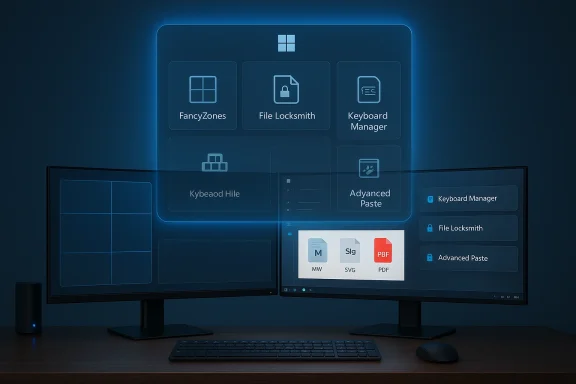
PowerToys contains modules ranging from window-management tools and file-preview handlers to keyboard remappers and, increasingly, AI-enhanced clipboard transformations. Over the past few years the project has matured from a handful of conveniences to a substantial platform: FancyZones for advanced window layouts, File Explorer add-ons that restore preview handlers Windows lacks, File Locksmith that tells you what process holds a file, and Advanced Paste — a clipboard transformer that now supports multiple AI model providers and local inference. These are not cosmetic niceties; they directly solve real usability and productivity problems that users have learned to work around for decades.
PowerToys functions as Microsoft’s pragmatic middle ground:
What started as a few power utilities became a platform where older Microsoft Garage tools (like Mouse Without Borders) were modernized and integrated into the collection. The project now produces frequent point releases and maintenance builds, and it ships features that address both consumer and enterprise concerns — for example, installer options, configuration via Windows Package Manager and Desired State Configuration (DSC), and expanded support for on‑device AI models.
There are reasons for this restraint: data loss, support burden, and the increased cost of managing a wildly configurable platform at Microsoft scale. At the same time, PowerToys functions as a pressure valve and idea factory: experiment, measure uptake, then consider migration into the OS. FancyZones influenced how people expect window snapping to behave; Advanced Paste is pushing the envelope on how the OS can participate in AI workflows without overexposing users’ data.
That model works. But it also means you should still approach PowerToys with the discipline of an administrator or an engineer: understand the tools, limit the blast radius, and update with care. When used thoughtfully, PowerToys is less of a guilty secret and more of a weaponized ergonomics kit — the sort of pragmatic engineering Microsoft has always offered, now in a modern, open repository with active community stewardship.
For power users, the advice is simple: install the modules you need, test the ones you don’t, and treat PowerToys as a managed extension to Windows rather than a replacement for platform discipline. For Microsoft, PowerToys is a powerful experiment — a place to learn what power users actually want without forcing those choices on everyone. That pragmatic separation may not satisfy purists who want all knobs turned on by default, but it gives the community the best of both worlds: a stable mainstream OS and a nimble lab where power can be earned, enabled, and refined.
Source: How-To Geek This app is Microsoft's apology to power users
 Background
PowerToys today is not the nostalgic toolkit of Windows 95; it is an actively developed, open‑source suite of more than two dozen utilities maintained by Microsoft and a large community on GitHub. The project lives outside the Windows servicing channel — installable from GitHub, the Microsoft Store, or via package managers like WinGet — and it updates on its own cadence. That separation matters: PowerToys is simultaneously an experimental lab and a staging ground for ideas that may never graduate to the core OS, but which power users rely on every day to repair, refine, or reinvent the Windows experience.PowerToys contains modules ranging from window-management tools and file-preview handlers to keyboard remappers and, increasingly, AI-enhanced clipboard transformations. Over the past few years the project has matured from a handful of conveniences to a substantial platform: FancyZones for advanced window layouts, File Explorer add-ons that restore preview handlers Windows lacks, File Locksmith that tells you what process holds a file, and Advanced Paste — a clipboard transformer that now supports multiple AI model providers and local inference. These are not cosmetic niceties; they directly solve real usability and productivity problems that users have learned to work around for decades.
Why PowerToys exists (and why it’s separate)
Microsoft’s product design tradeoffs are intentional. Mainline Windows aims for predictability, security, and the lowest common denominator of usability across billions of devices. That makes sense for an OS whose users include grandparents, point‑of‑sale kiosks, and fleet-managed laptops. But predictability often means hiding accidental complexity that power users depend on.PowerToys functions as Microsoft’s pragmatic middle ground:
- It’s a place to run higher‑risk or more advanced features without exposing them to every Windows device by default.
- It’s open source, so features can be iterated publicly with community feedback and contributions.
- It’s a testbed: successful modules can inform Windows design without being forced into the platform on day one.
A short history — from Garage curios to core influence
PowerToys was originally a Microsoft engineering outlet decades ago, and the current project was revived as an open‑source effort in 2019. Since then it has grown rapidly in scope and adoption. The GitHub repository is a highly active project with frequent releases, dozens of active modules, and contributions from hundreds of developers across Microsoft and the open‑source community.What started as a few power utilities became a platform where older Microsoft Garage tools (like Mouse Without Borders) were modernized and integrated into the collection. The project now produces frequent point releases and maintenance builds, and it ships features that address both consumer and enterprise concerns — for example, installer options, configuration via Windows Package Manager and Desired State Configuration (DSC), and expanded support for on‑device AI models.
What PowerToys gives power users — the most consequential modules
Below are the PowerToys utilities that matter most to people who spend hours inside Windows and demand fewer friction points.FancyZones — rethink window layouts
FancyZones is a window manager with serious customization. It lets you design grid and non‑grid layouts, snap apps into those layouts, and save layouts for different tasks or displays. On ultrawide monitors and multi‑display setups, FancyZones is functionally indispensable: it does the layout math Windows’ built‑in Snap layouts don’t support and it gives you persistent, repeatable workspace templates.- Create custom zones for code, preview, and terminal windows.
- Store layout profiles per-monitor or per-workspace.
- Snap windows into irregular layouts (not just quarters and thirds).
File Explorer add‑ons — preview what Windows refuses to
Windows File Explorer historically reserved preview handlers for a limited set of formats. PowerToys fills the gap: enable preview and thumbnail handlers for Markdown, SVG, PDF, G‑code, STL, and a wide range of source code files. For developers, CAD hobbyists, and writers, that single toggle is a huge time‑saver.- Preview pane support for Markdown, source code, and PDF.
- Thumbnail support for SVG, STL, and other niche formats.
- Note: enabling PowerToys’ preview handlers can conflict with other preview handlers (Adobe, Outlook). If you see "This file can't be previewed," try toggling the handler off or restarting Explorer.
File Locksmith — answer the most irritating Windows message
"File in use" is a practically ritualistic Windows problem. File Locksmith exposes the mystery process that has a handle on the file and lets you attempt a release. It’s a low‑level troubleshooting tool that saves time after hung apps or background services leave locks behind.- Shows which process(es) have open handles to a file.
- Lets you force‑close handles (with the obvious risk of data loss).
- Use it as a last resort; forcibly breaking a handle can corrupt data or leave an app unstable.
Always On Top, Crop & Lock — small ergonomics, big payoff
Small UX annoyances compound. Always On Top (pin the active window with a hotkey) and Crop & Lock (pin a cropped region of the screen as an always‑on‑top mini‑view) solve constant little frustrations: runoff calculator windows, reference panels, or snippets you need visible but out of the keyboard flow.- Default activation: Win+Ctrl+T (customizable).
- Border color and opacity options for pinned windows.
- Useful for monitor real estate that otherwise steals focus or gets covered.
Keyboard Manager — remap keys and shortcuts
Keyboard Manager offers an in‑app UI to remap keys and shortcuts without registry hacks or third‑party drivers. You can swap keys, make text macros, or remap a shortcut to launch an app. It’s immediate, reversible, and far less fiddly than older remapping methods.- Remap keys globally or for specific apps (process names).
- Create shortcut → text chains or start apps with hotkeys.
- Not everything can be remapped (system reserved shortcuts like Win+L or Ctrl+Alt+Del).
Mouse Without Borders — one keyboard for up to four PCs
What used to be a Microsoft Garage standalone utility now sits inside PowerToys. Mouse Without Borders turns multiple Windows PCs into a virtual KVM: move the mouse between systems, share clipboard entries, and copy single files across machines. There are caveats — it’s not a full remote‑desktop, file transfers have size limits, and running it as a service increases privilege scope — but the convenience is undeniable when you manage multiple machines.- Control up to four PCs from one mouse/keyboard.
- Clipboard and single‑file transfers (size limits apply).
- Optionally run as a service to enable elevated interactions — this increases security surface area.
PowerToys Run, Command Palette, PowerRename — pocket tools that save minutes
PowerToys Run is a Spotlight‑style launcher; PowerRename is a batch renaming interface with pattern matching; Command Palette and other utilities provide accessible, keyboard‑first workflows. Individually they reclaim seconds; together they save hours for professionals.Advanced Paste — a modern clipboard with AI options
Advanced Paste has evolved into a transformational clipboard feature: beyond "paste as plain text," it can reformat, translate, summarize, or extract text from images. Importantly, recent updates expanded Advanced Paste to support multiple AI providers and local model hosts — Azure OpenAI, OpenAI, Google Gemini, Mistral, and on‑device runtimes like Ollama or Foundry Local.- Multiple provider support reduces vendor lock‑in.
- Local runtime support permits on‑device inference for privacy‑sensitive content.
- Transformations (translate, summarize, convert to Markdown/JSON, OCR) are accessible from the paste flow.
The strengths: why PowerToys works
PowerToys’ success rests on several pillars:- Practicality. Features solve real, repeatable problems — not just academic experiments.
- Modularity. Users enable only the modules they want, keeping the footprint focused.
- Open development model. GitHub collaboration accelerates iteration, bug fixes, and ecosystem plugins.
- Rapid evolution. Frequent releases and a visible changelog mean bugs get fixed and features mature quickly.
- Enterprise‑friendly knobs. Installation options, WinGet support, and configuration tooling like DSC make PowerToys manageable at scale.
The risks and trade‑offs — what you should watch out for
PowerToys is powerful — and that implies trade‑offs. Understand them before flipping every toggle.Conflicts and compatibility
- File Explorer add‑ons can conflict with other preview handlers (Adobe, Outlook). If a preview stops working, the first troubleshooting step is to toggle PowerToys’ preview handlers off and restart File Explorer.
- Some modules interact with protected or elevated windows; Mouse Without Borders’ optional service mode raises privilege concerns you should not enable lightly.
Stability and regressions
- Because PowerToys moves fast, regressions happen. The GitHub issue tracker contains reports about preview pane bugs, shortcut conflicts, and occasional crashes. Test new releases in a controlled environment before deploying broadly.
Security surface area
- Running modules with elevated permissions or service mode increases attack surface. For example, enabling Mouse Without Borders as a service to interact with the lock screen requires trusting that networking and security boundaries are correctly handled.
- File Locksmith can forcibly close handles. That’s a diagnostic sledgehammer — useful but dangerous if you don’t understand what you’re breaking.
Privacy and AI concerns
Advanced Paste’s AI features bring a new set of questions:- Cloud providers process the clipboard contents; misconfiguration could leak sensitive text or credentials.
- Even with local models available, users must confirm model integrity and that the runtime has no hidden exfiltration or telemetry.
- PowerToys logs diagnostic telemetry by default — the project documents what it collects. Users and administrators should audit those settings and change them if organizational policy requires.
The fragmentation problem
PowerToys is optional. That’s great for control, but it means organizations and users can drift into varied configurations. Two colleagues with different PowerToys setups may have different workflows, which complicates standardization. For enterprises that want consistent workstations, PowerToys’ DSC and WinGet integration help, but only if the IT team adopts them.Practical guidelines for safe adoption
If you’re a power user or an IT admin considering PowerToys, follow these steps.- Audit needs first. Turn on only the modules that solve real pain points.
- Test releases in a lab. Run each new version in a test VM for a few days before rolling out.
- Be careful with preview handlers. If your organization relies on third‑party integrations (Adobe, Outlook), test the File Explorer add‑ons for conflicts.
- Treat File Locksmith as a last resort. Always try graceful app shutdowns before forcing handles closed.
- Control Mouse Without Borders privileges. Avoid service mode unless you understand the risk profile.
- Manage Advanced Paste provider choices. Prefer on‑device models for sensitive content and implement clear policy for cloud provider use.
- Use package management for deployments. WinGet and DSC support make PowerToys manageable across fleets.
- Monitor telemetry and privacy. Review PowerToys’ privacy settings and the project’s Data and Privacy documentation; disable telemetry where required by policy.
What PowerToys reveals about Windows UX strategy
PowerToys is candid UX anthropology. It says: Windows must remain sane for the masses, but Microsoft knows power users exist and will make dedicated space for them when it’s safe. That separation — optional modules instead of system defaults — enables both worlds to coexist. Yet it also signals a tension: Microsoft will not broadly ship powerful but riskier tools by default, even into Pro editions.There are reasons for this restraint: data loss, support burden, and the increased cost of managing a wildly configurable platform at Microsoft scale. At the same time, PowerToys functions as a pressure valve and idea factory: experiment, measure uptake, then consider migration into the OS. FancyZones influenced how people expect window snapping to behave; Advanced Paste is pushing the envelope on how the OS can participate in AI workflows without overexposing users’ data.
A balanced verdict
PowerToys is not a Band‑Aid for an unloved OS; it’s a deliberate, effective ecosystem for users who need more control. It’s an admission by Microsoft that the tradeoffs it makes for mainstream polish leave a category of users underserved — and instead of altering that mainstream product in a way that would risk predictability, Microsoft provides an opt‑in toolset.That model works. But it also means you should still approach PowerToys with the discipline of an administrator or an engineer: understand the tools, limit the blast radius, and update with care. When used thoughtfully, PowerToys is less of a guilty secret and more of a weaponized ergonomics kit — the sort of pragmatic engineering Microsoft has always offered, now in a modern, open repository with active community stewardship.
Conclusion
PowerToys is Microsoft’s practical apology to power users: a well‑maintained, community‑driven toolbox that restores control where Windows intentionally simplified. It doesn’t change the core design philosophy — Windows will remain straightforward by default — but it acknowledges that productivity, customization, and occasional complexity are not bugs; they’re requirements for a subset of users who use Windows differently.For power users, the advice is simple: install the modules you need, test the ones you don’t, and treat PowerToys as a managed extension to Windows rather than a replacement for platform discipline. For Microsoft, PowerToys is a powerful experiment — a place to learn what power users actually want without forcing those choices on everyone. That pragmatic separation may not satisfy purists who want all knobs turned on by default, but it gives the community the best of both worlds: a stable mainstream OS and a nimble lab where power can be earned, enabled, and refined.
Source: How-To Geek This app is Microsoft's apology to power users
