

I installed Microsoft PowerToys on my main Windows 11 PC and three small utilities—FancyZones, Peek, and Advanced Paste—immediately removed a disproportionate amount of daily friction: custom window layouts that behaved how I wanted, a fast file preview without opening heavyweight apps, and clean paste options that strip the weird formatting the web adds. What felt like three tiny conveniences together reclaimed real time during my workday, and they illustrate why PowerToys is worth a place in the toolbox of any Windows power user who multitasks across browsers, notes, and files.
PowerToys is an official, open‑source set of utilities from Microsoft designed for power users and productivity tweaks. It’s modular: you enable only the components you need, which keeps background cost low while letting you add targeted improvements to the shell and common workflows. The suite has matured into a broadly useful toolkit that fills gaps Windows 11 still doesn’t cover natively. Three PowerToys utilities repeatedly show up in “day one” setups and community recommendations because they solve simple but persistent annoyances:
Microsoft explicitly warns against using Ctrl+V as the Advanced Paste activation because overriding the standard paste behavior can have unintended consequences—so pick a dedicated quick key for direct actions.
For light users who mainly browse, email, and edit simple documents, PowerToys may feel like overkill. It’s most compelling when small, repeated inefficiencies accumulate—when you’re constantly juggling windows, opening files to confirm contents, and pasting web text into notes or documents. That’s the sweet spot where PowerToys pays back its friction cost quickly.
However, a few trade‑offs deserve attention:
The trade‑offs are manageable: keep modules limited, avoid shortcut collisions, and treat AI paste features with appropriate privacy safeguards. For those who live in Windows and multitask across documents, browser tabs, and chat windows, PowerToys doesn’t just make life easier—it quietly returns small chunks of time that compound into significant productivity gains.
Source: XDA 3 Windows frustrations Microsoft PowerToys finally fixed for me
 Background / Overview
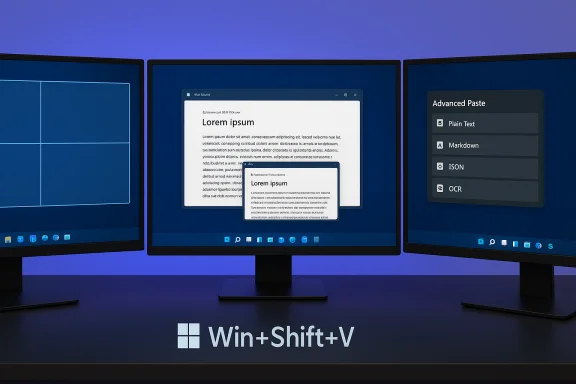
PowerToys is an official, open‑source set of utilities from Microsoft designed for power users and productivity tweaks. It’s modular: you enable only the components you need, which keeps background cost low while letting you add targeted improvements to the shell and common workflows. The suite has matured into a broadly useful toolkit that fills gaps Windows 11 still doesn’t cover natively. Three PowerToys utilities repeatedly show up in “day one” setups and community recommendations because they solve simple but persistent annoyances:- FancyZones — custom window tiling and saved layouts for multi‑monitor or ultra‑wide setups.
- Peek — a fast file preview overlay that avoids launching full apps just to verify a file.
- Advanced Paste — paste clipboard content as plain text, Markdown, JSON, or run local OCR/transcoding before pasting.
FancyZones: keep window chaos under control
What FancyZones actually does
FancyZones replaces and extends Windows’ stock Snap Layouts with a true custom tiling system. Instead of the fixed Snap Layout presets, FancyZones lets you design, save, and recall any grid or shaped layout per monitor. You can:- Build custom layouts (grid, canvas, rows/columns) with exact sizing.
- Assign different layouts to different monitors.
- Snap windows into those zones via drag or keyboard shortcuts.
- Save layouts as presets and assign numeric hotkeys.
How to set up a reliable layout (practical steps)
- Open PowerToys and enable FancyZones.
- Click Launch layout editor (or press the editor hotkey).
- Select the monitor and either choose a template or create a Custom layout.
- Use the editor’s canvas to size and position zones exactly; save the layout and (optionally) assign it a hotkey.
- Enable shift‑drag snapping or set override snap behavior to make movement predictable.
Strengths and why it beats built‑in Snap Layouts
- Truly custom zones: Create asymmetric and dense grids that Snap Layouts can’t produce.
- Per‑monitor memory: Different monitors can retain different layouts.
- Quick restores: One action or hotkey re‑establishes a full working arrangement.
Risks and caveats
- FancyZones can behave oddly with applications that run elevated (admin). If PowerToys and your app run under different privilege levels, snapping may not work consistently. The usual remedy is to run PowerToys elevated or avoid allowing conflicting elevation for specific apps.
- It does not persist the content of zones (which specific app instance is bound to which zone) across all situations; you still may need small startup scripts or third‑party tools for absolute reproducibility. Microsoft support documentation and community threads confirm the layout‑only scope.
- Like any layout manager, it adds another layer of settings and hotkeys to remember. That’s a small usability tax for the time saved, but it’s worth noting for users who prefer minimal configuration.
Peek: quick file previews without opening heavy apps
What Peek brings to the table
Peek gives you a macOS‑style quick look: select a file in File Explorer and invoke Peek to open a lightweight overlay showing the file’s contents—text, Markdown, Office formats, images, and more—without launching the corresponding app. The default activation is the Space key, but it’s customizable; many users set a different shortcut like Ctrl+Space to avoid conflicts. Peek also supports keyboard navigation (left/right/up/down) to step through files in the current folder. This is precisely the friction the XDA author described: when dozens of similar filenames exist (Cover letter_final vs Cover letter_revised), it’s faster to preview than to open Word repeatedly. In practice, Peek keeps your taskbar cleaner and avoids opening heavyweight processes just to confirm a file.How I configure Peek for fast scanning
- Enable Peek in PowerToys settings.
- Set the activation key you prefer (default
Spaceis unobtrusive, butCtrl+SpaceorAlt+Spacealso work). - Turn on the option to auto‑close Peek when it loses focus if you want ephemeral previews.
Strengths, limits, and practical notes
- Strengths: Fast validation of files without context switching; supports many file types; pin/size the preview if you need a persistent reference.
- Limits: Previewer overlays may not perfectly render some specialized or heavily protected file types (e.g., DRM‑protected documents or apps that require a specific host). Some network share access scenarios may require Peek to run without elevation to reach remote resources.
Advanced Paste: paste clean text, paste as Markdown, or run OCR first
What Advanced Paste does differently
Advanced Paste remakes the paste experience for real‑world use: it provides an on‑demand UI (default activation Win+Shift+V) and direct quick‑key actions for:- Paste as plain text (strip all formatting).
- Paste as Markdown (convert HTML or rich text to Markdown).
- Paste as JSON (structure text into JSON where appropriate).
- Paste image as file and Image→Text OCR (extract text from images locally).
- Transcode audio/video clips to MP3/MP4 before pasting as files.
Why this matters in day‑to‑day work
Copying text from websites, PDFs, or emails almost always brings along hidden formatting: odd fonts, extra line breaks, and embedded styles that break your notes or email drafts. Advanced Paste removes that friction instantly. If you frequently paste into note tools that prefer Markdown, the built‑in “Paste as Markdown” option is a direct time saver.Microsoft explicitly warns against using Ctrl+V as the Advanced Paste activation because overriding the standard paste behavior can have unintended consequences—so pick a dedicated quick key for direct actions.
Recent AI and on‑device capabilities (what to watch for)
Advanced Paste has evolved to include optional AI features: model selection, cloud API support, and — importantly — support for on‑device model hosts (Foundry Local, Ollama) that keep processing local rather than sending clipboard contents to cloud APIs. That means you can get summarization, translation, or structure transformations without exposing clipboard contents to third‑party servers—if you configure it that way. Independent reporting confirms these on‑device options in recent updates and highlights the privacy advantages.Caveats and risks
- Privacy vs convenience: AI‑powered paste options can be convenient, but cloud API use requires an API key and sends content off‑device unless you explicitly configure a local model host. Treat this as a policy decision in managed environments.
- Performance: Transcoding or OCR runs locally; on older hardware these operations may be slower. On modern machines with NPUs, some AI tasks can be accelerated on‑device.
- Shortcut conflicts: Assign explicit shortcuts for “Paste as Plain Text” and “Paste as Markdown” and avoid overriding plain Ctrl+V. Microsoft documentation flags that override as risky.
Why PowerToys isn’t essential for everyone
PowerToys adds capabilities that replicate or extend Windows functionality, and if your needs are modest you can certainly get by with native features: Snap Layouts, the File Explorer preview pane, and per‑app paste options (many apps support Ctrl+Shift+V for plain text). Installing and configuring PowerToys is an upfront cost: additional settings to learn, more hotkeys, and the occasional interaction with app elevation or other utilities.For light users who mainly browse, email, and edit simple documents, PowerToys may feel like overkill. It’s most compelling when small, repeated inefficiencies accumulate—when you’re constantly juggling windows, opening files to confirm contents, and pasting web text into notes or documents. That’s the sweet spot where PowerToys pays back its friction cost quickly.
Deployment, privacy, and maintenance: what IT and power users should know
Short checklist before installing broadly
- Audit which PowerToys modules you actually need and enable only those.
- Avoid assigning system‑critical shortcuts (don’t override Ctrl+V).
- If using Advanced Paste AI features in enterprise contexts, prefer local model hosts or restrict cloud API keys to approved accounts.
- Use PowerToys’ export/backup options (or DSC) to capture FancyZones layouts and other settings for repeatable setups. Microsoft documents DSC support to configure PowerToys centrally.
Troubleshooting common issues
- If windows don’t snap correctly for elevated applications, run PowerToys elevated or avoid elevating the snapped app.
- If FancyZones seems to misremember layouts across monitors, confirm the layout is saved for the correct monitor and back up the custom-layouts.json.
- If Peek can’t access files on a network share, try running Peek without elevation (there’s a setting for that).
Critical analysis: strengths, trade‑offs, and safety considerations
PowerToys’ design philosophy—modular utilities for power users—shows in the quality and polish of FancyZones, Peek, and Advanced Paste. Each is focused and does one job very well, and together they remove a surprising amount of daily friction. Those are real, repeatable productivity wins.However, a few trade‑offs deserve attention:
- Complexity creep: More utilities mean more settings and shortcuts. Users who prefer a minimal environment may find PowerToys intrusive unless they limit modules carefully.
- Privilege/elevation interactions: Some modules can misbehave if privilege levels vary between PowerToys and target apps. That’s solvable but requires awareness.
- AI and privacy: Advanced Paste’s AI options are powerful, but cloud‑based models may expose sensitive clipboard content if not configured to use local models. Administrators should plan policy and provisioning for API keys or local model hosts if the feature will be used in an organization. Independent reporting confirms on‑device AI support is now available, which mitigates the concern if properly configured.
- Stability and change: PowerToys is actively developed; releases occasionally introduce regressions or behavior changes (for example, new modules like Light Switch have required quick patches in the past). Keep an eye on release notes and avoid auto‑upgrading in production pools without testing.
Practical verdict and recommended setup
For a daily Windows power user, FancyZones, Peek, and Advanced Paste cover three of the most common time sinks:- FancyZones removes window rearrangement time and makes your desktop predictable.
- Peek replaces dozens of app launches with a single tap for content verification.
- Advanced Paste removes the tedious cleanup step after copying content from the web.
- Install PowerToys from the Microsoft Store or GitHub.
- Enable only FancyZones, Peek, and Advanced Paste.
- Assign non‑conflicting hotkeys (avoid overriding common system shortcuts).
- Use FancyZones for one or two layouts and test them for a week.
- Configure Advanced Paste quick actions for plain text and Markdown, and do not set Ctrl+V as the activation key.
- If you use AI features, prefer on‑device models or evaluate the privacy implications of cloud APIs first.
Conclusion
PowerToys isn’t a headline feature that revolutionizes Windows, but it is a pragmatic suite of thoughtful tools that fix everyday annoyances—especially for heavy users. FancyZones brings control to chaotic desktops, Peek takes the tedium out of file hunting, and Advanced Paste eliminates the formatting cleanup that steals minutes across a day. Each solves a tight, recurring problem; together they add up to a faster, less distracted workflow.The trade‑offs are manageable: keep modules limited, avoid shortcut collisions, and treat AI paste features with appropriate privacy safeguards. For those who live in Windows and multitask across documents, browser tabs, and chat windows, PowerToys doesn’t just make life easier—it quietly returns small chunks of time that compound into significant productivity gains.
Source: XDA 3 Windows frustrations Microsoft PowerToys finally fixed for me
