

Microsoft PowerToys quietly does what Windows 11 sometimes only promises: it fills small but persistent productivity gaps with lightweight, well-designed utilities that save time every day — and seven of those utilities deserve immediate attention on any modern Windows machine.
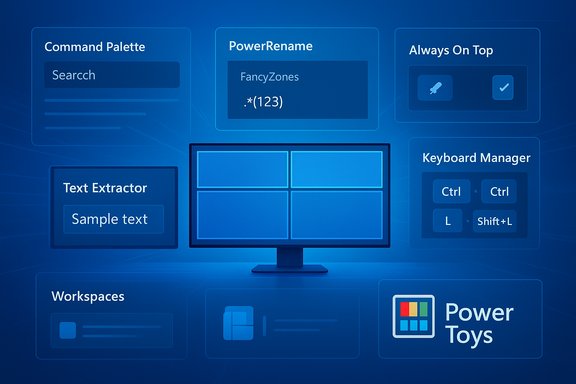
Microsoft PowerToys is an official, open-source suite of modular utilities maintained by Microsoft and the community. It’s intentionally small and optional: you install one package and then enable only the tools you want, which keeps background resource use low while letting you add precise capabilities Windows lacks out of the box. That modular design, combined with active releases on GitHub and distribution via the Microsoft Store and winget, makes PowerToys a practical first install for power users and sensible teams alike. This piece covers seven PowerToys features that deliver the biggest daily returns on Windows 11: FancyZones, Workspaces, PowerRename, Command Palette (the successor to PowerToys Run), Keyboard Manager, Always On Top, and Text Extractor (OCR). For each utility you’ll get a concise description, verified default shortcuts and behaviors, practical setup and usage tips, and a candid assessment of strengths, limitations, and risks so you can adopt them safely and effectively.
Before we dive into each tool, two practical deployment notes:
Trade‑offs and potential risks:
For an immediate, low‑risk start: enable FancyZones, Command Palette, and Text Extractor, adjust hotkeys, and keep PowerToys updated via the official GitHub or Microsoft Store channels. If you deploy across multiple machines, script installations with winget and validate hotkeys and security policies first. PowerToys is a small kit that, when applied thoughtfully, makes Windows 11 feel faster, more predictable, and much more nimble.
Source: groovyPost 7 Microsoft PowerToys features you should be using on Windows 11
 Background / Overview
Microsoft PowerToys is an official, open-source suite of modular utilities maintained by Microsoft and the community. It’s intentionally small and optional: you install one package and then enable only the tools you want, which keeps background resource use low while letting you add precise capabilities Windows lacks out of the box. That modular design, combined with active releases on GitHub and distribution via the Microsoft Store and winget, makes PowerToys a practical first install for power users and sensible teams alike. This piece covers seven PowerToys features that deliver the biggest daily returns on Windows 11: FancyZones, Workspaces, PowerRename, Command Palette (the successor to PowerToys Run), Keyboard Manager, Always On Top, and Text Extractor (OCR). For each utility you’ll get a concise description, verified default shortcuts and behaviors, practical setup and usage tips, and a candid assessment of strengths, limitations, and risks so you can adopt them safely and effectively.Why PowerToys still matters for Windows 11
Windows 11 added many improvements — Snap Layouts, a refreshed Start experience, and improved accessibility — but PowerToys fills the niche of fine-grained, productivity-first features. Many of the tools here are precisely the kind of “quality-of-life” utilities that compound into real time savings: better window management, fast launch/search, batch renaming, on-device OCR, and more. Editorial roundups and community threads repeatedly recommend PowerToys as a day‑one install because it’s official, open-source, and modular.Before we dive into each tool, two practical deployment notes:
- Install PowerToys from the Microsoft Store, GitHub releases, or winget to avoid tampered builds. winget commands are supported and documented.
- Only enable the modules you intend to use; some utilities require global hooks (keyboard, mouse, clipboard) and can conflict with other apps’ shortcuts. PowerToys has improved conflict detection, but checking hotkeys right after install is essential.
FancyZones — custom window layouts that actually scale
What it does
FancyZones replaces and greatly extends Windows’ built-in Snap Layouts. Instead of fixed half/quarter presets, FancyZones lets you design arbitrary zone grids, multi‑monitor templates, and per‑monitor layouts. You can snap windows into zones by holding a modifier key while you drag, use keyboard shortcuts to move windows between zones, and persist layouts across reboots. This is the single most valuable tool for multi‑monitor and ultrawide workflows.How to use it (quick)
- Open PowerToys Settings → FancyZones → Launch Editor (default hotkey editable in settings).
- Build or choose a layout (grid, rows, or custom).
- Hold Shift while dragging a window to view zones and drop into the desired location.
- Optional: Enable “Override Windows Snap hotkeys” to use Win+Arrow to move windows between zones.
Why it helps
- Restores control on ultrawide or multi‑monitor setups where Snap Layouts fall short.
- Saves repetitive drag‑and‑resize time across dozens of daily window moves.
- Supports layout switching and hotkeys for fast context switching.
Caveats & tips
- If your monitors use different DPI scaling, spanning zones across screens has limitations; FancyZones offers an option for it but warns about unexpected behavior. Test before committing to spanning layouts.
- Some elevated apps (run as Administrator) require PowerToys to run elevated to be snapped — launch PowerToys as Administrator if you need consistent behavior.
Workspaces — capture and relaunch complex desktop setups
What it does
Workspaces lets you capture the current desktop layout (open apps and positions) and save it as a workspace that can be relaunched later via a shortcut. It’s ideal for project‑based workflows: one click restores your coding environment, another opens research windows and chat. Workspaces automates launching and arranging apps into your saved positions.How it works (essentials)
- Create a workspace using the Capture flow in the Workspaces editor, name it, optionally add CLI arguments for apps, and save a desktop shortcut. Launch the workspace from the editor or that shortcut. During launch a status dialog reports each app’s progress.
Strengths
- Huge time saver for multi‑app workflows — it bundles launching and positioning into a reproducible step. The editor supports per-app CLI arguments so you can open files or tabs at launch.
Limitations and expectations (important)
- Workspaces can relocate windows by moving existing instances, or it will launch apps and then reposition them. That means you can see windows launch and then jump to the saved position — it’s not instantaneous and may be visually jarring. Microsoft’s documentation and early reports note this limitation.
- Some apps are single‑instance or handle instances unpredictably — in practice you may need to tweak CLI arguments or the workspace capture to get consistent restores. There are also known edge cases with elevated apps and Remote Desktop sessions. Expect to refine captures for consistent behavior.
PowerRename — reliable rule‑driven bulk renaming
What it does
PowerRename is a right‑click context menu tool that opens an advanced search‑and‑replace renamer with live preview, regex support, filters, and options like case sensitivity and “match all occurrences.” It’s ideal for retitling batches of media, source files, or migrating files to naming conventions for services like Plex.How to use PowerRename
- Select files in File Explorer.
- Right‑click → Rename with PowerRename.
- Use the Search and Replace fields (enable regular expressions if needed) and preview the result.
- Apply changes; Explorer’s Undo (Ctrl+Z) can revert the last operation.
Practical advice
- Use the Preview pane — it’s the safety net.
- Prefer regex when patterns repeat (season/episode tags, timestamps). PowerRename supports an extended Boost regex library option for advanced patterns.
Risks
- Bulk operations are powerful but dangerous if misconfigured. Always test on a small sample or use preview mode before applying to hundreds of files.
Command Palette — the new PowerToys launcher (Win+Alt+Space)
What it is
Command Palette is PowerToys’ modern, Spotlight‑style launcher and the successor to PowerToys Run. It opens with Win+Alt+Space by default and provides fast fuzzy search for apps, files, folders, quick calculations, commands (prefixed with >), bookmarks, and plugin extensions. For keyboard-first users it’s a markedly cleaner and faster experience than the standard Windows search.Why switch from Windows Search
Command Palette is optimized for velocity and minimal UI noise. It appears where you’re working, supports direct commands (e.g., >cmd to open Command Prompt), and respects active window location — small details that keep you keyboard‑centric and in flow. Independent coverage framed it as PowerToys’ best answer to macOS Spotlight.Tips & configuration
- You can change the hotkey in PowerToys Settings; if you have other launchers (Alfred, Win+Space remaps) check for conflicts. PowerToys includes conflict detection to surface overlapping hotkeys.
- Use plugins for calculations and quick snippets; custom bookmarks speed launch-to-task workflows.
Keyboard Manager — remap keys and create shortcuts (no drivers)
What it does
Keyboard Manager provides a simple GUI to remap individual keys and shortcuts (global or per‑app) without installing driver‑level utilities. It’s useful for replacing broken keys, standardizing shortcuts across different machines, or creating quick inserts for text snippets.Quick scenarios
- Replace a dead key (e.g., remap number 5 to T) to keep working while hardware is replaced.
- Create app‑specific shortcuts — for example, map a custom combo to launch a frequent macro in an IDE.
Caveats
- Remaps are driven by PowerToys while it’s running. If PowerToys is not running, remapped keys revert to defaults. Use caution for login screens or admin UAC prompts where the utility may not intercept keys. The tool supports elevated runs but behavior varies.
Always On Top — pin a window above the rest (Win+Ctrl+T)
What it does
Always On Top pins the active window above others with a keyboard toggle (default Win+Ctrl+T). It’s a tiny feature with outsized value: keep a reference document, calculator, or video visible while you work.Use cases
- Keep a chat window or video call in view while composing slides.
- Pin a small terminal or monitoring tool while you switch between other apps.
Notes
- The shortcut is customizable and the pin persists until toggled off or the window closes. For some apps you may prefer to use FancyZones instead to reserve a dedicated zone.
Text Extractor — on‑device OCR (Win+Shift+T)
What it does
Text Extractor uses local OCR to capture text from anywhere displayed on your screen — images, PDFs, or even paused video frames. Press the default hotkey Win+Shift+T, drag a selection, and the recognized text is copied to the clipboard. It’s ideal for quickly grabbing error messages, quotes, or snippets that aren’t selectable.Accuracy and limitations
- OCR is not perfect. The output requires proofreading, especially for stylized fonts, low resolution, or motion blur in video. The tool uses Windows OCR language packs and defaults to your system language; add language packs for better results with non‑English text.
- Shortcut conflicts occasionally appear — if Win+Shift+T is reserved by another utility or a future Windows change, you can remap the activation key in settings. Community posts show occasional conflicts as the Windows ecosystem evolves. Flagged conflicts should be resolved through PowerToys’ hotkey manager.
Installation, updates and security considerations
How to install safely
- Official channels: Microsoft Store, GitHub releases, or winget (winget install Microsoft.PowerToys). The GitHub repo includes signed installers and release notes for auditing. Use these sources rather than third‑party mirrors.
Update cadence and recent changes
PowerToys is actively developed; recent releases added Command Palette, improved Advanced Paste (now supports multiple AI backends), and new settings like hotkey conflict detection and Light Switch scheduling for dark/light themes. Regular updates are a strength — they deliver new features — but they also mean you should test major releases before mass deployment in sensitive environments.Privacy and security risks
- Global hooks: several utilities require keyboard, mouse, or clipboard hooks. On managed devices, endpoint security products may flag such behavior. Test in your environment and consult security teams.
- OCR & AI features: Text Extractor runs on‑device. Advanced Paste’s AI-driven transforms may call cloud APIs if you configure them; check the provider configuration and data handling (API keys, telemetry) before enabling cloud models in production workflows. Newer Advanced Paste options have broadened supported providers (Azure OpenAI, OpenAI, Gemini, local models) — confirm how your configuration routes content.
- Trusted installs: stick to official installers and signed releases to avoid tampered builds.
Practical adoption checklist (recommended)
- Install PowerToys from the Microsoft Store or winget. Verify the version in Settings.
- Enable only the modules you plan to use (FancyZones, Command Palette, Text Extractor to start).
- Immediately review and, if needed, remap hotkeys to avoid conflicts with frequently used apps. PowerToys displays conflicts in settings.
- For FancyZones, design simple layouts first; test cross‑monitor behavior and confirm DPI scaling.
- When using Text Extractor, install any necessary OCR language packs and proofread results.
- If deploying in enterprise, use the GitHub release notes and Microsoft Learn documentation to confirm behavior, and consider packaging via winget or MSIX with appropriate controls.
Final analysis: strengths, trade‑offs, and where PowerToys should be used carefully
PowerToys’ biggest strength is targeted utility: each module solves a specific, repeatable friction point with minimal overhead. Tools like FancyZones and Command Palette convert dozens of small delays into measurable time savings, while PowerRename and Text Extractor cut repetitive manual work. The open development model and Microsoft stewardship make PowerToys a lower‑risk choice than many third‑party utilities, and its modularity reduces unnecessary system load.Trade‑offs and potential risks:
- Hotkey conflicts and global hooks require early attention — they’re the most common source of user frustration. PowerToys’ recent conflict detection helps, but needs ongoing attention as you add new utilities.
- Some features remain experimental or limited by Windows APIs (Workspaces can reposition but cannot guarantee zero‑jump launches). Expect to tweak captures for best results.
- AI/paste features that call cloud providers must be configured with privacy in mind; if you handle sensitive data, prefer on‑device flows or check provider contracts.
Closing: small tools, measurable wins
Microsoft PowerToys is not about reinventing Windows; it’s about plugging pragmatic gaps with polished, optional utilities that let you work faster and more comfortably. Whether you tile windows with FancyZones, return to a project with Workspaces, rename hundreds of files in seconds with PowerRename, launch and command with Command Palette, remap keys with Keyboard Manager, pin a vital window with Always On Top, or grab text from a video with Text Extractor — these seven features repay an hour of setup with weeks of saved time.For an immediate, low‑risk start: enable FancyZones, Command Palette, and Text Extractor, adjust hotkeys, and keep PowerToys updated via the official GitHub or Microsoft Store channels. If you deploy across multiple machines, script installations with winget and validate hotkeys and security policies first. PowerToys is a small kit that, when applied thoughtfully, makes Windows 11 feel faster, more predictable, and much more nimble.
Source: groovyPost 7 Microsoft PowerToys features you should be using on Windows 11
