

Still doing things the slow way in Windows 11? The real productivity win is not a flashy new app or a total desktop makeover, but a handful of built-in habits that shave seconds off the tasks you repeat all day. Windows 11 already includes tools for faster window management, clipboard reuse, focus control, and better shell behavior, and Microsoft continues to refine several of them in support and Learn documentation. The trick is knowing which features are worth learning first, and which ones quietly remove the most friction from your routine.
Windows 11 has matured into an operating system where the biggest productivity gains often come from configuration rather than installation. That is partly because Microsoft has baked more workflow tools into the shell itself, and partly because the platform still ships with defaults that are convenient for a broad audience rather than optimized for a specific user. The result is a desktop that can feel ordinary until you tune it, and then suddenly feels much faster.
That dynamic matters because modern work is increasingly made up of tiny repeated actions. Opening the same app, pasting the same text, moving the same windows, and navigating the same folders all cost time, but the cost is distributed across the day so it is easy to ignore. A shortcut that saves five seconds does not sound dramatic, but repeated dozens of times, it becomes meaningful.
Microsoft’s own guidance around Windows 11 points in the same direction. The company documents Snap Layouts and Snap Groups as core multitasking tools, explains how Focus works to reduce interruptions, and maintains support material for clipboard history, keyboard shortcuts, and multiple desktops. PowerToys adds another layer for users who want more control than the stock interface provides, especially around window management, image resizing, and bulk renaming.
There is also a cultural shift here. Windows users used to think of productivity in terms of adding third-party software. Now the best approach is often removing friction from what is already there. That means making the right-click menu cleaner, setting the correct defaults, learning the most common shortcuts, and turning on features that have been hidden in plain sight.
At the enterprise level, this matters because consistency reduces support tickets and training overhead. At home, it matters because it makes the machine feel more responsive and less annoying. In both cases, the same principle applies: fewer unnecessary steps mean more focus on actual work.
The deeper point is that productivity is cumulative. A single click saved is trivial. A hundred clicks saved across a week changes how a desktop feels. That is why the most effective habits are often mundane: the sort of thing you only appreciate after you have lived with them for a while.
This is especially valuable for people who work across several apps at once. Writers, analysts, designers, support staff, and administrators often spend more time moving between tools than doing the work inside any single tool. The less time they spend “getting ready to work,” the more time they spend actually working.
That design can frustrate casual users, but it is a strength for people willing to spend a few minutes tuning the system. The payoff is a desktop that matches your habits more closely. In practical terms, that means fewer prompts, fewer detours, and fewer moments of “wait, why is it doing that?”
Microsoft’s own PowerToys suite reinforces this idea. Image Resizer and PowerRename are both designed to live inside File Explorer workflows, letting you resize images or batch rename files directly from the context menu. That is exactly the kind of improvement that turns a small task into a fast one.
Some users prefer third-party utilities that add advanced options. Others use Microsoft’s own tools through PowerToys because they are better integrated with the Windows shell. Either way, the goal is the same: fewer steps, fewer open windows, less interruption.
That tradeoff matters in shared environments. On a family PC, or a machine used by multiple employees, an over-customized menu can become hard to explain. On a personal workstation, though, it can be a huge time-saver if you are disciplined about what belongs there.
That sounds obvious, but many people never revisit the defaults after setup. The result is a system that constantly asks for clarification or sends you into the wrong app. Fixing that once pays off every day afterward.
That trust factor is especially important in enterprise settings, where predictable behavior reduces support friction. For consumers, it mainly translates into less annoyance. Either way, the user experience improves when the machine stops second-guessing you.
On a personal machine, the benefit is more about comfort and speed. You are less likely to break your rhythm by choosing the wrong app or hunting through “Open with” menus. That may sound minor, but it is exactly the sort of minor annoyance that adds up.
The biggest mistake people make is trying to memorize too many at once. You do not need every shortcut. You need the few that replace repeated actions you already do every day. Once those become muscle memory, the system feels noticeably faster.
This matters more in hybrid workflows than people realize. If you are moving between a browser, a spreadsheet, a document, and a chat app all day, every second saved by a shortcut is a second you do not spend reorienting yourself. That is how keyboard fluency turns into better focus, not just faster input.
Virtual desktops solve a different problem. They let you separate contexts, such as work and personal tasks, research and writing, or gaming and productivity. That separation keeps your screen cleaner and your attention less scattered.
This is especially helpful on larger monitors and ultrawides, but it still improves small screens by reducing drag-and-drop fuss. Microsoft’s support pages also explain that after you snap a window, Snap Assist helps fill the rest of the layout with other windows. That means fewer manual adjustments and less wasted time.
That matters for focus-heavy work. If you are editing a document, checking email, and keeping a project dashboard open, the visual overlap can become tiring. Desktops let you segment those tasks and return to them deliberately instead of constantly being reminded of all of them at once.
That matters because distraction is expensive. Every interruption has a restart cost, even if it only takes a few seconds to dismiss. A focus session helps you defend longer blocks of concentration instead of constantly reacting to pings.
That makes the feature useful for deep work, study sessions, or any task where your attention needs a clean runway. It is not magic, but it is often enough to stop the constant drip of alerts from breaking your concentration.
That control is especially valuable in remote work. The home environment already has more distractions than an office for many people, so the operating system should help filter the noise rather than add to it.
That turns the clipboard from a single-slot scratchpad into a small workflow buffer. If you work with text, links, snippets, or repeated values, the difference is immediate.
That sounds tiny, but it adds up fast in document-heavy work. Support staff, writers, admins, analysts, and anyone who lives in copy-and-paste all day get a very practical speed boost from this alone.
For most users, though, the tradeoff is favorable. The convenience of quickly reusing content usually outweighs the small setup effort.
This matters because not every productivity improvement should require a third-party shell tool from an unknown vendor. PowerToys gives users a supported utility layer that plugs into Windows in practical ways.
The other benefit is trust. Microsoft maintaining the suite lowers the anxiety that comes with adopting random helper apps for core workflow tasks. In productivity software, that trust matters as much as the feature list.
That makes it one of the most powerful productivity tools available to ordinary users, even though many people never open it. If you do anything on a schedule, there is a decent chance Task Scheduler can do it for you.
Microsoft’s own guidance around Windows and security maintenance shows that Task Scheduler is already used for practical system work, including scheduled scans and eligibility refreshes. That is a good sign that it is stable enough to rely on for meaningful routines.
That is especially helpful in busy environments where routines are easy to forget. A task that is handled by the OS consistently is one less thing to keep in your head. Over time, that frees you to think about the work that actually requires judgment.
There are also practical tradeoffs around privacy, compatibility, and maintenance. Clipboard sync may not suit every user. PowerToys adds another layer of software to keep updated. Task Scheduler can create problems if poorly configured. And any setting that improves convenience can become a nuisance if it is turned on without considering the surrounding workflow.
The next step is discoverability. The more Microsoft exposes these tools at the right moment, the more likely ordinary users are to adopt them. That matters because the biggest gains in Windows often come not from adding new capabilities, but from making existing ones obvious enough that people actually use them.
The best Windows 11 productivity tips are not about showing off. They are about preserving attention, eliminating repetition, and giving your machine better instructions. When you do that well, the operating system stops getting in your way and starts behaving like the quiet assistant it was always meant to be.
Source: TweakTown Best Windows 11 Productivity Tips to Save Time Every Day
 Overview
Windows 11 has matured into an operating system where the biggest productivity gains often come from configuration rather than installation. That is partly because Microsoft has baked more workflow tools into the shell itself, and partly because the platform still ships with defaults that are convenient for a broad audience rather than optimized for a specific user. The result is a desktop that can feel ordinary until you tune it, and then suddenly feels much faster.That dynamic matters because modern work is increasingly made up of tiny repeated actions. Opening the same app, pasting the same text, moving the same windows, and navigating the same folders all cost time, but the cost is distributed across the day so it is easy to ignore. A shortcut that saves five seconds does not sound dramatic, but repeated dozens of times, it becomes meaningful.
Microsoft’s own guidance around Windows 11 points in the same direction. The company documents Snap Layouts and Snap Groups as core multitasking tools, explains how Focus works to reduce interruptions, and maintains support material for clipboard history, keyboard shortcuts, and multiple desktops. PowerToys adds another layer for users who want more control than the stock interface provides, especially around window management, image resizing, and bulk renaming.
There is also a cultural shift here. Windows users used to think of productivity in terms of adding third-party software. Now the best approach is often removing friction from what is already there. That means making the right-click menu cleaner, setting the correct defaults, learning the most common shortcuts, and turning on features that have been hidden in plain sight.
At the enterprise level, this matters because consistency reduces support tickets and training overhead. At home, it matters because it makes the machine feel more responsive and less annoying. In both cases, the same principle applies: fewer unnecessary steps mean more focus on actual work.
Why small Windows 11 tweaks matter
The most useful Windows 11 productivity tips are not the ones that look impressive in a demo. They are the ones that reduce micro-friction so quietly that you stop noticing the friction was ever there. That is why features like clipboard history, Snap Layouts, and default app management remain so valuable: they solve problems that appear over and over again, often without fanfare. Microsoft’s documentation continues to emphasize these workflow improvements, which is a clue that the company sees them as part of the platform’s long-term value, not just optional extras.The deeper point is that productivity is cumulative. A single click saved is trivial. A hundred clicks saved across a week changes how a desktop feels. That is why the most effective habits are often mundane: the sort of thing you only appreciate after you have lived with them for a while.
The compounding effect of friction reduction
In a desktop workflow, every extra dialog box, menu hop, or manual window resize becomes a tax on attention. The tax is small per action, but it applies constantly. Windows 11 gives you a way to lower that tax by making common operations more direct, more predictable, and more visible.This is especially valuable for people who work across several apps at once. Writers, analysts, designers, support staff, and administrators often spend more time moving between tools than doing the work inside any single tool. The less time they spend “getting ready to work,” the more time they spend actually working.
- Shortcut-based actions cut down repetitive mouse travel.
- Better defaults prevent unnecessary app switching.
- Window layout tools reduce manual resizing.
- Clipboard history prevents re-copying the same content.
- Focus tools help you defend attention instead of constantly reclaiming it.
- PowerToys utilities fill gaps that Windows does not fully cover on its own.
Why Windows 11 benefits from intentional setup
Windows 11 is designed to be approachable, but the platform can only guess so much about how you work. That is why so many of its best features are configurable rather than automatic. Microsoft exposes the controls, but it expects the user to make choices.That design can frustrate casual users, but it is a strength for people willing to spend a few minutes tuning the system. The payoff is a desktop that matches your habits more closely. In practical terms, that means fewer prompts, fewer detours, and fewer moments of “wait, why is it doing that?”
Customize the context menu
The right-click context menu is one of the most underused productivity surfaces in Windows 11. It appears constantly, which makes it a perfect place to put the actions you repeat most often. Instead of treating the menu as a passive list of options, you can make it a working surface that reduces clicks and shortens routine file tasks.Microsoft’s own PowerToys suite reinforces this idea. Image Resizer and PowerRename are both designed to live inside File Explorer workflows, letting you resize images or batch rename files directly from the context menu. That is exactly the kind of improvement that turns a small task into a fast one.
Useful additions for daily work
Context-menu customization is most useful when it reflects actual behavior. If you are always resizing screenshots, renaming photos, or moving files into the same folders, it makes sense to surface those actions first. If not, the menu can stay lean and focused.Some users prefer third-party utilities that add advanced options. Others use Microsoft’s own tools through PowerToys because they are better integrated with the Windows shell. Either way, the goal is the same: fewer steps, fewer open windows, less interruption.
- Image Resizer speeds up bulk image work from File Explorer.
- PowerRename streamlines batch renaming with search-and-replace and regex support.
- File Locksmith in PowerToys helps identify what is locking a file.
- Peek can preview files without fully opening them.
- New+ helps create files and folders from templates.
What to keep out of the menu
Not every possible action deserves a right-click shortcut. If an option is rarely used, or if it adds confusion for other users on the machine, it may be better left alone. The point is to optimize for speed and clarity, not to make the menu feel “complete.”That tradeoff matters in shared environments. On a family PC, or a machine used by multiple employees, an over-customized menu can become hard to explain. On a personal workstation, though, it can be a huge time-saver if you are disciplined about what belongs there.
Set the right default apps
Default apps are one of the simplest but most important Windows 11 productivity settings. When the OS knows your preferred browser, image editor, PDF app, music player, or email client, every double-click becomes faster and more predictable. Microsoft documents the default-apps settings page as a core Windows 11 capability, and its support pages make clear that default associations are meant to be managed directly by the user.That sounds obvious, but many people never revisit the defaults after setup. The result is a system that constantly asks for clarification or sends you into the wrong app. Fixing that once pays off every day afterward.
Why defaults shape trust
Default apps are not just about convenience. They signal whether Windows is respecting your intent. If the system opens files the way you expect, it feels cooperative. If it repeatedly hijacks common tasks or asks extra questions, it feels resistant.That trust factor is especially important in enterprise settings, where predictable behavior reduces support friction. For consumers, it mainly translates into less annoyance. Either way, the user experience improves when the machine stops second-guessing you.
- Set your preferred browser so links open the way you expect.
- Choose a default PDF reader to avoid repeated prompts.
- Assign a favorite photo app for images and screenshots.
- Use a default mail client if you handle lots of email links.
- Review file associations after major updates in case they change.
Enterprise and consumer impact
In a business environment, default apps are part of standardization. IT teams want users to land in approved browsers, approved communication tools, and approved document viewers. That makes workflows easier to support and less likely to wander into inconsistent behavior.On a personal machine, the benefit is more about comfort and speed. You are less likely to break your rhythm by choosing the wrong app or hunting through “Open with” menus. That may sound minor, but it is exactly the sort of minor annoyance that adds up.
Learn the shortcuts that save the most time
Keyboard shortcuts remain one of the highest-return habits in Windows 11. They are fast, stable, and available everywhere. Microsoft’s support materials list the core system shortcuts that help users move around Windows, and those shortcuts are still among the best ways to reduce mouse dependence.The biggest mistake people make is trying to memorize too many at once. You do not need every shortcut. You need the few that replace repeated actions you already do every day. Once those become muscle memory, the system feels noticeably faster.
The shortcuts worth learning first
Start with the shortcuts that solve routine problems rather than obscure ones. These are the ones that pay off immediately because they replace the same repetitive actions over and over.- Win + I to open Settings.
- Win + V to open clipboard history.
- Win + Z to open Snap Layouts.
- Win + Tab to manage virtual desktops.
- Win + E to open File Explorer.
Why shortcuts still matter in a mouse-first world
A mouse is excellent for precision. A keyboard is better for velocity. When a task happens every few minutes, the keyboard usually wins because it minimizes movement and keeps your hands in place.This matters more in hybrid workflows than people realize. If you are moving between a browser, a spreadsheet, a document, and a chat app all day, every second saved by a shortcut is a second you do not spend reorienting yourself. That is how keyboard fluency turns into better focus, not just faster input.
- Fewer mouse trips mean less interruption.
- Less cursor hunting keeps your rhythm intact.
- Muscle memory makes the workflow feel automatic.
- Repeatable habits reduce decision fatigue.
- Shared shortcut knowledge helps teams standardize behavior.
Use Snap Layouts and virtual desktops
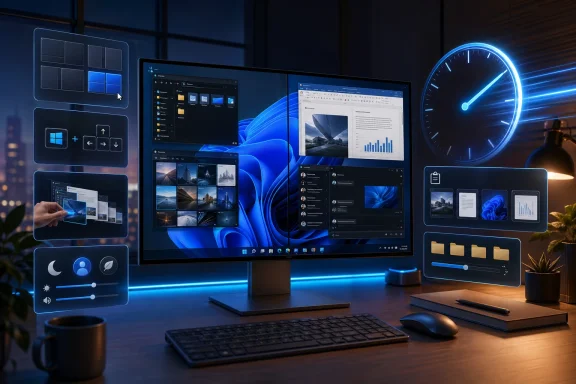
Snap Layouts is one of Windows 11’s best productivity additions because it tackles a problem people encounter constantly: too many windows, not enough organization. Hover over the maximize button and Windows shows predefined layouts that let you place apps into clean configurations without manually resizing everything. Microsoft documents Snap Layouts, Snap Groups, and multiple desktops as core multitasking features, which tells you how central they are to the Windows 11 workflow story.Virtual desktops solve a different problem. They let you separate contexts, such as work and personal tasks, research and writing, or gaming and productivity. That separation keeps your screen cleaner and your attention less scattered.
Snap Layouts in practice
Snap Layouts works best when you stop thinking of windows as individual floating rectangles and start thinking of them as a system of slots. A browser on one side, a document on the other, and perhaps a chat or note-taking app in a third panel can turn a cluttered desktop into a clean workstation.This is especially helpful on larger monitors and ultrawides, but it still improves small screens by reducing drag-and-drop fuss. Microsoft’s support pages also explain that after you snap a window, Snap Assist helps fill the rest of the layout with other windows. That means fewer manual adjustments and less wasted time.
Virtual desktops as context switching control
Virtual desktops are often underestimated because they do not change the hardware layout. What they change is mental space. By splitting tasks into separate workspaces, you reduce the temptation to keep everything visible at once.That matters for focus-heavy work. If you are editing a document, checking email, and keeping a project dashboard open, the visual overlap can become tiring. Desktops let you segment those tasks and return to them deliberately instead of constantly being reminded of all of them at once.
- Separate workspaces make it easier to stay organized.
- Different desktop contexts reduce visual clutter.
- Taskbar and Alt-Tab behavior can be adjusted for desktop workflow preferences.
- Snap Groups help reopen the same layout later.
Who benefits most
Power users feel the biggest payoff, but the feature is not only for experts. Anyone who works across multiple documents or websites can benefit. The more screen real estate you use, and the more tasks you juggle, the more Snap Layouts and virtual desktops start to feel essential rather than optional.Stay focused with Focus Sessions and Do Not Disturb
Windows 11’s Focus tools are a reminder that productivity is not just about moving faster. It is also about reducing interruptions. Microsoft describes Focus as a feature that blocks notifications, sounds, and alerts during a session, and it works through the Clock app or the Focus settings area.That matters because distraction is expensive. Every interruption has a restart cost, even if it only takes a few seconds to dismiss. A focus session helps you defend longer blocks of concentration instead of constantly reacting to pings.
How Focus Sessions help
Focus Sessions are useful because they create structure. You can set a timer, decide whether you want breaks, and let Windows suppress interruptions while you work. Microsoft says that when Focus is active, Do not Disturb turns on automatically and taskbar notifications are temporarily quieted.That makes the feature useful for deep work, study sessions, or any task where your attention needs a clean runway. It is not magic, but it is often enough to stop the constant drip of alerts from breaking your concentration.
Why this matters more than silence
Focus is not about making the computer mute forever. It is about making notifications deliberate. If every app can interrupt you whenever it wants, then your attention belongs to everyone else. Focus Sessions restore a little of that control.That control is especially valuable in remote work. The home environment already has more distractions than an office for many people, so the operating system should help filter the noise rather than add to it.
- Turns on Do Not Disturb automatically during sessions.
- Hides taskbar noise such as flashing or badges if configured.
- Can be started from Clock, Settings, or the notification area.
- Helps reduce mental context switching during demanding tasks.
- Works well with timed work blocks and break scheduling.
Enterprise and consumer use cases
For enterprises, Focus can be a lightweight attention-management tool for employees who need uninterrupted time without installing another app. For consumers, it is a built-in way to create boundaries around work sessions, study sessions, or creative projects. In both cases, the value comes from reducing friction, not introducing more software.Make Clipboard History part of your workflow
Clipboard History is one of the most underrated Windows 11 features because it solves a pain point people encounter constantly but rarely name. Instead of keeping only the last copied item, Windows stores a list of recent clipboard entries and lets you bring them back with Win + V. Microsoft’s support documentation explains that clipboard history can be enabled in Settings, and it can also sync across devices if you want that behavior.That turns the clipboard from a single-slot scratchpad into a small workflow buffer. If you work with text, links, snippets, or repeated values, the difference is immediate.
Why it saves time every day
Clipboard History helps when you are juggling information from multiple sources. Maybe you copied a quote from a webpage, a number from a spreadsheet, and a sentence from an email. Without history, you have to re-copy the earlier items. With history, you just reopen the panel and paste what you need.That sounds tiny, but it adds up fast in document-heavy work. Support staff, writers, admins, analysts, and anyone who lives in copy-and-paste all day get a very practical speed boost from this alone.
- Press Win + V to open clipboard history.
- Pin recurring items like addresses or canned replies.
- Sync across devices if you rely on multiple PCs.
- Use it for text and images when you are moving content between apps.
Privacy and configuration tradeoffs
Clipboard sync is convenient, but it is not for everyone. If you are dealing with sensitive data, you should review the sync and account settings before using it heavily. Microsoft documents the account tie-in for clipboard sync, which means this is a feature that should be enabled deliberately rather than casually.For most users, though, the tradeoff is favorable. The convenience of quickly reusing content usually outweighs the small setup effort.
Where it fits best
Clipboard History is strongest in multi-window workflows. If your day includes a browser, documents, chat tools, and data entry, it quickly becomes habit-forming. Once you get used to it, the old one-item clipboard feels oddly primitive.Use PowerToys for advanced control
PowerToys is Microsoft’s answer to power users who want more control than the base OS provides. Microsoft describes it as a set of free, open-source utilities that help you customize and streamline Windows, and the current feature set includes tools for window layouts, keyboard remapping, image resizing, renaming, launch behavior, and more.This matters because not every productivity improvement should require a third-party shell tool from an unknown vendor. PowerToys gives users a supported utility layer that plugs into Windows in practical ways.
The most useful PowerToys modules
The value of PowerToys is not in having a long list of niche tools. It is in having a few excellent ones that solve daily annoyances. Image Resizer and PowerRename are especially valuable because they sit directly in File Explorer workflows. FancyZones, meanwhile, offers even more detailed window management than basic Snap for users who want it.- Image Resizer handles bulk image resizing from the context menu.
- PowerRename speeds up file renaming with search/replace and regex.
- FancyZones supports custom layouts and fast zone switching.
- Command Palette helps launch apps and settings quickly.
- Advanced Paste expands clipboard workflows into formatted output handling.
Why PowerToys is worth the effort
PowerToys is valuable because it gives users leverage. Once installed, it can remove repetition from several different parts of the desktop experience at once. That is a stronger return than many standalone utilities provide, because it affects the shell, the keyboard, the clipboard, and file operations.The other benefit is trust. Microsoft maintaining the suite lowers the anxiety that comes with adopting random helper apps for core workflow tasks. In productivity software, that trust matters as much as the feature list.
Best fit for different users
For casual users, the strongest candidates are Image Resizer and FancyZones. For professionals, PowerRename and Advanced Paste can save a lot of time. For advanced users, Keyboard Manager and Command Palette make the desktop feel much more responsive to custom habits.Automate repetitive tasks
Automation is where Windows 11 becomes more than a collection of conveniences. Task Scheduler is built into the operating system, and Microsoft’s support documentation shows that it can be used for maintenance, app launching, file tasks, and triggers based on time or system events.That makes it one of the most powerful productivity tools available to ordinary users, even though many people never open it. If you do anything on a schedule, there is a decent chance Task Scheduler can do it for you.
Tasks worth automating first
Start with repetitive jobs that do not need human judgment. That might mean launching a set of apps at login, running a backup routine, closing a machine at the same time each day, or triggering a cleanup task when you are idle.Microsoft’s own guidance around Windows and security maintenance shows that Task Scheduler is already used for practical system work, including scheduled scans and eligibility refreshes. That is a good sign that it is stable enough to rely on for meaningful routines.
- Launch routine apps on login or at a set time.
- Schedule shutdowns or restarts after work hours.
- Run maintenance tasks when the machine is idle.
- Copy or sync files automatically on a schedule.
- Trigger scripts based on events rather than manual clicks.
Why automation changes the shape of the day
Automation is not just about saving minutes. It is about eliminating the mental burden of remembering a routine. If a task runs on its own, it stops competing for attention.That is especially helpful in busy environments where routines are easy to forget. A task that is handled by the OS consistently is one less thing to keep in your head. Over time, that frees you to think about the work that actually requires judgment.
Caution and good practice
Automation is powerful, but it should be used carefully. A task that runs too aggressively can get in the way instead of helping. The best automated tasks are the ones with clear triggers, clear outcomes, and low risk if they fail once.Strengths and Opportunities
These Windows 11 productivity tips work because they attack different kinds of friction at once. Some reduce clicks, some reduce clutter, some reduce interruption, and some reduce the need to repeat work you have already done. Microsoft has also made many of these features easy to discover in support and Learn documentation, which means the platform is quietly becoming more workflow-aware over time.- They are built in or officially supported, which lowers maintenance risk.
- They improve daily tasks immediately, not just in edge cases.
- They scale from consumer use to enterprise use without much friction.
- They reduce dependence on third-party utilities for basic workflow gains.
- They make Windows feel more personal, because the machine behaves the way you want.
- They encourage better attention management, especially with Focus and Do Not Disturb.
- They compound over time, which is what makes them worth learning.
Risks and Concerns
The biggest risk with Windows 11 productivity tuning is overcomplication. It is easy to pile on utilities, shortcuts, menu changes, and automation rules until the desktop becomes harder to understand than the problem it was meant to solve. The best setup is deliberate, not maximalist.There are also practical tradeoffs around privacy, compatibility, and maintenance. Clipboard sync may not suit every user. PowerToys adds another layer of software to keep updated. Task Scheduler can create problems if poorly configured. And any setting that improves convenience can become a nuisance if it is turned on without considering the surrounding workflow.
- Too many utilities can create maintenance overhead.
- Clipboard syncing may raise privacy concerns for sensitive data.
- Aggressive automation can backfire if tasks run at the wrong time.
- Over-customized menus can become harder to navigate than the default menu.
- Feature discoverability remains a problem for many Windows users.
- Default changes after updates can undo some of the setup work.
- Third-party add-ons may break more easily than built-in features.
Looking Ahead
Windows 11 is clearly moving toward a model where productivity is defined less by giant feature leaps and more by steady refinement. Microsoft keeps improving its multitasking model, clipboard tools, focus behavior, and utility ecosystem, and that means users have more room than ever to shape the OS around their habits. The trend is good news for anyone who wants a calmer, faster desktop without abandoning the familiar Windows workflow.The next step is discoverability. The more Microsoft exposes these tools at the right moment, the more likely ordinary users are to adopt them. That matters because the biggest gains in Windows often come not from adding new capabilities, but from making existing ones obvious enough that people actually use them.
- Better onboarding could make more users adopt Snap, Focus, and clipboard tools.
- Stronger PowerToys integration could bring advanced utilities closer to the mainstream.
- Improved shell customization could reduce reliance on third-party menu tools.
- More automation-friendly defaults could make Task Scheduler easier to trust.
- Continued shortcut education could help users build faster habits sooner.
The best Windows 11 productivity tips are not about showing off. They are about preserving attention, eliminating repetition, and giving your machine better instructions. When you do that well, the operating system stops getting in your way and starts behaving like the quiet assistant it was always meant to be.
Source: TweakTown Best Windows 11 Productivity Tips to Save Time Every Day
Last edited:
