

Most Windows users think they know the basics — copy/paste, Alt+Tab, and a few familiar shortcuts — but there are a handful of simple, high‑leverage tricks that still fly under the radar for many people and repay a few minutes of attention with persistent time savings and smoother daily workflows.
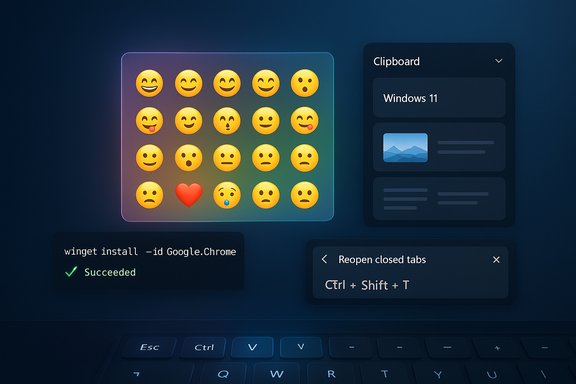
Windows has accumulated decades of keyboard shortcuts and small UX features that, taken together, shave minutes off routine tasks and reduce friction in multitasking workflows. A compact set of often-overlooked tips — the emoji panel, word‑level deletes, the built‑in package manager (WinGet), Clipboard History, and the browser “reopen tab” shortcut — deliver outsized benefits for email, editing, installs, research and tab-heavy browsing. Practical guides and forum roundups repeatedly surface these tools because they are low‑risk, require no extra apps, and are widely available across modern Windows builds.
This article takes the well‑known five tricks from a popular how‑to piece and validates each one against Microsoft documentation and independent analysis, corrects a common misconception about deletion shortcuts, and offers concrete, actionable workflows so readers can adopt the productivity wins immediately. Each section includes what it does, how to use it (step‑by‑step), why it matters, caveats and security considerations, and a quick troubleshooting note where applicable.
Windows packs a surprising amount of productivity under a few keypresses. These five everyday accelerators — the emoji panel, word‑level deletes, WinGet, Clipboard History, and the reopen‑tab shortcut — are small changes with immediate payback. They make email, editing, installs and browsing smoother and less error‑prone. Try one today, make it a habit for a week, then add another: the compounding effect on productivity is real and entirely within reach.
Source: groovyPost 5 tips most Windows users still don’t know — do you?
 Background / Overview
Windows has accumulated decades of keyboard shortcuts and small UX features that, taken together, shave minutes off routine tasks and reduce friction in multitasking workflows. A compact set of often-overlooked tips — the emoji panel, word‑level deletes, the built‑in package manager (WinGet), Clipboard History, and the browser “reopen tab” shortcut — deliver outsized benefits for email, editing, installs, research and tab-heavy browsing. Practical guides and forum roundups repeatedly surface these tools because they are low‑risk, require no extra apps, and are widely available across modern Windows builds.This article takes the well‑known five tricks from a popular how‑to piece and validates each one against Microsoft documentation and independent analysis, corrects a common misconception about deletion shortcuts, and offers concrete, actionable workflows so readers can adopt the productivity wins immediately. Each section includes what it does, how to use it (step‑by‑step), why it matters, caveats and security considerations, and a quick troubleshooting note where applicable.
Quick access to emojis — faster, less clunky, more visible
What it is and why it matters
Windows includes a system emoji panel you can open with a two‑key shortcut: Win + . (period) or Win + ; (semicolon). The picker inserts emojis, symbols and in some builds even GIFs directly into whatever text field you’re focused on, from email subject lines to chat boxes and documents. For people who want a subtle visual hook in subject lines or clearer emotional tone in messages, inserting an emoji without switching devices is an easy usability win.How to use it
- Place your typing cursor where you want the emoji.
- Press Win + . (Windows key + period) or Win + ;.
- Click an emoji or type a keyword to search (search availability depends on your Windows build).
- The emoji is inserted inline at the cursor position.
Benefits
- Zero dependence on phone or web searches.
- Works system‑wide in most apps that accept typed input.
- Small visual cues (in subject lines or ticket systems) can improve response and recognition.
Caveats and variability
- The emoji set and search behavior are tied to Windows updates; some cumulative updates have broken search in the picker in certain builds, so behavior may vary by system patch level.
- Emojis render differently across recipients and platforms; use them for tone, not critical information.
Troubleshooting
If the panel doesn’t open, verify that the emoji panel hotkey is enabled (Settings > Time & language > Typing > Advanced keyboard settings) or that no registry tweak is blocking the hotkey. If search returns no results after a recent update, check for the related update and report or roll back if necessary.Delete text faster: stop erasing one character at a time
The practical trick
Instead of holding Delete and waiting for the cursor to crawl forward, use Ctrl + Delete to remove the word to the right of the cursor, and Ctrl + Backspace to remove the word to the left. These word‑level deletes are implemented in most text fields and editors and are standard in Windows text navigation toolkits. They dramatically speed up editing tasks and command‑line corrections.How it works (short examples)
- With text: “Tomorrow I will go out and do shopping”
- Place the cursor immediately before “do”.
- Press Ctrl + Delete once → “do” disappears.
- Press Ctrl + Delete again → “shopping” disappears.
- To delete backwards:
- Place the cursor after “shopping”.
- Press Ctrl + Backspace → deletes the previous word.
Correcting a common error
Some guides incorrectly suggest combinations like Ctrl + Shift + Delete for deleting to the left. That is not a standard Windows text‑editing shortcut. The reliable pair is Ctrl + Delete (forward) and Ctrl + Backspace (backward). The Ctrl+Shift+Delete combination often maps to other functions in apps (for example, many browsers use it to open “Clear browsing data”), so relying on it for general text deletion is a mistake. Always use Ctrl + Backspace to delete words to the left.Where it may not work
- Some specialized input controls (legacy file rename boxes, certain app dialogs or remote terminal sessions) may not implement those shortcuts consistently. When a control is managed by a custom UI or a remote shell, word delete semantics can vary. In such cases, treat the behavior as app‑dependent.
Installing software efficiently with WinGet — skip the extra screens
What WinGet is
Windows Package Manager (WinGet) is a command‑line package manager built into modern Windows releases. It lets you search, install, upgrade and uninstall software from trusted package sources with a single command, avoiding browser hunting and installer bundles. The official Microsoft documentation covers install, show, search and uninstall subcommands and the recommended usage patterns.Simple examples
- Install Google Chrome:
- Open Windows Terminal or Command Prompt.
- Run:
winget install --id Google.Chrome
or if needed, specify source/scope or add-eto require an exact match. - Uninstall:
- Find the installed package name with
winget list. - Run:
winget uninstall --id Google.Chrome
orwinget uninstall --name "Google Chrome"as appropriate.
Why this matters
- No installers to click through, which reduces risk of bundled adware.
- Scripting installs for new PCs is trivial, which is useful for power users and IT pros.
- WinGet keeps logs and supports exact‑ID installs for deterministic automation.
Caveats and best practices
- WinGet installs the package that the manifest points to; some packages still require acceptance of license dialogs unless you script the accept flags.
- Not every application is in the default community repository;
winget search <name>helps locate exact IDs or you can add sources. - For corporate environments, ensure the package sources used meet organizational policy.
Quick workflow (recommended)
winget search <app>to confirm the package ID.winget install --id <Package.Id> -e --scope machineto install system‑wide.- For automation, add
--accept-package-agreementsand--disable-interactivityas required by your environment.
Clipboard history — copy more than one thing at a time
What it is
Windows Clipboard History converts the clipboard from a single ephemeral buffer into a short‑term vault holding up to 25 items (text, images, and basic HTML/bitmap formats). Once enabled, press Win + V to open the clipboard history flyout and paste any recent item or pin frequently used entries. This feature is baked into Windows 10 and Windows 11 and is documented by Microsoft.How to enable and use it
- Enable:
- Settings > System > Clipboard > turn on Clipboard history, or press Win + V and choose Turn on.
- Use:
- Press Win + V, click an item to paste it, or pin items to keep them across reboots.
- Clear: Settings > System > Clipboard > Clear clipboard data, or from Win + V choose Clear all.
Benefits
- Recover recently copied snippets without re‑copying.
- Useful for assembling emails, code, or research where multiple non‑contiguous pieces of text or images are needed.
- Optionally sync across devices when signed into the same Microsoft account (careful with sensitive data).
Privacy and security caveats
- Clipboard History stores up to 25 entries and can sync to the cloud if you enable cross‑device sync. Sensitive data (passwords, MFA codes, private tokens) copied to the clipboard will be stored unless you explicitly clear them or avoid copying such data. Microsoft’s documentation highlights the 25‑item limit, item size constraints, and sync behavior; treat the clipboard as potentially discoverable if sync is on.
Pro tips
- Pin items you reuse frequently (email signatures, templates).
- Use the clear command or create a desktop shortcut (
cmd /c echo off | clip) to zero the clipboard quickly after handling sensitive material.
Restore closed browser tabs — CTRL + SHIFT + T saves sessions
What it does
Accidentally closing a tab is a universal frustration. Most modern browsers (Chrome, Edge, Firefox) support Ctrl + Shift + T to reopen the last closed tab — press repeatedly to restore tabs in the reverse order you closed them. This shortcut works across major browsers, though there are nuanced differences in behavior between browsers and their session recovery models.Why it matters
- Quick recovery when a tab is closed by mistake or when a window is killed.
- Faster than scanning history or reopening tabs one by one from menus.
- Particularly valuable for users who work with many open tabs or research sessions.
Nuances to know
- Firefox’s behavior has changed over versions: in some versions Ctrl + Shift + T may also reopen closed windows or treat closed windows and tabs from previous sessions slightly differently; session restore settings and whether a previous session was preserved affect behavior. If the browser process was terminated or the session wasn’t saved, the shortcut may not recover everything.
- If the entire browser application was closed and your browser isn’t configured to restore previous sessions on startup, the keyboard shortcut may be unable to reopen tabs until you restore the previous session via the menu or settings.
Practical steps
- Immediately after an accidental close, press Ctrl + Shift + T once to restore the last closed tab.
- Press repeatedly to go further back through your close history.
- If multiple tabs/windows were closed and a single keypress doesn’t help, check the browser’s History > Recently Closed menu or use session restore settings.
Putting the five tips together: short workflows that save time
- Email subject hook workflow:
- Open email compose window.
- Press Win + ., pick an emoji to add a short visual tag.
- Use Ctrl + Backspace / Ctrl + Delete to fine‑tune subject copy quickly.
- If you copied research snippets, press Win + V to paste the correct clip without switching apps.
- New PC build workflow (fast installs):
- Open Windows Terminal as admin.
winget install --id Microsoft.Edge(or your browser of choice) thenwinget install --id <other apps>for a fully scripted workstation setup.- Use Win + V to restore common license keys or tokens you pinned before or after secure handling (mind security rules).
- Browser recovery workflow:
- Mistakenly close a tab → press Ctrl + Shift + T immediately.
- If the browser was fully closed, restore the session via History or use the browser’s session restore settings before using the keyboard shortcut repeatedly.
Security, governance and practical risks
- Clipboard history and sync: Unless clipboard sync is turned off, copied data can be uploaded to Microsoft’s cloud and appear on other devices associated with the same account. That is convenient but increases the blast radius for sensitive information. Disable cross‑device sync for work machines that handle secrets. Microsoft documents both the sync option and how to clear clipboard data.
- WinGet and automated installs: WinGet installs packages according to manifests. In corporate environments, package provenance and source configuration should be governed by IT policy. Use signed manifests, trusted sources, and consider preconfigured private repositories for managed installs.
- Shortcut collisions and accessibility: Global shortcuts like Win + . or Win + V can collide with third‑party apps that claim hotkeys. If a hotkey fails, check Advanced keyboard settings or app keybindings. For accessibility, keyboard shortcuts remain essential; configure Sticky Keys or other accessibility options if chorded shortcuts are difficult to use.
Troubleshooting quick reference
- Emoji panel not opening or search failing
- Confirm the system is patched to a build that includes the panel; some updates can affect the search function. Check Taskbar system tray settings for “Emoji and more.”
- Ctrl + Delete / Ctrl + Backspace not behaving
- Behavior may be app‑dependent. Test in Notepad or a plain text editor; if it works there but not in a particular app, that app may not implement the standard text control behaviors. In file rename dialogs and some legacy controls, behavior is inconsistent.
- WinGet errors or package ambiguity
- Run
winget search <name>to locate the exact ID; use--idand-efor exact matches. Consult the Microsoft WinGet docs for options such as--scope,--source, and--accept-package-agreements. - Clipboard history empty or failing
- Ensure Clipboard History is enabled in Settings > System > Clipboard. If Win + V shows no items but you’ve copied data, check for known bugs after cumulative updates, and consider clearing clipboard data or toggling the feature off/on.
- Ctrl + Shift + T not restoring tabs
- Verify the browser’s session settings and whether the tab was closed in a different window or destroyed when the browser crashed; use the browser’s History → Recently Closed menu as a fallback. Different browsers have subtle differences in how closed windows vs. closed tabs are queued.
Final analysis — strengths, adoption friction and recommendations
These five tips deliver clear productivity returns with very low adoption friction:- Strengths
- Immediate time savings from word‑level deletes and Clipboard History.
- Reduced risk and friction with WinGet when installing trusted software.
- Simple behavioral changes (learn one or two shortcuts) create outsized day‑to‑day gains.
- Friction and limitations
- OS updates and manufacturer builds introduce variability; some features depend on Windows build and local policy (e.g., emoji panel behavior and clipboard sync).
- App inconsistency: Certain apps or controls (legacy UIs, remote terminals) may not support standard text shortcuts.
- Security tradeoffs: clipboard sync and pinned clipboard items must be managed thoughtfully to avoid accidental leakage.
- Practical recommendation
- Commit to learning two shortcuts this week — e.g., Win + V and Ctrl + Delete/Ctrl + Backspace — and make them the default approach for multi‑snippet work and faster editing.
- Adopt WinGet for repeatable installs and scripting but validate packages and sources before automated deployment.
- Treat the clipboard like a convenience tool that can hold sensitive information — use the clear function or avoid copying secrets.
Windows packs a surprising amount of productivity under a few keypresses. These five everyday accelerators — the emoji panel, word‑level deletes, WinGet, Clipboard History, and the reopen‑tab shortcut — are small changes with immediate payback. They make email, editing, installs and browsing smoother and less error‑prone. Try one today, make it a habit for a week, then add another: the compounding effect on productivity is real and entirely within reach.
Source: groovyPost 5 tips most Windows users still don’t know — do you?
