

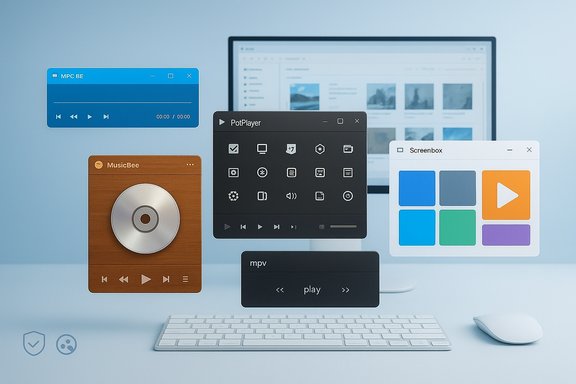
Windows’ built‑in media apps are “good enough” for casual use, but if you want speed, control, or a distinctly different experience you can do a lot better — and a recent roundup identified five lesser‑known media players worth trying this weekend. The list highlights MPC‑BE, PotPlayer, MusicBee, mpv, and Screenbox, each chosen for a specific niche: lightweight playback, extreme configurability, CD‑focused music management, minimalist power, and a Windows‑native modern UI respectively. This article summarizes those picks, verifies key technical claims from authoritative sources, and offers a critical, security‑minded guide for Windows users ready to swap out Microsoft’s defaults.
Background / Overview
Windows ships with a handful of built‑in media apps — Movies & TV (Films & TV), Media Player, and Groove Music — but many power users and enthusiasts prefer third‑party alternatives that are lighter, more flexible, or simply more respectful of local libraries and codecs. The five apps covered here were selected because they represent different philosophies:- MPC‑BE (Media Player Classic – Black Edition): A lean, nostalgic UI with modern codec support.
- PotPlayer: A highly tweakable player with deep settings and subtitle tooling.
- MusicBee: A full‑featured local music manager with built‑in CD ripping.
- mpv: Ultra‑minimalist, scriptable and cross‑platform — the “power user” player.
- Screenbox: A UWP/Fluent Design player that looks native on Windows 11.
How this verification was done
- Vendor and project pages were checked for current downloads, release notes, and feature lists.
- Community and documentation sources (project GitHub, SourceForge, official vendor pages) were consulted to confirm maintenance status and platform support.
- Recent user reports and forums were scanned for recurring issues (subtitle search reliability, store availability, etc..
- Where claims were time‑sensitive (release dates, store availability), at least two independent sources were used to cross‑check the facts.
MPC‑BE — Minimal, nostalgic, and actively maintained
What it is
MPC‑BE (Media Player Classic – Black Edition) is a lightweight Windows media player that continues the Media Player Classic lineage: familiar XP‑era UI styling with modern underpinnings. It’s open source and runs on Windows Vista through Windows 11 as a Win32 application.Why try it
- Extremely light on resources — ideal for older or low‑power PCs.
- Classic UI for users who prefer simple controls over flashy skins.
- Good practical format support when used alongside standard codec libraries (or bundled FFmpeg builds).
Strengths
- Active GitHub and SourceForge projects with recent release activity and downloads, confirming the project is still maintained.
- Handy for forensic or frame‑accurate playback work thanks to precise stepping controls and frame‑by‑frame navigation.
- Portable options exist (no installer required for some builds), useful for testing without committing to system changes.
Caveats & risks
- It relies on Windows Win32 APIs; UWP/Store packaging is available in some community wrappers but the safest route is official SourceForge/GitHub binaries.
- Some old community forks (MPC‑HC, etc. are no longer actively developed; confirm you’re downloading the MPC‑BE project specifically.
How to get it safely
- Use the official GitHub project or SourceForge release pages rather than third‑party sites. Verify checksums, and prefer the signed/installer version if you need file associations.
PotPlayer — Deeply tweakable, Windows‑centric feature set
What it is
PotPlayer is a free Windows multimedia player originally developed by the same author as KMPlayer and currently maintained under Kakao/Daum’s umbrella. It advertises broad codec support, integrated codec bundles, hardware acceleration, and deep subtitle handling.Why try it
- If you like to tinker, PotPlayer exposes an enormous number of settings — everything from subtitle style scripting to codec pipeline selection and low‑level output tweaks.
- It includes automatic subtitle search/download functionality and good built‑in codec support, which makes many files play out of the box.
Strengths
- Robust subtitle handling: supports SRT, ASS/SSA, PGS, VobSub, and animation features for advanced .ass scripts.
- Hardware‑accelerated decoding (DXVA, CUDA, QuickSync) for smooth high‑resolution playback on compatible hardware.
- Built‑in tools: screenshots, GIF capture, video cropping, and extended capture/recording features.
Caveats & risks
- PotPlayer’s configurability is a double‑edged sword; misconfiguration can easily break playback behavior.
- There are bogus third‑party mirrors and repackaged installers that have historically led to malware warnings — always download from the official PotPlayer site (potplayer.daum.net) or verified repositories. Community threads repeatedly flag fake mirrors near search results.
- Some subtitle‑search integrations rely on third‑party subtitle services; those external APIs can change terms (recent user reports show occasional breaks or changes requiring logins). Treat auto‑download features as convenience tools, not guarantees.
How to get it safely
- Use the official PotPlayer domain or well‑known software aggregators that link to the official binary. If Windows Defender or your browser flags the download, cross‑check the SHA256 hash on the developer page or use a fresh search for the official domain.
MusicBee — The best local music manager for CD lovers
What it is
MusicBee is a Windows music manager/player focused on local libraries, tagging, and media import (CD ripping). It’s lightweight, skinnable, and designed for users who manage large local collections or migrate legacy CDs into digital libraries. The project maintains a dedicated download page with installer and portable editions.Why try it
- CD ripping plus automatic tagging makes MusicBee ideal for anyone converting physical media into well‑organized digital libraries.
- It keeps a simple, usable UI while offering advanced library views and customizations for power users.
Strengths
- Fully featured tag editor, auto‑tagging from online metadata services, and flexible playlist management.
- Built‑in CD ripper with integration into the library and support for multiple rip formats and encoders.
- Active releases and a Windows Store edition exist for users who prefer Store updates. Release notes show continued development (recent releases as of 2025).
Caveats & risks
- Some users report occasional hiccups with specific optical drives or driver quirks; if ripping professional archival discs, validate output with a second tool (e.g., Exact Audio Copy) before deleting originals. Community threads discuss occasional ripping detection issues that are often fixed by updates.
- As with all local managers, back up the library database before major changes.
How to get it safely
- Download from the official MusicBee site (getmusicbee.com) or the Windows Store page. Prefer the installer or portable edition from the official downloads section and keep a copy of the installer for recovery.
mpv — Minimal, scriptable, cross‑platform power
What it is
mpv is a command‑line‑centric media player descended from MPlayer and mplayer2. It’s extremely lightweight, scriptable, and designed for users who prefer keyboard and config‑file control rather than a traditional GUI. mpv is cross‑platform and available as portable executables on Windows, with source on GitHub and official info on mpv.io.Why try it
- If you want exact control, configurability via text files, or to embed a media engine into other tools, mpv is unmatched for power users.
- It supports high quality video output, color management, GPU decoding, and modern scaling algorithms favored by videophiles.
Strengths
- Portable: run a single executable (no install necessary).
- Scriptable Lua and JSON IPC allow powerful automations — playlist generation, automated subtitle loading, and integration with tools like yt‑dlp.
- Excellent hardware acceleration options and audio/video output configuration for advanced use cases.
Caveats & risks
- mpv has no polished official GUI; the experience can be alien to users who expect click‑driven UIs. There are third‑party frontends and wrappers if you want a GUI.
- Because it’s configuration‑driven, a misconfigured conf file can change behavior globally — test edits on a copy of your config.
How to get it safely
- Use official mpv binaries or trusted builds (the project’s download pages and reputable GitHub releases). If compiling yourself, follow official build docs.
Screenbox — A modern Fluent Design alternative
What it is
Screenbox is a modern UWP/WinUI media player built atop LibVLCSharp and designed to blend with Windows 11’s Fluent Design. It supports local libraries, gestures, picture‑in‑picture, Chromecast, and network streaming. The developer maintains a GitHub repository and the app is distributed through the Microsoft Store.Why try it
- If you want a media player that looks and feels like a native Windows 11 app while still supporting the broad format compatibility of VLC, Screenbox provides that combination.
- It’s especially handy for users who prefer Store‑managed updates and a UWP experience (which can be easier for families or less technical users).
Strengths
- Fluent UI with gesture support and modern interaction patterns makes it easy to use on touch and desktop.
- Built on LibVLCSharp, so format support is broad without requiring users to manage codecs manually.
Caveats & risks
- It focuses on video first; audio features (equalizers, advanced DSP) are less mature than dedicated music players like MusicBee.
- Some advanced VLC features are not exposed in Screenbox’s simplified UI — that’s by design, but power users should be aware.
How to get it safely
- Install via the Microsoft Store or the developer’s official GitHub releases. Using the Store ensures automatic updates and reduced risk of repackaged installers.
Safety, malware risk, and download hygiene
The real danger: repackaged installers and malicious mirrors
The original review noted encountering multiple free players that were malware during testing — a common problem in the media player ecosystem where popular names are cloned or repackaged. Always treat third‑party download sites with suspicion.Practical safety checklist:
- Download only from official project pages, GitHub releases, or the Microsoft Store.
- Verify the SHA256 or signature when the project publishes checksums.
- Prefer Store or signed installers for reduced supply‑chain risk.
- Scan new installers with your AV and consider a second opinion scanner (VirusTotal) for high‑risk downloads.
- When possible, run new apps in a limited account or sandbox until you’re satisfied.
Enterprise and privacy considerations
- In corporate environments, get approval from IT before installing third‑party players; some players install background services or codec filters that can cause helpdesk issues.
- Media players that connect to subtitle services or content‑search endpoints may send metadata off‑device; review privacy settings and disable unwanted network features.
Quick recommendations by use case
- Need a lightweight player for an older laptop: try MPC‑BE.
- Want extreme customization and built‑in codec support: PotPlayer — but download it from the official site and beware of fake mirrors.
- Managing a CD collection or local music library: MusicBee for ripping, tagging, and organizing.
- You’re comfortable with config files and want scriptable power: mpv (portable executable available).
- Want a modern Windows 11 look with VLC‑level compatibility: Screenbox from the Microsoft Store.
Final analysis — strengths, blind spots, and verdict
Strengths across the five picks:- They collectively cover a wide spectrum of needs: lightweight performance (MPC‑BE), configurability (PotPlayer), music management (MusicBee), scriptability (mpv), and native Windows aesthetics (Screenbox).
- Each project shows an active presence in trusted distribution channels (GitHub, SourceForge, official vendor pages, Microsoft Store), which helps mitigate supply‑chain risk.
- The biggest risk is not the software itself but where you download it from. Search results often surface copycat sites; community forums are full of cautionary posts about fake PotPlayer downloads and similar traps. Always cross‑check domains and prefer store installs when possible.
- Some features rely on third‑party services (subtitle search, remote metadata), and these services can change unexpectedly (rate limits, paywalls, API changes). Treat auto‑features as conveniences and validate critical workflows offline.
- Power‑user apps (mpv, PotPlayer) can be unforgiving if misconfigured; keep backups of config files and test changes incrementally.
- For most Windows users wanting an alternative to Microsoft’s built‑ins, Screenbox (if you want a modern UI) or MPC‑BE (if you want a no‑nonsense, lightweight player) are safe starting points. PotPlayer offers unmatched Windows‑centric depth for tinkerers, while MusicBee is the clear winner for anyone preserving or managing a CD‑based music collection. mpv is the right choice when you value portability and scriptability above a GUI.
Closing: a practical weekend plan
- Pick one player that matches your primary need from the quick recommendations above.
- Download it from the official project page, GitHub release, SourceForge, or the Microsoft Store.
- Verify the installer (checksum/signature) if provided, and scan with antivirus or VirusTotal.
- Try the portable/executable version first (when available) to test behavior without committing to system changes.
- If you rely on subtitles or online metadata, test auto‑download features and confirm they behave as expected for your region and content.
Source: How-To Geek 5 obscure media player apps for Windows to try this weekend
