

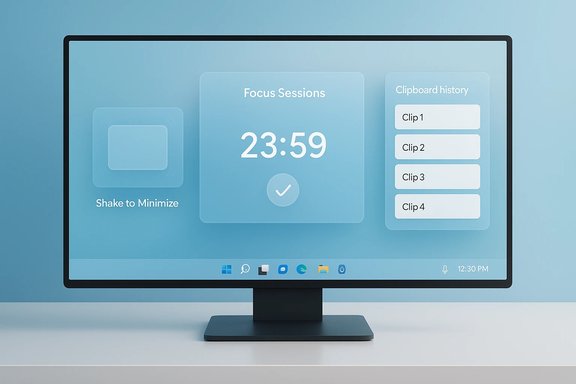
Windows 11 quietly packs a surprising number of productivity tools and accessibility features that many users never discover — and a recent guide highlighting five “hidden” Windows 11 features surfaced both the conveniences and the gotchas worth knowing. The roundup we reviewed (which emphasized Focus Sessions, a window‑shake declutter gesture, clipboard history, Dynamic Lock, and voice control) is a useful starting point, but a closer look shows where the guide hits the mark, where it simplifies reality, and where users should take extra care before enabling features that touch privacy, security, or device behavior.
Background / Overview
Windows 11 has evolved since launch into an ecosystem of small, tightly integrated utilities that improve flow and reduce friction for everyday tasks. Many of these items live in Settings, the Clock app, or accessibility panes and are intentionally opt‑in — Microsoft often ships them turned off or behind app updates. That means someone using Windows 11 like “Windows 10” is usually just missing a few switches, not a whole new workflow.This article digs into five practical, under‑used Windows 11 features, verifies how they work from official Microsoft documentation and independent testing write‑ups, corrects common misconceptions, and explains the privacy and security tradeoffs you should consider before flipping toggles. Each feature section includes precise setup steps, tips for getting the most value, and warnings where behavior varies by hardware, build, or account settings.
Focus Sessions: Built‑in Pomodoro for Windows 11
What it is and why it matters
Windows 11 includes Focus (the Focus Sessions system integrated with the Clock app) as a built‑in way to block distractions for a set time while showing an on‑screen timer. It works like a native Pomodoro timer, automatically enabling Do Not Disturb and letting you configure session length, break intervals, and notification exceptions. Microsoft documents Focus as a settings area (System > Focus) and as a feature that integrates with the Clock app for a richer timer experience. This is a practical win for users who previously relied on browser extensions or third‑party timers: Focus is system‑level, so it silences notifications and hides taskbar badges when a session runs.How to start a Focus session (step‑by‑step)
- Open Settings > System > Focus and click Start focus session, or open the Clock app and choose Focus sessions.
- Choose a session duration (between a few minutes and several hours).
- Optionally enable Breaks and configure Do Not Disturb behavior, task/Spotify integration, and which notifications are allowed.
- Start your session and monitor time with the on‑screen timer.
Strengths
- System integration: Focus toggles Do Not Disturb and hides visual distractions globally, not just in one app.
- Simple, zero‑install workflow: No third‑party app required; it’s available on most Windows 11 installs that include the Clock app.
Risks and caveats
- If your workflow relies on certain notifications (e.g., urgent messages from a team channel), omit those apps from blocked lists — Focus can otherwise mute important alerts.
- Some Focus capabilities (Clock app integrations, Spotify) depend on the Clock app and external services, so availability can vary with app updates or regional rollout. Confirm the Clock app is installed if the option is missing.
Shake to Minimize (Aero Shake / Title Bar Window Shake)
What it does
A hold‑and‑shake gesture on a window’s title bar will minimize all other windows, leaving only the active one visible. This old favorite (originally called Aero Shake) persists in Windows 11 as Title bar window shake and is a very quick way to declutter the desktop. The control lives in Settings > System > Multitasking.How to enable
- Open Settings (Win + I) > System > Multitasking and toggle Title bar window shake on.
- Grab a window’s title bar and shake it left‑right to minimize other windows; shake again to restore them.
Strengths
- Instant declutter without menus or shortcuts — great when switching contexts quickly.
- Works with any standard window; no learning curve beyond the gesture itself.
Risks and caveats
- The feature is disabled by default in some builds; enabling it is harmless, but accidental shakes can minimize windows unexpectedly.
- Enterprise admins can control it via Group Policy and registry (DisallowShaking key), so corporate machines may not expose the toggle. If you don’t see the option, your build or policy may hide it.
Clipboard History: Win+V — Use it, don’t lose it
What it is
Clipboard history lets Windows remember multiple copied items (text and images), not just the most recent copy. Once enabled, pressing Windows + V opens the clipboard manager where you can paste older entries, pin frequent items, or clear history. Microsoft confirms it stores up to 25 items and supports syncing across devices tied to the same Microsoft account. Note: some articles and guides accidentally refer to the wrong shortcut; the correct built‑in shortcut to open clipboard history is Windows + V (not Windows + K). That difference matters because mistyping the shortcut is a common source of confusion.How to enable and use
- Settings > System > Clipboard — toggle Clipboard history on.
- Press Win + V to open the clipboard pane; select an item to paste.
- Pin items you’ll reuse or click Clear to remove unpinned entries.
- Optional: enable Clipboard sync (also in Settings > System > Clipboard) to share clipboard items across PCs signed into the same Microsoft account.
Strengths
- Huge productivity uplift for writers, developers, and anyone copying many pieces of text.
- Pinning prevents critical snippets from being evicted as new items arrive.
Risks and caveats
- Size limits: clipboard items larger than the documented per‑item limit (4 MB) will not be stored and certain file formats aren’t supported.
- Privacy: syncing the clipboard to the cloud syncs data through your Microsoft account — avoid enabling sync on machines used for sensitive corporate data unless permitted by policy. Treat clipboard sync like any cross‑device convenience that increases data exposure.
Dynamic Lock: Walk away, Windows locks for you
What it is and how it works
Dynamic Lock monitors the Bluetooth signal strength (RSSI) of a paired device — usually your phone — and will automatically lock your PC when that device moves out of range. Microsoft documents Dynamic Lock as an extra barrier to casual access; it does not replace manual locking and only triggers when the system is idle and the Bluetooth signal drops below thresholds. Dynamic Lock can also interact with presence sensors (IR cameras) on certain devices.How to enable
- Pair your phone (or Bluetooth device) to the PC.
- Settings > Accounts > Sign‑in options > Dynamic Lock — enable the feature and ensure your phone is listed as the paired device.
- Test by walking away until the device loses range; the PC should lock shortly after.
Strengths
- Simple, automatic privacy protection for shared spaces or public work areas — it reduces the window for “shoulder surfing.”
- No special hardware required beyond a Bluetooth phone, though presence‑based locking using cameras may be faster and more reliable on modern laptops.
Risks and caveats
- Reliability varies: Dynamic Lock depends on Bluetooth stability and how your phone/PC implement power management. Reports and community threads show intermittent behavior and interference when other Bluetooth features (like Phone Link) are active. If Dynamic Lock doesn’t behave consistently on your hardware, don’t rely on it as the only security control — use manual locking (Win + L) too.
- Security posture: Dynamic Lock only helps when the system is idle; if an attacker manages to interact while the system is active, Dynamic Lock won’t prevent access. Treat it as a convenience layer, not a replacement for strong sign‑in policies.
Voice control and voice typing: Two tiers of hands‑free input
Two related but distinct features
- Voice typing (press Win + H) converts speech to text in any text field and uses cloud speech services for recognition. It’s fast and simple for dictation and supports basic voice commands and punctuation. Microsoft documents Win + H as the voice‑typing shortcut and details online speech recognition behavior.
- Voice access (Voice Assist) is a more powerful accessibility control (shortcut Win + Ctrl + S to open the setup) that allows full voice‑driven navigation (clicks, scrolling, app launching) in Windows 11 and requires additional setup and language models. Microsoft documents Voice access as an accessibility feature introduced in Windows 11 22H2 and later.
How to use voice typing and voice access
- Voice typing: position the cursor in a text area and press Win + H; click the microphone and speak. Voice typing requires an internet connection because it uses Azure Speech services.
- Voice access: Settings > Accessibility > Voice or search “voice access” and enable it. You may need to download language files; once active, you can control the shell with voice commands and use Win + Ctrl + S to toggle setup.
Strengths
- Accessibility and ergonomics: Great for users with RSI, mobility issues, or anyone who prefers dictation.
- Productivity: Voice typing often outpaces manual composition for first drafts, notes, and emails.
Risks and caveats
- Privacy and cloud processing: Voice typing uses online speech recognition, meaning audio passes to Microsoft’s speech services (though Microsoft provides settings around whether voice clips may be used to improve models). If you handle sensitive information, understand that dictation may be sent to cloud services unless a local option is explicitly available and enabled. Review the speech and telemetry privacy settings before dictating confidential content.
- Accuracy and editing: Speech‑to‑text is excellent for first drafts but often requires human editing for punctuation or complex sentence structure; voice access can sometimes misinterpret commands or require repeated phrasing. Plan for small corrections when relying on voice control.
Corrections, common errors, and verification notes
- Shortcut correction: The earlier guide we reviewed misidentified the clipboard history shortcut as Windows + K; the official and correct shortcut to open Clipboard history is Windows + V. Confirm this in Settings > System > Clipboard and by testing the shortcut locally.
- Focus vs. Focus Assist: Microsoft ships multiple notification management features — Focus (sessions with timers) and Focus Assist (rules for automatic suppression). They overlap, but Focus sessions specifically integrate the Clock app timer and session UI. Always check Settings > System > Focus and the Clock app for the timer experience.
- Dynamic Lock nuances: Dynamic Lock’s effectiveness depends on Bluetooth signal behavior and system idle state. Community support threads show real‑world variability when Phone Link, battery optimization, or OEM Bluetooth stacks interfere. Test it in your environment instead of assuming perfect behavior.
Practical tips: How to introduce these features into your workflow
- Start small: enable Clipboard history and use Win + V for a week — the productivity gains are immediate for copy‑heavy tasks. Pin items you reuse.
- Use Focus sessions for work blocks: set conservative durations (e.g., 45–60 minutes) and let Focus manage Do Not Disturb. Tie a Spotify or concentration playlist to the session for a conditioned focus cue.
- Try voice typing for drafting: use Win + H for quick notes and first drafts, then switch to keyboard for final edits. Test in a private environment to judge accuracy and confirm audio handling meets your privacy needs.
- Treat Dynamic Lock as a convenience, not a security guarantee: always press Win + L when stepping away from sensitive sessions and validate Dynamic Lock behavior on your device. If it misbehaves, disable it and rely on faster sign‑in methods such as Windows Hello facial recognition or PINs.
- Avoid cloud clipboard sync on machines handling sensitive materials unless organization policy allows it.
Final analysis — strengths, risks, and whether to enable
Windows 11’s hidden features are classic low‑friction wins: they are often just toggles away from adding daily time savings or improved accessibility. The five features examined here deliver tangible productivity benefits:- Focus Sessions: excellent for blocking interruptions with system‑level Do Not Disturb.
- Title bar shake: small, delightful, and effective for quick desktop cleanups.
- Clipboard history: immediate and measurable time savings for heavy copiers.
- Dynamic Lock: valuable convenience, but inconsistent across devices — test before you trust it.
- Voice typing / Voice access: powerful accessibility tools that require awareness of cloud processing and editing overhead.
Quick enable checklist
- Clipboard history: Settings > System > Clipboard → Toggle Clipboard history → Win + V to use.
- Focus sessions: Settings > System > Focus or Clock app > Focus sessions → configure duration and Do Not Disturb.
- Title bar window shake: Settings > System > Multitasking → Toggle Title bar window shake on.
- Dynamic Lock: Settings > Accounts > Sign‑in options → Dynamic Lock → pair phone and enable. Test reliability.
- Voice typing: place cursor in a text field → press Win + H → click mic and speak. For full voice control, enable Voice access under Settings > Accessibility > Voice.
Windows 11 rewards exploration: a few minutes flipping switches and a short trial of each feature can easily reclaim hours over months of use. These five hidden features are practical, well‑integrated, and often underused — but enable them thoughtfully, test behavior on your hardware, and respect privacy settings when syncing or dictating sensitive content. The small investments of time are likely to pay back daily in smoother, faster workflows.
Source: Tom's Guide https://www.tomsguide.com/computing...n-windows-11-features-you-need-to-know-about/
