

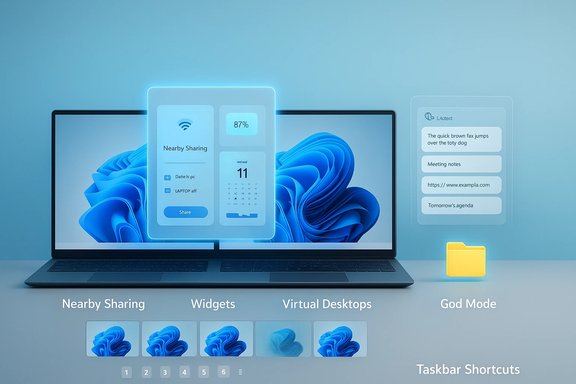
For years I treated Windows 11 like a polished but familiar toolbox — using the same shortcuts, same menus, and the same muscle memory — until I started actively hunting for little features that quietly save time and reduce friction; the six I ignored for too long — Nearby Sharing, Widgets, Virtual Desktops, Clipboard History, God Mode, and a clutch of taskbar shortcuts — now shape my daily workflow and reclaim minutes every hour.
Windows 11 shipped with a visual refresh and a raft of productivity improvements, but many of the most useful tools live buried in Settings, optional menus, or small UI affordances that never make the keynote. That mismatch — polished visuals up front, helpful but discreet utilities in the drawers — explains why many of us rely on old habits instead of built-in efficiencies. The Settings app has become a catch‑all for legacy controls, device-dependent options, and optional features, which means the most impactful tweaks often require a little curiosity to discover.
This article revisits six underused Windows 11 features that are simple to enable, safe to adopt, and widely available on modern Windows builds. Each feature is explained clearly, followed by practical steps, helpful tips, and realistic cautions so you can try them immediately and decide which deserve a permanent place in your workflow.
GodMode.{ED7BA470-8E54-465E-825C-99712043E01C}
After renaming, the folder icon will change to a control‑panel style icon and opening it reveals hundreds of settings grouped and searchable. This rename trick is widely documented and works across Windows 10 and Windows 11.
Windows 11 packs several small but powerful tools that compound into major productivity gains when adopted deliberately. The features covered here are low risk, require minimal configuration, and fit naturally into modern workflows: Nearby Sharing for quick local transfers, Widgets for glanceable context, Virtual Desktops for mental separation, Clipboard History for reliable multi‑snippet copy/paste, God Mode for one‑click deep settings access, and taskbar shortcuts for constant efficiency. Each is an easy win; the only real cost is the time it takes to try them for a week and see which ones stick.
Source: MakeUseOf 6 Windows 11 features I ignored for years and now use daily
 Background
Windows 11 shipped with a visual refresh and a raft of productivity improvements, but many of the most useful tools live buried in Settings, optional menus, or small UI affordances that never make the keynote. That mismatch — polished visuals up front, helpful but discreet utilities in the drawers — explains why many of us rely on old habits instead of built-in efficiencies. The Settings app has become a catch‑all for legacy controls, device-dependent options, and optional features, which means the most impactful tweaks often require a little curiosity to discover.This article revisits six underused Windows 11 features that are simple to enable, safe to adopt, and widely available on modern Windows builds. Each feature is explained clearly, followed by practical steps, helpful tips, and realistic cautions so you can try them immediately and decide which deserve a permanent place in your workflow.
Nearby Sharing — wireless file transfers without apps
What it is and why it matters
Nearby Sharing is Windows’ built‑in peer‑to‑peer transfer mechanism — Microsoft’s answer to AirDrop — that lets two Windows devices exchange files, links, and photos over Bluetooth and Wi‑Fi without third‑party services. It’s ideal for quick, local transfers (slides between teammates, a photo from a colleague’s laptop, or a link from someone at the next table) and removes the need for flash drives or temporary cloud uploads.How it works (brief technical note)
Discovery typically uses Bluetooth LE, then large transfers fall back to a local Wi‑Fi or Wi‑Fi Direct link for speed. Because it stays local, Nearby Sharing avoids cloud bandwidth and reduces upload/download delays — but it is platform-limited: it’s built for Windows‑to‑Windows transfers (Android/iOS cross‑talk depends on Phone Link and other bridges).Quick setup and use
- Open Settings > System > Nearby sharing and enable the feature.
- Choose a discoverability option: My devices only (same Microsoft account) or Everyone nearby.
- In File Explorer, right‑click a file and select Share → choose the nearby PC.
- Accept the transfer on the receiving machine; files land in your Downloads by default.
Practical tips and caveats
- Prefer My devices only for security in mixed environments; Everyone nearby can create nuisance prompts.
- For larger files, ensure both devices are on the same private Wi‑Fi network to favor Wi‑Fi transfer over Bluetooth. If transfers stall, check firewall and network profile (Private vs Public).
- Nearby Sharing depends on hardware and driver support (Bluetooth 4.0+ with LE is typical). If the option is missing, confirm Bluetooth and Wi‑Fi drivers are up to date.
What’s new (experimental)
Microsoft has been experimenting with UI improvements that make sharing even easier (Drag Tray in Insider builds) and with a Migration tool that appears to use local wireless transfers for PC-to‑PC migrations; these are experimental and surfaced via preview builds and reverse‑engineering reports, so treat them as “coming innovations,” not stable features yet. If you test Insider builds, be cautious and back up data first.Widgets panel — a glanceable personal dashboard
Why widgets are worth a second look
The Widgets panel in Windows 11 is more than a weather card or a headline feed; it’s a customizable, glanceable dashboard that can reduce context switches by keeping live data — sports, stocks, music controls, system widgets (battery, PC tools) — always one gesture away. If you abandoned Widgets early, give them a fresh try with targeted widget additions rather than the default news stream.How to access and customize
- Open Widgets with Windows + W or the Widgets icon on the taskbar.
- Click the gear or “Add widgets” to customize the panel.
- Add third‑party widgets (where available) such as battery monitors for earbuds, music playlists, or lightweight system utilities.
Useful widgets I rely on
- Battery and device‑status widgets for Bluetooth earbuds and peripherals.
- A quick PC manager widget for one‑click RAM reclaim or storage checks.
- A compact calendar + agenda view when I’m triaging meetings.
Privacy and noise control
The default Widgets feed includes news and personalization elements that some users find noisy. Windows lets you tone down or disable the news feed if you prefer the panel as a clean dashboard. If you opt into cross‑device personalization, be mindful of the telemetry and ad personalization settings in Privacy & Security.Virtual Desktops — mental separation without extra hardware
The value proposition
Virtual Desktops are the simplest way to mimic multiple machines on a single physical PC: keep your “work” apps on one desktop, your writing tools on another, and personal browsing on a third. The result is a dramatic reduction in visual clutter and cognitive switching costs. Windows 11 improved desktop customizations (per‑desktop wallpaper, easier renaming) so you can visually anchor each environment.Basic actions and keyboard shortcuts
- Create a new desktop: Windows + Tab → New desktop, or Ctrl + Win + D to create and switch instantly.
- Switch between desktops: Win + Ctrl + Left/Right Arrow or Win + Tab for visual selection.
- Close the current desktop: Win + Ctrl + F4 — open windows move to the previous desktop.
Advanced tips
- Assign unique wallpapers to each desktop for fast visual recognition.
- Pin a window or show an app on all desktops if you rely on a single app (music or a softphone) across contexts via Task View options. That avoids the fake separation problem where you keep switching back to retrieve one persistent tool.
- Choose whether Alt+Tab and the taskbar show windows from all desktops or only the current one — set this in System > Multitasking to prevent accidental reveals during meetings.
Clipboard History — stop losing what you copied
Why Clipboard history matters
The clipboard is no longer a one‑slot tool. Windows 11’s Clipboard History stores multiple copied items — text, images, and snippets — and exposes them via Windows + V. For anyone juggling multiple snippets, links, or code blocks, this one change alone saves dozens of repeated copy/paste cycles per day.Key capabilities
- Open clipboard history: Windows + V.
- Pin important items so they survive reboots.
- Sync clipboard items across Windows PCs (manual push or automatic sync) — requires a Microsoft account and opt‑in.
Practical setup and privacy
- Settings > System > Clipboard → toggle Clipboard history to On.
- Choose whether to enable Sync across devices and whether the sync is automatic or manual.
How many items / size limits
Windows historically keeps around 25 recent items in the visible history (older items cycle out unless pinned), and there have been per‑item size limits (large images may not be saved to history). If your workflow relies on repeated pasting of many large assets, pin the important items or use a dedicated snippet manager.God Mode — one folder to rule the settings
The concept
“God Mode” is a user‑created shell folder that exposes a broad, alphabetized list of Windows settings, controls, and legacy Control Panel items in one place. It’s especially useful when Settings and Control Panel continue to redirect you back and forth between modern and legacy interfaces. Many power users pin God Mode to the taskbar or create shortcuts for recurring tweaks.How to enable God Mode (safe, built‑in trick)
Create a new folder anywhere (desktop is common) and rename it exactly to:GodMode.{ED7BA470-8E54-465E-825C-99712043E01C}
After renaming, the folder icon will change to a control‑panel style icon and opening it reveals hundreds of settings grouped and searchable. This rename trick is widely documented and works across Windows 10 and Windows 11.
Tips, precautions and alternatives
- You can replace “GodMode” with any friendly label — the GUID is the important part.
- God Mode doesn’t grant extra privileges; it’s an organizational shell. Use it to create shortcuts to deep controls you change often (power plans, device manager, user profiles).
- For administrators or scripted deployments, you can create an Explorer shortcut directly to the control panel GUID (explorer.exe shell:::{ED7BA470-8E54-465E-825C-99712043E01C}) to avoid leaving a special folder on users’ desktops.
Taskbar shortcuts — small motions, big time savings
Hidden interactions that save seconds
The taskbar is always visible; using it smarter yields constant savings:- Press Windows + number (1–9) to launch or focus the app pinned in that taskbar position. Press Shift + Windows + number to open a new instance of the app. These long‑standing shortcuts are shockingly underused.
- Hover over the speaker icon and use your mouse wheel to change system volume quickly.
- Right‑click a taskbar icon for jump lists (recent files) and use Shift or middle‑click gestures to open or close instances faster.
Keyboard navigation and power tips
- Win + T focuses the taskbar for fast keyboard navigation.
- Win + Alt + the number key (some builds) opens app‑specific quick menus; experiment to discover what your pinned apps expose.
When to use these, and when not to
These shortcuts shine when you have a predictable pinned layout (browser, mail, editor, terminal) and when you want to avoid mouse hunting. If you frequently reorganize the taskbar, maintaining a consistent pinned order will maximize the benefit.Putting it all together — a practical daily routine
- Set up Virtual Desktops for your three primary contexts (Work, Writing, Personal) and give each a unique wallpaper. Use Win + Ctrl + Left/Right to switch naturally.
- Enable Clipboard History and pin a handful of recurring snippets (email signatures, code templates). Use Windows + V any time you paste.
- Use Nearby Sharing for quick transfers and Widgets for constant, glanceable status. Reserve God Mode for rare deep tweaks and pin it if you tweak settings frequently.
- Rely on taskbar number shortcuts for the first nine pinned apps and the mouse‑wheel over volume control for quick adjustments.
Risks, privacy notes, and final cautions
- Feature availability varies by Windows build, OEM drivers, and enterprise policy. If a toggle or widget is missing, check Windows Update, your OEM support pages, and group policies.
- Clipboard sync sends data to Microsoft’s cloud when enabled — treat that as a deliberate choice and avoid syncing secrets. Use manual sync if privacy is a concern.
- Nearby Sharing’s “Everyone nearby” mode is convenient but increases local nuisance and a small attack surface; prefer “My devices only” for day‑to‑day use.
- Experimental Insider features (Drag Tray, Migration) can be unstable and are often surfacing via third‑party tools; treat them as previews and avoid enabling hidden flags on production machines.
Windows 11 packs several small but powerful tools that compound into major productivity gains when adopted deliberately. The features covered here are low risk, require minimal configuration, and fit naturally into modern workflows: Nearby Sharing for quick local transfers, Widgets for glanceable context, Virtual Desktops for mental separation, Clipboard History for reliable multi‑snippet copy/paste, God Mode for one‑click deep settings access, and taskbar shortcuts for constant efficiency. Each is an easy win; the only real cost is the time it takes to try them for a week and see which ones stick.
Source: MakeUseOf 6 Windows 11 features I ignored for years and now use daily
