

Windows is quietly closing many of the productivity gaps remote workers complain about—new OS integrations, refined multitasking tools, and an expanding ecosystem of always‑on desktop utilities now make it possible to shave minutes off routine tasks and reclaim hours across the week.
This feature looks at three recent threads in the Windows productivity story: practical “10 ways” guidance that resurfaced in mainstream outlets and community roundups, a small-pocket utility (LiveDeskCal) that brings always‑visible desktop calendaring and CRM sync to Windows, and a Microsoft change that lets Windows 11 surface app installation options directly from the Start menu. Together these items illustrate two trends: Microsoft is reducing friction inside the OS, and third‑party developers are building lightweight, focused utilities that fill gaps—sometimes with important privacy or manageability trade‑offs. The community guides and product rollouts we reviewed highlight both immediate wins and realistic risks for individuals and IT teams.
At the same time, small apps like LiveDeskCal demonstrate the market for micro‑utilities that keep a single piece of contextual information—your schedule—always visible on the desktop, reducing context switching and missed appointments. Meanwhile, Microsoft’s experiment to allow installing apps directly from the Start menu promises to shorten the discover/install loop for missing tools. Each of these developments can produce measurable time savings, but each also introduces trade‑offs that every remote worker and IT leader should understand.
For remote workers, the most effective approach is pragmatic: adopt the low‑cost settings and shortcuts first (Win + V, Win + Z, Focus Sessions), then selectively trial small utilities that solve single problems—test them on non‑critical accounts and verify privacy/security before full adoption. For IT teams, pilot changes in a controlled group, confirm policy controls apply, and create a short “safe setup” checklist for end users.
Small, deliberate investments in Windows’ built‑in tools and cautious, audited use of focused third‑party apps will yield measurable gains in remote work productivity—without trading security or manageability for convenience.
Source: MSN https://www.msn.com/en-us/news/tech...o-install-apps-directly-from-the-start-menu/]
 Overview
This feature looks at three recent threads in the Windows productivity story: practical “10 ways” guidance that resurfaced in mainstream outlets and community roundups, a small-pocket utility (LiveDeskCal) that brings always‑visible desktop calendaring and CRM sync to Windows, and a Microsoft change that lets Windows 11 surface app installation options directly from the Start menu. Together these items illustrate two trends: Microsoft is reducing friction inside the OS, and third‑party developers are building lightweight, focused utilities that fill gaps—sometimes with important privacy or manageability trade‑offs. The community guides and product rollouts we reviewed highlight both immediate wins and realistic risks for individuals and IT teams.Background: why this matters for remote work
Remote work is as much a setup problem as it is a discipline problem. Context switches—between email, calendar, chat, and browser tabs—are the single biggest productivity tax for knowledge workers. Windows 11 has incrementally added features to reduce that tax: Focus Sessions and Snap Layouts to contain attention and multitasking, Clipboard History to eliminate copy/paste friction, virtual desktops for context separation, and a richer Action Center and widget ecosystem for glanceable information. Practical community rundowns have distilled these into short, repeatable habits that remote workers can adopt quickly.At the same time, small apps like LiveDeskCal demonstrate the market for micro‑utilities that keep a single piece of contextual information—your schedule—always visible on the desktop, reducing context switching and missed appointments. Meanwhile, Microsoft’s experiment to allow installing apps directly from the Start menu promises to shorten the discover/install loop for missing tools. Each of these developments can produce measurable time savings, but each also introduces trade‑offs that every remote worker and IT leader should understand.
What the community and mainstream pieces actually say
Summary of the “10 ways” guidance
Long‑form primers and community threads repeatedly recommend a short list of effective Windows practices for remote work:- Use Focus Sessions (Clock app) to create Pomodoro‑style work windows and mute notifications automatically.
- Master Snap Layouts and Snap Groups (Win + Z / hover the maximize button) to arrange multitasking grids and restore them later.
- Turn on Clipboard History (Win + V) and, if comfortable, enable cloud sync across devices for cross‑machine paste.
- Create and use virtual desktops to separate work from personal apps.
- Use PowerToys (FancyZones, PowerRename, Keyboard Manager) for fine‑grained workflow customizations.
- Configure Active Hours and scheduled restarts to avoid unexpected reboots during critical work.
- Adopt lightweight always‑visible widgets or desktop tools (calendar, to‑do) to avoid opening full apps while working.
Fast fact checks and verification
- Focus Sessions is an official Windows feature integrated with the Clock app; it can link to Microsoft To‑Do and Spotify. Microsoft’s support material documents the feature and linking instructions.
- Snap Layouts are invoked by hovering the maximize control or using Win + Z; Snap Groups remember app groupings. Community documentation and troubleshooting guides show this behavior is now standard in Windows 11 builds.
- Clipboard History (Win + V) holds multiple entries, supports pinning items, and offers cloud sync across devices when enabled; mainstream guides describe the 25‑item limit and 4 MB per‑item size constraint.
Deep dive: Microsoft letting you install apps from Start
What’s changing
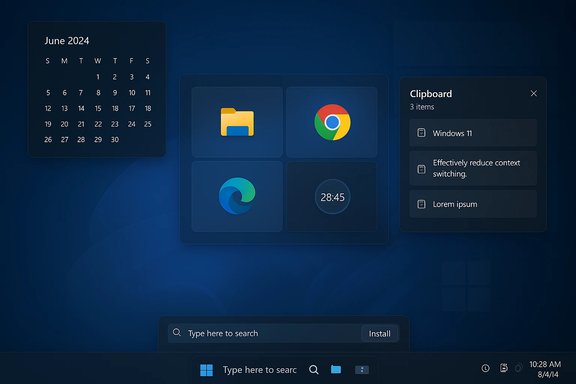
Microsoft is experimenting with integrating Microsoft Store functions into Start and Windows Search so users can search for an app and install it immediately from the Start menu—no separate Store window required. This change reduces friction when a user searches for a missing app and expects an immediate “Get”/Install option. BetaNews and recent Insider chatter confirmed the change is rolling out as part of Windows Search and Microsoft Store work.Why this matters for remote workers
- Time saved: Searching → installing becomes a single flow, cutting small context switches when a resource is missing mid‑task.
- Lower support overhead: IT help‑desks may see fewer “how do I install X” tickets for non‑managed consumer apps.
- Easier discovery: Casual or junior users are less likely to abandon productivity tools because the install path is faster.
Risks and trade‑offs
- Promotion and noise: Integrating installs into Start gives Microsoft a new vector to surface apps (and, potentially, promoted content) inside a UI element users rely on for launching work. That increases the risk of accidental installs or promoted suggestions among legitimate results.
- Search ambiguity: Searches that are ambiguous may surface app install prompts that confuse users who did not intend to install anything; enterprise IT should guard against this for managed devices.
- Enterprise control: Organizations that restrict Store installs via Intune or Group Policy will need to validate the new flow respects existing policies; early Insider builds show this is evolving.
Deep dive: LiveDeskCal — always‑visible calendar + CRM sync
What LiveDeskCal does
LiveDeskCal is a desktop widget that can remain always on top and offers three tiers: Free (local), Lite (Google Calendar + Outlook Online sync), and Pro (CRM integrations with Act!, GoldMine, monday.com, Salesforce‑like tools). The vendor positions the app as a lightweight way to keep calendars visible without opening a browser or full calendar app. The company and press releases emphasize low CPU usage, offline capabilities for the Free tier, and one‑time purchase pricing for Lite and Pro. Key features called out by the vendor and press coverage:- Always‑on desktop calendar view with color coded categories and quick add/edit.
- Two‑way sync with Google Calendar and Outlook Online for Lite users.
- CRM calendar visibility and sync for Pro users who need to see appointments from business systems.
- Small‑footprint design made to blend into Windows themes and dark mode.
Strengths and real productivity gains
- Reduced context switching: A visible calendar eliminates the habit of opening a full browser tab or Outlook window to confirm free time.
- Faster data entry and reminders: Quick edits and alarms on the desktop reduce friction for last‑minute changes.
- CRM integration for client‑facing workers: Sales researchers and consultants who schedule inside CRMs benefit from a unified, always‑visible view without switching to the CRM interface repeatedly.
Risks, limitations, and things to verify
- Privacy and data residency: Cloud syncing and CRM connectors mean sensitive client data can traverse vendor servers. The vendor page emphasizes privacy‑first defaults, but teams should explicitly verify authentication flows, storage locations, and any logging. Treat vendor claims as product marketing until verified with logs and network captures in a pre‑production pilot.
- Security posture: CRM integrations increase the attack surface (OAuth tokens, API access). Enterprises must apply least‑privilege service accounts where possible, rotate tokens regularly, and restrict calendar scopes.
- Availability and support: One‑time purchase pricing is attractive, but buyers should verify update cadence and compatibility with future Windows builds, especially as Microsoft evolves Start/Search and widget behaviors.
- Always‑on windows and screen real estate: Users with limited screen space (laptop users) may find the always‑visible widget intrusive; test the UI density and on‑top behavior in your usual workflows.
- Install Free or Lite in a VM or test machine and confirm the UI and performance under your typical workload.
- Validate Google/Outlook sync by creating events in each system and confirming two‑way sync behavior and latency metrics.
- For Pro / CRM usage: register a test CRM instance and validate exact scopes, token expiry behavior, and how conflicts are resolved.
- Network review: capture traffic during sync to confirm connection endpoints and encryption.
- Define revocation and offboarding steps (how to revoke access tokens and remove cached data).
The practical trade‑offs for remote workers and IT
Productivity wins you can expect
- Short, high‑value wins: enabling Clipboard History (Win + V), Snap Layouts (Win + Z), and Focus Sessions typically repay the time spent configuring them within days. Community testing and official docs align on this; users report notable reductions in friction when these settings are applied consistently.
- Micro‑apps multiply value: small, single‑purpose utilities (LiveDeskCal, PowerToys modules) can produce immediate workflow improvements, because they solve the “last click” problem.
Real and material risks
- Privacy: Cloud clipboard sync and always‑on widgets introduce new privacy vectors. Clipboard sync can transfer unintentional sensitive data across devices; the community guidance warns to avoid copying secrets when sync is enabled.
- App reliability: Microsoft’s Spotify integration for Focus Sessions has been flaky at times; relying on a third‑party integration for a critical daily workflow can break unexpectedly. Community reports showed outages and broken OAuth popups requiring reauth or waiting for a patch. Flagging reliance on such integrations is prudent.
- Manageability at scale: Always‑on desktop widgets and third‑party agents multiply support vectors—extra processes, auto‑start items, and potential compatibility issues with remote desktop or virtualization. IT should include these in their posture and patching programs.
Practical, safe implementations: a 30–45 minute setup roadmap
- Start with non‑intrusive wins (10–15 minutes)
- Enable Clipboard History: Settings > System > Clipboard → Turn on Clipboard history. Test Win + V and pin 2–3 useful snippets. Do not enable cloud sync yet.
- Turn on Snap Layouts: Settings > System > Multitasking → Ensure Snap windows toggles are enabled. Practice Win + Z and set a two‑app layout you’ll use daily.
- Configure focus and notification controls (5–10 minutes)
- Set up Focus Sessions in the Clock app and link Microsoft To‑Do. Avoid linking Spotify until you verify your account linking flow works on your device; some users have reported OAuth popup issues.
- Add PowerToys selectively (10–15 minutes)
- Install Microsoft PowerToys (official GitHub or winget). Enable FancyZones for a predictable multi‑window grid and Keyboard Manager for one or two remaps you use daily. Keep PowerToys disabled from startup until you confirm its stability in your environment.
- Pilot one always‑on widget or micro‑app (15–30 minutes)
- If you try LiveDeskCal: start with the Free tier, confirm the UX and performance. Only after you’re comfortable, test Lite’s Google/Outlook sync on a non‑critical account. If your workflow requires CRM integration, follow the pilot checklist above before granting production credentials.
Enterprise considerations: policies, visibility, and governance
- Group Policy / Intune: Validate how new Start/search install flows interact with existing install restrictions. Confirm policy enforcement on Insider builds before broad rollout.
- App allowlists and telemetry: For third‑party micro‑apps, require a short vendor security questionnaire (authentication method, data storage, update cadence) and an allowlist review before production deployment.
- Backup and recovery: When enabling features that touch user data (clipboard sync, cloud calendars), ensure users have straightforward instructions to disconnect accounts and clear cached data during offboarding.
Critical analysis: what’s actually innovative—and what’s incremental
- Innovation: The Start → Install flow is a small UX change with outsized impact on friction. It shifts discovery and acquisition closer to the moment of need, which is a smart design move for consumer productivity. However, it is an incremental change rather than a transformational one; it improves discoverability but does not replace app lifecycle or governance.
- Incremental but meaningful: Focus Sessions, Snap Layouts, and Clipboard History are mature features that materially improve micro‑workflows. Their value comes from repeated use, not novelty. Microsoft officially documents these features, yet community pieces provide the practical, step‑by‑step glue many users need.
- The third‑party gap: LiveDeskCal and similar micro‑apps continue to flourish because Windows still lacks a small set of first‑party conveniences (persistent, privacy‑first desktop widgets with enterprise controls). That market dynamic favors lightweight vendor innovation, but it also creates a patchwork you must manage.
What to watch next
- Policy parity: Watch for Microsoft to clarify how Start menu install behavior respects enterprise policy and store restrictions as the feature rolls out to broader channels. Early Insider notes already flag Store and search integration work in progress.
- Third‑party stability: Monitor the reliability of third‑party integrations (Spotify linking to Focus Sessions is a poster child for fragile integrations). If a workflow depends on a single third‑party glue, have a fallback plan.
- Privacy defaults: Track cloud clipboard and widget vendors for clearer privacy controls and enterprise‑grade options (e.g., token scopes, data residency). Demand vendor transparency before rolling out CRM sync features.
Conclusion: practical verdict for remote workers and IT
Windows continues to close small but painful productivity gaps. Built‑in features like Focus Sessions, Snap Layouts, and Clipboard History deliver reliable, repeatable gains when adopted intentionally. Microsoft’s Start menu install experiments and vendors like LiveDeskCal show a healthy landscape where friction points are being attacked both from inside and outside the OS.For remote workers, the most effective approach is pragmatic: adopt the low‑cost settings and shortcuts first (Win + V, Win + Z, Focus Sessions), then selectively trial small utilities that solve single problems—test them on non‑critical accounts and verify privacy/security before full adoption. For IT teams, pilot changes in a controlled group, confirm policy controls apply, and create a short “safe setup” checklist for end users.
Small, deliberate investments in Windows’ built‑in tools and cautious, audited use of focused third‑party apps will yield measurable gains in remote work productivity—without trading security or manageability for convenience.
Source: MSN https://www.msn.com/en-us/news/tech...o-install-apps-directly-from-the-start-menu/]
