

The little productivity revolution hiding in plain sight on many Windows 11 PCs started with a simple decision: stop layering subscriptions and third‑party apps on top of friction, and instead build a working system from the operating system itself. A popular walkthrough argues that you can assemble a practical, low‑friction productivity stack using only Windows 11’s built‑in tools — Snap Layouts and Snap Groups, Focus sessions in the Clock app, Clipboard history (Win+V), and Microsoft To Do — and the results are striking: fewer subscriptions, fewer sync headaches, and a surprisingly cohesive flow for everyday work.
This feature examines that claim in depth, verifies the technical details against official Microsoft documentation and independent coverage, and evaluates where a Windows‑only productivity system shines — and where it might leave power users wanting. The goal is a clear, practical guide you can use to decide whether relying on Windows 11’s default features is the right productivity strategy for your work.
Microsoft has steadily folded task‑focused features into Windows 11 since its release. Rather than relying on a patchwork of third‑party apps, the built‑in approach favors coherence: single sign‑on with a Microsoft account, system‑level integrations (such as Do Not Disturb during Focus sessions), and cross‑app behavior that doesn’t require separate browser extensions or paid tiers.
That coherence has clear advantages: reduced cognitive load, fewer background services, and a smaller attack surface. But the gains are only meaningful if the built‑in tools meet real workflow needs — and if they interoperate smoothly. The rest of this article verifies those interoperability claims and lays out practical usage patterns for day‑to‑day productivity with Windows 11.
However, heavy project managers, teams requiring deep collaboration features (Gantt charts, advanced tagging, custom automations), or users who depend on integrations with third‑party productivity suites may find To Do too limited. For those scenarios, a hybrid approach — using To Do for personal daily execution and a specialized project tool for team work — may be wiser.
The approach trades some depth for cohesion and simplicity, and that trade is worthwhile for users whose primary objective is to reduce friction and reclaim focus time. For heavy project or team needs, blending the Windows core with one targeted third‑party tool gives the best balance: minimal added complexity, maximal time saved.
The MakeUseOf walkthrough that inspired this assessment provides a hands‑on endorsement of the Windows‑only strategy and aligns with Microsoft’s documentation and independent coverage: the features work as advertised, are free, and — when used together — produce tangible gains in daily productivity.
A productivity system is only useful when it’s used. Windows 11 gives you a practical, zero‑cost foundation with real integrated features that remove friction from everyday work. For many users, starting with these built‑in tools — and only adding third‑party apps when absolutely necessary — will be the fastest path to getting more done with less overhead.
Source: MakeUseOf I built a full productivity system using only Windows 11’s default features
This feature examines that claim in depth, verifies the technical details against official Microsoft documentation and independent coverage, and evaluates where a Windows‑only productivity system shines — and where it might leave power users wanting. The goal is a clear, practical guide you can use to decide whether relying on Windows 11’s default features is the right productivity strategy for your work.
 Background: Why default tools deserve a second look
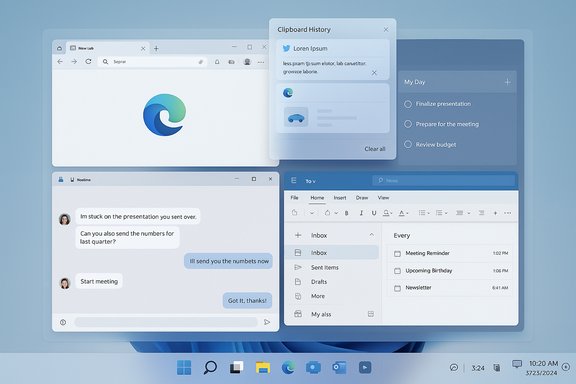
Microsoft has steadily folded task‑focused features into Windows 11 since its release. Rather than relying on a patchwork of third‑party apps, the built‑in approach favors coherence: single sign‑on with a Microsoft account, system‑level integrations (such as Do Not Disturb during Focus sessions), and cross‑app behavior that doesn’t require separate browser extensions or paid tiers.That coherence has clear advantages: reduced cognitive load, fewer background services, and a smaller attack surface. But the gains are only meaningful if the built‑in tools meet real workflow needs — and if they interoperate smoothly. The rest of this article verifies those interoperability claims and lays out practical usage patterns for day‑to‑day productivity with Windows 11.
Overview of the four core built‑in productivity tools
- Snap Layouts and Snap Groups — fast window tiling and remembered layouts for task‑specific multi‑window workflows.
- Focus sessions (Clock app) — a Pomodoro‑style timer that ties into Do Not Disturb, Spotify, and Microsoft To Do.
- Clipboard History (Win+V) — a multi‑entry clipboard with pinning and optional cloud sync across devices.
- Microsoft To Do — lightweight task management with the My Day feature and Outlook flagged‑email integration.
Snap Layouts and Snap Groups: the multitasking backbone
What they are and how they work
Snap Layouts let you quickly tile windows into predefined grids by hovering over a window’s maximize button or using Win+Z, and Snap Groups remember those tiled collections so you can restore a whole setup from the taskbar preview later. The flyout adapts to your display size, offering two, three, or four‑pane arrangements tailored for laptops and ultrawide monitors alike. Official documentation describes the flyout and the taskbar recovery behavior that restores snapped windows as a group.Why Snap Groups reduce friction
The productivity benefit is psychological and practical. Instead of rebuilding a layout after switching tasks or plugging/unplugging a second monitor, you restore the entire arrangement with one hover and click. That saves a surprising amount of time when your work requires referencing multiple documents, browser tabs, or communication apps side‑by‑side.- Restores context quickly after interruptions.
- Reduces micro‑work (repositioning and resizing windows).
- Works with multiple monitors and remembers arrangements when displays disconnect/reconnect.
Limitations and workarounds
Snap Layouts are flexible but not infinitely configurable. Power users who want deterministic, saved layouts across multiple monitor profiles will still prefer third‑party tilers (or PowerToys FancyZones), which support named layouts and scripting. Microsoft’s own PowerToys is introducing Workspaces to bridge that gap for advanced workflows, offering automatic app launch and arrangement — but that is an optional add‑on. For pure, no‑install scenarios, Snap Layouts deliver most users a substantial productivity boost without extra software.Focus sessions in Clock: built‑in Pomodoro with task and audio integration
How Focus sessions behave
Focus sessions, accessible from the Clock app or the notification area, create a timed period during which the system applies Do Not Disturb, mutes badge notifications, and stops taskbar flashing. The timer itself is visible on screen and can be paired with breaks to follow Pomodoro‑style work rhythms. Official Microsoft guidance explains the Do Not Disturb behavior and the Clock app integration.Integration with Microsoft To Do and Spotify
The Clock app’s Focus sessions can pull tasks directly from Microsoft To Do and optionally play audio from Spotify without opening a separate app window. That means you can pick a precise task, start a timer, and play a curated playlist — all from a single interface. Windows documentation and independent how‑to coverage confirm this triage: Focus sessions link to To Do and can be connected to Spotify for background music.Practical patterns
- Use Microsoft To Do to select a single task for the Focus session (to force intentionality).
- Link a Spotify playlist for ambient music if it helps you enter flow.
- Start the session from the notification center to keep the Clock app minimized.
What to watch for
Focus sessions are great for shallow work, but there are edge cases: the session’s end sound may be muted by other audio sources in certain configurations, and integrating Spotify requires signing in and the presence of the Spotify service on the PC. If your workflow requires automatic time logging to an external system, you’ll need a connector; Windows Focus sessions do not currently export logs to third‑party productivity trackers by default.Clipboard History (Win+V): reclaim copy‑paste power
What the clipboard history offers
Press Win+V to open Clipboard History: a list of recent copied items (text and images), with a pin feature to keep frequently used snippets persistently available. Microsoft states the feature keeps up to 25 entries and that pinned items survive restarts, while unpinned history is cleared at reboot. How‑to guides confirm the basic workflow and pin behavior.Real‑world productivity uses
- Batch copying: copy several items in sequence at source, then paste them in order at destination.
- Snippet pinning: pin common replies, email signatures, or formatting templates.
- Cross‑device sync: when enabled, clipboard items can be synced across devices tied to the same Microsoft account (useful if you move between a desktop and a laptop).
Reliability caveat
The MakeUseOf walkthrough notes occasional data loss — for example, clipboard history vanishing after Windows updates or crashes — and cautions users to keep backups of important snippets. Microsoft’s documentation clarifies that only pinned items persist across restarts; unpinned items are deliberately ephemeral. That means a critical address or signature should be pinned (or duplicated in a file) rather than trusted as transient clipboard history. Pinning reduces risk, but users who need guaranteed persistence should keep a backup copy outside the clipboard.Microsoft To Do: a lightweight task engine that plugs into Windows
Core strengths: My Day and cross‑app sync
Microsoft To Do is a simple, focused task manager with a distinctive My Day feature that resets each midnight, encouraging daily prioritization. My Day functions like a psychological reset: you pick what matters today from your backlog rather than letting an unbounded list cause overwhelm. Microsoft documentation describes My Day’s reset behavior and smart suggestions. To Do also integrates with Outlook for flagged‑email import: flagged messages can appear as tasks in a dedicated Flagged Email list — a strong hook for users who live in Outlook. That sync requires signing into the same Microsoft account and is documented by Microsoft.How it ties into Focus sessions
Because the Clock app can pull tasks from Microsoft To Do for Focus sessions, you can pick a specific To Do item, start a Focus timer, and watch the session count toward your daily progress. That integration is the linchpin of the Windows‑only workflow: task selection, timing, and distraction suppression from a unified, preinstalled toolset.When Microsoft To Do is enough — and when it’s not
Microsoft To Do is excellent for daily planning and lightweight personal task lists, especially for people who already use Outlook or Microsoft 365. It’s free, syncs across devices, and covers the basic needs of most users.However, heavy project managers, teams requiring deep collaboration features (Gantt charts, advanced tagging, custom automations), or users who depend on integrations with third‑party productivity suites may find To Do too limited. For those scenarios, a hybrid approach — using To Do for personal daily execution and a specialized project tool for team work — may be wiser.
Putting it all together: a practical Windows‑only workflow
Here’s a short, repeatable workflow that uses only Windows 11 default apps to turn scattered tasks into executable work:- Open Microsoft To Do and populate My Day with 2–6 prioritized tasks.
- Arrange the windows you need using Snap Layouts (for example, browser + document + chat) and save the arrangement implicitly as a Snap Group.
- Start a Focus session from the Clock app, choose the task from To Do, and link a Spotify playlist if desired.
- Use Clipboard History (Win+V) to collect and paste snippets efficiently while working.
- When interrupted, minimize; later restore the Snap Group via the taskbar preview to resume with context intact.
Strengths: what Windows‑only productivity gets right
- Low friction: No subscription setup, fewer background services, and integrated OS permissions reduce administrative overhead.
- Seamless OS integration: System behaviors such as Do Not Disturb and taskbar previews work across all built‑in features.
- Cost: All core features described are free and either preinstalled or available through the Microsoft Store.
- Simplicity: For single‑worker or solo knowledge‑work scenarios, the Windows stack provides a tight loop: Plan (To Do) → Arrange (Snap) → Execute (Focus) → Paste (Clipboard).
Risks and limitations: where caution is required
- Depth of features: Built‑in tools prioritize breadth and low friction over deep, specialized capabilities. Teams or users needing advanced task automation, integrations, or complex project views will still need third‑party tools.
- Reliability edge cases: Clipboard history is intentionally ephemeral — unpinned items are cleared on restart. Occasional system updates or crashes can make clipboard data fragile; important snippets should be pinned or stored elsewhere.
- Platform lock‑in risk: Relying heavily on Windows‑centric integrations (To Do + Clock + Outlook flagged mail) can make cross‑platform continuity awkward if you frequently switch to non‑Windows devices.
- Privacy considerations: Features that sync data across devices (clipboard sync, To Do sync) rely on Microsoft account infrastructure; those who prefer local‑only data may need to disable cloud sync and accept reduced cross‑device convenience. Microsoft’s docs note these sync behaviors and the account tie‑ins.
When to go hybrid: suggestions for power users
For users who want the low‑friction core but need advanced features, a hybrid approach preserves the best of both worlds:- Keep Windows 11 features as the daily execution loop (To Do + Focus + Snap + Clipboard).
- Add a single, focused third‑party app where the OS falls short:
- Power users who need saved, named layouts and multi‑monitor scripting can add PowerToys FancyZones or the new PowerToys Workspaces.
- Teams requiring robust project management should continue using their team tool (Asana, Jira, Trello), but consider duplicating daily execution tasks into Microsoft To Do for personal focus sessions.
- If you need persistent, cross‑platform clipboard beyond what Microsoft accounts permit, consider a secure third‑party clipboard manager that supports encrypted sync.
Final verdict: a pragmatic, low‑cost way to regain time
Windows 11’s default productivity features — Snap Layouts, Focus sessions, Clipboard History, and Microsoft To Do — are not a panacea for every workflow, but they form a surprisingly capable, low‑friction core for most solo knowledge work. For people tired of subscription creep, login fatigue, and the administrative cost of chaining together multiple apps, a Windows‑only system is a defensible, practical choice.The approach trades some depth for cohesion and simplicity, and that trade is worthwhile for users whose primary objective is to reduce friction and reclaim focus time. For heavy project or team needs, blending the Windows core with one targeted third‑party tool gives the best balance: minimal added complexity, maximal time saved.
The MakeUseOf walkthrough that inspired this assessment provides a hands‑on endorsement of the Windows‑only strategy and aligns with Microsoft’s documentation and independent coverage: the features work as advertised, are free, and — when used together — produce tangible gains in daily productivity.
Quick start checklist (one‑page copy)
- Enable Snap Layouts: hover the maximize button or press Win+Z; set Multitasking options in Settings if needed.
- Turn on Clipboard History: Windows+V → Turn on; pin crucial snippets. Consider enabling cloud sync if you use multiple Windows devices.
- Set up Microsoft To Do: add important lists, and populate My Day each morning. Link Outlook flagged email if you use Outlook.
- Start using Focus sessions: open Clock → Focus sessions → link To Do and Spotify as desired; start timed work blocks from the notification center.
- Create a recovery habit: periodically back up pinned clipboard snippets and export important To Do lists if you rely on them heavily.
A productivity system is only useful when it’s used. Windows 11 gives you a practical, zero‑cost foundation with real integrated features that remove friction from everyday work. For many users, starting with these built‑in tools — and only adding third‑party apps when absolutely necessary — will be the fastest path to getting more done with less overhead.
Source: MakeUseOf I built a full productivity system using only Windows 11’s default features
