

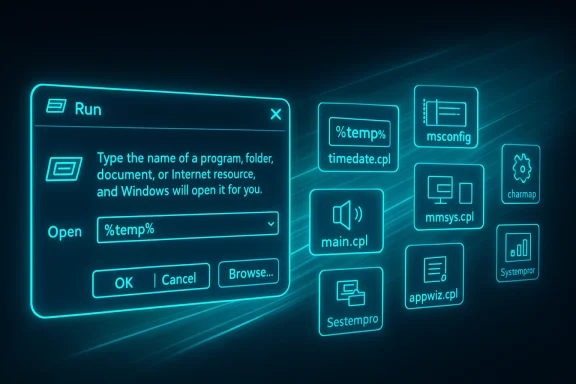
You can stop digging through nested menus—the Run box is a speed lane to dozens of legacy Control Panel applets, diagnostic tools, and hidden settings that still ship with modern Windows. With a handful of Run commands you can clear temporary files, switch audio devices, open the classic Date & Time panel, control startup behavior, paste special characters, and more — all in seconds rather than minutes. These shortcuts are small time-savers that add up, and they also expose useful troubleshooting tools that the Settings app buries behind multiple clicks.
Windows still carries a large catalog of executable applets and MMC snap-ins that predate the modern Settings app. Many of these were never removed because they remain the fastest way to access compact configuration interfaces: the classic Sound panel, Date and Time control, Programs and Features, and the System Configuration utility are examples. Power users and IT pros rely on these Run commands to reduce friction while troubleshooting or customizing systems. A recent practical roundup highlighted eight of the most useful Run commands most everyday users should memorize and keep at hand.
This article expands on that practical list, explains what each command does, provides step-by-step usage, points out real-world scenarios where they help, and flags potential risks or incompatibilities. I cross-checked the behavior of each command as used on modern Windows builds and grouped notes on alternatives, automation, and safety so you can use these shortcuts confidently.
These Run shortcuts are not a nostalgia exercise — they remain practical, efficient, and often the fastest path to resolution. Commit a few of them to memory, create a couple of desktop shortcuts for daily use, and you’ll cut through the Settings maze and get things done faster and with more predictability. The original practical roundup that inspired this guide showed how approachable these commands are; use this article as a hands-on reference to adopt them safely and confidently.
Source: How-To Geek 8 Run commands every Windows user should know
 Background / Overview
Windows still carries a large catalog of executable applets and MMC snap-ins that predate the modern Settings app. Many of these were never removed because they remain the fastest way to access compact configuration interfaces: the classic Sound panel, Date and Time control, Programs and Features, and the System Configuration utility are examples. Power users and IT pros rely on these Run commands to reduce friction while troubleshooting or customizing systems. A recent practical roundup highlighted eight of the most useful Run commands most everyday users should memorize and keep at hand.This article expands on that practical list, explains what each command does, provides step-by-step usage, points out real-world scenarios where they help, and flags potential risks or incompatibilities. I cross-checked the behavior of each command as used on modern Windows builds and grouped notes on alternatives, automation, and safety so you can use these shortcuts confidently.
How to use Run commands (quick primer)
- Press Windows + R to open the Run dialog.
- Type the command (for example,
msconfig) and press Enter or click OK. - If a command requires elevated privileges, open an administrative Terminal (right-click Start → Windows Terminal (Admin)) and run it from there, or confirm the UAC prompt when it appears.
%temp%, %appdata%) or command-line utilities. They work on most supported Windows releases, but availability can vary by edition and future updates, so treat any assertion about permanence as potentially time-sensitive.The eight Run commands every Windows user should know
Below I cover each command from the practical shortlist, show exactly what it opens, explain when it’s faster than Settings, and highlight any cautionary notes.1) %temp% — Open your temporary files folder instantly
- What it does: Expands to your current user’s temporary file folder and opens it in File Explorer.
- Why it matters: The folder commonly accumulates cache files, installers, and logs that can consume disk space or interfere with software updates. Deleting safe-to-remove files here can often resolve application glitches.
- How to use:
- Press Windows + R.
- Type
%temp%and press Enter. - Select files (Ctrl+A), then Delete. Skip files in use (you’ll get a "file in use" prompt).
- Real-world use case: When an app fails to start after an update, clearing
%temp%is a fast first step that costs nothing and often removes stale installer or cache entries. - Cautions: Some files may be in use and cannot be deleted. Do not remove other folders outside the expanded
%temp%path unless you know what they contain.
2) timedate.cpl — Open Date and Time (classic Control Panel)
- What it does: Opens the legacy Date and Time control panel with tabs for Date & Time, Additional Clocks, and Internet Time (sync).
- Why it matters: It's a single, compact place to set system time, add clocks for other timezones, or troubleshoot time synchronization. This is faster than navigating Settings → Time & Language for many users.
- How to use:
- Press Windows + R.
- Type
timedate.cpland press Enter. - Adjust time zones, add additional clocks, or configure time server syncing as needed.
- Real-world use case: Useful when restoring time after a BIOS change, when a VM’s clock drift causes authentication issues, or when debugging certificate validation errors tied to incorrect system time.
- Cautions: Changing the system clock can affect scheduled tasks, Kerberos authentication in domain environments, and time-sensitive applications. In corporate environments consult IT before altering system time.
3) msconfig — System Configuration (boot, services, startup)
- What it does: Launches the System Configuration window where you can set Safe Boot options, toggle services, and (in older Windows versions) view startup entries. In modern Windows, the Startup tab links to Task Manager.
- Why it matters: It centralizes several common troubleshooting actions—Safe Mode boot, services disabling, and quick boot adjustments—into one dialog. That makes it invaluable for repair sessions.
- How to use:
- Windows + R →
msconfig→ Enter. - Switch to the Boot tab to enable Safe Mode or set boot options. Use Services tab to hide Microsoft services and disable third-party services for isolation.
- Real-world use case: When an application prevents normal boot, Safe Mode from
msconfigquickly verifies whether the problem is driver- or service-related. - Cautions: Misconfiguring boot options can make the system boot into Safe Mode repeatedly; note changes carefully and revert if needed. For permanent startup item control, prefer Task Manager or the
shell:startupfolder for user-level startup items.
4) charmap — Character Map (copy special characters)
- What it does: Opens the Character Map utility to browse and copy special characters, accents, glyphs, and symbols that aren’t on a standard keyboard.
- Why it matters: When you need a specific glyph (e.g., a currency symbol, accented letter, or arrow) in an email, document, or code comment, Character Map is faster and more reliable than searching the web.
- How to use:
- Windows + R →
charmap→ Enter. - Choose a font and click characters to copy. Use the "Advanced view" for Unicode search.
- Real-world use case: Typing non-ASCII punctuation or Unicode symbols in software that lacks built-in symbol pickers.
- Cautions: For frequent symbol insertion, install a utility or map shortcut keys—Character Map is handy for occasional use, but it is not a productivity substitution for heavy symbol entry.
5) mmsys.cpl — Sound (classic Sound control panel)
- What it does: Opens the classic Sound settings dialog with Playback, Recording, Sounds, and Communications tabs. You can set default audio devices, configure levels, and manage device properties.
- Why it matters: It's quicker than opening Settings → System → Sound when you need to instantly switch default output or input devices, troubleshoot audio devices, or adjust per-device properties.
- How to use:
- Windows + R →
mmsys.cpl→ Enter. - Use Playback/Recording tabs to set defaults and test devices.
- Real-world use case: Switch output to headphones before a meeting or enable a specialized microphone for recording.
- Cautions: Modern audio device management sometimes routes through vendor software and Settings; if a device only appears in vendor control panels,
mmsys.cplmay not help.
6) main.cpl — Mouse properties (classic pointer settings)
- What it does: Opens the Mouse Properties dialog where you can change button assignments, pointer speed, double-click speed, wheel scrolling, ClickLock, and pointer schemes.
- Why it matters: The classic dialog frequently exposes granular options that the modern Settings app omits, and it’s faster when you need precise pointer adjustments.
- How to use:
- Windows + R →
main.cpl→ Enter. - Use the Buttons, Pointers, Pointer Options, and Wheel tabs to fine-tune behavior.
- Real-world use case: Adjust double-click speed for older mice or enable ClickLock for easier drag selection on compact touchpads.
- Cautions: Some vendor-specific mouse features live in their own drivers;
main.cplchanges are generic and may not affect advanced device features.
7) appwiz.cpl — Programs and Features (uninstall, change programs)
- What it does: Opens the classic Programs and Features window that lists installed applications and provides Uninstall/Change actions.
- Why it matters: It presents a clean, sortable view of installed software and is often faster than Settings → Apps → Installed apps for finding legacy programs to remove.
- How to use:
- Windows + R →
appwiz.cpl→ Enter. - Select an entry and choose Uninstall or Change.
- Real-world use case: Quickly remove an old driver package or a stubborn legacy utility that doesn’t appear in the Settings list.
- Cautions: Some modern MSIX/UWP apps won’t appear in Programs and Features; use Settings or the Store interface for those app types. Uninstalling system components can impact functionality—when in doubt, create a restore point first.
8) SystemPropertiesPerformance — Performance Options (visual effects and virtual memory)
- What it does: Opens the Performance Options dialog where you can tune visual effects, processor scheduling, memory usage, and virtual memory (paging file) settings.
- Why it matters: It provides a single place to turn off animations for speed, adjust processor scheduling for background services, or manage the paging file manually. This is quicker than navigating through multiple Settings and Control Panel pages.
- How to use:
- Windows + R →
SystemPropertiesPerformance→ Enter. - Choose "Adjust for best performance" or set custom visual effects; go to Advanced for virtual memory settings.
- Real-world use case: Reduce UI effects to improve perceived responsiveness on older hardware or set a manual pagefile when troubleshooting disk-related memory issues.
- Cautions: Manual paging file changes can cause performance regressions if set improperly. Let Windows manage the paging file unless you have a specific requirement. In enterprise systems, coordinate changes with system administrators.
Why these Run commands still matter in 2026 (and beyond)
- Speed and predictability: Run commands bypass search indexing, menus, and navigation delays. They open focused dialogs with predictable behavior. This matters whether you’re supporting dozens of devices or just want to get a quick setting changed.
- Reproducible troubleshooting: For support professionals, using the same Run command across devices ensures repeatability and reduces ambiguity when describing steps.
- Hidden or legacy functionality: Several legacy Control Panel applets offer finer-grained options that the modern Settings UI omits or hides behind additional clicks. The Run box keeps these options accessible.
- Automation and scripting: Many of these commands can be invoked from scripts, remote sessions, or shortcuts—ideal for image deployments and support workflows.
Safety, pitfalls, and compatibility notes
- Not all commands are immutable. Microsoft sometimes deprecates legacy applets or migrates functionality to Settings. If a command fails on a specific device, check for edition-specific differences (Home vs Pro) or Windows version variances. Treat any claim about permanence as tentative.
- Commands that change system state (boot options, time, paging file) can disrupt services and authentication; in managed environments consult IT before changing these settings.
- Privilege escalation: Some of these applets will prompt for administrative credentials when invoked from an unprivileged session. Launching an elevated terminal is a safer way to run multiple administrative commands during a troubleshooting session.
- Data loss risk: Deleting files (even in
%temp%) or changing boot and disk settings carries risk. Back up important data and create a restore point before making system-level changes. - Third-party overlays: Vendor audio, mouse, or input utilities may override the classic Control Panel values. If you see inconsistent behavior, check vendor utilities or drivers for their own settings panels.
Power-user tips and short workflows
- Quick audio toggle: Windows + R →
mmsys.cpl→ Enter → Playback tab → Right-click a device → Set as Default Device. This is faster than opening Settings and hunting through Output device drop-downs. - Safe Mode and diagnostic reboot:
- Windows + R →
msconfig→ Enter. - Boot tab → Check Safe boot (Minimal) → OK → Restart.
- After diagnosis, reopen
msconfigand uncheck Safe boot to return to normal. - Clear DNS and network refresh:
- Open an elevated Terminal: Windows + X → Windows Terminal (Admin).
- Run
ipconfig /flushdnsthenipconfig /renew. These commands are fast complements to the Run shortcuts that open network dialogs. - Single‑click uninstall shortcut: Create a desktop shortcut that runs
appwiz.cplso you or your less-technical users can quickly remove apps without clicking through Settings. Right-click desktop → New → Shortcut → enterappwiz.cplas the target.
Beyond the eight: complementary Run commands worth adding to your pocket
regedit— Registry Editor (use with caution).devmgmt.msc— Device Manager.diskmgmt.msc— Disk Management.compmgmt.msc— Computer Management (a hub including Disk Management, Device Manager, Event Viewer).msinfo32— System Information (hardware and driver summary).resmon— Resource Monitor (detailed performance data).cleanmgr— (Legacy) Disk Cleanup; useful on older machines or where Storage Sense is not configured.
These complementary commands convert the Run box into a compact toolbox for everything from device driver checks to disk partitioning and system health checks. They’re cited across the larger run-command catalog and forum discussions that aggregate practical commands for troubleshooting.
How to make these shortcuts part of your daily workflow
- Memorize a short list: Start with 3–4 commands you use most and add one new command per week. Muscle memory plus a quick desktop cheat sheet goes a long way.
- Create shortcuts: For commands you use constantly, create a pinned taskbar shortcut or desktop shortcut that invokes the Run command (enter the command in the shortcut target).
- Combine with scripts: Batch files or PowerShell wrappers can call Run-equivalent commands programmatically. This is useful for imaging workflows or repeated troubleshooting sequences.
- Teach others: A short help doc with 5 Run commands and a cautionary note on permissions can dramatically improve first-line support efficiency in small teams.
Final analysis: strengths, limitations, and recommendations
Strengths:- Speed: These Run commands are the fastest route to focused system tools. They shave minutes from common tasks and produce reproducible results for support staff.
- Accessibility: Legacy controls remain available even as the Settings UI evolves, giving users options when the new interface is incomplete or confusing.
- Fragility across updates: Because they rely on legacy applets and snap-ins, availability may change with major Windows updates or editions. Verify on targeted systems.
- Partial coverage: Some modern app types (MSIX/UWP) and vendor-provided features are not exposed through these classic dialogs; you’ll still need the Settings app or vendor tools in those cases.
- Keep the eight commands above as your core Run-command toolkit; they cover common needs for cleanup, audio, time, startup, mouse, installed software, special characters, and performance options.
- For any system-level change (boot options, virtual memory, time), document the original settings and prefer reversible changes.
- In managed environments, coordinate with IT policies before changing system-wide defaults.
- Consider automating repetitive troubleshooting flows using simple scripts that invoke these tools; it reduces human error and speeds support.
These Run shortcuts are not a nostalgia exercise — they remain practical, efficient, and often the fastest path to resolution. Commit a few of them to memory, create a couple of desktop shortcuts for daily use, and you’ll cut through the Settings maze and get things done faster and with more predictability. The original practical roundup that inspired this guide showed how approachable these commands are; use this article as a hands-on reference to adopt them safely and confidently.
Source: How-To Geek 8 Run commands every Windows user should know
