

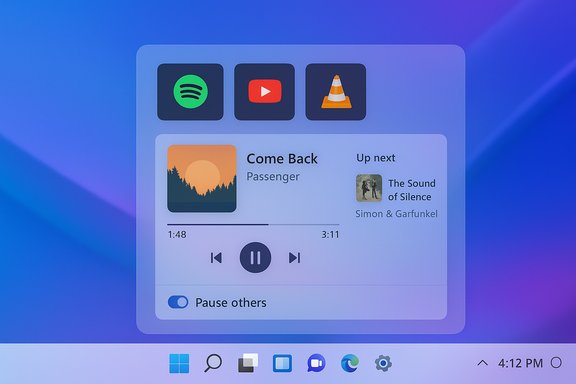
Windows has always been a platform that rewards small, focused utilities — and a new generation of media flyouts is proving that sometimes the best improvements are the ones that simply stop audio from colliding in the background. A free Microsoft Store / GitHub app (variously packaged as MediaFlyout or FluentFlyout depending on the project) delivers a native-feeling media overlay with large artwork, quick controls, and — crucially — an optional auto-pause behavior that prevents overlapping audio sessions. For users who have juggled a rogue browser tab playing YouTube while Spotify kept chugging in the background, that single toggle is nothing short of liberation.
Windows 11 consolidated many small system flyouts into Quick Settings and the notification area, which simplified the shell but also reduced the immediacy and richness of one‑off controls. The stock media overlay above Quick Settings presents a compact row of transport buttons and tiny artwork, but it doesn’t scale well for users on tablets, multi-monitor setups, or people who want a single glanceable pane showing every active media source.
Beyond aesthetics, there’s a functional limitation: the system’s media surface (the System Media Transport Controls, or SMTC) only displays and controls metadata that individual apps choose to publish. That means a third‑party utility can only show what the media player exposes; if an app doesn’t wire into SMTC fully, features such as seek bars or “up next” previews may be absent. This is an API boundary, not a bug in the third‑party tools. Microsoft’s official SMTC docs explain how UWP and other apps integrate with the system transport controls and why metadata and control availability depend on the media app’s implementation. That explains real-world quirks where one player shows a seekbar and another just shows play/pause — the flyout can only present what the player publishes.
How this is implemented in practice depends on the app:
There are real considerations — certificate handling, occasional compatibility inconsistencies, and the usual maintenance question that faces small open‑source projects — but for most consumers and power users the gain is worth the small setup cost. If you’ve been irritated by rogue background audio or the cramped media overlay in Quick Settings, installing a modern flyout from the Microsoft Store is a practical, low-risk way to restore a snappier, cleaner media experience.
For readers who want to proceed, choose the Store edition for the simplest path, verify the project repository if you prefer open‑source transparency, and enable the pause others toggle — it’s the single option that will likely fix the biggest media‑playback frustration you didn’t know could be solved so elegantly.
Source: Pocket-lint This free app fixed my biggest problem with Windows media playback
 Background: why Windows’ built‑in media controls still leave room for improvement
Windows 11 consolidated many small system flyouts into Quick Settings and the notification area, which simplified the shell but also reduced the immediacy and richness of one‑off controls. The stock media overlay above Quick Settings presents a compact row of transport buttons and tiny artwork, but it doesn’t scale well for users on tablets, multi-monitor setups, or people who want a single glanceable pane showing every active media source.Beyond aesthetics, there’s a functional limitation: the system’s media surface (the System Media Transport Controls, or SMTC) only displays and controls metadata that individual apps choose to publish. That means a third‑party utility can only show what the media player exposes; if an app doesn’t wire into SMTC fully, features such as seek bars or “up next” previews may be absent. This is an API boundary, not a bug in the third‑party tools. Microsoft’s official SMTC docs explain how UWP and other apps integrate with the system transport controls and why metadata and control availability depend on the media app’s implementation. That explains real-world quirks where one player shows a seekbar and another just shows play/pause — the flyout can only present what the player publishes.
What these modern flyout apps actually deliver
Two community projects illustrate the current state of third‑party flyouts:- MediaFlyout (a compact tray-based WPF app with simple install scripts) offers a low‑footprint taskbar flyout and a quick "pause all media / resume last" action from the tray icon. It’s implemented in C# using WPF and FluentWPF, and the developer distributes releases via GitHub.
- FluentFlyout (a more feature-rich open‑source project) emphasizes deep Windows 11 styling — Mica backdrops, Fluent 2 components, smooth animations — and includes features such as a taskbar widget, “Up Next” preview, lock‑key indicators, and a configurable toggle to pause other media sessions when a new one starts. For many reviewers and users, FluentFlyout is the closest third‑party app to a “native” Windows media overlay.
Key features you'll actually use
- Single-pane media list showing all active media sessions with large artwork and metadata.
- Complete transport controls (play/pause, previous/next) with seekbars when the player exposes position metadata.
- Auto‑pause / pause‑others toggle that stops previous audio sessions when a different app begins playback.
- Visual polish: Mica, Acrylic options, theme matching and Fluent-style animations to make the overlay feel integrated.
- Multiple install avenues: Microsoft Store for convenience and auto‑updates, GitHub .msix/.zip releases for open‑source transparency and manual installing.
- Game-friendly options to suppress overlays during exclusive fullscreen games to avoid focus loss.
Why the “pause previous audio” toggle matters (and how it works)
The most visible benefit — and the one many reviewers single out — is the ability to automatically pause other audio sessions when a new source begins playback. That avoids the familiar double-audio situation: you open a new YouTube tab, press play, and both YouTube and Spotify fight for your ears.How this is implemented in practice depends on the app:
- The flyout watches active SMTC sessions and detects when a new playback becomes the focused session.
- When the user enables pause others, the flyout sends pause commands to the previously active sessions (via the same SMTC interface the media player uses).
- Because SMTC is the system-sanctioned transport layer, the flyout can request pause/play commands in the same way hardware keys do — but it can only affect players that respond to SMTC commands. Players that do not integrate with SMTC remain unaffected.
Technical provenance and a note on ambiguity
Not every review uses the same name for these utilities, and coverage sometimes conflates similarly named projects that aim at the same gap in Windows 11. That’s important to clarify because implementation details differ:- The MediaFlyout project on GitHub is a C# WPF app that uses FluentWPF for acrylic and accent color support and includes a simple tray-based interface with a middle-click “pause all media” action. This repo and its releases are publicly available.
- FluentFlyout is a separate, active open‑source project that explicitly targets Windows 11 styling — Fluent 2, Mica/Acrylic backdrops, taskbar integration, and a larger feature set including Up Next and lock-key indicators. FluentFlyout’s README and releases show a focus on Win‑like visuals and a robust feature docket.
Installation paths and enterprise considerations
There are two common distribution models for these utilities:- Microsoft Store edition: easiest install, automatic updates, and the cleanest upgrade path for non‑technical users. The Store versions are packaged to avoid certificate trust prompts and are the recommended method for most users in consumer contexts. FluentFlyout and similar projects offer Store builds for convenience.
- GitHub / manual builds: the full open‑source releases (.msixbundle or zipped binaries) are freely available and give complete access to the codebase and release history. Manual installs sometimes require trusting a developer certificate (installing a .cer into the Trusted Root store) for the package to register system-level start/run entries. This is a valid route for power users and organizations that vet and sign the package internally, but it’s a step that carries administrative overhead and potential security concerns when the certificate isn’t verified through an enterprise signing process.
- Prefer the Microsoft Store package if your organization allows it (managed Store or Microsoft Store for Business).
- If using the GitHub build, avoid adding unknown certificates to a machine’s Trusted Root store at scale — instead sign packages with an internal certificate or install via an enterprise-signed MSIX package.
- Pilot the app in a controlled user pool; third‑party shell integrations sometimes introduce unforeseen interactions with accessibility tooling, GPOs, or full‑screen apps.
Security, privacy, and reliability — what to watch for
These apps operate at the UI/integration layer, not the kernel or audio driver layer, but they still demand scrutiny:- Certificate trust: if you install a non‑Store MSIX, the install path may prompt you to trust a certificate. Treat any certificate prompt seriously; prefer Store builds where possible.
- Telemetry and network behavior: reputable flyout projects keep to local metadata and control messages via SMTC. If an app requests remote telemetry or cloud features (rare for these utilities), review the privacy policy and opt out if necessary.
- Breakage risk: Windows Shell APIs and SMTC behaviors can change across Windows feature updates. These open‑source projects are actively maintained, but a major OS update could temporarily degrade functionality until maintainers ship a patch.
- Accessibility & focus: some overlay implementations may pull focus or interfere with screen readers if not implemented carefully. Choose apps that document accessibility constraints and provide suppression toggles for full‑screen gaming or critical workflows.
Alternatives and ecosystem context
This is a crowded but fertile space. If you want the broader picture:- FluentFlyout — polished, feature-rich, Windows 11‑styled flyout with taskbar widget, Up Next and Mica/Acrylic options; available on GitHub and the Microsoft Store. It’s the go‑to for users seeking a close-to-native aesthetic plus advanced options.
- MediaFlyout (krlvm) — a lightweight WPF tray app focused on fast taskbar access and a “pause all” convenience from the tray icon; ideal if you want something minimal.
- ModernFlyouts / YourFlyouts — other community projects that replace older flyouts and provide alternate styling and behavior choices. These are mature, widely used replacements worth testing if the two projects above don’t fit your taste.
- EarTrumpet — while not a flyout replacement in the same visual sense, EarTrumpet remains essential for per‑app volume and device routing and pairs well with a media flyout for precise audio control.
How to install and configure safely (step-by-step)
- Decide whether you want the store edition (recommended for ease) or the GitHub release (recommended if you need open‑source access).
- If using the Store:
- Open Microsoft Store, search for the app by name (FluentFlyout or Media Flyout), and install.
- Launch the app and allow it to run at startup if you want it always available.
- If using GitHub release (.msixbundle or ZIP):
- Download the release matching your architecture.
- Read the README and checksums; verify file integrity when available.
- If the package includes a .cer file and the README instructs certificate import, inspect the certificate details and only install if you trust the publisher. Prefer signing packages with an enterprise certificate in managed environments.
- Configure the app:
- Toggle the pause previous audio option if you want the app to avoid audio overlap.
- Choose Mica or Acrylic backdrops, layout position, and whether the flyout appears on media key presses or volume key changes.
- Enable the “suppress during exclusive fullscreen” option if you game or use fullscreen creative apps frequently.
- Test your daily players (Spotify, browser tabs, VLC, media player) to confirm transport controls, seekbars and Up Next data appear as expected. If a player is missing metadata, check whether that player exposes SMTC integration.
Troubleshooting common issues
- Flyout not appearing with media keys: confirm the app runs in the background (system tray) and that keyboard hooks aren’t blocked by other utilities.
- Seekbar or metadata missing: the media player may not expose position or display metadata to SMTC — this is a per‑player limitation.
- Settings not persisting across reboots: rare, but sometimes related to permission profiles or OS-level session handling — reinstall via Store build if the GitHub build shows errant behavior.
- Fullscreen overlay stealing focus: enable the game‑friendly suppress option or configure exclusion lists in the app settings.
Critical assessment: strengths, but also real‑world tradeoffs
Strengths- Immediate usability gain: large artwork, clearer controls and a single pane for active sessions reduce friction.
- Pragmatic auto‑pause: a well‑implemented pause-other toggle solves the nuisance of overlapping audio without invasive system changes.
- Native look & feel: Mica/Acrylic and Fluent elements help the overlay blend into Windows 11 and lower cognitive friction for users.
- Platform fragility: the overlay depends on SMTC and subtle shell behaviors that can change with Windows updates.
- Certificate and install friction: manual installs require extra caution; enterprises must treat the GitHub route as a code review and signing exercise, not a casual one-click install.
- Partial compatibility with certain players: not all media apps expose full SMTC metadata, so some flyout features may be unavailable depending on the player.
- Perceived first‑party illusion: when third‑party apps match native styling closely, users may assume first‑party support; this can complicate troubleshooting for IT and end users.
Verdict — who should install one of these flyouts?
- Install if you: want a modern, low‑friction media control overlay; regularly switch between players; or are annoyed by overlapping audio sources. The Store edition is the least risky path for most home users.
- Avoid or pilot if you: manage locked‑down enterprise endpoints with strict certificate and app policies, or rely on mission‑critical UIs that cannot tolerate potential shell integration regressions without vetting.
Final take: a small app, outsized impact
Third‑party flyouts are a classic Windows story: the community identifies a small but pervasive UX gap, builds a focused tool to fix it, and ships something that — in day‑to‑day use — can feel like a missing OS feature finally returned. The pause previous audio behavior is a succinct example of this value: it solves a real, repeatable annoyance with a safe, system‑level mechanism.There are real considerations — certificate handling, occasional compatibility inconsistencies, and the usual maintenance question that faces small open‑source projects — but for most consumers and power users the gain is worth the small setup cost. If you’ve been irritated by rogue background audio or the cramped media overlay in Quick Settings, installing a modern flyout from the Microsoft Store is a practical, low-risk way to restore a snappier, cleaner media experience.
For readers who want to proceed, choose the Store edition for the simplest path, verify the project repository if you prefer open‑source transparency, and enable the pause others toggle — it’s the single option that will likely fix the biggest media‑playback frustration you didn’t know could be solved so elegantly.
Source: Pocket-lint This free app fixed my biggest problem with Windows media playback
