

If you’re tired of Outlook’s clutter or Thunderbird’s quirks, eM Client is the polished, feature-rich alternative many power users are switching to — a modern desktop client that blends a clean interface, deep productivity tools, and optional generative AI without pretending the cloud erased the need for a serious local client.
eM Client has quietly repositioned itself from a capable niche client into a full‑blown contender for professionals and power users. Over the last major releases (notably eM Client 10) the team modernized the UI, added generative AI helpers, and reworked licensing options to give users a subscription or one‑time purchase path. The company now markets a free tier as well as paid Personal and Business licenses available either as a subscription or a one‑time purchase; the vendor’s official pricing and plan matrix lists the free tier, subscription Personal and Business tiers, and one‑time purchase options side‑by‑side.
That repositioning matters because many long‑time desktop mail users left Outlook or Thunderbird out of frustration with UI bloat, sync issues, or limited mobile continuity. Forums and user threads show a steady stream of people seeking alternatives to Outlook and modernizing away from older clients — a trend that creates an opening for a modern desktop client that respects power workflows.
This article walks through what eM Client does differently, which features deliver real productivity gains, where it still has trade‑offs, and who should consider switching now.
Key features to know:
A short migration checklist:
Synchronization model: like other clients, eM Client relies on standard protocols (IMAP/SMTP, Exchange, CalDAV/CardDAV, and OAuth2 for supported services). For users with Exchange or Microsoft 365 accounts, the vendor’s improved onboarding and account re‑authorization wizard in version 10 helps smooth setup and reduce token‑based friction.
That said, it’s not a one‑size‑fits‑all miracle. The licensing model requires attention: the free tier is deliberately limited (two accounts) and AI access is tied to subscription/add‑on choices that vary across license types. Organizations with strict privacy or compliance needs must evaluate the AI processing model and vendor assurances before enabling those features.
If you’ve been switching between Outlook and Thunderbird because neither feels modern enough or truly productive, eM Client is absolutely worth a test drive. Install the free tier, import a representative mailbox, and spend a week running real work through the client — test Snooze, Watch for Reply, and the sidebar attachment history. For many professionals, that trial is enough to reveal whether eM Client can be the single email client they keep for years.
Concluding thought: the era when desktop email clients were an obligatory relic is over — but the need for capable clients that respect professional workflows remains. eM Client chooses the latter path: modern UI, serious productivity features, and optional AI assistance — a practical package for power users who want less friction, not more flash.
Source: MakeUseOf Forget Outlook and Thunderbird, this is the pro-level email client you need
 Background / Overview
eM Client has quietly repositioned itself from a capable niche client into a full‑blown contender for professionals and power users. Over the last major releases (notably eM Client 10) the team modernized the UI, added generative AI helpers, and reworked licensing options to give users a subscription or one‑time purchase path. The company now markets a free tier as well as paid Personal and Business licenses available either as a subscription or a one‑time purchase; the vendor’s official pricing and plan matrix lists the free tier, subscription Personal and Business tiers, and one‑time purchase options side‑by‑side. That repositioning matters because many long‑time desktop mail users left Outlook or Thunderbird out of frustration with UI bloat, sync issues, or limited mobile continuity. Forums and user threads show a steady stream of people seeking alternatives to Outlook and modernizing away from older clients — a trend that creates an opening for a modern desktop client that respects power workflows.
This article walks through what eM Client does differently, which features deliver real productivity gains, where it still has trade‑offs, and who should consider switching now.
Design and interface: modern, customizable, and purposeful
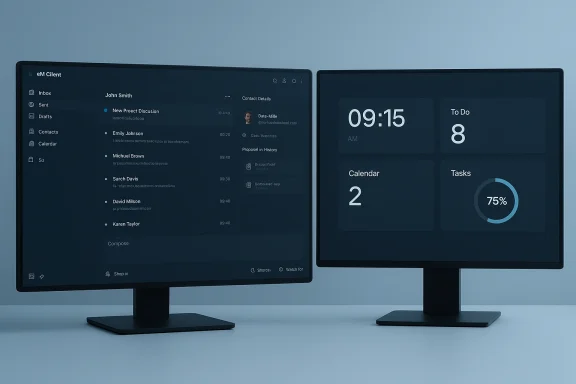
eM Client’s UI is intentionally restrained. Where Outlook retains a dense, ribbon‑centric aesthetic and Thunderbird opts for a functional but older design, eM Client focuses on a quieter, information‑first layout that keeps your messages and tasks visible without visual noise.- The main message view is clean, with configurable reading panes and conversation threading.
- Built‑in themes include a polished dark theme and user‑created theme support; eM Client also provides a theme editor for deep customization.
- eM Client 10 updated the onboarding and initial setup wizard, allowing you to hide or enable features at install so the UI matches your workflow from day one.
The right sidebar: contact context, attachments, and instant history
One of eM Client’s most practical differentiators is the right sidebar: a Contact Details/Agenda pane that shows contact metadata, recent communication history, and attachment history for the selected message or contact.- Communication History aggregates emails (and supported chat messages) with a contact into a single stream you can search or filter. This is exposed in the Contact Details sidebar and via a dedicated Communication History window.
- Attachment History surfaces files exchanged with a contact so you don’t need to run a global search or trawl folders to find last year’s invoice. Forum users consistently praise this as a time saver.
Email management tools that matter: Snooze, Watch for Reply, and practical automation
Desktop clients survive and thrive on one thing: email management. eM Client places clear, actionable controls where you need them.Key features to know:
- Snooze — temporarily remove a message from the inbox and have it reappear at a chosen time. This behaves like a personal deferral system and keeps your inbox focused on current tasks. Snoozed messages live in a Snoozed folder until they return. The feature is explained in the vendor’s feature notes and is a natural replacement for manual flags or folders.
- Watch for Reply — mark sent messages and have them tracked in a special Unreplied folder; eM Client can notify you if a reply hasn’t arrived by a set time. This closes a common follow‑up gap without forcing calendar entries or manual reminders. Vendor documentation and the product blog indicate this feature is available to paid users of version 8+ and later, and the client provides UI affordances to enable it from the compose window or Sent folder.
- Search & Unified Inbox — eM Client’s local indexing and search are fast on modern machines; it also supports a unified inbox experience and Gmail-specific category synchronization so everything can be treated in a single workflow without waiting on webmail nuances. eM Client 10 expanded inbox classification to allow category tabs, giving you a modern, Gmail‑like experience even for non‑Gmail accounts.
Generative AI: practical assist, not gimmick — with privacy caveats
eM Client now offers integrated AI writing and summarization tools. The integration is built around an AI add‑on model:- The AI functionality can generate replies, summarize long messages, rewrite text in different tones, and offer proofreading and translation helpers, with the experienced vendor note that the current AI provider is ChatGPT. These capabilities are surfaced in the compose window and via “Reply with AI” actions.
- AI is available in subscription licenses and as a purchasable add‑on for other license types; the vendor markets an AI Add‑on starting at a low monthly price and documents that subscription seats and credits apply. Forum threads and the vendor’s AI FAQ clarify that AI access policies differ between one‑time licenses and subscriptions (subscription licenses typically include AI, while older one‑time licenses might require an additional AI add‑on).
- eM Client states that AI requests are only sent to the provider with explicit user action (e.g., pressing an AI button), and that the client does not send message content without the user’s consent. The vendor also notes it does not log that content. However, the text you generate or modify is processed by the external AI provider, so the typical AI‑provider privacy model applies. If your workflow handles highly sensitive PII, regulated data, or attorney‑client material, treat the AI functions as an external processor and confirm compliance before use.
- Licensing complexity around AI: because AI is bundled differently across new subscription licenses versus legacy one‑time purchases, there’s a risk users assume AI is free with any paid license. The vendor explicitly warns that AI may require the add‑on for one‑time purchasers. Confirm your license type before relying on the AI features.
Migration from Outlook, Thunderbird, and other clients
If you’ve been in Outlook or Thunderbird for years, migration is one of the first questions. eM Client supports import from Outlook (including .pst files) and other clients; the Import Wizard can pull emails, contacts, calendar events, and account settings. This includes direct PST import even when Outlook is not installed on the target machine. Vendor help pages and user guides document the stepwise import process and common troubleshooting tips.A short migration checklist:
- Export or locate your PST/mbox files (if migrating from older systems).
- Install eM Client and choose File → Import to launch the wizard.
- Select the source (Outlook, Thunderbird, .pst, .mbox, .eml, etc.) and map the items you want to import.
- Configure your accounts using modern OAuth flows for Gmail/Outlook.com or IMAP/SMTP for other providers.
- Validate folder mapping and synch; remove duplicate imports if you imported data and then reconfigured the server account.
Platforms, sync and mobile story
eM Client supports desktop clients for Windows and macOS, with mobile companion apps for Android and iOS. According to the vendor’s pricing page, mobile apps do not require a separate desktop license and are free to use. If Linux is a hard requirement, eM Client presently lacks native Linux support — a disappointment for Linux desktop users.Synchronization model: like other clients, eM Client relies on standard protocols (IMAP/SMTP, Exchange, CalDAV/CardDAV, and OAuth2 for supported services). For users with Exchange or Microsoft 365 accounts, the vendor’s improved onboarding and account re‑authorization wizard in version 10 helps smooth setup and reduce token‑based friction.
Pricing and licensing: free tier is useful, pro features require payment
The vendor’s pricing table is explicit about limitations and the pathways to Pro capabilities:- The Free license is limited to personal, non‑commercial use and allows up to 2 email accounts (a common constraint for vendors with a freemium model).
- Paid licenses come in Personal and Business forms, purchasable as a one‑time payment (with optional lifetime upgrades) or as a subscription; subscription tiers commonly include the AI add‑on, whereas one‑time purchases may require a separate AI add‑on. Pricing examples on the vendor site show Personal subscriptions and one‑time Personal licenses with different price points and device allowances.
- Independent pricing aggregators and software marketplaces corroborate the vendor’s account limits and show similar price bands for subscription and perpetual licenses, giving buyers third‑party confirmation of the model.
Strengths: where eM Client shines
- Information‑dense sidebar that surfaces attachments and conversation history — a daily time saver for professionals.
- Concrete productivity features (Snooze, Watch for Reply, Send Later, mass mail) that address real pain points in email workflows.
- Fast local search and unified inbox options that make archive retrieval quick compared with some webmail clients.
- Strong import tools for Outlook PST and other legacy formats, which reduce friction for migration.
- Customizable UI and theme editor, which appeals to users who prefer to tailor their workspace’s look and feel.
- Generative AI capabilities integrated where writing help is useful — not as a headline gimmick but as a drafting and summarization assistant.
Risks and limitations: what to watch out for
- AI privacy and compliance — AI requests go to an external provider when you use the feature. For sensitive data, organizations should obtain clarity about where content is processed and whether that flow meets legal and contractual obligations. Vendor docs disclose the provider and note user consent controls, but this remains a governance decision for companies.
- License and feature fragmentation — some features that are indispensable to power users (Snooze, Watch for Reply, AI) are gated behind Pro/paid plans or subscription add‑ons. Users who assume a one‑time Pro purchase includes AI may be surprised; the vendor’s new licensing model changed what’s included by default. Read the license fine print.
- No native Linux client — Linux users will need alternatives or to run Windows/macOS builds in a VM or Wine.
- Edge cases for PST import — although the client supports PST import, some users report subtle issues (duplicate messages when also configuring server accounts, or attachments not imported in legacy scenarios). Plan a staged migration and test with sample PSTs first.
Who should switch (and who shouldn’t)
Consider switching if you match any of these profiles:- You manage multiple accounts and want a unified inbox with fast local search and powerful follow‑up tools.
- You regularly need to find historical attachments or review complete contact histories without running separate searches.
- You compose many professional messages and want assisted drafting or quick tone adjustments from an integrated AI tool (and you’ve cleared privacy with your organization).
- You like a desktop workflow and want offline access to messages plus robust import tools for Outlook/legacy archives.
- You need a free solution for more than two accounts (the free tier limits you to 2 accounts), or you rely on Linux as your primary desktop.
- Your company forbids sending message text to external AI providers, or you require a zero‑third‑party‑processing guarantee.
- You need public folder or highly specialized Exchange features that only corporate Outlook exposures provide.
Practical setup and tips for migrating to eM Client
- Back up your existing mail (export PST/mbox) before doing anything else.
- Install eM Client and use the Import Wizard (File → Import) to bring in PST, mbox, or other archives. The wizard supports direct import from Outlook PST files even if Outlook isn’t installed.
- Add your accounts using the modern OAuth flows or IMAP/SMTP; for Exchange/Office 365 accounts use the provider’s recommended connection type to preserve calendar and free/busy details.
- Configure the sidebar Contact Details, toggling the communications and attachment displays to suit your workflow.
- If you’ll use AI features, confirm whether your license includes the AI add‑on or whether you need to purchase it; enable AI only after checking organizational policy.
- Test Snooze and Watch for Reply on non‑critical threads to learn their behavior, particularly with multi‑recipient messages (Watch for Reply removes the message from tracking when the first reply arrives).
Final verdict: the pro‑level client worth trying
eM Client is not a clone of Outlook, nor is it a rebranded Thunderbird. It occupies its own niche: a modern, productivity‑focused desktop client that blends sensible UI design with features that solve everyday email pain points — especially for professionals who juggle accounts, attachments, and follow‑ups. Its right sidebar, Snooze, and Watch for Reply are practical, time‑saving features that are hard to find together in other clients without heavy customization or plugins.That said, it’s not a one‑size‑fits‑all miracle. The licensing model requires attention: the free tier is deliberately limited (two accounts) and AI access is tied to subscription/add‑on choices that vary across license types. Organizations with strict privacy or compliance needs must evaluate the AI processing model and vendor assurances before enabling those features.
If you’ve been switching between Outlook and Thunderbird because neither feels modern enough or truly productive, eM Client is absolutely worth a test drive. Install the free tier, import a representative mailbox, and spend a week running real work through the client — test Snooze, Watch for Reply, and the sidebar attachment history. For many professionals, that trial is enough to reveal whether eM Client can be the single email client they keep for years.
Concluding thought: the era when desktop email clients were an obligatory relic is over — but the need for capable clients that respect professional workflows remains. eM Client chooses the latter path: modern UI, serious productivity features, and optional AI assistance — a practical package for power users who want less friction, not more flash.
Source: MakeUseOf Forget Outlook and Thunderbird, this is the pro-level email client you need
