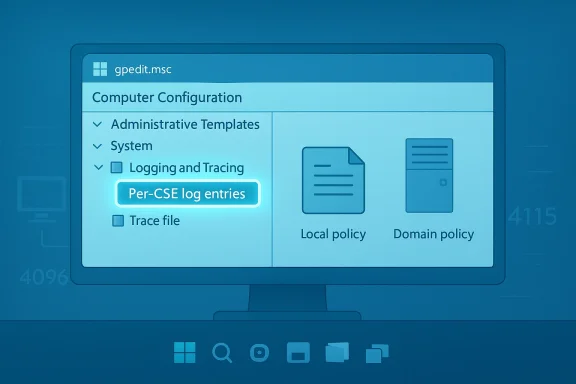
Microsoft has quietly moved a long‑standing Group Policy troubleshooting tool from the domain controller into the hands of every Windows 11 administrator: beginning with the February 2026 preview updates and in Windows 11 versions 24H2 and 25H2, Group Policy Preferences (GPP) debug logging can now be enabled from the Local Group Policy Editor (gpedit.msc)—no AD replication, no copying ADMX files, and no waiting for a GPO push.
Group Policy Preferences (GPP) were introduced to make device and user configuration simpler and more flexible than classic Group Policy settings. Over the years, the GPP client‑side extensions (CSEs) have grown more capable but also more complex to troubleshoot when a preference doesn’t apply as expected. Historically, verbose GPP debug logging was only configurable via domain‑based GPOs—meaning administrators needed access to Group Policy Management and an authoritative GPO to turn on the most useful diagnostic output. That requirement forced many admins into workarounds: copying ADMX/ADML files into local PolicyDefinitions, deploying temporary test GPOs, or enabling tracing via registry tweaks.
This change—allowing the same debug controls to be surfaced in Local Group Policy—removes many of those barriers. It gives frontline engineers and helpdesk teams a supported, first‑party route to collect detailed GPP diagnostics directly on the device they’re investigating. Microsoft’s Directory Services team documents the change and provides the exact policy locations and defaults.
Legacy instructions—such as copying GroupPolicyPreferences.admx into the local PolicyDefinitions folder—remain relevant for older OS builds that do not yet include the Local Group Policy logging entry, but these workarounds are no longer necessary on supported Windows 11 releases. The RSAT/ADMX guidance explains the older process in depth.
That said, it’s diagnostic tooling—not a management shortcut. Use it to shorten incident MTTR, but continue to manage policy configuration centrally where consistency, auditing, and compliance matter. Follow the best practices above: verify OS build compatibility, protect trace files, tune rotation and file sizes, and always revert verbose logging when finished. For complex or recurring issues, pair local tracing with the broader Group Policy diagnostics techniques documented by Microsoft (gpresult, gpsvc logging, and RSoP collection) to get a complete picture.
This change may not make headlines, but for frontline IT teams it’s a pragmatic productivity boost: faster diagnosis, fewer workaround steps, and a supported path to collect the exact telemetry you need from the client itself. Adopt it responsibly—protect the logs, manage the duration of captures, and integrate the findings into your central policy reviews to prevent repeat incidents.
Source: Windows Report https://windowsreport.com/windows-11-adds-local-group-policy-support-for-gpp-debug-logging/
 Background
Group Policy Preferences (GPP) were introduced to make device and user configuration simpler and more flexible than classic Group Policy settings. Over the years, the GPP client‑side extensions (CSEs) have grown more capable but also more complex to troubleshoot when a preference doesn’t apply as expected. Historically, verbose GPP debug logging was only configurable via domain‑based GPOs—meaning administrators needed access to Group Policy Management and an authoritative GPO to turn on the most useful diagnostic output. That requirement forced many admins into workarounds: copying ADMX/ADML files into local PolicyDefinitions, deploying temporary test GPOs, or enabling tracing via registry tweaks.This change—allowing the same debug controls to be surfaced in Local Group Policy—removes many of those barriers. It gives frontline engineers and helpdesk teams a supported, first‑party route to collect detailed GPP diagnostics directly on the device they’re investigating. Microsoft’s Directory Services team documents the change and provides the exact policy locations and defaults.
What exactly changed?
The high‑level improvement
- GPP debug logging and tracing options are now part of Local Group Policy Editor (gpedit.msc) for supported Windows 11 builds (24H2, 25H2, and February 2026 preview updates onward). This includes per‑CSE logging controls for Drive Maps, Files, Shortcuts, Printers, and other preference extensions.
Why it matters now
- You can enable verbose logging and tracing directly on the affected endpoint without involving domain GPO editing, SYSVOL changes, or RSAT/central‑store edits.
- Troubleshooting becomes faster for isolated, offline, or single‑device incidents (for example, loaner devices, contractors’ machines, or lab systems).
- It reduces operational friction when diagnosing intermittent or timing‑sensitive issues that are hard to reproduce in a domain‑managed lab.
How to enable GPP debug logging from Local Group Policy (practical steps)
Microsoft provides a clear guided path in its post; below is a concise, admin‑focused how‑to you can follow immediately on a supported Windows 11 device. Where possible, validate the steps with gpupdate/gpresult and by checking the trace files described further on.- Open the Local Group Policy Editor:
- Run: gpedit.msc
- Navigate to the logging nodes:
- Computer Configuration → Policies → Administrative Templates → System → Group Policy → Logging and Tracing
- Select the client‑side extension (CSE) you need to debug (for example, Drive Maps or Files).
- Enable the policy and configure the options:
- Event logging level: choose Informational, Warnings, Errors, or All (use All for deepest troubleshooting).
- Tracing: enable if you want a local trace file for more granular data.
- Trace paths: default values are provided for user and computer trace logs (see next section).
- Maximum trace file size: defaults are suggested (Microsoft shows 1024 KB as an illustrative default; increase it where necessary to avoid rollovers during long tests).
- Apply and OK, then force policy refresh:
- Run: gpupdate /force
- Confirm policy application with: gpresult /h %TEMP%\GPResult.html (or use the Event Viewer channels described below).
Technical specifics you must know (verified)
- Default trace folder:
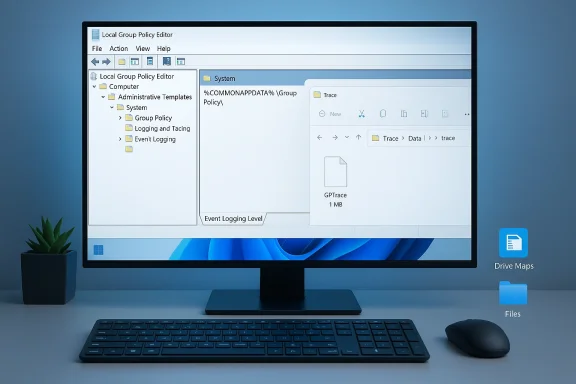
- The GPP CSEs use %COMMONAPPDATA%\GroupPolicy\Preference\Trace as the default trace directory. Microsoft notes that although %COMMONAPPDATA% is not a conventional user environment variable, the GPP CSEs expand and accept it internally; the equivalent physical path maps under ProgramData (e.g., %SYSTEMDRIVE%\ProgramData\Microsoft\…). Administrators should note this path is hidden by default and may need explicit permissioning and visibility adjustments.
- File size and rotation:
- Microsoft documents a default suggestion of 1024 KB (1 MB) as a starting value for trace file size; increase this where verbose tracing will quickly exhaust the limit. If you expect extended capture windows, bump the maximum to avoid log truncation during your test window.
- Required permissions:
- If you choose a custom log folder, it must grant Full Control to the SYSTEM account. GPP CSEs run under Local System; if the SYSTEM account cannot write to the folder, trace files won’t be created and logging will silently fail. Check ACLs before concluding a policy hasn’t applied.
- Event logging behavior:
- The policy controls what appears in the Event Viewer in addition to trace files. Setting Informational/Warnings/Errors/All determines the verbosity of the events emitted by each preference CSE. Use Event Viewer (Applications and Services Logs\Microsoft\Windows\Group Policy\Operational and the specific Preference logs) to correlate event IDs with trace entries.
The historical alternative—and why this is simpler
Before this change, administrators who needed to enable GPP debug logging on a client that wasn’t easily reachable by a domain GPO had to perform one of these workarounds:- Copy the GroupPolicyPreferences ADMX/ADML files from a domain controller’s PolicyDefinitions (or the RSAT package) into the local C:\Windows\PolicyDefinitions folder so the Local Group Policy Editor would expose the logging nodes.
- Create a temporary domain GPO (requiring SYSVOL replication and possibly lengthy propagation) to enable logging.
- Use registry edits and GPSvcDebugLevel or other registry‑backed verbose logging methods to capture different layers of Group Policy processing.
Recommended troubleshooting workflow (step‑by‑step)
When you’re diagnosing a missing or misapplied GPP preference, use this practical sequence. It combines the new local logging controls with established Windows policy‑debugging commands.- Enable the needed Preference CSE logging and tracing via gpedit.msc as described above. Choose maximum verbosity only for the narrow troubleshooting window to limit performance impact.
- Force a policy refresh:
- gpupdate /force
- Gather RSoP and policy application state:
- gpresult /h %TEMP%\GPResult.html
- Review applied GPOs, LocalGPO, and the source for any conflicting settings. Microsoft’s Group Policy troubleshooting guidance recommends these steps when collecting information prior to contacting support.
- Inspect Event Viewer:
- Applications and Services Logs → Microsoft → Windows → Group Policy → Operational
- Look for informational, warning, and error events emitted by the Preference CSEs.
- Open trace files:
- Default location: %COMMONAPPDATA%\GroupPolicy\Preference\Trace (or your custom path if configured).
- If trace files are empty, double‑check ACLs and that the SYSTEM account can write to the folder.
- If needed, escalate to GPSvc verbose logging:
- Microsoft documents how to enable GPSvcDebugLevel via the registry and capture the gpsvc.log in %windir%\debug\usermode—this is useful when preference processing seems to fail at service startup or before CSEs run. Use registry changes with caution and revert them after troubleshooting.
- Correlate timestamps:
- Use the precise timestamps in Event Viewer and trace files to map what the client attempted and where it failed. This is where trace-level logs shine compared with basic event entries.
Benefits for different admin personas
- Helpdesk engineers: can debug policy issues locally on a user’s machine during a remote support session without needing domain GPO edits or SCCM/Intune pushes.
- Field technicians: can collect full GPP traces on devices that are off‑domain or in transient network conditions.
- Sysadmins and engineers: still retain central control using GPOs for rollout, but now have the local fallback to validate and iterate before committing domain‑wide policy changes.
- Security and compliance teams: gain a safer diagnostics path—local, auditable, and reversible—rather than copying ADMX files or creating temporary GPOs in production SYSVOL.
Risks, caveats and limits
No new feature is risk‑free. Administrators should be mindful of the following when enabling local GPP debug logging:- Performance and disk usage: Verbose tracing generates sizable logs, and repeated or long tracing sessions can consume disk space and I/O. Microsoft explicitly warns that trace file size and rotation settings should be tuned. Use temporary capture windows and revert settings when troubleshooting completes.
- Silent failure due to permissions: If the chosen trace folder is not writable by SYSTEM, trace files simply won’t be created. Verify ACLs before assuming a policy failed. Microsoft emphasizes SYSTEM account ownership for custom folders.
- Potential data leakage in logs: Debug output can include configuration details that may be sensitive (paths, user names, network shares). Treat trace files as sensitive artifacts: store them on secured media, redact where necessary, and remove them when no longer required.
- Not a replacement for central management: Local logging is a diagnostic convenience, not a policy distribution feature. Use central GPOs or MDM for consistent policies at scale.
- Feature rollout dependence on Windows build: The capability is tied to Windows 11 24H2, 25H2, and February 2026 preview updates—so verify target devices are on supported builds before relying on the local policy path.
- Change management discipline: Easier local debugging can tempt less‑experienced administrators into leaving verbose logging enabled in production. Adopt a policy to enable only for defined troubleshooting windows and maintain an inventory of systems with elevated logging enabled.
Best practices and checklist
Before you start a GPP debug session, use this checklist to avoid common pitfalls:- [ ] Confirm the device OS build supports local GPP debug policies (Windows 11 24H2/25H2 or newer).
- [ ] Choose a short, bounded troubleshooting window and communicate it to stakeholders.
- [ ] If selecting a custom trace folder, set ACLs so the SYSTEM account has Full Control.
- [ ] Increase max trace file size if expected verbosity will exceed the default (1 MB is the baseline recommendation Microsoft shows).
- [ ] Run gpupdate /force and gpresult /h to capture the policy application snapshot.
- [ ] Collect Event Viewer and trace files; store them securely.
- [ ] Revert logging choices to Not Configured when finished to restore normal system behavior.
Cross‑referenced guidance and verification
To ensure accuracy, the new local logging behavior and its defaults have been verified against Microsoft’s Directory Services announcement on the Tech Community and against established Group Policy troubleshooting documentation on Microsoft Learn. The Tech Community post provides the step‑by‑step GUI locations and default trace path/size guidance, while Microsoft’s troubleshooting documentation fills in how GPSvc and other verbose logging options integrate with the overall policy diagnostics workflow. Administrators planning to adopt the local logging path should consult these Microsoft resources for the authoritative command examples and the latest build‑specific details.Legacy instructions—such as copying GroupPolicyPreferences.admx into the local PolicyDefinitions folder—remain relevant for older OS builds that do not yet include the Local Group Policy logging entry, but these workarounds are no longer necessary on supported Windows 11 releases. The RSAT/ADMX guidance explains the older process in depth.
Real‑world scenarios where local GPP debug logging will change outcomes
- A remote contractor reports mapped drives intermittently failing. Instead of orchestrating a domain change or asking the user to create complex debug artifacts, the support engineer enables the Drive Maps preference trace locally, captures the failure during the next logon, and isolates a timing race against network availability.
- A corporate loaner device has configuration drift after reimaging. Field staff can enable the File preference trace locally, confirm whether an intended file‑copy preference applies, and share a concise trace with central IT for remediation.
- Lab engineers iterating on a new printer preference can validate configuration application on a clean VM without mutating the enterprise GPO baseline.
Verdict — practical takeaway for Windows admins
This is one of those small, under‑the‑hood improvements that materially speeds troubleshooting. By giving administrators a supported, local GUI path to enable Group Policy Preferences debug logging, Microsoft reduces the friction historically associated with diagnosing preference CSE issues on single or off‑domain machines.That said, it’s diagnostic tooling—not a management shortcut. Use it to shorten incident MTTR, but continue to manage policy configuration centrally where consistency, auditing, and compliance matter. Follow the best practices above: verify OS build compatibility, protect trace files, tune rotation and file sizes, and always revert verbose logging when finished. For complex or recurring issues, pair local tracing with the broader Group Policy diagnostics techniques documented by Microsoft (gpresult, gpsvc logging, and RSoP collection) to get a complete picture.
Quick reference — commands and keys
- Force policy refresh:
- gpupdate /force
- Capture applied policies:
- gpresult /h %TEMP%\GPResult.html
- Enable GPSvc verbose logging (use carefully; documented by Microsoft):
- Create key: HKLM\Software\Microsoft\Windows NT\CurrentVersion\Diagnostics
- DWORD: GPSvcDebugLevel = 0x00030002 (hex) to capture verbose output
- Ensure folder %windir%\debug\usermode exists and then check gpsvc.log.
This change may not make headlines, but for frontline IT teams it’s a pragmatic productivity boost: faster diagnosis, fewer workaround steps, and a supported path to collect the exact telemetry you need from the client itself. Adopt it responsibly—protect the logs, manage the duration of captures, and integrate the findings into your central policy reviews to prevent repeat incidents.
Source: Windows Report https://windowsreport.com/windows-11-adds-local-group-policy-support-for-gpp-debug-logging/