

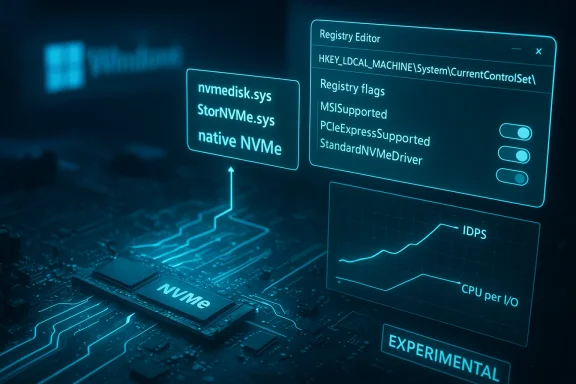
A clever but risky tweak discovered by enthusiasts can flip Windows 11 onto Microsoft’s new “native NVMe” I/O path and, in many configurations, produce measurable SSD performance gains—particularly in random I/O—by forcing the operating system to use the in-box NVMe driver instead of the legacy SCSI translation path. The change is implemented with a few registry DWORDs or equivalent PowerShell commands; it replicates an opt‑in server feature introduced with Windows Server 2025 and can unlock lower latency, higher IOPS, and lower CPU per‑IO in the right hardware and workload combinations. It’s important to stress that this is an unsupported, community‑driven enablement method for Windows 11, results vary wildly across drives and systems, and the tweak can cause compatibility and boot issues if applied blindly.
Microsoft reworked the Windows storage stack for Windows Server 2025 to expose NVMe devices natively, removing the historical translation of NVMe commands into SCSI commands. The server team’s lab data shows very large gains on specific enterprise test rigs—up to roughly 80% higher IOPS on microbenchmarks and big reductions in CPU cycles per I/O in those tests. Because Windows Server and Windows 11 share large parts of the same core OS, the native NVMe code shipped inside recent servicing updates and can be activated on client builds—if you know which internal feature flags to flip.
Enthusiast communities discovered that applying three numeric Feature Management Overrides under the Windows registry key used for experimental feature flags will switch eligible NVMe devices on many Windows 11 installations to the native path. After a reboot, affected drives often show up under a different Device Manager category, and the loaded driver file can change to an in‑box Microsoft NVMe driver (names vary by build—examples include nvmedisk.sys or StorNVMe.sys in the Windows drivers folder).
This article explains what the tweak does, how people are enabling it, the types of workloads and drives that benefit, the real-world gains to expect, and the risks you must accept if you try it. It also provides practical safeguards, verification checks, rollback steps, and recommendations for enthusiasts and professionals who want to experiment responsibly.
Notes:
The reality for Windows 11 users is mixed: some will see clear benefits in random I/O responsiveness and reduced CPU overhead; others will see no change or encounter compatibility headaches. For now, the prudent approach for most is to watch for an official, supported client rollout and for vendors to certify their utilities and drivers for the new stack. For those who proceed with the registry method, thorough backups, methodical testing, and a clear rollback plan are mandatory prerequisites.
This is an important architectural shift for Windows storage—one that will likely benefit many applications over time once ecosystem compatibility is resolved. When it is safe to make the change broadly, users can expect more consistent wins. Until then, the tweak remains a powerful but experimental tool for the technically adept.
Source: PCWorld This hidden Windows 11 trick unlocks SSD speed boost for NVMe drives
 Background / Overview
Microsoft reworked the Windows storage stack for Windows Server 2025 to expose NVMe devices natively, removing the historical translation of NVMe commands into SCSI commands. The server team’s lab data shows very large gains on specific enterprise test rigs—up to roughly 80% higher IOPS on microbenchmarks and big reductions in CPU cycles per I/O in those tests. Because Windows Server and Windows 11 share large parts of the same core OS, the native NVMe code shipped inside recent servicing updates and can be activated on client builds—if you know which internal feature flags to flip.Enthusiast communities discovered that applying three numeric Feature Management Overrides under the Windows registry key used for experimental feature flags will switch eligible NVMe devices on many Windows 11 installations to the native path. After a reboot, affected drives often show up under a different Device Manager category, and the loaded driver file can change to an in‑box Microsoft NVMe driver (names vary by build—examples include nvmedisk.sys or StorNVMe.sys in the Windows drivers folder).
This article explains what the tweak does, how people are enabling it, the types of workloads and drives that benefit, the real-world gains to expect, and the risks you must accept if you try it. It also provides practical safeguards, verification checks, rollback steps, and recommendations for enthusiasts and professionals who want to experiment responsibly.
What the change actually does (technical explanation)
The old model: NVMe translated to SCSI
For historical reasons Windows treated many storage devices through a SCSI-oriented stack that funnels commands through a translation layer. That made Windows more uniform for storage vendors but added software overhead and limited parallelism for NVMe devices, which are designed for massive queue depths and native parallel I/O.The new model: native NVMe I/O path
A native NVMe stack removes the translation layer and exposes NVMe’s multi‑queue architecture directly to the kernel. That reduces locks, context switches, and kernel overhead for workloads that issue many small, highly concurrent I/O operations.- Benefits in principle:
- Higher maximum IOPS under heavy concurrency.
- Lower latency and better tail‑latency behavior.
- Lower CPU cycles per I/O, freeing CPU for application work.
- Better support for advanced NVMe features (multi‑namespace, vendor extensions).
- Practical caveats:
- Gains are workload dependent: microbenchmarks that stress random 4K I/O at high concurrency show the largest improvements. Sequential transfers typically see minimal change.
- Gains depend on the drive controller, firmware, and driver interactions. Some vendor drivers already implement optimizations; switching to Microsoft’s stack may help, hurt, or be neutral depending on the combination.
How users are enabling the native NVMe path in Windows 11
Before you try anything, make a full system backup and create a system restore point. This is an unsupported community tweak and can affect boot, disk management tools, and third‑party utilities.Prerequisites (what to check first)
- Confirm your NVMe device is currently handled by a Microsoft in‑box NVMe driver. Open Device Manager → find your NVMe drive, right‑click → Properties → Driver → Driver Details. Look for driver file names such as StorNVMe.sys or nvmedisk.sys under C:\Windows\System32\drivers. If a vendor‑supplied driver (Samsung, WD, Intel, etc. is loaded, this registry change is unlikely to switch you to the native path and may cause issues.
- Ensure your system has the servicing update that introduced the native NVMe code (consumer machines should be up to date with recent cumulative updates).
- If you use BitLocker, full‑disk encryption, or special vendor controllers (VMD, RST, OEM NVMe drivers), be extra cautious—these configurations are often where problems appear.
Method A — Registry Editor (manual)
- Press Windows + R, type regedit, and press Enter to open Registry Editor.
- Navigate to:
- HKEY_LOCAL_MACHINE\SYSTEM\CurrentControlSet\Policies\Microsoft\FeatureManagement\Overrides
- Under that key, create three new 32‑bit DWORD (REG_DWORD) values with these numeric names and set each value to 1:
- 735209102
- 1853569164
- 156965516
- Reboot the PC.
- After restart, open Device Manager and check whether your NVMe devices are listed under Storage disks (or Storage Media) rather than Disk drives and whether the Driver Details list nvmedisk.sys or StorNVMe.sys.
Method B — PowerShell (admin)
Open an elevated PowerShell or command prompt and run these commands:- reg add HKEY_LOCAL_MACHINE\SYSTEM\CurrentControlSet\Policies\Microsoft\FeatureManagement\Overrides /v 735209102 /t REG_DWORD /d 1 /f
- reg add HKEY_LOCAL_MACHINE\SYSTEM\CurrentControlSet\Policies\Microsoft\FeatureManagement\Overrides /v 1853569164 /t REG_DWORD /d 1 /f
- reg add HKEY_LOCAL_MACHINE\SYSTEM\CurrentControlSet\Policies\Microsoft\FeatureManagement\Overrides /v 156965516 /t REG_DWORD /d 1 /f
Notes:
- Microsoft’s official, documented server enablement uses a different single numeric override value (a server toggle). The three‑DWORD sequence is a community‑discovered method that appears to flip the code path in many Windows 11 client builds. That difference matters for support and future compatibility.
- If the driver does not change after reboot, your system likely uses a vendor driver or a controller mode that prevents the change.
What users and labs have measured (what to expect)
Microsoft lab numbers (server hardware, specific microbenchmark)
- Microsoft’s server tests on high‑end hardware showed very large relative improvements on synthetic 4K random workloads—up to roughly 80% more IOPS and about 45% reduction in CPU cycles per I/O on the configuration used in their DiskSpd tests. Those results reflect an enterprise server environment with specific NVMe hardware and are microbenchmark-focused.
Community and independent testing (Windows 11 client results)
- On consumer hardware and in community tests, reported outcomes vary:
- Many users see modest but useful gains in random I/O—single‑digit to mid‑teens percent improvements in overall benchmark scores.
- Some specific combinations (particular SSDs, firmware versions, and controller behavior) produced very large jumps in random write or 4K multi‑threaded tests; there are anecdotal reports of dramatic single‑test gains (dozens of percent to specific 4K write cases up to ~85% in an isolated example).
- Other users reported no improvement or degraded results. A non‑trivial minority ran into compatibility problems: third‑party SSD utilities stopped recognizing drives, safe mode boot broke, or partitions appeared as RAW in rare cases.
- Bottom line: expect variability. Microbenchmark gains do not automatically translate to large real‑world gains in every workload (game load times, large sequential file copies, general desktop responsiveness, etc..
Benefits: which workloads are most likely to gain
- High‑concurrency, small‑random I/O workloads (database OLTP, VM density, metadata operations) are where the native NVMe path shines.
- Server virtualization and file server metadata-heavy operations benefit because the new stack reduces kernel synchronization and unlock contention under heavy thread counts.
- On desktops and gaming rigs, the most noticeable boosts are usually in operations involving large numbers of small, scattered file reads/writes (e.g., installing large software with many small files, package managers, certain game asset workloads). Pure sequential throughput usually sees minimal or no change.
Risks, pitfalls, and real-world failure modes
This tweak is not without hazards. Community testing and reports surface multiple recurring issues:- Compatibility with vendor tools: Software such as Samsung Magician, vendor SSD monitoring tools, or firmware update utilities may fail to detect drives or present incorrect information after switching to the native stack.
- Safe Mode and boot problems: Some users reported that enabling the native path prevented Safe Mode from accessing the system volume, causing an inaccessible‑boot‑device error. Workarounds exist but require registry modification to map the Storage Disks device class into Safe Mode; that’s an advanced recovery action and itself risky if done incorrectly.
- BitLocker and encryption interactions: Systems using BitLocker or other volume encryption can face issues. If your boot volume is encrypted, changes to the underlying driver stack can interfere with decryption during early boot. Back up recovery keys and expect that a failed boot could require recovery actions.
- Drive enumeration and backup software: Backup utilities, disk imaging solutions, and some hypervisor tools may misidentify or duplicate devices, leading to missed backups or restore failures.
- Partition or filesystem corruption reports (rare but reported): A handful of community posts mention partitions appearing as RAW or drives not mounting correctly after switching drivers—these are anecdotal but serious when they happen.
- Vendor driver conflicts: If your NVMe controller is managed by an OEM or vendor driver (Intel/AMD RST, Intel VMD, Samsung NVMe driver, etc., the registry change may not attach the Microsoft native driver and could produce undefined behavior.
- Updates and future compatibility: Because the three numeric flags used on clients are internally documented only for servers, future Windows updates could change the IDs, remove the code path, or alter behavior—leaving systems in an unsupported state.
Safe testing checklist (how to experiment without wrecking a primary system)
- Back up everything: create a system image, export BitLocker recovery keys, and back up user data externally.
- Create a system restore point and a full disk image before making registry edits.
- Test on non‑critical hardware first: a spare PC, a detachable NVMe in an external enclosure, or a virtualized environment if you can passthrough NVMe.
- Verify current driver in Device Manager: ensure the in‑box Microsoft NVMe driver is loaded (nvmedisk.sys or StorNVMe.sys) before attempting the change.
- Record baseline performance with reproducible tests: DiskSpd, CrystalDiskMark, AS SSD, or workload‑specific tests. Save results for comparison.
- Apply the registry changes and reboot.
- Check Device Manager and Driver Details to confirm the driver switched and the device appears under Storage disks.
- Re‑run benchmarks and compare results. Look beyond synthetic scores—test real workload scenarios you care about.
- If problems occur, revert the registry changes (delete the three DWORDs) and reboot immediately; restore from backup if necessary.
Troubleshooting and rollback
- To revert the change: open Regedit, navigate to HKEY_LOCAL_MACHINE\SYSTEM\CurrentControlSet\Policies\Microsoft\FeatureManagement\Overrides, delete the three DWORD values you added, and reboot.
- If the registry values are being reset or deleted by Windows Update or another service, check whether a servicing update changed feature behavior; reversion or further updates may be needed.
- Safe Mode failures: community posts suggest adding Storage Disks device class entries under SafeBoot keys to make the native driver usable in safe boot, but this is an advanced recovery tweak—only attempt it if you understand SafeBoot registry mechanics and have backups.
- If tools stop recognizing drives, revert and contact the vendor tool’s support or use vendor utilities run from bootable media.
Practical recommendations for typical users
- For most Windows 11 desktop users, the safest path is to wait for official client enablement or vendor‑certified drivers. The native NVMe stack is an important architectural change and will eventually be rolled out more broadly with proper compatibility testing.
- Enthusiasts and professionals who understand the risks and have adequate backups can test the tweak on non‑mission critical hardware to evaluate benefits for specific workloads (databases, VMs, heavy file metadata operations).
- If you rely on vendor SSD management software, on‑disk encryption (BitLocker) for boot volumes, or require flawless Safe Mode access, do not apply the tweak to a production or primary workstation without testing in a controlled environment first.
Why Microsoft held this back from consumer default
- The native NVMe path exposes NVMe semantics directly to the OS. Many third‑party utilities and vendor drivers have long been written with the SCSI‑presentation model in mind; enabling native NVMe by default on client SKUs risks breakage across a broad ecosystem of tools.
- Microsoft’s server announcement and lab numbers focused on enterprise server workloads and hardware. Consumer systems present a far wider range of vendor drivers, firmware nuances, and OEM customizations that increase the risk of stability issues.
- An opt‑in or staged rollout allows Microsoft and partners to validate compatibility across the ecosystem before enabling the feature for all consumer devices.
Verdict: Who should try this, and who should avoid it
- Try it if:
- You are an enthusiast or IT professional comfortable with registry editing and full system backups.
- You have spare or test hardware where boot failures and driver incompatibilities are acceptable.
- Your workload is heavily I/O bound with lots of small random operations and you want to measure potential gains.
- Avoid it if:
- The PC is your daily driver and you don’t have a full disk image or recent backups.
- You use BitLocker on your boot drive without exportable recovery keys.
- You rely on vendor tools for firmware updates, monitoring, or warranty management and cannot risk them not recognizing drives.
- You need guaranteed support from Microsoft or OEMs for your configuration.
How to validate any claimed gains responsibly
- Use consistent, repeatable tests: DiskSpd for server‑style microbenchmarks, CrystalDiskMark or AS SSD for consumer‑oriented profiles, and real‑world transfers for your workloads.
- Run each test multiple times and average results to avoid single‑run anomalies.
- Compare before/after numbers on the same test conditions, with no other background tasks or thermal throttling affecting results.
- Watch system telemetry (CPU usage, thermal throttling, I/O queue depth) to ensure gains are not produced by transient or external factors.
- Document your driver state (driver file name and timestamp) and hardware firmware versions when reporting or saving results.
Final thoughts
Windows’ new native NVMe stack for servers is a significant modernization of the storage stack and, in properly matched environments, delivers substantial microbenchmark gains. The community discovery that the codepath is present in client servicing and can be toggled via registry Feature Management Overrides gives power users a way to test the technology early—but it comes with meaningful risks.The reality for Windows 11 users is mixed: some will see clear benefits in random I/O responsiveness and reduced CPU overhead; others will see no change or encounter compatibility headaches. For now, the prudent approach for most is to watch for an official, supported client rollout and for vendors to certify their utilities and drivers for the new stack. For those who proceed with the registry method, thorough backups, methodical testing, and a clear rollback plan are mandatory prerequisites.
This is an important architectural shift for Windows storage—one that will likely benefit many applications over time once ecosystem compatibility is resolved. When it is safe to make the change broadly, users can expect more consistent wins. Until then, the tweak remains a powerful but experimental tool for the technically adept.
Source: PCWorld This hidden Windows 11 trick unlocks SSD speed boost for NVMe drives
