

Windows 11 can act as a drop-in SCP target simply by enabling the built-in OpenSSH Server; in practice that means you get encrypted, scriptable file transfers to and from Windows without installing third‑party daemons. m])
SCP (Secure Copy Protocol) is the classic Unix-era tool for moving files over SSH; it’s essentially a convenience wrapper around SSH that streams file bytes between two endpoints. For decades administrators used scp to push configuration, logs, and artifacts without the overhead of a network share or a GUI. OpenSSH’s scp client and the server-side SSH daemon together provide the “SCP” experience on whatever platform runs an SSH server.
Over the last several years OpenSSH has shifted scp’s backend to SFTP by default (starting with OpenSSH 9.0), in recognition that the legacy scp/rcp protocol had multiple design issues. Functionally, that change doesn’t force you to learn a new command — scp still works — but it does mean the implementation uses SFTP semantics under the hood. Administrators should be aware of the change because a few corner-case path or quoting behaviors differ between the old rcp-based scp and SFTP-backed transfers.
Why this matters on Windows 11: Microsoft ships a maintained Win32 port of OpenSSH as an optional feature, and when you enable the OpenSSH Server (sshd) the host accepts incoming SSH — and therefore SCP/SFTP — connections. That eliminates the historical need for third‑party SSH servers on Windows for most use cases, and makes mixed Linux/Windows file workflows far simpler.
Start-Service sshd
Set-Service -Name sshd -StartupType Automatic
Confirm the service exists and is set to automatic in services.msc if you prefer GUI validation.
netstat -an | findstr :22
Microsoft’s installation typically creates a firewall rule named OpenSSH‑Server‑In‑TCP (or similar). If the rule is not present or your organization’s policies remove it, create an explicit rule (scoped to Private/Domain as appropriate):
New-NetFirewallRule -Name sshd -DisplayName 'OpenSSH Server (sshd)'
-Action Allow -LocalPort 22 -Profile Private
The Windows docs note the installer creates and enables the firewall rule but advise you to verify it.
where.exe scp
Example commands (copy-and-paste ready):
If you follow the checklist in this article you’ll have a repeatable, secure setup that makes file movement between Linux and Windows as straightforward as scp file user@windows:/C:/path — and you’ll avoid the common misconfigurations that cause hours of troubleshooting later.
Source: H2S Media How to Install and Use an SCP Server on Windows 11
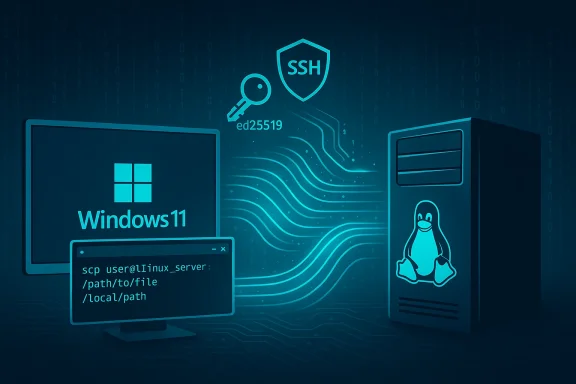 Background / Overview
SCP (Secure Copy Protocol) is the classic Unix-era tool for moving files over SSH; it’s essentially a convenience wrapper around SSH that streams file bytes between two endpoints. For decades administrators used scp to push configuration, logs, and artifacts without the overhead of a network share or a GUI. OpenSSH’s scp client and the server-side SSH daemon together provide the “SCP” experience on whatever platform runs an SSH server. Over the last several years OpenSSH has shifted scp’s backend to SFTP by default (starting with OpenSSH 9.0), in recognition that the legacy scp/rcp protocol had multiple design issues. Functionally, that change doesn’t force you to learn a new command — scp still works — but it does mean the implementation uses SFTP semantics under the hood. Administrators should be aware of the change because a few corner-case path or quoting behaviors differ between the old rcp-based scp and SFTP-backed transfers.
Why this matters on Windows 11: Microsoft ships a maintained Win32 port of OpenSSH as an optional feature, and when you enable the OpenSSH Server (sshd) the host accepts incoming SSH — and therefore SCP/SFTP — connections. That eliminates the historical need for third‑party SSH servers on Windows for most use cases, and makes mixed Linux/Windows file workflows far simpler.
When to choose SCP (and when not to)
- Use SCP when you need quick, one‑off, scriptable file transfers across platforms with minimal setup.
- Prefer SFTP when you need resumable transfers, directory browsing, or an interactive file session.
- Use rsync (or rsync-over-ssh) when you need delta transfers and regular synchronization of large directory trees.
- Use SMB or native file shares where persistent, stateful LAN file access and Windows ACL semantics are required.
What “SCP server on Windows 11” actually means
There is no separate “SCP server” product for Windows. WheSCP server on Windows 11 they mean an SSH daemon (sshd) running on the Windows host that accepts incoming SSH connections — scp clients then negotiate file transfers over that SSH channel. Enabling the OpenSSH Server in Windows 11 provides scp and sftp functionality out of the box.Prerequisites and planning
Before you enable OpenSSH Server, confirm these operational facts:- You need local Administrator privileges to install optional features and to open privileged ports and services.
- The host must be reachable on TCP port 22 (unless you explicitly change the port in sshd_config). If behind NAT/routers, set up port forwarding or VPN. ([learn.microsoft.com](Get started with OpenSSH Server for Windows addressing in scripts, use a static IP or a DHCP reservation; dynamic client/server IP churn breaks predictable scp commands.
- Consider your network profile: limit inbound rules to Private or Domain profiles unless you have layered protections (key-only auth, IP restrictions, VPN). These choices materially affect security posture.
Step‑by‑step: Install OpenSSH Server on Windows 11 (official, supported method)
These steps are the Microsoft‑supported approach for Windows 11 and Server builds. I verify and align the commands and locations with Microsoft documentation.1) Add the OpenSSH Server feature
GUI method:- Open Settings → Apps → Optional features → Add an optional feature.
- Search for OpenSSH Server and install it.
- Optionally also install OpenSSH Client if the machine will act as a client too.
- Open an elevated PowerShell (Run as Administrator).
- Install the capability(s):
Add-WindowsCapability -Online -Name OpenSSH.Server~~~~0.0.1.0
Add-WindowsCapability -Online -Name OpenSSH.Client~~~~0.0.1.0
2) Start the sshd service and enable automatic start
After installation the sshd service may not be running by default. Use these commands from an elevated shell:Start-Service sshd
Set-Service -Name sshd -StartupType Automatic
Confirm the service exists and is set to automatic in services.msc if you prefer GUI validation.
3) Confirm sshd is listening and firewall is configured
Verify the daemon is listening on port 22:netstat -an | findstr :22
Microsoft’s installation typically creates a firewall rule named OpenSSH‑Server‑In‑TCP (or similar). If the rule is not present or your organization’s policies remove it, create an explicit rule (scoped to Private/Domain as appropriate):
New-NetFirewallRule -Name sshd -DisplayName 'OpenSSH Server (sshd)'
-Enabled True -Direction Inbound -Protocol TCP-Action Allow -LocalPort 22 -Profile Private
The Windows docs note the installer creates and enables the firewall rule but advise you to verify it.
Key configuration files and locations you will use
- Server config: C:\ProgramData\ssh\sshd_config (default location used by Microsoft’s Win32 port).
- Host keys: C:\ProgramData\ssh\ (sshd will auto‑generate keys if missing).
- Per‑user key storage: C:\Users\<username>.ssh\authorized_keys for standard users.
- Administrator keys (special case): C:\ProgramData\ssh\administrators_authorized_keys — Windows OpenSSH uses this file for accounts that are members of the local Administrators group; the file must have restrictive ACLs.
SSH key-based authentication: best practice and commands
Password authentication is allowed by default on many installs, but in production you should move to key-only authentication.- On the client (Linux, macOS, or Windows), generate a modern keypair:
ssh-keygen -t ed25519 -C "workstation-key"
Ed25519 is recommended for new keys where compatibility allows; RSA 4096 is acceptable for compatibility requirements. - Deploy the public key to the Windows host:
- For non-admin accounts: append the public key contents to C:\Users\<user>.ssh\authorized_keys.
- For admin accounts: append to C:\ProgramData\ssh\administrators_authorized_keys and set ACLs:
icacls C:\ProgramData\ssh\administrators_authorized_keys /inheritance:r
icacls C:\ProgramData\ssh\administrators_authorized_keys /grant SYSTEM F)
F)
icacls C:\ProgramData\ssh\administrators_authorized_keys /grant AdministratorsF)
- Once keys are verified to work, disable password authentication in C:\ProgramData\ssh\sshd_config:
PasswordAuthentication no
Then restart sshd: Restart-Service sshd
Real-world SCP usage examples on Windows 11
Windows ships scp.exe with the OpenSSH Client capability. You can run scp from PowerShell, Command Prompt, or Windows Terminal without installing third‑party tools. Confirm availability with:where.exe scp
Example commands (copy-and-paste ready):
- Copy from Linux to Windows (from the Linux machine):
scp report.pdf [email protected]:/C:/Users/raj/Documents/ - Copy from Windows to Linux (run on Windows PowerShell):
scp C:\Users\raj\Documents\report.pdf user@linux-host:/home/user/ - Recursive directory copy:
scp -r /home/user/project/ [email protected]:C:/Users/raj/Projects/ - Custom SSH port (note: scp uses uppercase -P):
scp -P 2222 file.txt user@host:C:/Users/raj/Desktop/
Common errors, diagnostics and fixes
- Connection refused
- Cause: sshd not running or firewall blocking port 22.
- Fixes: Get-Service sshd; Start-Service sshd. Verify firewall rule (Get-NetFirewallRule -Name ssh). Confirm netstat shows LISTEN on :22.
- Permission denied (publickey)
- Cause: public key not in the correct authorized_keys file or ACLs are wrong (especially for admin accounts).
- Fixes: Check C:\Users\<user>.ssh\authorized_keys for standard users; for admins check C:\ProgramData\ssh\administrators_authorized_keys and run the icacls commands Microsoft recommends.
- Path not found / No such file or directory
- Cause: incorrect Windows path syntax or quoting; scp interprets colon
 ) as a host/path separator.
 - Fixes: Use forward slashes or wrap the remote path in quotes; ensure the destination directory exists. If transferring from Linux to Windows, prefer /C:/Users/... notation.
- Slow transfer speeds
- Causes: CPU‑heavy cipher on older hardware, Windows Defender real‑time scanning, or third‑party antivirus inspecting each file.
- Fixes: Exclude transfer target directories from antivirus scans where acceptable, or select a faster cipher in sshd_config if your security policy allows. Monitor CPU and disk I/O during large transfers to narrow the bottleneck.
- Host key/known_hosts warnings
- Cause: host key changed (reinstall, reimage, or host key regeneration).
- Fix: Remove old key locally with ssh-keygen -R <host> and re-connect to record the new key fingerprint.
Security hardening checklist (practical)
- Use key-based authentication with passphrases and ssh-agent for convenience.
- For admin accounts, use administrators_authorized_keys and enforce strict ACLs.
- Disable password authentication once keys are confirmed: PasswordAuthentication no.
- Limit the firewall rule to Private/Domain profiles or to specific source IP ranges.
- Consider an additional layer: run sshd only on an internal interface or behind a VPN/jump host for machines that must be reachable from the public internet.
- Keep OpenSSH updated via Windows Update / servicing channels and test cumulative updates in a lab, since there have been update-related ACL or startup regressions historically.
SCP vs SFTP vs rsync — a practical comparison
- Encryption: all three can use SSH (SCP and SFTP always do when using OpenSSH).
- Resume support: SCP — no; SFTP — yes; rsync — yes.
- Recursive: all support recursive copying (SCP uses -r; rsync is natively recursive).
- Delta transfers: only rsync provides true block-level/delta transfer efficiency.
- Best use cases:
- SCP — quick single-file copies or scripted pushes.
- SFTP — interactive sessions, resumable uploads.
- rsync — repeated large synchronizations, backups.
Operational caveats and real-world risks
- Don’t expose password-based SSH to the open Internet. Automated scanning and brute-force attacks will find weakly protected services quickly; administrators report compromised hosts when password auth remained enabled and port 22 was public. Move to keys, or use a jump host/VPN.
- Antivirus and endpoint protection products can interfere with sshd or slow transfers. If you rely on Windows Defender or a third‑party product, add sshd.exe and the transfer target paths to exclusion lists after risk assessment.
- Group Policy / WSUS environments: Add-WindowsCapability may fail if systems are isolated from Windows Update; plan for Feature-on‑Demand packaging or FoD ISO deployment when imaging enterprise PCs. Microsoft documents this explicitly.
- Host key rotation and reimaging: expect clients to warn on changed host keys; for large fleets consider an out‑of‑band process to distribute new trusted host keys to clients to avoid mass reconnection friction.
Advanced tips for administrators
- Use ssh-agent and ssh-add on Windows (the OpenSSH client includes those tools) to avoid frequent passphrase prompts while preserving key security.
- For automation (CI/CD), use a deploy key with least privileges and monitor which jobs hold which keys; never bake private keys into images or source control.
- If you must expose the service externally, consider non‑standard ports, but don’t treat a non‑standard port as security — it only reduces random noise. Combine with IP allow‑lists and MFA (where possible via jump hosts).
Troubleshooting checklist (quick)
- Is ssce sshd.
- Is port 22 listening? netstat -an | findstr :22.
- Is the firewall rule present and enabled? Get-NetFirewallRule -Name ssh.
- Are authorized_keys ACLs correct for users and admins? Check C:\Users\<user>.ssh and C:\ProgramData\ssh\administrators_authorized_keys.
- If authentication fails, run sshd in debug mode temporarily (sshd.exe -d -D) on a test host to gather diagnostic output before enabling in production.
Conclusion
Running an SCP server on Windows 11 is no longer a niche or third‑party affair: by installing and configuring Microsoft’s OpenSSH Server you gain secure, cross‑platform file transfer capability that integrates with standard SSH keys, system services, and Windows security controls. The key operational work — beyond clicking “Install” — is to harden the service: use key-based authentication, scope firewall rules to appropriate network profiles, tune antivirus exclusions where necessary, and choose the right transfer tool for the job (SCP for quick pushes, SFTP or rsync for resumability and synchronization). Microsoft’s documentation and OpenSSH release notes validate the core commands, file locations, and protocol behaviors described here, and they should be your first stop when an environment-specific issue crops up.If you follow the checklist in this article you’ll have a repeatable, secure setup that makes file movement between Linux and Windows as straightforward as scp file user@windows:/C:/path — and you’ll avoid the common misconfigurations that cause hours of troubleshooting later.
Source: H2S Media How to Install and Use an SCP Server on Windows 11
