

Windows has quietly folded a modern OpenSSH implementation into the platform — giving administrators and power users a familiar, scriptable, and secure way to reach Linux boxes, network gear, cloud VMs, or even other Windows machines — but the reality is nuanced: installation, configuration, service names, file locations, and recent update-related gotchas matter. This feature explains what OpenSSH on Windows actually is, how it works, how to install and operate it safely, and the real-world risks and troubleshooting steps every Windows admin should know.
OpenSSH is the open-source Secure Shell suite widely used across Unix-like systems for encrypted remote shells, secure file transfer (SCP/SFTP), and key-based authentication. Microsoft ships a Windows port (the Microsoft-maintained Win32-OpenSSH fork) and exposes it to Windows users as optional capabilities and services; this is the same OpenSSH toolset familiar to Linux users, recompiled and integrated for Windows administration scenarios. In practical terms, OpenSSH on Windows provides:
For step‑by‑step installs, Microsoft’s documentation gives the authoritative procedures for installation, configuration, and the default file/service locations; community and vendor advisories provide timely vulnerability and update context, including past incidents where ACL changes caused sshd failures — all reasons to include OpenSSH in your configuration management and update-testing plans. Note: Some simplified overviews state “Windows includes OpenSSH by default.” That statement is imprecise — OpenSSH is installed by default in some recent server images and available as an optional/feature‑on‑demand in other Windows releases. Confirm the exact behavior on your Windows build before assuming a client or server is present.
This feature synthesized hands-on instructions with Microsoft’s official guidance and documented community incidents to give Windows administrators a realistic, actionable playbook for deploying and operating OpenSSH on Windows. For a practical quick start, follow the installation method that best fits your environment (GUI for one‑offs, PowerShell/DISM for automation), always protect private keys, and keep an eye on security advisories and update testing to avoid surprises.
Source: Windows Report What Is OpenSSH On Windows and How Do You Use It?
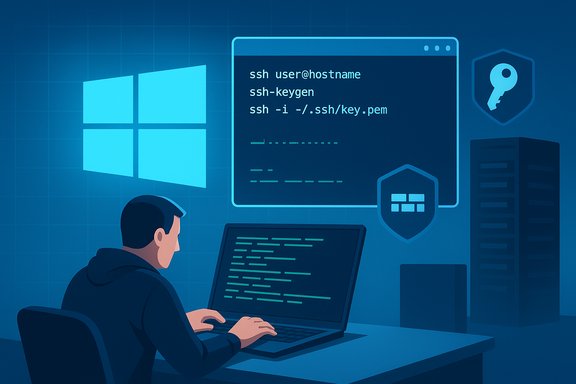 Background / Overview
OpenSSH is the open-source Secure Shell suite widely used across Unix-like systems for encrypted remote shells, secure file transfer (SCP/SFTP), and key-based authentication. Microsoft ships a Windows port (the Microsoft-maintained Win32-OpenSSH fork) and exposes it to Windows users as optional capabilities and services; this is the same OpenSSH toolset familiar to Linux users, recompiled and integrated for Windows administration scenarios. In practical terms, OpenSSH on Windows provides:- ssh — the client used to connect to remote hosts.
- sshd — the server/daemon that accepts inbound SSH connections.
- scp and sftp — encrypted file-transfer utilities that run over SSH.
- ssh-keygen, ssh-agent, ssh-add — tools for managing keys and agent-based authentication.
Why OpenSSH on Windows Matters
OpenSSH on Windows fills several operational needs:- Cross-platform administration: Use the same SSH workflow to manage Windows, Linux, network appliances, and cloud instances.
- Scriptable, CLI-native workflows: SSH integrates into PowerShell scripts, CI pipelines, and automation tools.
- Secure file movement: SCP/SFTP move data using encrypted channels (useful for backups, deployments, or ad‑hoc transfers).
- Stronger authentication: Key-based authentication (and agents) are supported, reducing dependence on passwords.
What OpenSSH on Windows Actually Installs — Key Components
Core components and their Windows locations
- Client binary (ssh.exe) — available on systems where the OpenSSH Client capability is installed or built into the image. The client reads user-level configuration from %USERPROFILE%.ssh\config.
- Server/daemon (sshd.exe) — when the OpenSSH Server capability is installed, Windows exposes the OpenSSH SSH Server service (service name sshd) and creates server config and host key files under C:\ProgramData\ssh by default. The server uses this location for sshd_config and host keys unless otherwise specified.
- Key storage for users — user private/public keys and authorized_keys files live in %USERPROFILE%.ssh (i.e., C:\Users\YourUser.ssh) — the typical default used by ssh-keygen on Windows.
- Firewall rule — installing the OpenSSH Server commonly creates (and uses) a firewall rule such as OpenSSH-Server-In-TCP to allow inbound TCP/22 connections; if the rule is not enabled, remote connections will be blocked.
How to Install OpenSSH on Windows (Supported, Safe Methods)
There are two mainstream ways to install OpenSSH on Windows: using the GUI Optional Features and using PowerShell / DISM for scripted installs. Both methods are supported by Microsoft documentation.Method A — Optional Features (GUI)
- Open Settings → Apps → Optional features (or type “Optional Features” into Start).
- Select Add a feature, then locate and install OpenSSH Client and/or OpenSSH Server.
- After installing the server, open Services (services.msc), find OpenSSH SSH Server, set Startup type to Automatic, and start the service. Installation creates a firewall rule that typically opens port 22 (OpenSSH-Server-In-TCP).
Method B — PowerShell / Scripting (recommended for automation)
- Open an elevated PowerShell prompt (Run as Administrator).
- Check availability:
- Get-WindowsCapability -Online | Where-Object Name -like 'OpenSSH*'
- Install:
- Install client: Add-WindowsCapability -Online -Name OpenSSH.Client~~~~0.0.1.0
- Install server: Add-WindowsCapability -Online -Name OpenSSH.Server~~~~0.0.1.0
- Start and set service to automatic:
- Start-Service sshd
- Set-Service -Name sshd -StartupType Automatic
- Confirm the firewall rule and service are active.
Alternate scripted option: DISM
- Use DISM.exe to add the capability in environments where GUI access is limited (exact DISM commands are documented by Microsoft and useful for imaging and PXE-based installs).
First-Time Configuration Checklist (Safe defaults and best practice)
- Confirm service name: sshd is the Windows service name used for the OpenSSH server; the display name in Services is typically OpenSSH SSH Server. Set it to Automatic if you want the server to run after reboot.
- Verify config files: server config (sshd_config) by default lives in C:\ProgramData\ssh; client and per-user config files live in %USERPROFILE%.ssh.
- Generate and protect host keys: sshd will auto-generate host keys in C:\ProgramData\ssh if missing; protect that directory and its files with appropriate ACLs.
- Create user keys: run ssh-keygen from PowerShell/Command Prompt and keep the private key secure in %USERPROFILE%.ssh; copy the public key to the server’s authorized_keys file (C:\Users\username.ssh\authorized_keys).
- Harden sshd_config: disable password authentication if you rely only on keys, restrict PermitRootLogin (or equivalent), tighten ciphers/KEX/HostKeyAlgorithms if compliance requires it, and restrict allowed users/groups. Use the same sshd_config directives as upstream OpenSSH; the Windows port honors most of them.
Practical How-To: Connect, Transfer Files, and Keys
Connect to a remote host (client usage)
- From PowerShell or Command Prompt:
- ssh [email protected]
- On first connect, confirm the host fingerprint; then authenticate with password or key. The client respects %USERPROFILE%.ssh\config for per-user overrides.
Transfer files (SCP)
- Copy a file to a remote host:
- scp C:\path\file.txt username@host:/remote/path/
- Copy from remote:
- scp username@host:/remote/path/file.txt C:\local\path\
Both scp and sftp use the SSH channel for transport. If you routinely move lots of files, consider SFTP or Rsync-over-SSH alternatives for resume and delta capabilities.
Generate SSH keys (secure key-based auth)
- Open PowerShell or Windows Terminal.
- Run: ssh-keygen -t ed25519 -C "[email protected]" (ED25519 is a modern, compact curve that’s recommended for new keys; RSA 4096 is still acceptable where required by policy).
- Accept default file location (C:\Users\You.ssh\id_ed25519), and protect the private key with a passphrase if you can.
- Install the public key on the server:
- Copy the contents of id_ed25519.pub into C:\Users\username.ssh\authorized_keys on the server (ensure correct permissions for that file and folder). Microsoft’s guidance shows how to copy or use scp/PowerShell to write the key.
Use ssh-agent for passphrase convenience
- Start the Windows ssh-agent service or use ssh-agent and ssh-add to cache decrypted private keys in memory, reducing repeated passphrase prompts while preserving security best practices. The OpenSSH client package includes these utilities.
Troubleshooting: Common Issues and Fixes
1) “sshd” service won’t start
- Confirm the service exists and is not disabled: Get-Service sshd
- Check Event Viewer and sshd logs in C:\ProgramData\ssh\logs for specific errors. The server writes logs there by default; permission or ACL misconfigurations on this folder can prevent the service from starting.
2) Missing client or command not found
- If ssh or ssh-keygen is unavailable, confirm the OpenSSH Client capability is installed. Use Get-WindowsCapability -Online | Where-Object Name -like 'OpenSSH*' to check.
3) Firewall blocks inbound SSH
- Ensure the OpenSSH-Server-In-TCP firewall rule exists and is enabled; otherwise open TCP/22 only to required source networks. Microsoft documents that installing the server creates this rule but verify in Windows Security or with New-NetFirewallRule/Set-NetFirewallRule.
4) Permission and ACL problems after updates (recent historical example)
- In late 2024, cumulative updates caused a notable class of issues where the OpenSSH server failed to start because of ACL/permission changes to C:\ProgramData\ssh and its logs folder. Microsoft provided temporary workarounds that adjusted directory ACLs to restore service operation while a permanent patch was prepared. If an update causes sshd startup failures, check Microsoft’s advisories and consider the ACL-based workaround only after reviewing exact commands and backing up existing ACLs. These incidents underscore the need to test updates in a lab before wide deployment when SSH access is critical.
Security Risks, Vulnerabilities, and Patch Management
OpenSSH itself has an excellent security record upstream, but the Windows port and its integration points create a surface area that must be actively managed.Known vulnerabilities and their implications
- A high‑severity Remote Code Execution vulnerability affecting Microsoft’s OpenSSH for Windows (CVE-2024-43581) was disclosed in October 2024. It affected multiple Windows builds and required vendor patches and coordinated updates. Organizations using OpenSSH on Windows were required to apply the vendor hotfixes and follow guidance for affected builds. Track MSRC/NVD advisories and remediate per vendor guidance.
What this means for admins
- You must treat OpenSSH on Windows the same way you treat any network-facing server: subscribe to security announcements, patch promptly, test updates, and ensure robust monitoring of logs and integrity of config and host key files. The discovery of serious vulnerabilities demonstrates that availability of SSH services can be both a security necessity and a target if misconfigured or unpatched.
Hardening checklist
- Use key-based authentication and disable password logins where possible.
- Restrict inbound sources in the firewall rather than opening SSH to the world.
- Keep OpenSSH and Windows updated; apply hotfixes for public CVEs as recommended.
- Lock down folder ACLs for C:\ProgramData\ssh and users’ .ssh folders to the minimal required principals.
- Monitor sshd logs and use SIEM/EDR tooling to detect anomalous activity.
Advanced Usage and Interoperability
Automation from PowerShell
- SSH works smoothly within PowerShell scripts and Azure/DevOps pipelines. Use the ssh client from scripts to invoke remote commands, and use SCP or SFTP for artifacts transfer. Because ssh is command-line friendly, integrating into build/deploy flows is straightforward. Test passphrases and key-agent behavior in noninteractive contexts when automating.
Interacting with Linux systems and Windows Subsystem for Linux (WSL)
- The OpenSSH client on Windows interoperates with WSL and native Linux servers using the same key formats and configuration semantics. You can call ssh from Windows Terminal, WSL shells, or use the same private key files across environments (store keys in the user .ssh folder and protect them with proper ACLs).
Third‑party alternatives and when to use them
- GUI SFTP clients (FileZilla, WinSCP) or rsync-over-SSH can complement OpenSSH for specific needs (synchronization, GUI workflows). For server deployments in large enterprises, commercial SSH servers still offer advanced management features, but the Microsoft OpenSSH port covers typical admin, devops, and remote management scenarios.
Realistic Expectations: Strengths and Weaknesses
Strengths
- First‑party support: Microsoft’s involvement means the port is maintained with Windows-specific documentation and integration (e.g., service management, firewall rule creation).
- Compatibility: The toolset mirrors the upstream OpenSSH experience, which simplifies cross-platform workflows.
- Scriptable: Works natively in PowerShell and command-line automation pipelines.
Weaknesses / Operational Risks
- Update-related regressions: As seen with the October 2024 incidents, Windows updates have in the past changed ACL/behavior that impacted sshd startup. Always test updates when SSH is a critical access method.
- Attack surface: Any network-facing service is a target; administrators must patch and harden OpenSSH like any other server application. CVE disclosures affecting Windows’ OpenSSH port have required rapid response.
- Policy and enterprise distribution: In tightly managed environments (WSUS, SCCM, Group Policy), Optional Features may not be installable from Windows Update without additional configuration; plan for offline or network-store based deployments.
Checklist: Minimum Steps for a Secure OpenSSH Deployment on Windows
- Verify your Windows build and supportability for the OpenSSH capabilities.
- Install OpenSSH Client for outbound management; install OpenSSH Server only on hosts that must accept SSH connections.
- Generate and place host keys in C:\ProgramData\ssh (sshd will auto-generate if missing). Tighten ACLs on that directory.
- Create user key pairs in %USERPROFILE%.ssh and copy public keys into authorized_keys on the server. Protect private keys with secure file ACLs and passphrases.
- Harden sshd_config (disable passwords, restrict users, restrict root/admin access) and restart sshd.
- Configure firewall to allow only the required source IPs to TCP/22 or move SSH to secured bastion hosts.
- Subscribe to vendor advisories (MSRC, NVD) and test updates in a staging environment before rolling to production. Apply patches for any publicly disclosed CVEs immediately.
When Things Go Wrong: A Short Troubleshooting Playbook
- Service won’t start: check Get-Service sshd, then examine Event Viewer and sshd logs in C:\ProgramData\ssh\logs. Verify directory ACLs and host key presence.
- Connection refused: confirm firewall (OpenSSH-Server-In-TCP), port 22 listening (netstat -an | find "22"), and sshd running.
- Key auth failing: verify public key in authorized_keys (no extra line breaks), file permissions, and that sshd can read that file (account ACLs). Use verbose client logging (ssh -vvv) to gather specifics.
- After an update, if sshd stops: check for ACL regressions on C:\ProgramData\ssh and follow vendor guidance for temporary ACL fixes while waiting for a permanent patch — only perform ACL changes with backups and in line with corporate policy.
Conclusion — Practical Takeaway
OpenSSH on Windows is a mature, supported way to bring *nix-style secure remote access and file transfer into Windows environments. It delivers the benefits of a single, cross‑platform toolchain for admins and automation. That said, administrators should treat the Windows OpenSSH port like any other production service: verify availability for your Windows build, install using supported methods, harden defaults, monitor logs, test updates, and apply security patches promptly.For step‑by‑step installs, Microsoft’s documentation gives the authoritative procedures for installation, configuration, and the default file/service locations; community and vendor advisories provide timely vulnerability and update context, including past incidents where ACL changes caused sshd failures — all reasons to include OpenSSH in your configuration management and update-testing plans. Note: Some simplified overviews state “Windows includes OpenSSH by default.” That statement is imprecise — OpenSSH is installed by default in some recent server images and available as an optional/feature‑on‑demand in other Windows releases. Confirm the exact behavior on your Windows build before assuming a client or server is present.
This feature synthesized hands-on instructions with Microsoft’s official guidance and documented community incidents to give Windows administrators a realistic, actionable playbook for deploying and operating OpenSSH on Windows. For a practical quick start, follow the installation method that best fits your environment (GUI for one‑offs, PowerShell/DISM for automation), always protect private keys, and keep an eye on security advisories and update testing to avoid surprises.
Source: Windows Report What Is OpenSSH On Windows and How Do You Use It?
