

Windows has a habit of hiding some of its best ideas in plain sight, and Title bar window shake is a perfect example. It is one of those small, old-but-useful features that can completely change how a messy desktop feels, yet many long-time users never discover it until years later. In practice, it does exactly what the anecdote says: grab a window, shake it, and Windows minimizes everything else so you can focus on the one app you need. Microsoft still documents the feature in Windows 11’s multitasking settings, which means this is not a nostalgic relic — it is a living part of the platform.
Windows has always accumulated features the way an old house accumulates extra rooms, odd switches, and half-forgotten drawers. Some of those additions become essential, like Snap and modern taskbar management, while others quietly remain in the background, waiting for users to stumble across them. Aero Shake, first introduced in Windows 7, was originally part of Microsoft’s broader Aero-era push to make window management feel more fluid and visual. Microsoft’s own Windows 7-era materials place Aero Shake alongside Aero Snap and Aero Peek as part of the same desktop refinement story.
What makes the feature interesting is not just the gesture itself, but the philosophy behind it. Windows was trying to reduce friction in an era when desktop multitasking was becoming more intense, and the title-bar shake was a kind of physical metaphor for clearing clutter. That simple motion was meant to be discoverable in a tactile, almost playful way. In hindsight, it also reflects a broader pattern in Windows: the platform often offers multiple paths to the same result, from keyboard shortcuts to mouse gestures to settings toggles.
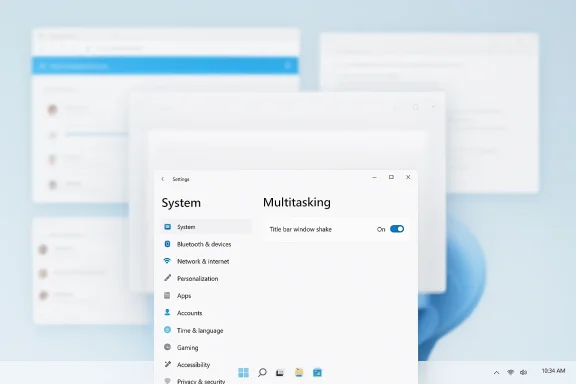
The modern version of the feature survives in Windows 11, where Microsoft now labels it Title bar window shake and places it in Settings under System > Multitasking. The company also notes that it can be used to quickly minimize all open windows except the one you are working on. That matters because the feature is not merely a legacy compatibility quirk; Microsoft still treats it as a legitimate part of its productivity toolkit.
At the same time, the way the feature is handled today says a lot about how Windows has evolved. In the Aero era, the shake gesture was bundled into a style-forward, visually expressive desktop. In the Windows 11 era, it is more subdued, more utilitarian, and more hidden. It is still there, but you have to know where to look. That shift mirrors Windows itself: less theatrical, more practical, and often more configurable than users realize.
The feature also arrived at a moment when desktop multitasking was becoming more demanding. People were increasingly running browsers, office apps, media players, and chat windows all at once. In that environment, the taskbar was no longer just a launcher; it was a control center. A gesture that could temporarily reduce the whole workspace to one focused window solved a real problem without demanding that the user redesign their workflow.
It also aligned well with the broader Aero design language, which emphasized transparency, motion, and visible system responses. In that sense, the shake gesture was less a gimmick than a design cue. The interface felt alive in a way that made the desktop easier to understand, especially for users who preferred mouse-based interactions over memorizing keyboard shortcuts. That may be one reason the feature lingered in Windows long after the original Aero branding faded.
Another reason is that the feature competes with more visible multitasking tools. Snap is the big one: it is easier to see, easier to remember, and now deeply integrated into Windows 11 with Snap Layouts and snap assist. Windows itself encourages users to think in terms of snapping, arranging, and tiling windows, which can make shaking feel like an obscure extra rather than a core workflow. Microsoft’s multitasking documentation makes Snap one of the central organizing ideas for modern desktop management.
That is part of why stories like this resonate so strongly. They are not really about one specific function; they are about the experience of discovering that a familiar system has more depth than expected. For Windows users, that discovery often feels like finding an extra tool in a drawer you have walked past for a decade. It is also a reminder that familiarity is not the same as mastery.
The important detail is that Microsoft still treats it as a normal part of the operating system rather than a deprecated easter egg. That matters because it reinforces the idea that Windows 11’s desktop shell is still built around a surprisingly rich set of classic interactions. People often assume that newer Windows versions have stripped out older behaviors, but in many cases the company has simply renamed, relocated, or softened them.
That said, registry-based tweaking is best approached carefully. For most users, the Settings toggle is the better choice because it is clearer and less error-prone. The registry should be thought of as a power-user escape hatch, not the default path. That distinction matters because the best hidden Windows features are the ones that stay accessible without becoming fragile.
This is where shake becomes more interesting than a novelty. On its own, it is a cleanup gesture. In combination with Snap, it becomes part of a broader desktop strategy: snap the windows you need, then clear the rest. That hybrid workflow is exactly the kind of thing Windows is good at, because the platform has always favored layered flexibility over a single rigid mode.
It also pairs naturally with screen sharing. Before a call or presentation, you may want to hide the mess of background windows without manually minimizing each one. Shake gives you a clean stage in one motion, which makes it especially appealing for remote work. In an era where desktop clutter is both a productivity issue and a privacy risk, that kind of speed matters more than it used to.
There is also a strategic reason to keep it. Windows is sold as both a mass-market desktop OS and a power-user platform. Features like shake do not matter to everyone, but they matter disproportionately to the people who spend all day inside the interface. Those users are often the loudest advocates for Windows when it feels efficient, and the quickest critics when it does not. Small quality-of-life improvements are part of how Microsoft maintains that relationship.
From an enterprise perspective, that matters even more. Training costs rise when basic interactions keep changing. A feature like title-bar shaking may not be mission-critical, but preserving small familiar gestures reduces friction during OS transitions. The result is a desktop that feels both modern and strangely stable, which is a difficult balance to achieve.
The feature is also accessible in a way that some advanced tools are not. You do not need third-party software, a power-user utility, or a custom shortcut manager. If it is enabled, you can use it immediately with any ordinary mouse drag. That low barrier to entry is part of why it can feel like a revelation when someone discovers it late.
That is especially true for people who do not love keyboard shortcuts. Windows has many shortcuts, but not everyone wants to learn them all. A simple physical gesture is often easier to remember and easier to repeat, which is why this feature has survived so long despite its obscurity.
That said, enterprise environments also need control. Some organizations may prefer to disable the feature if users trigger it accidentally or find it disruptive. The fact that Microsoft exposes the toggle in Settings and through policy-adjacent configuration paths is useful here, because it gives IT teams a way to balance convenience against consistency.
It is also helpful in meeting-heavy offices where screen sharing is common. Rather than exposing a crowded desktop full of unrelated apps, users can reduce visual noise instantly. That kind of quick presentation hygiene is a small thing, but small things often separate a polished workflow from a chaotic one.
The more interesting question is not whether the feature survives, but whether Microsoft surfaces more of these small workflow accelerators in future releases. If Windows keeps becoming more modular, more configurable, and more productivity-focused, hidden classics like this one may become even more valuable. In that sense, the feature is a reminder that Windows progress is not always about invention; sometimes it is about rediscovery.
Source: MakeUseOf I used Windows for 15 years before I discovered it had this cool feature built in
 Overview
Windows has always accumulated features the way an old house accumulates extra rooms, odd switches, and half-forgotten drawers. Some of those additions become essential, like Snap and modern taskbar management, while others quietly remain in the background, waiting for users to stumble across them. Aero Shake, first introduced in Windows 7, was originally part of Microsoft’s broader Aero-era push to make window management feel more fluid and visual. Microsoft’s own Windows 7-era materials place Aero Shake alongside Aero Snap and Aero Peek as part of the same desktop refinement story.What makes the feature interesting is not just the gesture itself, but the philosophy behind it. Windows was trying to reduce friction in an era when desktop multitasking was becoming more intense, and the title-bar shake was a kind of physical metaphor for clearing clutter. That simple motion was meant to be discoverable in a tactile, almost playful way. In hindsight, it also reflects a broader pattern in Windows: the platform often offers multiple paths to the same result, from keyboard shortcuts to mouse gestures to settings toggles.
The modern version of the feature survives in Windows 11, where Microsoft now labels it Title bar window shake and places it in Settings under System > Multitasking. The company also notes that it can be used to quickly minimize all open windows except the one you are working on. That matters because the feature is not merely a legacy compatibility quirk; Microsoft still treats it as a legitimate part of its productivity toolkit.
At the same time, the way the feature is handled today says a lot about how Windows has evolved. In the Aero era, the shake gesture was bundled into a style-forward, visually expressive desktop. In the Windows 11 era, it is more subdued, more utilitarian, and more hidden. It is still there, but you have to know where to look. That shift mirrors Windows itself: less theatrical, more practical, and often more configurable than users realize.
How Aero Shake Became a Quiet Windows Classic
Aero Shake was never the headline feature of Windows 7, but it was part of a broader effort to make window management feel faster and less mechanical. The central idea was simple: if your desktop is cluttered, you can use a quick gesture on the active window to declutter everything else. That is a tiny interaction, but tiny interactions are what people repeat dozens of times a day. Over time, those small savings add up.The feature also arrived at a moment when desktop multitasking was becoming more demanding. People were increasingly running browsers, office apps, media players, and chat windows all at once. In that environment, the taskbar was no longer just a launcher; it was a control center. A gesture that could temporarily reduce the whole workspace to one focused window solved a real problem without demanding that the user redesign their workflow.
Why the feature felt more modern than it sounds
The name “Aero Shake” sounded like a flourish, but the underlying behavior was pragmatic. It offered a fast way to isolate a window without permanently rearranging anything. That is a crucial distinction, because Windows users often want temporary order rather than a new layout they must rebuild afterward. The feature delivered exactly that: a momentary reset that could be undone instantly by repeating the same motion.It also aligned well with the broader Aero design language, which emphasized transparency, motion, and visible system responses. In that sense, the shake gesture was less a gimmick than a design cue. The interface felt alive in a way that made the desktop easier to understand, especially for users who preferred mouse-based interactions over memorizing keyboard shortcuts. That may be one reason the feature lingered in Windows long after the original Aero branding faded.
- It is fast for cluttered desktops.
- It preserves your current layout.
- It works as a temporary focus mode.
- It is reversible with the same gesture.
- It complements mouse-driven workflows.
Why So Many Users Miss It
The biggest reason people miss Title bar window shake is that Windows does not advertise it very aggressively. There is no obvious button, no tutorial, and no persistent hint that the behavior even exists. If you do not happen to trigger it naturally, you may go for years without knowing it is available. That is especially true for users who rely on the keyboard, use touchpads sparingly, or simply keep windows minimized in more traditional ways.Another reason is that the feature competes with more visible multitasking tools. Snap is the big one: it is easier to see, easier to remember, and now deeply integrated into Windows 11 with Snap Layouts and snap assist. Windows itself encourages users to think in terms of snapping, arranging, and tiling windows, which can make shaking feel like an obscure extra rather than a core workflow. Microsoft’s multitasking documentation makes Snap one of the central organizing ideas for modern desktop management.
Hidden features are often the most useful
There is a paradox here: the more useful a feature is for experienced users, the less likely it may be to surface in beginner-friendly onboarding. Windows tends to expose the basics first and leave the power-user behaviors tucked away in Settings. That means a feature can be fully supported, fully documented, and still feel “secret” if you never enter the right submenu.That is part of why stories like this resonate so strongly. They are not really about one specific function; they are about the experience of discovering that a familiar system has more depth than expected. For Windows users, that discovery often feels like finding an extra tool in a drawer you have walked past for a decade. It is also a reminder that familiarity is not the same as mastery.
Where Windows 11 Keeps the Feature Today
In Windows 11, the feature lives under Settings > System > Multitasking, where Microsoft labels it Title bar window shake. The official support page for multitasking says you can turn on the toggle to quickly minimize all open windows except the one you are working on. That makes the feature easy to activate once you know where to look, even if it is not something most people will encounter casually.The important detail is that Microsoft still treats it as a normal part of the operating system rather than a deprecated easter egg. That matters because it reinforces the idea that Windows 11’s desktop shell is still built around a surprisingly rich set of classic interactions. People often assume that newer Windows versions have stripped out older behaviors, but in many cases the company has simply renamed, relocated, or softened them.
The registry angle for power users
Some users prefer to change the setting through the Registry, using theDisallowShaking value under HKEY_CURRENT_USER\Software\Microsoft\Windows\CurrentVersion\Explorer\Advanced. In practice, that path is mainly useful for troubleshooting, automation, or environments where Settings is not convenient. But the existence of the registry option is also a clue: this is a real system-level feature, not just a cosmetic trick.That said, registry-based tweaking is best approached carefully. For most users, the Settings toggle is the better choice because it is clearer and less error-prone. The registry should be thought of as a power-user escape hatch, not the default path. That distinction matters because the best hidden Windows features are the ones that stay accessible without becoming fragile.
- Settings is the safest route.
- Registry edits are for advanced users.
- The feature takes effect immediately.
- No restart is typically required.
- It can be toggled back off just as easily.
How It Fits With Snap, Peek, and Modern Multitasking
Aero Shake never existed in isolation. It was part of a family of desktop behaviors that included Aero Snap and Aero Peek, and those ideas still shape Windows today. Snap evolved into one of the most important multitasking features in the operating system, especially in Windows 11 where Snap Layouts give users visible grid choices. Microsoft’s own help pages now frame multitasking around snapping, task view, and workspace organization.This is where shake becomes more interesting than a novelty. On its own, it is a cleanup gesture. In combination with Snap, it becomes part of a broader desktop strategy: snap the windows you need, then clear the rest. That hybrid workflow is exactly the kind of thing Windows is good at, because the platform has always favored layered flexibility over a single rigid mode.
A better way to think about the feature
The most useful way to understand Title bar window shake is as a “focus amplifier.” It does not manage your windows forever; it simply creates a temporary focused state. That distinction is subtle but important. Users who work across browsers, documents, terminals, and chat apps often need a quick way to narrow attention without losing context, and this feature is built for that exact moment.It also pairs naturally with screen sharing. Before a call or presentation, you may want to hide the mess of background windows without manually minimizing each one. Shake gives you a clean stage in one motion, which makes it especially appealing for remote work. In an era where desktop clutter is both a productivity issue and a privacy risk, that kind of speed matters more than it used to.
- Works well with snapping.
- Useful before screen sharing.
- Preserves app state.
- Reduces visual distraction quickly.
- Supports mouse-first workflows.
Why Microsoft Still Keeps It
Microsoft could have removed Title bar window shake years ago if it had been truly irrelevant. Instead, it remains present in Windows 11, which suggests the company still sees value in preserving familiar gestures for users who know them. That fits Microsoft’s broader approach to Windows: remove less, evolve more, and keep compatibility where possible.There is also a strategic reason to keep it. Windows is sold as both a mass-market desktop OS and a power-user platform. Features like shake do not matter to everyone, but they matter disproportionately to the people who spend all day inside the interface. Those users are often the loudest advocates for Windows when it feels efficient, and the quickest critics when it does not. Small quality-of-life improvements are part of how Microsoft maintains that relationship.
The value of preserving old behaviors
Backward-compatible behaviors are one of the most underrated strengths of Windows. Even when Microsoft changes design language, it often keeps the muscle memory intact. That helps long-time users transition without feeling like the platform has forgotten them. It also makes Windows feel like a continuous ecosystem rather than a sequence of disconnected products.From an enterprise perspective, that matters even more. Training costs rise when basic interactions keep changing. A feature like title-bar shaking may not be mission-critical, but preserving small familiar gestures reduces friction during OS transitions. The result is a desktop that feels both modern and strangely stable, which is a difficult balance to achieve.
Consumer Impact: The Hidden Productivity Win
For consumers, the main benefit is speed. If you keep many windows open, especially on a laptop with limited screen space, the ability to clear everything instantly is genuinely useful. It saves the repeated motion of minimizing windows one at a time, and it keeps your active app front and center. That is a surprisingly satisfying payoff for such a small gesture.The feature is also accessible in a way that some advanced tools are not. You do not need third-party software, a power-user utility, or a custom shortcut manager. If it is enabled, you can use it immediately with any ordinary mouse drag. That low barrier to entry is part of why it can feel like a revelation when someone discovers it late.
The consumer use case in plain language
For everyday users, the value is less about technical elegance and more about mental breathing room. A cluttered desktop can create a low-grade sense of friction even if nothing is actually broken. Being able to sweep that clutter away in a second can make Windows feel calmer, more intentional, and less noisy.That is especially true for people who do not love keyboard shortcuts. Windows has many shortcuts, but not everyone wants to learn them all. A simple physical gesture is often easier to remember and easier to repeat, which is why this feature has survived so long despite its obscurity.
Enterprise Impact: Small Features, Big Support Savings
In enterprise settings, the feature has a different kind of value. It can reduce small workflow irritations that add up across a workforce, especially for employees juggling line-of-business apps, browsers, spreadsheets, and collaboration tools. When a feature is intuitive enough to be discovered organically, it may lower the need for support tickets or ad hoc training.That said, enterprise environments also need control. Some organizations may prefer to disable the feature if users trigger it accidentally or find it disruptive. The fact that Microsoft exposes the toggle in Settings and through policy-adjacent configuration paths is useful here, because it gives IT teams a way to balance convenience against consistency.
Workflows where it matters most
The biggest enterprise beneficiaries are knowledge workers who live in multiwindow setups all day. Analysts, writers, customer support agents, and project managers often need to switch between a focused primary task and a noisy background of reference material. The shake gesture fits that rhythm neatly.It is also helpful in meeting-heavy offices where screen sharing is common. Rather than exposing a crowded desktop full of unrelated apps, users can reduce visual noise instantly. That kind of quick presentation hygiene is a small thing, but small things often separate a polished workflow from a chaotic one.
- Faster focus during reporting.
- Cleaner screen shares.
- Less reliance on third-party tools.
- Potential reduction in training overhead.
- Easy to enable or disable.
Strengths and Opportunities
What makes this feature compelling is not that it is flashy, but that it solves an everyday annoyance with almost no effort. It is also a good example of how Windows can still surprise experienced users in ways that are actually useful rather than merely quirky. The opportunity for Microsoft is to surface more of these behaviors gently, without overwhelming newcomers.- Instant focus without rearranging your whole desktop.
- No extra software required.
- Works well with Snap Layouts and other multitasking tools.
- Useful for screen sharing and presentation cleanup.
- Easy for users to toggle on or off.
- Still relevant in both consumer and enterprise workflows.
- Reinforces Windows as a platform with depth, not just defaults.
Risks and Concerns
The main risk is discoverability. A feature can be elegant in design and still fail if users never encounter it or do not understand why it exists. There is also the chance of accidental activation, which is why some users prefer it disabled by default. That makes sense, because a good productivity feature can become an annoyance if it behaves unpredictably.- Hidden by default in many users’ mental model.
- Can be accidentally triggered during window dragging.
- Competes with more visible tools like Snap.
- May confuse users who think a window has “glitched.”
- Still requires users to know where the setting lives.
- Registry-based tweaks can be mistyped or misapplied.
- Overreliance on gestures can be less discoverable than toolbar controls.
Looking Ahead
Windows is increasingly defined by the tension between modern, visible interface features and old, deeply practical behaviors that never fully went away. Title bar window shake sits right in the middle of that tension. It is old enough to feel like a legacy feature, but useful enough to remain part of the official multitasking story in Windows 11.The more interesting question is not whether the feature survives, but whether Microsoft surfaces more of these small workflow accelerators in future releases. If Windows keeps becoming more modular, more configurable, and more productivity-focused, hidden classics like this one may become even more valuable. In that sense, the feature is a reminder that Windows progress is not always about invention; sometimes it is about rediscovery.
- Better onboarding for hidden multitasking tools
- More visible links between Snap, Peek, and shake
- Continued support for legacy gestures in Windows 11 and beyond
- Cleaner Settings discoverability for productivity features
- More admin controls for enterprise deployments
Source: MakeUseOf I used Windows for 15 years before I discovered it had this cool feature built in
Last edited:
