

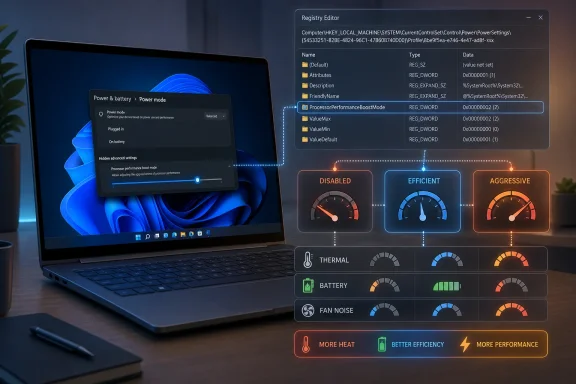
Windows 11 includes a hidden Processor Performance Boost Mode control that can be exposed through the Registry, letting users choose how aggressively supported CPUs boost above nominal clocks under Windows power-management policy. The setting is real, documented by Microsoft, and especially relevant now because Windows 11 performance tuning has become a live battleground between responsiveness, battery life, heat, and vendor opacity. The catch is that this is not a magic overclocking switch. It is a buried policy lever in a much larger negotiation among Windows, firmware, silicon, cooling, and workload behavior.
The most interesting part of this discovery is not that Windows 11 can influence CPU boost behavior. Of course it can. Modern operating systems are deeply involved in deciding when a processor should sprint, coast, or back away from thermal limits.
The more revealing part is that Microsoft has chosen to keep many of these controls out of the normal user interface. In the standard Power Options panel, most users see the familiar Minimum Processor State and Maximum Processor State sliders, two blunt instruments that imply CPU performance is a simple percentage range. Behind that placid interface sits a much more detailed set of processor policies that Windows can use to shape boost behavior.
The hidden setting now making the rounds is Processor Performance Boost Mode, known internally through the
That matters because this is not a random tweak imported from message-board folklore. It is a first-party Windows policy that Microsoft supports across Windows 10 and Windows 11 editions, with different meanings depending on whether the system is using older ACPI P-state management, CPPC, or autonomous CPPC behavior.
Then change the
That is the kind of tweak Windows enthusiasts love: one value, one hidden menu, instant gratification. But the simplicity of the unlock can mislead users into thinking the setting itself is simple. It is not.
The visible options typically include Disabled, Enabled, Aggressive, Efficient Enabled, Efficient Aggressive, and related “at guaranteed” variants on some systems. Those names sound self-explanatory, but their real effect depends on the processor, firmware implementation, power plan, cooling design, and whether the platform exposes boost control through CPPC.
On one laptop, “Aggressive” may mean louder fans and a warmer chassis during bursty work. On another, firmware may already be enforcing tight skin-temperature and battery limits, making the same Windows-side policy less dramatic. On a desktop with generous cooling, the change may be hard to distinguish from the motherboard’s existing boost behavior.
That shift reflects the reality of modern CPUs. A contemporary AMD Ryzen, Intel Core, or Arm-based system is not simply “running at 3.5 GHz” in the way older PC users might imagine. Cores wake, sleep, boost, migrate work, respond to thermal headroom, obey current limits, and react to scheduler hints in milliseconds.
Windows is one participant in that system. The firmware is another. The processor’s own power-management hardware is another still. Processor Performance Boost Mode sits at the boundary where Windows expresses intent: conserve, allow, request more, or request more in a way that favors efficiency.
That is why the setting is both powerful and unsatisfying. It gives the user a hand on the tiller, but not ownership of the ship. If the firmware says no because the laptop is hot, the battery is low, or the OEM’s thermal policy is conservative, Windows does not get to repeal physics.
It can also make the machine feel worse. Modern CPUs are designed around short bursts of high frequency. Disabling boost may reduce temperature spikes, but it can also stretch quick operations into longer periods of moderate work, which is not always more efficient in practice.
That tradeoff is particularly visible in everyday Windows usage. Opening the Start menu, launching a browser, decompressing a small archive, compiling a modest project, or waking a set of background services after login all benefit from short, high-performance bursts. If boost is disabled, the system may feel calmer but less responsive.
This is the oldest laptop-tuning compromise in a newer costume. A cooler machine is not automatically a better machine. A quiet machine is not automatically an efficient one. The best setting depends on what irritates you most: heat, fan noise, battery loss, or latency.
Processor Performance Boost Mode does not override silicon safety limits. It does not remove thermal throttling. It does not force a CPU to exceed vendor-specified behavior. It changes how Windows requests boost performance when boost is already available under the platform’s rules.
This distinction is important because the current Windows 11 performance conversation is already overloaded with loose claims about CPU damage, artificial benchmarking, and Microsoft “cheating” by boosting clocks during user interactions. Those arguments flatten a normal operating-system behavior into a scandal.
The better critique is narrower and more serious: Microsoft has not given users enough transparent controls or explanations for the performance policies Windows already applies. Hidden settings create mythology. Clear settings create informed choices.
What makes the setting newly interesting is the wider Windows 11 performance push in 2026. Microsoft has been rolling out and discussing Low Latency Profile behavior, a system-level approach that briefly boosts CPU responsiveness for interactive actions such as app launches and shell experiences. That has put CPU boosting back in the center of the Windows conversation.
The overlap is not one-to-one. Low Latency Profile is an automated Windows behavior aimed at responsiveness, while Processor Performance Boost Mode is a power-plan setting that shapes boost policy more generally. Still, both belong to the same philosophy: Windows can feel faster if it asks the processor to sprint at the right moments.
That philosophy is defensible. It is also easy to abuse in messaging. If Microsoft says Windows feels faster because it has become more efficient, users may expect less bloat and better code paths. If Windows feels faster because it is more willing to goose the CPU for short bursts, that is still valid engineering, but it is a different story.
That says something uncomfortable about Windows 11’s settings migration. Microsoft has spent years moving user-facing controls into the Settings app, but many of the serious knobs remain buried in legacy interfaces, command-line tools, Group Policy, provisioning packages, and Registry paths. The glossy Settings app is the front office. The real machinery is often down a hallway marked “authorized personnel only.”
For IT professionals, this fragmentation is familiar. For normal users, it is hostile. For enthusiasts, it is catnip.
The hidden boost setting is therefore more than a CPU tweak. It is a reminder that Windows still contains multiple operating systems’ worth of management surfaces. Some are simplified for consumers, some are retained for enterprises, and some sit in between as undocumented-feeling but documented-enough tools for people who know where to look.
Efficient Enabled and Efficient Aggressive modes are attractive because they do not necessarily ban boost. Instead, they nudge the system toward a less excitable interpretation of when boost is worth it. For users who mostly browse, write, join calls, and run office apps, that may be the sweet spot.
Gaming laptops are a different case. Many already ship with vendor utilities that manipulate power limits, fan curves, graphics modes, and CPU boost behavior. Changing Windows’ hidden boost policy under those tools can help, but it can also create confusing interactions where the OEM app, Windows power plan, firmware, and GPU control software all think they are in charge.
Handheld Windows PCs make the issue even sharper. Devices such as gaming handhelds live and die by the balance between wattage, heat, noise, and frame pacing. On those machines, a hidden boost control can be a practical tuning tool rather than a curiosity, especially when paired with careful frame-rate limits and per-game profiles.
That does not mean the setting is useless. Workstations with noise-sensitive environments, small-form-factor PCs, home theater PCs, and always-on desktops may benefit from dialing boost down. Conversely, users chasing the snappiest possible interactive feel might prefer Aggressive behavior if thermals and acoustics are non-issues.
But desktop enthusiasts should not confuse this with Precision Boost Overdrive, Intel power-limit tuning, undervolting, BIOS-level load-line calibration, or any of the other knobs that actually alter platform power behavior more directly. Processor Performance Boost Mode is a Windows policy, not a motherboard tuning suite.
The sensible way to test it is boring: change one thing, measure before and after, and decide based on workloads you actually run. Cinebench, compile times, game frame pacing, fan RPM, battery discharge, package temperature, and subjective responsiveness all tell different parts of the story.
In schools, call centers, shared workstations, and managed laptop fleets, boost behavior has practical consequences. A more aggressive boost policy may improve perceived responsiveness on aging hardware, but it may also worsen battery runtime, increase fan noise, and accelerate complaints about hot devices. A more efficient policy may stretch battery life and reduce thermal events, but it could make older machines feel sluggish under multitasking.
The right answer is rarely universal. A plugged-in CAD workstation, a classroom laptop cart, a remote worker’s ultrabook, and a kiosk PC all have different priorities. Windows exposes enough policy depth to respect those differences, but Microsoft hides enough of it that many organizations never revisit the defaults.
This is where documentation and tooling matter. If Microsoft wants Windows 11 to be taken seriously as a tuned platform rather than a pile of inherited defaults, advanced power policy needs clearer surfacing in enterprise guidance. Not every setting belongs in the consumer Settings app, but consequential behavior should not feel like an archaeological discovery.
The real risk is false confidence. A user may enable Aggressive mode and assume their system is now “faster,” when the measurable difference is negligible. Another may disable boost to reduce heat, then blame Windows 11 for sluggishness that they manually introduced. A third may apply a registry tweak from a forum post without recording the original value or understanding that different power plans have separate AC and DC settings.
Registry edits also carry their usual risk: not because this particular value is exotic, but because Registry Editor is unforgiving. A mistyped path or casual change elsewhere can create problems unrelated to CPU boosting. This is a scalpel, not a settings toggle with guardrails.
The good news is that the safer management path already exists.
There are reasonable arguments for that choice. Too many knobs confuse mainstream users. Bad power settings can make laptops feel broken. OEMs know the thermal limits of their chassis better than Windows does in the abstract.
But hiding the setting also protects Microsoft from having to explain what Windows is doing. If the machine gets hot, blame the OEM. If the laptop feels slow, blame the processor. If battery life disappoints, blame the user’s workload. The operating system’s own role in shaping boost behavior remains conveniently obscure.
That opacity is increasingly hard to defend. Windows 11 runs on hybrid CPUs, Arm laptops, gaming handhelds, high-refresh ultraportables, and workstation-class desktops. A single invisible default cannot serve all those devices equally well.
A laptop fan ramps up during light browsing. A gaming handheld drains faster than expected. A workstation feels oddly sluggish on Balanced mode. A user finds that disabling boost drops temperatures dramatically but changes the feel of the system. These are real experiences, even when the explanations passed around online are imperfect.
The enthusiast community responds with Registry paths, screenshots, PowerShell snippets, and trial-and-error profiles. Some of that advice is useful. Some of it is cargo cult. The difference is often measurement.
Microsoft could reduce the folklore by making the power stack more intelligible. It does not need to expose every CPPC parameter to every Home user. It does need to acknowledge that performance, efficiency, and thermals are user-facing qualities, not just firmware abstractions.
But the engineering reality is more nuanced. Short boost bursts are a legitimate way to improve latency. Mobile operating systems have used similar ideas for years. Modern CPUs are explicitly designed to race through work and return to idle.
The problem is not that Windows boosts. The problem is that users often cannot tell when, why, or how Windows boosts, and they cannot easily choose a different balance without spelunking through legacy tools. That turns a normal scheduler-and-power-management design into a trust issue.
Processor Performance Boost Mode should therefore be read as evidence of Windows’ sophistication and its communication failure at the same time. The OS has the machinery. The interface does not tell the story.
 Microsoft Hid the Knob, Not the Machinery
The most interesting part of this discovery is not that Windows 11 can influence CPU boost behavior. Of course it can. Modern operating systems are deeply involved in deciding when a processor should sprint, coast, or back away from thermal limits.The more revealing part is that Microsoft has chosen to keep many of these controls out of the normal user interface. In the standard Power Options panel, most users see the familiar Minimum Processor State and Maximum Processor State sliders, two blunt instruments that imply CPU performance is a simple percentage range. Behind that placid interface sits a much more detailed set of processor policies that Windows can use to shape boost behavior.
The hidden setting now making the rounds is Processor Performance Boost Mode, known internally through the
PERFBOOSTMODE power setting. It determines how processors select performance levels when boosting above nominal performance is available. Microsoft’s own documentation identifies the setting as hidden and ties it to the GUID that enthusiasts have been using for years.That matters because this is not a random tweak imported from message-board folklore. It is a first-party Windows policy that Microsoft supports across Windows 10 and Windows 11 editions, with different meanings depending on whether the system is using older ACPI P-state management, CPPC, or autonomous CPPC behavior.
The Registry Trick Is Simple; the Consequences Are Not
The practical path is straightforward. Open Registry Editor, navigate to:HKEY_LOCAL_MACHINE\SYSTEM\CurrentControlSet\Control\Power\PowerSettings\54533251-82be-4824-96c1-47b60b740d00\be337238-0d82-4146-a960-4f3749d470c7Then change the
Attributes DWORD from 1 to 2. Close and reopen the Advanced Power Settings dialog, and Processor Performance Boost Mode should appear under Processor Power Management.That is the kind of tweak Windows enthusiasts love: one value, one hidden menu, instant gratification. But the simplicity of the unlock can mislead users into thinking the setting itself is simple. It is not.
The visible options typically include Disabled, Enabled, Aggressive, Efficient Enabled, Efficient Aggressive, and related “at guaranteed” variants on some systems. Those names sound self-explanatory, but their real effect depends on the processor, firmware implementation, power plan, cooling design, and whether the platform exposes boost control through CPPC.
On one laptop, “Aggressive” may mean louder fans and a warmer chassis during bursty work. On another, firmware may already be enforcing tight skin-temperature and battery limits, making the same Windows-side policy less dramatic. On a desktop with generous cooling, the change may be hard to distinguish from the motherboard’s existing boost behavior.
CPPC Made the Operating System a Co-Pilot
Collaborative Processor Performance Control, or CPPC, is the technical layer that explains why this hidden switch exists in the first place. Instead of Windows merely choosing from a static list of old-style frequency states, CPPC allows the operating system and platform firmware to communicate about performance requests more flexibly.That shift reflects the reality of modern CPUs. A contemporary AMD Ryzen, Intel Core, or Arm-based system is not simply “running at 3.5 GHz” in the way older PC users might imagine. Cores wake, sleep, boost, migrate work, respond to thermal headroom, obey current limits, and react to scheduler hints in milliseconds.
Windows is one participant in that system. The firmware is another. The processor’s own power-management hardware is another still. Processor Performance Boost Mode sits at the boundary where Windows expresses intent: conserve, allow, request more, or request more in a way that favors efficiency.
That is why the setting is both powerful and unsatisfying. It gives the user a hand on the tiller, but not ownership of the ship. If the firmware says no because the laptop is hot, the battery is low, or the OEM’s thermal policy is conservative, Windows does not get to repeal physics.
“Disabled” Is the Only Truly Blunt Option
Among the available modes, Disabled is the easiest to understand. It prevents boost behavior and keeps the processor closer to base clocks. For some users, especially laptop owners fighting heat, fan noise, or battery drain, that can produce an immediate and obvious change.It can also make the machine feel worse. Modern CPUs are designed around short bursts of high frequency. Disabling boost may reduce temperature spikes, but it can also stretch quick operations into longer periods of moderate work, which is not always more efficient in practice.
That tradeoff is particularly visible in everyday Windows usage. Opening the Start menu, launching a browser, decompressing a small archive, compiling a modest project, or waking a set of background services after login all benefit from short, high-performance bursts. If boost is disabled, the system may feel calmer but less responsive.
This is the oldest laptop-tuning compromise in a newer costume. A cooler machine is not automatically a better machine. A quiet machine is not automatically an efficient one. The best setting depends on what irritates you most: heat, fan noise, battery loss, or latency.
“Aggressive” Is Not an Overclocking Button
The names Aggressive and Aggressive At Guaranteed invite a certain kind of misunderstanding. They sound like enthusiast features, as if Windows were suddenly reaching into the BIOS and applying a turbo profile. That is not what is happening.Processor Performance Boost Mode does not override silicon safety limits. It does not remove thermal throttling. It does not force a CPU to exceed vendor-specified behavior. It changes how Windows requests boost performance when boost is already available under the platform’s rules.
This distinction is important because the current Windows 11 performance conversation is already overloaded with loose claims about CPU damage, artificial benchmarking, and Microsoft “cheating” by boosting clocks during user interactions. Those arguments flatten a normal operating-system behavior into a scandal.
The better critique is narrower and more serious: Microsoft has not given users enough transparent controls or explanations for the performance policies Windows already applies. Hidden settings create mythology. Clear settings create informed choices.
The June 2026 Performance Debate Gives This Old Setting New Relevance
This hidden control is not entirely new. Windows power users have been exposing Processor Performance Boost Mode for years, especially on gaming laptops and handheld PCs where boost behavior can make the difference between a pleasant device and a lap-sized space heater.What makes the setting newly interesting is the wider Windows 11 performance push in 2026. Microsoft has been rolling out and discussing Low Latency Profile behavior, a system-level approach that briefly boosts CPU responsiveness for interactive actions such as app launches and shell experiences. That has put CPU boosting back in the center of the Windows conversation.
The overlap is not one-to-one. Low Latency Profile is an automated Windows behavior aimed at responsiveness, while Processor Performance Boost Mode is a power-plan setting that shapes boost policy more generally. Still, both belong to the same philosophy: Windows can feel faster if it asks the processor to sprint at the right moments.
That philosophy is defensible. It is also easy to abuse in messaging. If Microsoft says Windows feels faster because it has become more efficient, users may expect less bloat and better code paths. If Windows feels faster because it is more willing to goose the CPU for short bursts, that is still valid engineering, but it is a different story.
The Control Panel Remains Windows’ Museum of Necessary Things
There is an absurdity here that only Windows can deliver. A modern Windows 11 power-management feature, tied to current CPU behavior, is still most practically surfaced through the old Control Panel’s Advanced Power Settings dialog after editing the Registry.That says something uncomfortable about Windows 11’s settings migration. Microsoft has spent years moving user-facing controls into the Settings app, but many of the serious knobs remain buried in legacy interfaces, command-line tools, Group Policy, provisioning packages, and Registry paths. The glossy Settings app is the front office. The real machinery is often down a hallway marked “authorized personnel only.”
For IT professionals, this fragmentation is familiar. For normal users, it is hostile. For enthusiasts, it is catnip.
The hidden boost setting is therefore more than a CPU tweak. It is a reminder that Windows still contains multiple operating systems’ worth of management surfaces. Some are simplified for consumers, some are retained for enterprises, and some sit in between as undocumented-feeling but documented-enough tools for people who know where to look.
Laptop Owners Have the Most to Gain and the Most to Lose
On notebooks, Processor Performance Boost Mode can be genuinely useful. The default boost behavior on many thin-and-light systems is optimized to make the device feel fast in short demos and everyday bursts. That is reasonable, but it can also create heat spikes, fan pulsing, and battery drain that annoy users more than a slightly slower app launch would.Efficient Enabled and Efficient Aggressive modes are attractive because they do not necessarily ban boost. Instead, they nudge the system toward a less excitable interpretation of when boost is worth it. For users who mostly browse, write, join calls, and run office apps, that may be the sweet spot.
Gaming laptops are a different case. Many already ship with vendor utilities that manipulate power limits, fan curves, graphics modes, and CPU boost behavior. Changing Windows’ hidden boost policy under those tools can help, but it can also create confusing interactions where the OEM app, Windows power plan, firmware, and GPU control software all think they are in charge.
Handheld Windows PCs make the issue even sharper. Devices such as gaming handhelds live and die by the balance between wattage, heat, noise, and frame pacing. On those machines, a hidden boost control can be a practical tuning tool rather than a curiosity, especially when paired with careful frame-rate limits and per-game profiles.
Desktop Users Should Temper Their Expectations
On desktops, the gains are likely to be more situational. A well-cooled desktop CPU already has room to boost aggressively under normal Windows policies, and motherboard firmware often plays a larger role than users realize. If the chip is already spending time near its preferred boost behavior, changing a Windows policy may not transform the machine.That does not mean the setting is useless. Workstations with noise-sensitive environments, small-form-factor PCs, home theater PCs, and always-on desktops may benefit from dialing boost down. Conversely, users chasing the snappiest possible interactive feel might prefer Aggressive behavior if thermals and acoustics are non-issues.
But desktop enthusiasts should not confuse this with Precision Boost Overdrive, Intel power-limit tuning, undervolting, BIOS-level load-line calibration, or any of the other knobs that actually alter platform power behavior more directly. Processor Performance Boost Mode is a Windows policy, not a motherboard tuning suite.
The sensible way to test it is boring: change one thing, measure before and after, and decide based on workloads you actually run. Cinebench, compile times, game frame pacing, fan RPM, battery discharge, package temperature, and subjective responsiveness all tell different parts of the story.
Enterprises Will See a Policy Lever, Not a Toy
For administrators, the hidden UI is less important than the fact that the setting can be managed withpowercfg and power-plan deployment. The Registry unlock is a convenience for local exploration; fleet management should not depend on users clicking through Control Panel.In schools, call centers, shared workstations, and managed laptop fleets, boost behavior has practical consequences. A more aggressive boost policy may improve perceived responsiveness on aging hardware, but it may also worsen battery runtime, increase fan noise, and accelerate complaints about hot devices. A more efficient policy may stretch battery life and reduce thermal events, but it could make older machines feel sluggish under multitasking.
The right answer is rarely universal. A plugged-in CAD workstation, a classroom laptop cart, a remote worker’s ultrabook, and a kiosk PC all have different priorities. Windows exposes enough policy depth to respect those differences, but Microsoft hides enough of it that many organizations never revisit the defaults.
This is where documentation and tooling matter. If Microsoft wants Windows 11 to be taken seriously as a tuned platform rather than a pile of inherited defaults, advanced power policy needs clearer surfacing in enterprise guidance. Not every setting belongs in the consumer Settings app, but consequential behavior should not feel like an archaeological discovery.
The Risk Is Not Damage; It Is False Confidence
The common fear with CPU boost settings is that users will damage hardware. That is mostly the wrong concern. Modern processors protect themselves aggressively, and Windows is not bypassing hardware safety mechanisms with this setting.The real risk is false confidence. A user may enable Aggressive mode and assume their system is now “faster,” when the measurable difference is negligible. Another may disable boost to reduce heat, then blame Windows 11 for sluggishness that they manually introduced. A third may apply a registry tweak from a forum post without recording the original value or understanding that different power plans have separate AC and DC settings.
Registry edits also carry their usual risk: not because this particular value is exotic, but because Registry Editor is unforgiving. A mistyped path or casual change elsewhere can create problems unrelated to CPU boosting. This is a scalpel, not a settings toggle with guardrails.
The good news is that the safer management path already exists.
powercfg can set Processor Performance Boost Mode for the current scheme, and Windows can reactivate the scheme without a reboot. That is the route administrators and repeat tweakers should prefer once they know what they are changing.Microsoft’s Default Is a Product Decision
Every hidden power setting tells a story about product priorities. Microsoft could expose Processor Performance Boost Mode prominently, explain the tradeoffs, and let users choose between responsiveness, battery life, and acoustics. Instead, it leaves most people with simplified controls and lets OEMs mediate the experience through their own utilities.There are reasonable arguments for that choice. Too many knobs confuse mainstream users. Bad power settings can make laptops feel broken. OEMs know the thermal limits of their chassis better than Windows does in the abstract.
But hiding the setting also protects Microsoft from having to explain what Windows is doing. If the machine gets hot, blame the OEM. If the laptop feels slow, blame the processor. If battery life disappoints, blame the user’s workload. The operating system’s own role in shaping boost behavior remains conveniently obscure.
That opacity is increasingly hard to defend. Windows 11 runs on hybrid CPUs, Arm laptops, gaming handhelds, high-refresh ultraportables, and workstation-class desktops. A single invisible default cannot serve all those devices equally well.
The Enthusiast Community Is Filling a Documentation Gap
The reason stories like this spread is not merely that people like hidden settings. It is that users are trying to solve practical annoyances Microsoft and OEMs have failed to explain in plain language.A laptop fan ramps up during light browsing. A gaming handheld drains faster than expected. A workstation feels oddly sluggish on Balanced mode. A user finds that disabling boost drops temperatures dramatically but changes the feel of the system. These are real experiences, even when the explanations passed around online are imperfect.
The enthusiast community responds with Registry paths, screenshots, PowerShell snippets, and trial-and-error profiles. Some of that advice is useful. Some of it is cargo cult. The difference is often measurement.
Microsoft could reduce the folklore by making the power stack more intelligible. It does not need to expose every CPPC parameter to every Home user. It does need to acknowledge that performance, efficiency, and thermals are user-facing qualities, not just firmware abstractions.
The Setting Is a Lever, Not a Verdict on Windows 11
It is tempting to fold this hidden boost menu into the broader complaint that Windows 11 is bloated and Microsoft is compensating with CPU tricks. There is some emotional truth there. Users do not want their operating system to need more boost just to feel responsive.But the engineering reality is more nuanced. Short boost bursts are a legitimate way to improve latency. Mobile operating systems have used similar ideas for years. Modern CPUs are explicitly designed to race through work and return to idle.
The problem is not that Windows boosts. The problem is that users often cannot tell when, why, or how Windows boosts, and they cannot easily choose a different balance without spelunking through legacy tools. That turns a normal scheduler-and-power-management design into a trust issue.
Processor Performance Boost Mode should therefore be read as evidence of Windows’ sophistication and its communication failure at the same time. The OS has the machinery. The interface does not tell the story.
The Sensible WindowsForum Tuning Rulebook
For WindowsForum readers, the practical lesson is not to rush into the Registry because a hidden menu exists. The lesson is to treat CPU boost policy as one variable in a system that includes firmware, drivers, cooling, workload, and user expectations.- Users should record their original power-plan settings before changing Processor Performance Boost Mode, because the most useful tweak is the one that can be reversed cleanly.
- Notebook owners should test Efficient Enabled or Efficient Aggressive on battery before disabling boost entirely, because reducing unnecessary spikes is often better than banning boost outright.
- Desktop users should expect smaller gains unless their current workload is sensitive to short bursts of responsiveness, fan behavior, or power draw.
- Administrators should prefer
powercfgor managed power-plan deployment over manual Registry edits when applying boost policy across multiple machines. - Anyone benchmarking the setting should measure temperature, fan noise, battery drain, and responsiveness separately, because one number will not describe the tradeoff.
- Users should avoid treating Aggressive mode as an overclock or Disabled mode as a universal efficiency fix, because both assumptions misunderstand what Windows is actually controlling.
References
- Primary source: www.guru3d.com
Published: Tue, 16 Jun 2026 04:40:00 GMT
Loading…
www.guru3d.com - Related coverage: windowslatest.com

Windows 11's CPU speed boost feature is making your battery last longer, not shorter
Worried Windows 11's Low Latency Profile will damage CPU or battery? Our tests prove the "race to sleep" feature is safe and boosts speed. www.windowslatest.com
- Official source: learn.microsoft.com

PERFBOOSTMODE | Microsoft Learn
PERFBOOSTMODE determines how processors select a performance level when current operating conditions allow for boosting performance above the nominal level.learn.microsoft.com - Related coverage: overclock3d.net

Windows 11's June Update delivers a welcome CPU boost - OC3D
Windows 11's June Update has arrived, and it finally starts Microsoft's performance-boosting LLP profile rollout.overclock3d.net - Related coverage: hartware.de
- Related coverage: pcgamesn.com

Windows 11's new performance boosting Low Latency mode is now available, and here's what it does - PCGamesN
A new Low Latency Profile has been added to the latest Windows 11 update, providing a boost in performance for a range of apps and features.www.pcgamesn.com


- Related coverage: windowscentral.com
Loading…
www.windowscentral.com - Related coverage: macmyths.com
Loading…
macmyths.com - Related coverage: techradar.com
'All modern operating systems do this, including macOS and Linux': Microsoft exec fires back at critics accusing it of 'cheating' with Windows 11 speed boost feature | TechRadar
'Welcome to modern computer science. Come on in!'www.techradar.com