

EpocCam’s long run as a convenient phone‑as‑webcam tool is effectively over for new development, but the app’s legacy, driver story, and practical alternatives still matter to anyone trying to use an iPhone or Android device as a Windows 10 webcam — especially for IT teams, home streamers, and buyers chasing low‑cost “Webcam 1080p” listings with promises like free shipping.
EpocCam began life as a simple, effective way to turn a smartphone into a webcam for macOS and Windows. The product changed hands in 2020 when Corsair (Elgato) acquired EpocCam’s developer and integrated the tool under Elgato’s content‑creation product umbrella — a move widely reported at the time and confirmed by the acquiring company.
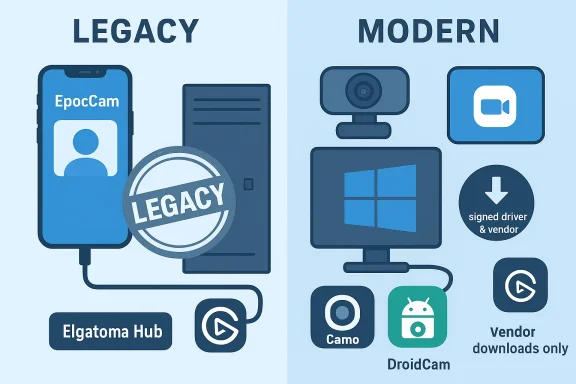
Fast forward to the current support model: Elgato now distributes EpocCam through its Camera Hub ecosystem, the standalone Kinoni era driver packages have been retired, and Elgato’s own help pages now show EpocCam as no longer available for further updates or support. The Windows 10/11 compatibility notes and release history are preserved in Elgato/Corsair documentation, but the vendor clearly signals that EpocCam is a legacy tool with no future feature roadmap.
Why this matters to Windows 10 users: many buyers still encounter EpocCam (or Kinoni) references in older product boxes, marketplace listings, and app store copy. Those references raise three practical questions we’ll answerill run EpocCam on Windows 10? (2) Where should you get drivers and installers safely? (3) What are modern, supported alternatives if EpocCam isn’t right for you? Community research and vendor docs line up on a clear — and actionable — set of recommendations.
Source: Born2Invest https://born2invest.com/?b=style-247763612/
 Background / Overview
EpocCam began life as a simple, effective way to turn a smartphone into a webcam for macOS and Windows. The product changed hands in 2020 when Corsair (Elgato) acquired EpocCam’s developer and integrated the tool under Elgato’s content‑creation product umbrella — a move widely reported at the time and confirmed by the acquiring company. Fast forward to the current support model: Elgato now distributes EpocCam through its Camera Hub ecosystem, the standalone Kinoni era driver packages have been retired, and Elgato’s own help pages now show EpocCam as no longer available for further updates or support. The Windows 10/11 compatibility notes and release history are preserved in Elgato/Corsair documentation, but the vendor clearly signals that EpocCam is a legacy tool with no future feature roadmap.
Why this matters to Windows 10 users: many buyers still encounter EpocCam (or Kinoni) references in older product boxes, marketplace listings, and app store copy. Those references raise three practical questions we’ll answerill run EpocCam on Windows 10? (2) Where should you get drivers and installers safely? (3) What are modern, supported alternatives if EpocCam isn’t right for you? Community research and vendor docs line up on a clear — and actionable — set of recommendations.
EpocCam today: status, system requirements, and the support reality
What Elgato/Corsair says now
- Acquisition and integration: Corsair announced its acquisition of EpocCam in late October 2020. Following the acquisition, EpocCam was integrated under Elgato’s product group.
- Current support posture: Elgato’s help pages and release notes explicitly note that EpocCam is no longer available and will receive no further updates or support. That language appears on multiple Elgato/Corsair help and release pages.
- System requirements (preserved documentation): The archived requirements list shows EpocCam worked with Windows 10/11 (64‑bit) and required Camera Hub for modern integration; USB mode historically had additional requirements (for example, Apple device USB connectivity often referenced Apple desktop utilities). These requirements remain visible in vendor documentation for users still trying to run existing versions.
Practical interpretation for Windows 10 users
- You can still run EpocCam on Windows 10 in many cases, using Elgato’s Camera Hub and the last released Windows driver packages, but you should treat the product as legacy. For new deploymenr fixes, and be prepared to move to alternatives if compatibility or security issues emerge.
- If you find EpocCam or Kinoni references in a product listing (for example, “EpocCam Webcam for Mac and PC” or older boxes), treat those as legacy compatibility claims and verify the download/install source before trusting the offering. Community guidance and procurement best practices strongly advise preferring vendor‑hosted installers (Elgato/Corsair) over third‑party mirrors.
Where to download — safety, provenance, and “free shipping” marketing
The distribution problem: official vs mirror downloads
Historically, Kinoni hosted driver packages; after the acquisition, driver distribution moved to Elgato/Corsair. Many third‑party mirror sites or packaged product listings still link to old Kinoni files or include drivers on included CDs/USB sticks. That creates a risk: unsigned or modified installers, outdated kernels drivers, or packages that request driver‑signature enforcement to be disabled. The consensus counsel from enterprise and community threads is simple: prefer official vendor downloads (Elgato/Corsair) and validate digital signatures and hashes before installing on production machines.Market listings and “free shipping” claims
Marketplace product titles promising “Free Shipping PC 1080P Webcam with Mic” are often generic marketing copy. Shipping promises vary by seller, region, and promotional conditions; they are not a guarantee of product aute driver packaging. Buyers should check seller reputation, return policy, and whether the product references current vendor download pages rather than obsolete Kinee shipping is a logistics promise, not a software provenance guarantee.Safe download checklist
- Prefer the vendor’downloads page (Elgato/Corsair for EpocCam legacy drivers).
- Verify the installer’s digital signature in Windows before running it (right‑click → Properties → Digital Signatures). If the publisher is unknown or unsigned, do not install on critical hardware.
- Install first on a test machine or VM that’s isolated from production data. Document the installer name, version, and checksum in case you need to roll back.
- Avoid third‑party driver repositories unless you can verify hashes and signatures; use them only for isolated testing.
Step‑by‑step: Installing EpocCam on Windows 10 (legacy path)
The following steps describe how EpocCam was intended to be set up using Elgato’s documented process. This remains useful for technicians maintaining existing installs, but it should be followed with the caveats above about legacy status.Pre‑install checks
- Confirm Windows is 64‑bit and updated (Windows 10/11 supported per vendor notes).
- Download and install Elgato Camera Hub (the modern EpocCam integration uses Camera Hub). Older standalone drivers may still be listed in release notes for legacy installs.
- If you plan to connect over USB with an iPhone, historically you needed the Apple desktop connectivity components for proper USB enumeration; verify the recommended vendor guidance for your device.
Installation sequence (legacy, vendor‑documented)
- Install Camera Hub on the Windows PC and complete the setup wizard.
- Install the EpocCam iOS app on the phone (or the last supported mobile build you have). The app historically required iOS 13 or later.
- For wireless pairing: ensure the PC and phone are on the same Wi‑Fi network, open Camera Hub on the PC, and open EpocCam on should detect the device. For wired USB pairing: connect the phone and confirm any OS prompts; Windows may need specific Apple connectivity components.
- Once detected, select EpocCam as the video source in your conferencing or capture app (Zoom, Teams, OBS, etc.). If video fails, follow vendor troubleshooting (Bonjour service, firewaHub status).
Troubleshooting quick hits
- If EpocCam doesn’t connect over Wi‑Fi, confirm the Bonjour service is running on Windows and that Camera Hub has necessary netwp.elgato.com]
- If video freezes or disconnects under load, the vendor notes list fixes in driver release notes (recent legacy driver patches addressed video freezing and connection loss). Check the release notes to match symptoms to a specific patch level.
- If the PC shows a driver error, try letting Windows pick the in‑box USB Video Class (UVC) driver as a fallback for basic video enumeration; vendor drivers add features but UVC often restores basic functionality. Community guides echo this practical fallback.
Security, privacy, and enterprise risk
Expad mitigations
Any webcam — including a phone masquerading as a webcam — increases the privacy and security surface of a PC. Vendor apps and drivers that require kernel‑level components or background services raise the attack surface further. Community guidance recommends:- Use a physical shutter or cover when the camera isn’t in use. This remains the simplest privacy defense.
- Audit camera permissions in Windows privacy settings and remove access for unused apps.
- Prefer vendor packages with clear code signing and a public changelog. Avoid installers that require you to disable driver‑signature enforcement unless you are in an isolated testing environment.
Driver provenance and enterprise procurement
nsidering refurbished or clearance Kinoni/EpocCam bundles, the dominant guidance is to insist on signed drivers and a validated update path. Legacy driver bundles found on mirror sites may require disabling driver signature enforcement — an unacceptable long‑term risk for fleet deployments. For prodern UVC devices that present as HID/UVC without kernel drivers.- Vendor‑supported downloads from Elgato/Corsair for EpocCam legacy files and explicit documentation on supported OS versions.
- Small pilot deployments (5–20 units) to test enumeration, driver stability, and Windows Update interactions before larger rollouts. Community procurement notes emphasize this as a critical precaution.
Alternatives you should consider (practical tradeoffs)
If EpocCam’s legacy status and uncertain future support are a concern, several modern, actively maintained alternatives give you the phone‑as‑webcam capability — often with richer features and contemporary support.1) Camo (Reincubate)
- Platform: Windows + macOSdel with a paid Pro tier for higher resolutions and advanced controls.
- Strengths: feature‑rich controls for exposure, color, and framing; Microsoft Store availability for Windows makes deployment cleaner in managed environments.
- Practical note: Camo supports both wireless and USB tethering, but favors wired USB for latency and reliability during long sessions.
2) DroidCam
- Platform: Android and iOS clients, Windows client.
- Strengths: long‑standing community usage, reliable basic functionality; a free version exists with Pro features behind a paid upgrade. Good for casual des often list DroidCam among practical choices.)
3) Native phone / Windows integration
- Platform features: Some Pixel phones and newer Android models expose native USB webcam modes; Windows Phone Link / Connected Camera features in modern Windows releases can integrate phones nparty drivers.
- Strengths: native enumeration as a UVC device means minimal driver risk and better storting shows this is the most stable approach when the phone supports it.
4) Dedicated webcams
- For many usersrisk choice is a modern USB webcam that exposes as a UVC device, removing driver complexity entirely. Vendor webcams from established brands provide documented driver and firmware paths and avoid mobile app permissionlist core UVC webcams as the go‑to for business deployments.
Feature comparison: EpocCam (legacy) vs modern alternatives
- Eaicated UVC webcams > Native phone USB mode > Camo/DroidCam > EpocCam (legacy with Camera Hub).
- Feature richness (image controls): Camo > EpocCam (legacy) ≈ DroidCam > most entry UVC webcams.
- Long‑term support: Dedicated UVC webcams and actively maintained apps (Camo, DroidCam) > EpocCam (no updates).
- Security & manageability: UVC webcams and native USB webcam modes (lowest risk) > third‑party vendor drivers that require kernel components (higher risk).
Buying and deployment checklist — practical steps Windows users must follow
- If you see EpocCam, Kinoni, or similar references in a product listing: confirm where the vendor intends you to download drivers today. Prefer Elgato/Corsair support pages over third‑party mirrors.
- Validate the install and checksum before installing on an important machine.
- Test any phone‑as‑webcam workflow on a disposable or imaged PC first. Record the Camera Hub/driver version used.
- For fleet rollouts, insist on signed drivers, a versioned download manifest, and exercise Windows Update interactions. Legacy driver bundles without clear code signatures should be rejected.
- If you prioritize privacy and manageability, buy an established UVC webcam and avoid extra software install requirements entirely.
Critical analysis: strengths, weaknesses, and risks
Notable strengths of EpocCam’s legacy offering
- It made phone‑quality cameras available to ever cheaply, extending useful functionality without new hardware purchases. That reuse value is real and contributed to millions of installs and broad consumer awareness.
Key weaknesses and operational risks
- End of active support: EpocCam’s legacy status means no future patches. Any new Windows 10/11 update, security bulletin, or compatibility change may break the workflow without recourse. That is a fundamental operational risk for dependent users and IT fleets.
- Driver provenance: Legacy Kinoni installers and older third‑party mirrors can be unsigned or more and supply‑chain risk is a major concern for enterprises.
- Privacy & background services: Any app that runs continuously and exposes camera or microphone access increases the system’s attack surface. Vendors that require background services or kernel components exacerbate this risk compared with UVC devices.
Balanced view
For a home user who wants to repurpose an iPhone for occasional calls, the last EpocCam builds and Camera Hub may still work and be attractive. For IT teams, educational labs, or any managed deployment, relying on a legacy, unsupported driver stack is a poor long‑term strategy. Alternatives exist that retain the phone‑as‑webcam benefit without the same long‑term maintenance liabilities.Final recommendations (actionable)
- If you already have EpocCam running and it meets your needs: document the Camera Hub and driver versions, isolate the PC with imaging/snapshot backups, and plan a migration timeline to a supported alternative within your next maintenance cycle.
- If you’re buying a new webcam solution today and you want low risk on Windows 10: prefer an established UVC webcam or a vendor like Camo for phone‑as‑webcam functionality. Test wired USB tethering first for stability.
- If you find EpocCam referenced in a product listing or a clearance box, ask the seller where the current, vendor‑supported download is hosted. If they point to obsolete Kinoni links or third‑party mirrors, treat the package as legacy and test thoroughly before deploying.
Conclusion
EpocCam played an important role in popularizing the phone‑as‑webcam concept, but the product’s consolidation under Elgato/Corsair and subsequent retirement as an actively supported title changes how users and organizations must approach it. Windows 10 users can still run EpocCam in many cases using Elgato Camera Hub and the last released drivers, but the lack of ongoing support, the supply‑chain risk from legacy installers, and an increasingly robust set of alternatives mean EpocCam should be considered a bridge technology — useful today, but not a recommended long‑term choice for managed or security‑sensitive environments. Verify vendor downloads, prefer signed drivers, test on isolated hardware, and consider actively supported apps or native USB modes (or a simple UVC webcam) as the sustainable path forward.Source: Born2Invest https://born2invest.com/?b=style-247763612/
