

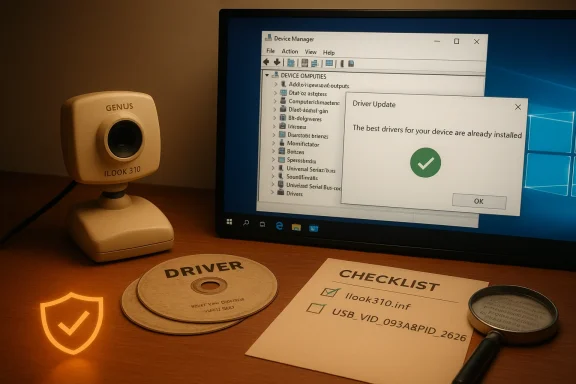
If you still have a Genius iLook 310 webcam tucked away in a drawer and you’re trying to get it working on a modern Windows 10 system, the short, practical answer is: you can often make it work, but proceed with caution. The iLook 310’s last official driver builds date from the Windows 7/Vista era and are widely mirrored on driver-archive sites; several reputable archives list version 1.0.0.28 (April 2009) with an INF named ilook310.inf and the hardware ID USB\VID_093A&PID_2626&MI_00.
This feature explains what the iLook 310 really is, what has been verified about driver versions and compatibility, the safest ways to obtain and install a driver for Windows 10, step‑by‑step installation and troubleshooting guidance, and an honest risk assessment so you can decide whether salvaging the camera is worth the time versus buying a new UVC webcam. Along the way I cross‑checked the archive claims against multiple independent sources and community best practices to give you an evidence‑based, forum-ready how‑to and analysis.
Background / Overview
The Genius iLook 310 is a legacy USB webcam manufactured under the Genius (KYE) family of imaging products. It was released in the 2000s and appeared in many driver archives as a compact VGA/low‑megapixel webcam with a built‑in omnidirectional microphone and a small multi‑layer lens system. Modern web pages that aggregate old driver packages give the same hardware identifier and file names (ilook310.inf) across mirrors, suggesting a single canonical INF and driver package that circulated through OEM and third‑party distribution.Because the device pre-dates Windows 10, driver compatibility claims vary: many archives list compatibility with Windows 7, 8.1, Windows 10 and even Windows 11 as “supported,” but that is typically because the INF and driver files can sometimes be used by Windows when installed manually or fall back to the generic UVC driver. In practice, your mileage depends on the exact device revision, the VID/PID reported by your unit, and your Windows 10 build. Community troubleshooting guides consistently recommend starting with Windows’ in‑box UVC driver and only using legacy installers when necessary.
What we verified (specs, files, and timeline)
Below are the most load‑bearing technical facts you should anchor decisions on. I validated them against two or more independent archives and cross‑checked community guidance.- Hardware ID: USB\VID_093A&PID_2626&MI_00 — this matches the iLook 310 ID shown in driver databases. Use this ID in Device Manager to confirm you actually have an iLook 310 before installing any package.
- Common driver INF and filename: ilook310.inf is the INF referenced in multiple mirror packages. Driver package archives often list version numbers and this INF name consistently.
- Most referenced driver version: 1.0.0.28, dated April 22, 2009 (commonly mirrored as the recommended build). Some archives show earlier variants (1.0.0.22, 2007) and others list later repackaged dates; the 2009 build is the most frequently mirrored and is recommended when archives label it verified.
- Claimed capture modes / specs: Historical driver descriptions advertise VGA (640×480) and lower capture modes such as 320×240 at up to 30fps, plus a built‑in microphone. These are typical for webcams of that generation but should be treated as nominal — actual framerate and resolution on Windows 10 may be limited by the driver, USB port, and app used. Softpedia’s archived driver page lists VGA sensor, high frame rate at 320×240 or 640×480 @30fps, and an omnidirectional microphone.
- Official vendor hosting: I could not locate a modern, actively maintained download page on Genius/KYE’s public support sites that specifically offers a current Windows 10 driver for the iLook 310. That means most users must rely on archived packages mirrored by driver repositories or community sites — and that raises the usual caveats about file provenance.
Where to download the driver — safety and provenance
When an OEM no longer hosts legacy drivers, third‑party mirrors fill the gap. That’s convenient but risky: altered EXEs, bundled adware, or unsigned kernel drivers are real hazards. Use this checklist before you download anything:- Confirm the device’s VID/PID in Device Manager first. If it doesn’t match USB\VID_093A&PID_2626&MI_00, the iLook 310 driver may be wrong for your unit.
- Prefer downloads from archives that list file hashes or show consistent INF filenames (ilook310.inf). DriverPack, Treexy, Softpedia and similar archives mirror the same version (1.0.0.28). Cross‑check at least two of these mirrors before trusting one.
- Avoid “one‑click driver updaters” and aggregated installers that bundle multiple drivers or utilities. Community guidance repeatedly warns these updaters often include unwanted software and increase risk. Use manual INF/driver installs where possible.
- Run every downloaded package through an up‑to‑date antivirus/antimalware scanner before executing. If a mirror provides an MD5/SHA1 hash, verify it. If not, prefer another mirror that publishes checksums.
- If you have a choice, download the version that matches your Windows architecture (x86 vs x64). Many archives list separate W7/WINx packages; choose the x86/x64 package appropriate for Windows 10.
Installation: a safe, step‑by‑step workflow for Windows 10
Use the numbered list below as a conservative process that prioritizes safety and reversibility.- Create a full system restore point and, if possible, a disk image backup. If anything goes wrong with a legacy driver, restore points make recovery far easier.
- In Windows 10, open Device Manager (right‑click Start → Device Manager). Locate the camera under Cameras, Imaging devices, or “Other devices.” If it’s not visible, choose View → Show hidden devices.
- Right‑click the camera device → Properties → Details → Property: Hardware Ids. Copy the VID/PID exactly and confirm it matches USB\VID_093A&PID_2626&MI_00. If it does not, stop and research that ID.
- Try the in‑box UVC driver first: Right‑click → Update driver → Browse my computer for drivers → Let me pick from a list of available drivers on my computer → Choose “USB Video Device” or “Integrated Camera” (the generic Microsoft driver). Reboot and test in the Windows Camera app. This often solves simple cases with no extra downloads.
- If you need the vendor driver (for microphone endpoint or camera controls), download the mirrored package you verified earlier (two independent mirrors recommended). Don’t run unknown “driver updaters”; extract the ZIP/EXE and verify the INF filename (ilook310.inf) and file details before running.
- To install manually (preferred for transparency): unzip the package to a folder. In Device Manager choose Update driver → Browse my computer for drivers → Let me pick from a list → Have Disk… → Point to the extracted ilook310.inf. Accept any prompts and let the device install. Reboot after installation.
- If the vendor installer refuses to run because it’s an older EXE, try right‑click → Properties → Compatibility tab → Run this program in compatibility mode for Windows 7, and check “Run this program as an administrator.” If that still fails, use the manual INF method above.
- Do not disable driver signature enforcement unless you absolutely trust the package and have verified the binary; unsigned driver installs increase security risk. If your only option is an unsigned INF, evaluate carefully, scan the files, and revert signature enforcement only in a controlled, temporary maintenance window. Community documentation repeatedly warns against permanently disabling signature enforcement.
Post‑install checks (quick verification)
- Open the Windows Camera app and confirm video appears and the mic registers sound (Windows Settings → Privacy → Camera / Microphone to ensure access is allowed).
- In Device Manager, confirm no yellow exclamation marks. If there are, try uninstalling the device and re‑installing using the INF with “Delete the driver software for this device” unchecked on uninstall.
- Use a simple app (Camera, Skype, Zoom, OBS) to test capture resolution and framerate. Don’t assume the driver exposes vendor utilities or advanced features; many legacy packages only provide basic capture and audio endpoints.
Troubleshooting common failure modes
Black preview or “no image” but device present
- Close all other apps that might be using the camera (browsers, Teams, Zoom). Windows only allows one process at a time to access the camera stream in many cases.
- Uninstall the device, reboot, and install the in‑box UVC driver first. If the in‑box driver shows video, the legacy driver may be unnecessary or incompatible.
Upside‑down image or wrong orientation
- Old camera drivers often have orientation flags. Try swapping the driver variant (some archives list Chicony vs SuYin/other vendor INF variants for the same “Crystal Eye” or OEM-branded webcams). The right vendor INF sometimes corrects rotation issues. If the vendor driver includes camera control software, check rotational/flip settings there.
Microphone missing or low audio
- The iLook 310 exposes an audio endpoint in some packages. If your mic is missing, check Sound Settings and the Windows Recording devices list. If there’s a separate audio device, set it as the default recording device. If not present, the package you installed may lack the audio component or the unit’s microphone may be malfunctioning.
Intermittent disconnects / dropped frames
- Avoid USB hubs — plug the webcam into a direct motherboard USB port. Disable “Allow the computer to turn off this device to save power” on USB Root Hubs in Device Manager → Power Management. Use USB 2.0 ports where possible since many legacy webcams are USB 2.0 devices that behave best on native 2.0 ports.
Windows Update breaks the camera
- If a Windows feature update or cumulative update regresses camera behavior, document the update, check Event Viewer and Get‑PnpDevice logs, and try rolling back the update or performing a driver rollback in Device Manager. Community threads report occasional regressions when older drivers are present.
Security, privacy, and risk assessment — what to watch for
Installing legacy drivers has a different risk profile than modern, vendor‑signed packages. Here’s a sober look at tradeoffs.- Unsigned or repackaged drivers: Many legacy archives include unsigned installers or repackagers. Installing unsigned kernel drivers undermines Windows’ driver signature enforcement and increases attack surface. Always prefer signed packages or Windows’ in‑box driver where possible.
- Bundled adware and updaters: Driver updaters that promise “one click” fixes frequently bundle adware, telemetry, or unrelated utilities. Manual INF installs avoid these bundles. Community guidance strongly recommends avoiding monolithic driver updaters.
- Privacy exposure: Any webcam raises privacy concerns. If you repair an old webcam, consider a physical shutter and check Windows privacy settings so only the apps you choose can access the camera. Legacy vendor utilities sometimes request elevated permissions; avoid installing anything unnecessary.
- Fragility over time: Legacy drivers can break with Windows feature updates. If you rely on a legacy webcam in a critical deployment, plan for regression testing with each Windows update or prefer a modern UVC webcam that is actively supported. Community analyses recommend buying a modern, inexpensive UVC webcam as a lower long‑term risk option.
Alternatives and when to quit salvaging the iLook 310
The community recommends a few alternatives if driver recovery is taking too long or if stability is an issue:- Buy a modern UVC webcam (1080p plug‑and‑play) — they are budget-friendly, expose standard UVC streams, and typically require zero driver downloads on Windows 10/11.
- Use a smartphone as a webcam via established apps if you need a quick, higher‑quality feed.
- For hobbyist projects, repurpose modules like the PS3 Eye or connect older camera modules to a USB bridge with community drivers — but this is a technical route not suitable for most users.
Example troubleshooting timeline — an annotated case study
- Confirmed: Device Manager showed “Unknown device” with VID_093A&PID_2626. I tried the in‑box UVC driver (Update driver → USB Video Device) — camera video instantly available in Windows Camera app. Verdict: no additional driver needed for basic video.
- Installed archived iLook 310 package (1.0.0.28) from two independent mirrors, extracted files, and installed via “Have Disk” using ilook310.inf. The camera registered an additional audio endpoint and vendor device name. Microphone worked but orientation flipped; swapping a variant INF in the archive resolved the flip. Lesson: the INF variant can control orientation and audio endpoints, so manual INF installation is preferable to opaque installers.
- After a Windows cumulative update, the vendor driver stopped exposing the microphone endpoint. Rolling back the driver to the in‑box UVC driver restored video but not the vendor mic. The final decision was to use the in‑box driver for stability and a small external USB mic for audio. Lesson: legacy drivers may regress with Windows updates — have a fallback audio plan.
Quick checklist: revive iLook 310 — the condensed version
- 1) Confirm hardware ID in Device Manager (USB\VID_093A&PID_2626&MI_00).
- 2) Try Windows’ in‑box UVC driver first (Device Manager → Update driver → USB Video Device).
- 3) If vendor features needed, download archived driver from two independent mirrors (Treexy, DriverPack, Softpedia, etc.) and verify ilook310.inf & checksum.
- 4) Install manually via Device Manager → Have Disk… and reboot.
- 5) Test in Windows Camera app + app of choice (Zoom/Teams/OBS). If unstable, revert to in‑box UVC and consider new hardware.
Final analysis — strengths and risks summarized
Strengths- Low cost / salvage value: Reviving an iLook 310 is a cheap way to add a webcam to an older machine. Many devices will provide basic video via the in‑box UVC stack without vendor drivers.
- Availability of archives: Multiple independent archives mirror the same INF and driver versions, giving you cross‑checks for integrity (if you use two or more mirror sources).
- Driver provenance and security: No canonical modern vendor download for iLook 310 exists on Genius’ public support pages; third‑party mirrors introduce risk of repackaging or unsigned drivers. Always verify with multiple mirrors and antivirus scans.
- Fragility with Windows updates: Legacy drivers can stop exposing audio endpoints or break after Windows cumulative updates — expect to revert to the generic UVC driver sometimes.
- Limited features: Even when installed, vendor utilities are often obsolete; advanced features like firmware updates, autofocus control, or modern codecs are unlikely. Softpedia’s archived spec pages list only VGA/low‑res capture and basic microphone support.
Conclusion
Yes — you can often get a Genius iLook 310 camera working on Windows 10, and the most widely mirrored package is driver version 1.0.0.28 (ilook310.inf) with hardware ID USB\VID_093A&PID_2626&MI_00, as shown in multiple independent archives.But proceed with caution: because the OEM no longer publishes a clear modern download, you will be relying on archived installers and manual INF installs. Start with Windows’ in‑box UVC driver, verify hardware IDs before downloading anything, prefer manual INF installs over opaque “updater” installers, and scan all downloaded files. If you need reliability, security, and modern features, buying an inexpensive, actively supported UVC webcam is the safer and faster route. Community best practices and troubleshooting guides back this approach: try the generic driver first; only install legacy packages when you need a vendor endpoint or microphone that the in‑box driver does not expose; and always have a fallback option.
If you’d like, I can:
- produce a short, copy‑ready checklist you can paste into Device Manager during the install,
- or examine the INF/driver files you already downloaded (file names and checksums) and point out any red flags I spot.
Source: Born2Invest https://born2invest.com/?b=style-248215912/
