

If you still own an AMD FX‑4300 (FD4300WMHKBOX) system and plan to run Windows 10, the single most important takeaway is this: the FX‑4300 itself requires no vendor “graphics” driver because it has no integrated GPU — the drivers you need are the chipset and peripheral drivers provided by your motherboard/OEM and the display drivers for whatever discrete GPU (or motherboard video) you actually use. This article walks through what “best drivers” means for an AM3+ FX‑4300 build on Windows 10, verifies the key hardware facts, explains safe sources and practical installation steps, and highlights the security and compatibility risks you need to plan around. The guidance here is validated against both vendor documentation and community-tested workflows so you can update drivers with confidence and avoid the common pitfalls that break older systems.
The AMD FX‑4300 (FD4300WMHKBOX) is a 4‑core desktop CPU from AMD’s Vishera family, launched in 2012 and built for the AM3+ socket. It runs at 3.8 GHz with Turbo up to 4.0 GHz and a 95 W TDP. Crucially for the driver conversation, the FX‑4300 does not include an integrated GPU — that means display/graphics driver responsibilities fall to a discrete video card or to the motherboard’s chipset if the board has video outputs supported by a separate integrated graphics solution. Detailed published specs confirm the FX‑4300’s socket, clocks, and the absence of an iGPU.
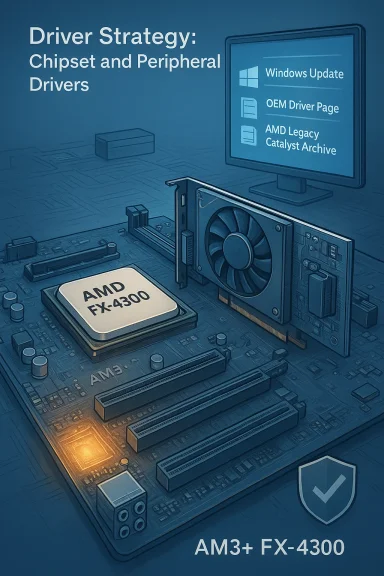
That hardware reality defines the driver strategy: update the chipset and peripheral drivers to keep the CPU and motherboard functioning optimally (SATA/NVMe, USB, SMBus, PCI, power management), and update the graphics drivers only for your discrete GPU (or the OEM‑supplied package for hybrid systems). Community practice and vendor guidance consistently rank safe download sources in this order: Windows Update (Microsoft‑signed drivers), your OEM / motherboard vendor support page, and, if needed, AMD’s official archives or modern Adrenalin/Catalyst packages — with a cautionary “only if you know what youC older cards.
If you want, copy the checklist below into a Notepad file before you start:
Source: Born2Invest https://born2invest.com/?b=style-231991112/
 Background / Overview
The AMD FX‑4300 (FD4300WMHKBOX) is a 4‑core desktop CPU from AMD’s Vishera family, launched in 2012 and built for the AM3+ socket. It runs at 3.8 GHz with Turbo up to 4.0 GHz and a 95 W TDP. Crucially for the driver conversation, the FX‑4300 does not include an integrated GPU — that means display/graphics driver responsibilities fall to a discrete video card or to the motherboard’s chipset if the board has video outputs supported by a separate integrated graphics solution. Detailed published specs confirm the FX‑4300’s socket, clocks, and the absence of an iGPU. That hardware reality defines the driver strategy: update the chipset and peripheral drivers to keep the CPU and motherboard functioning optimally (SATA/NVMe, USB, SMBus, PCI, power management), and update the graphics drivers only for your discrete GPU (or the OEM‑supplied package for hybrid systems). Community practice and vendor guidance consistently rank safe download sources in this order: Windows Update (Microsoft‑signed drivers), your OEM / motherboard vendor support page, and, if needed, AMD’s official archives or modern Adrenalin/Catalyst packages — with a cautionary “only if you know what youC older cards.
What the FX‑4300 is — and what it isn’t
Core facts (verified)
- Processor: AMD FX‑4300 (part numbers: FD4300WMW4MHK, FD4300WMHKBOX). Released Q4 2012; Vishera microarchitecture; AM3+ socket.
- Frequency: 3.8 GHz base, up to 4.0 GHz Turbo.
- Cores / Threads: 4 cores, 4 threads (no SMT/Hyper‑Threading).
- Integrated Graphics: None — display drivers are for a discrete GPU or OEM graphics solution, not for the FX‑4300 itself.
Why “best driver” is contextual
“Best” depends on goals:- If you want stability and security on a daily‑use Windows 10 machine, prefer the Microsoft‑signed driver offered through Windows Update. It’s the loweeeps kernel integrity and minimizes unsigned binaries.
- If you need feature parity (legacy Catalyst Control Center features or specific hardware acceleration absent from the Microsoft driver), a manufacturer/OEM package tuned to your board is the next best choice. OEM packages can include vendor fixes for hybrid systems, hotkeys, or power‑management hooks.
- For advanced restorations on older GPUs (HD‑2000 to HD‑7000 era), an archived AMD Catalyst package may be necessary — but this is an advanced operation requiring DDU cleanup, INF verification, and a tolerance for unsigne on modern Windows 10 builds. Community guides strongly caution against repackaged installers from untrusted sources.
Where to get the drivers (ranked by safety)
- Windows Update / Microsoft Update — first cnd a signed driver catalog. Test it, and stop if it works for your needs.
- OEM / Motherboard vendor (ASUS, Gigabyte, MSI, ASRock, Dell, HP, Lenovo) — best for vendor‑specific integrations (especially laptops or branded desktops). Use exact model and revision numbers printed on the system.
- AMD official site — for archived Catalyst packages and modern Adrenalin installers. Use the official AMD download pages and release notes to confirm OS compatibility. For chipset drivers, AMD’s “Chipset” / Ryzen‑chipset pages list supported drivers and package contents.
- Microsoft Update Catalog — useful when you need a specific signed INF or to confirm a catalog version. This is a lower‑risk manual route than third‑party driver bundles.
- Community archives and specialized forums — can be a last resort for rare legacy drivers, but always verify checksums and signatures. Many community threads document repackaged installers that modifiedgned components — a high‑risk approach for production machines.
A practical, safe workflow — step by step
Follow this numbered checklist before you touch drivers. It’s the workflow that experienced community members and vendor notes converge on.- Inventory and backup
- Record your revision (sticker on the board or run System Information / msinfo32).
- Record your discrete GPU model (Device Manager → Display adapters).
- Make a full disk image or at least create a Windows System Restore point. Driver changes can leave a machine unbootable; a rollback plan is essential.
- Try Windows Update first (recommenUpdate & Security → Windows Update → Check for updates → View optional updates → Driver updates.
- If a Microsoft‑signed display or chipset driver appears, install and validate basic functionality (resolution, multi‑monitor, video playback). If it satisfies your neeOEM / motherboard vendor downloads
- If Windows Update is not sufficient, use the exact model on the vendor’s support site. OEM packages are tuned to your hardware’s quirks (hybrid graphics, vendor BIOS interactions). Install the vendor package and test.
- Prepare a clea must use legacy or archived drivers
- Boot to Safe Mode and run Display Driver Uninstaller (DDU) to remove residual ATI/AMD or NVIDIA driver traces. Community experience shows DDU reduces partial installs drastically. Keep DDU logs.
- Use AMD official archives for legacy Catalyst installs (advanced only)
- Download the AMD archive/Catalyst package from AMD if you have a legacy Radeon family needing specific features.
- Extract the package and open the extracted Display.Driver*.inf. Search for your device’s PCI hardware ID (Device Manager → Display adapters → Properties → Details → Hardware Ids — copy the PCI\VEN_1002&DEV_xxxx string).
- If the INF lists your hardware ID, you can do Devicver → Browse my computer → Let me pick from a list → Have Disk… → point to the extracted INF and install only the display driver. If the INF lacks your ID, stop — do not edit the INF unless you can re‑sign drivers.
- Paile validating manual installs
- Windows Update can automatically revert a manual driver to the Microsoft catalog. Pause it during testing and re‑enable after the driver is confirmed stable.
- Validate and keep a rollback plan
- Confirm Device Manager shows the intended driver (not “Microsoft Basic t video playback and any vendor utilities, and keep the downloaded installer and checksums. If problems arise, use Device Manager → Roll Back Driver or restore your image.
Troubleshooting: common failure modes and fixes
- Installer aborts with “This device is not supported”
- Cause: the d your VID/PID.
- Fix: Use Windows Update or the OEM package. Editing INFs without re‑signing is risky and not recommended for production systems.
- Catalyst GUI appears but Device Manager still shows Microsoft Basic Display Adapter
- Cause: partial install or leftover dr Fix: Boot to Safe Mode, run DDU, then reattempt the correct driver install. DDU is widely reported to clear persistent residue.
- Installer asks to disable driver signature enforcement
- Cause: the package is unsigned for your OS or uses legacy signing.
- Fix: Only use temporary test mode on a disposable system. Do *noe signature enforcement on a production or internet‑connected machine. Re‑enable enforcement after testing.
- Windows Update keeps replacing your manual driver
- Fix: Pause Windows Update while validating the manual install; once stable, pecific driver update or resume updates and accept the Microsoft driver for stability.
Chipset drivers for AM3+ and FX series — what to expect
AMD’s modern “Ryzen Chipset” driver pages document recent package contents and supported chipsets (AM4/AM5 era). For legacy AM3+/900/800/700 series motherboards, driver support is largely the responsibility of the motherboard vendor (ASUS, MSI, Gigabyte, ASRock) who maintain SATA / LAN / audio INF packages for Windows 10 where possible. AMD’s newer chipset packages target Ryzen platforms and list Windows 10/11 support for contemporary chipsets; they aren’t direct drop‑ins for AM3+ boards. In short: use your motherboard vendor for AM3+ chipset and peripheral drivers; AMD’s modern chipset bundles are for Ryzen/AM4/AM5 systems.Graphics drivers — discrete GPU considerations
Because the FX‑4300 lacks an iGPU, graphics drivers are purely a function of your discrete GPU:- For AMD Radeon cards, prefer AMD Software: Adrenalin Edition where supported; for legacy Radeon HD/R7/R5 series, AMD’s Catalyst archives may be the only route. Always pick the package that explicitly lists your GPU and Windows 10 in the release notes.
- For NVIDIA cards, use the official NVIDIA GeForce driver pages and choose the Windows 10 WHQL driver matching your GPU series.
- If your system is an OEM laptop/desktop with “switchable graphics” or vendor‑specific firmware, prefer the OEM driver package.
Security, lifecycle, and long‑term considerations
- Windows 10 reached End‑of‑Support milestones that affect the ecosystem: Microsoft formally ended mainstream support for Windows 10 on October 14, 2025. That increases long‑term risk because vendors may stop explicitly testing and listing Windows 10 in newer driver release notes. This does not automatically make existing drivers incompatible, bure updates and greater exposure over time. Plan upgrades or mitigations when security matters.
- Kernel‑level drivers are a privileged attack surface. Installing unsigned or repackaged drivers, or permanently disabling signature enforcement, increases risk of and system compromise. Prefer Microsoft‑signed or vendor‑signed packages.
- Legacy hardware is increasingly a maintenance liability. If you rely on an AM3+ system for critical tasks, evaluate whether a modest hardware refresh would be a safer and ultimately cheaper solution than ongoing driver triage. Community consensus often points to repl long‑term plan when stability and security matter.
Practical recommendations — quick checklist (best practice)
- If you want the least headaches: install Windows Update’s drite desktop and video playback.
- If you need vendor features: download the OEM/motherboard driver package matched to your *exact model and boarand test.
- If you must use a legacy Catalyst package: back up, run DDU, verify INF contains your hardware ID, use Device Manager → Have Disk install, pause Windows Update while testing, and accept the risk of brittle behavior on modern builds.
Notes about “Top Sellers” listings and marketplace ads
You referenced a “Top Sellers” listing and a particular boxed SKU (FD4300WMHKBOX). While the boxed SKU is a real part number for retail FX‑4300 CPUs, marketplace listings claiming “best drivers included” or “Windows 10 optimized” should be treated cautiously. Driver bundles attached to marketplace downloads are frequently unverified; always prefer downloads from Microsoft, AMD, or your OEM. Claims on third‑party product pages about bundled driver packages are often unverifiable without clear checksums and provenance — treat them as unverified and avoid using any bundled executables unless you can validate the package signature.Final verdict means for an AMD FX‑4300 Windows 10 system
- For daily use, the best driver choice prioritizes security and stability: accept Microsoft’s signed driver via Windows Update, then update OEM/motherboard packages as needed for device‑specific features.
- For advanced fixes or to restore legacy GParchived AMD Catalyst packages can sometimes be made to work on Windows 10 — but that path is for experienced users only and requires careful INF checks, DDU cleanup, and an acceptance of the long‑term maintenance burden.
- Given the FX‑4300’s age and the Windows 10 ecosystem changes, weigh the cost of continued driver maintenance against a modest hardware refresh. For many users the most reliable and lowest‑risk solution is to standardize on Microsoft‑signed drivers and plan upgrades for security reasons.
If you want, copy the checklist below into a Notepad file before you start:
- Snapshot Syste a full disk image.
- Note motherboard model and GPU model exactly.
- Try Windows Update first.
- If Windows Update is insufficient, grab the OEM/motherboard driver package.
- If you must use archived AMD Catalyst, back up, DDU in Safe Mode, extract the package, verify the INF lists your hardware ID, and install via Device Manager → Have Disk.
- Pause Windows Update during manual installs and re‑enable only after validation.
Source: Born2Invest https://born2invest.com/?b=style-231991112/
