

The AMD Radeon HD 6620G can be made to run on Windows 10, but getting there safely and reliably requires more caution than a quick “cheap driver” download promises; this article walks you through the realistic paths, explains the risks (especially for retro/CRT use with CRT Emudriver), and gives a conservative, tested workflow so you can decide whether to patch your legacy APU or buy a small discrete card instead.
The Radeon HD 6620G is an integrated mobile GPU from AMD’s early-2010s A‑series APUs (Sumo family, TeraScale 2). It was designed for basic desktop tasks, multimedia playback, and light gaming for its generation, and it supports DirectX 11 class features—but it’s a legacy part today. Official modern feature development for this family ended long ago, which shapes every practical decision about drivers and stability.
That legacy classification has two immediate consequences. First, the safest, most reliable driver most Windows 10 users will see is the Microsoft-supplied, signed fallback delivered via Windows Update or the Microsoft Update Catalog. Second, if you need specialized capabilities—for example, CRT analog timing control for retro displays via CRT Emudriver—you will likely need archived AMD packages or community-modified drivers that trade convenience and signing for low‑level function. Both paths are viable, but they carry different risk profiles.
Important caveats:
If you decide to proceed with Emudriver and archived AMD packages, treat the process as a controlled experiment: document your hardware ID, create full backups, verify INF entries, use DDU to obtain a clean state, and test on a non-essential machine. If any download lacks clear vendor provenance or signatures, walk away—cheap drivers are rarely cheaper in the long run.
Make your choice deliberately: either keep the legacy APU on Windows 10 with conservative, signed drivers, or invest a small amount in cleaner hardware that gives you the capability you want without compromising kernel integrity.
Source: Born2Invest https://born2invest.com/?b=style-237454412/
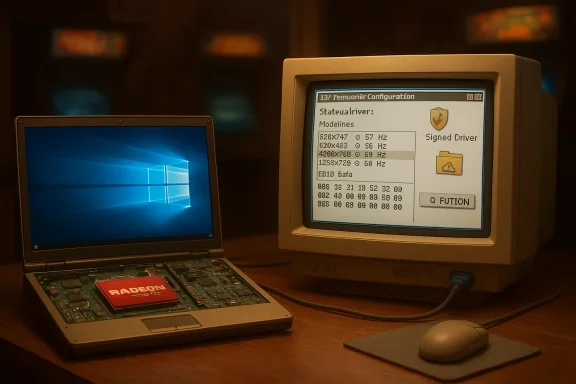 Background / Overview
The Radeon HD 6620G is an integrated mobile GPU from AMD’s early-2010s A‑series APUs (Sumo family, TeraScale 2). It was designed for basic desktop tasks, multimedia playback, and light gaming for its generation, and it supports DirectX 11 class features—but it’s a legacy part today. Official modern feature development for this family ended long ago, which shapes every practical decision about drivers and stability.That legacy classification has two immediate consequences. First, the safest, most reliable driver most Windows 10 users will see is the Microsoft-supplied, signed fallback delivered via Windows Update or the Microsoft Update Catalog. Second, if you need specialized capabilities—for example, CRT analog timing control for retro displays via CRT Emudriver—you will likely need archived AMD packages or community-modified drivers that trade convenience and signing for low‑level function. Both paths are viable, but they carry different risk profiles.
Why “cheap driver” downloads are a trap
There are many websites and marketplaces that advertise “cheap” or “universal” drivers. For kernel-mode components like GPU drivers, provenance matters more than price. The recurring hazards with non‑vendor downloads include:- Kernel-level risk from unsigned or tampered binaries that run with high privilege.
- Repackaged installers that edit Display.Driver*.inf to force installs, breaking signatures and potentially hiding malicious code.
- Bundled PUPs, adware, or telemetry that arrive with “convenience” packages.
- Broken installer metadata with no SHA‑256 checksums or digital signatures, making verification impossible.
The safe, prioritized driver hierarchy (what to try first)
If your goal is a stable Windows 10 desktop with working video playback and basic acceleration, follow this order:- Windows Update / Microsoft Update Catalog — Microsoft-signed drivers are the lowest-risk option and often sufficient for everyday tasks on legacy GPUs.
- PC OEM support page — For branded laptops, the vendor-supplied package may include hybrid-graphics support, power/tuning utilities, and hotkey integrations. These are particularly important for laptops.
- AMD legacy / archived driver packages — Use official AMD archives (Catalyst / Adrenalin legacy builds) if you need vendor features or want to experiment with community tooling like CRT Emudriver. Only advanced users should go here.
- Reputable archives (secondary) — TechPowerUp, Guru3D, and similar archives can be useful for historical packages, but verify digital signatures and checksums. Avoid torrents, torrents-adjacent mirrors, or “driver shops.”
CRT Emudriver and the HD 6620G: what’s possible, and what’s risky
CRT Emudriver is a community project that repackages or modifies AMD/ATI drivers so GPUs expose very low dotclock video modes and fine timing control for analog CRT and professional displays. For hobbyists building arcade cabinets or driving retro CRTs, Emudriver is often the only practical route to authentic analog timings on modern Windows machines. The HD 6620G appears in community compatibility lists as a possible Emudriver target because it’s part of the HD 6000/6000G families, but success is highly dependent on choosing the correct driver build and following a careful install procedure.Important caveats:
- Many Emudriver builds are distributed as modified, non-stock installers. They can require test-signing, disabled kernel isolation, or other mitigations that reduce system security.
- Windows 11 enforces stricter signing and kernel isolation rules; Windows 10 x64 is generally the most straightforward host OS for Emudriver workflows. If your machine needs to remain secure or handles sensitive work, Emudriver-style modifications are not recommended.
Recommended conservative workflow: how to safely update or install a driver for HD 6620G on Windows 10
Follow this step-by-step plan. Stop as soon as you hit acceptable functionality.Preparation (do this first)
- Record your GPU hardware ID: Device Manager → Display adapters → right‑click → Properties → Details → Hardware Ids. Copy the PCI\VEN_1002&DEV_xxxx string to a text file. This is essential for INF verification.
- Create a System Restore point and, if possible, a full disk image. Driver changes to the display stack can leave systems difficult to recover without a backup.
- Archive your current, working driver installer on removable media so you can restore it quickly if needed.
Step A — Try the safest option first
- Run Windows Update → View optional updates → Driver updates. If a Microsoft-signed driver for the HD 6620G is offered, install it and validate desktop resolution, multi-monitor behavior, and video playback. This is the lowest-risk path.
Step B — OEM driver (preferred for laptops)
- If you have a branded laptop, check the OEM support page for a Windows 10 driver. Vendor packages often include platform-specific fixes (hotkeys, power management) and are safer for portable systems.
Step C — Clean the display stack (when switching installers)
- If you must move from a Microsoft/OEM driver to an archived AMD or Emudriver package, use Display Driver Uninstaller (DDU) in Safe Mode to remove residual AMD/ATI driver files and registry keys. A clean state significantly reduces partial install failures.
Step D — Verify INF before manual installs
- Extract the archived AMD package (many installers self-extract). Open Display.Driver.inf and search for your recorded hardware ID. If the INF lists your VID/PID, a manual “Have Disk” install is possible. If it does not, do not* edit the INF unless you fully understand driver signing, re-signing, and TestSigning implications.
Step E — Manual install (advanced)
- Device Manager → Update driver → Browse my computer → Let me pick → Have Disk → point to the extracted Display.Driver*.inf. Install only the display driver component if you’re unsure about runtimes. Reboot and validate basic desktop functions. If Windows Update tries to revert the install, pause updates while you test.
Step F — Emudriver install (only on sacrificial or non-critical systems)
- Choose an Emudriver build that explicitly maps to your GPU family and Windows version. Install the modified driver package and then use VMMaker and Arcade OSD to generate and apply modelines/EDIDs. Test with a sacrificial CRT or non-critical monitor first. Expect to need manual tuning. Do not deploy this on a production or security-critical machine.
Step G — Restoring Vulkan/DX runtimes (community workaround)
- Some Emudriver builds lack modern Vulkan or DirectX runtime files. Community practice is to extract these runtime DLLs from a newer official AMD package and copy them into the Emudriver package before installation. This is a pragmatic but unsupported technique that will reduce driver integrity and increase security risk. Flag it as advanced and optional.
Troubleshooting common failures and fixes
- Installer aborts with “This device is not supported”: the INF doesn’t include your VID/PID. Fix: use OEM or Microsoft drivers or find an Emudriver package that lists your hardware ID. Do not edit the INF unless you know how to properly re-sign the driver.
- Device Manager shows “Microsoft Basic Display Adapter” after an Adrenalin/Catalyst install: this indicates a partial or failed install. Boot to Safe Mode and run DDU, then retry a clean manual INF install.
- VMMaker reports “No compatible driver found”: try alternative Emudriver builds or re-check that the Emudriver package explicitly supports your GPU family. Some community builds use older Catalyst branches while others start from later Adrenalin packages—mix-and-match trials are common.
- Vulkan or emulator compatibility issues: copy Vulkan/OpenGL runtime DLLs from a newer official AMD driver into the Emudriver package as a pragmatic workaround. Understand the trade-offs—unsigned changes and TestSigning warnings may be required.
Security and operational risks — what to accept upfront
Installing archived or modified drivers can affect kernel integrity and system security. Key risks include:- Driver signing and Secure Boot implications: some archival or modified drivers lack modern signing metadata and may require disabling Secure Boot or enabling TestSigning—both reduce system security.
- Kernel isolation and Windows 11 enforcement: Windows 11’s stricter protections can block Emudriver or unsigned components unless mitigations are applied. For the smoothest Emudriver experience, Windows 10 x64 is the safer host.
- No ongoing security updates: legacy drivers will not receive vendor security fixes or performance patches. If the machine is used for sensitive work, plan a fallback or consider hardware replacement.
Alternatives and mitigation strategies
If the Emudriver + HD 6620G path is too risky or cumbersome, consider these practical alternatives:- Use a discrete legacy AMD card known to be Emudriver-friendly (many HD 5000–7000 and some early R7/R9 cards are common choices). Discrete cards are usually easier to match with a compatible Emudriver package and often have cleaner INF support.
- Use an active HDMI-to-VGA converter or external scaler that supports low dotclock modes. This can work for some retro setups, but it rarely matches the signal authenticity of a native analog output.
- For full-time retro rigs or arcade cabinets, consider Linux-based CRT tooling (community retro OS images or scripts) where the toolchains may be maintained more actively than Windows Emudriver builds. Some maintainers prefer these as lower-maintenance options.
Practical checklist before you begin (copyable)
- Backup: full disk image + System Restore point.
- Record: Device Manager → Hardware Ids (PCI\VEN_1002&DEV_xxxx).
- Download and verify: OEM driver (if available), Microsoft Update Catalog driver, AMD archived driver(s) you intend to test, CRT Emudriver package (if needed), DDU, VMMaker & Arcade OSD. Verify digital signatures and checksums where possible.
- Clean install: use DDU in Safe Mode before moving drivers.
- Verify INF: ensure the extracted Display.Driver*.inf contains your hardware ID before manual install.
- Test on a non-critical machine or with a rollback image ready.
How to spot a dangerous driver package immediately
Before you click Install, check for these red flags:- No digital signature in file properties or an unexpected signer name.
- No SHA‑256 or SHA‑1 checksum listed on the download page.
- Installer filename that does not match AMD’s naming conventions and lacks vendor metadata.
- The download site is a marketplace ad, content farm, or lacks clear vendor provenance. Avoid these.
Final recommendations and decision framework
- If you need a stable Windows 10 desktop for daily work: use Windows Update or your OEM driver and stop. You’ll get the safest, signed driver and avoid headaches.
- If you want authentic CRT timings for retro gaming and you’re comfortable with risk: prepare a recovery image, test on a non-critical machine, and follow the DDU → INF verification → Emudriver workflow. Be ready to accept security trade-offs and driver-signing mitigations.
- If you’re primarily worried about security or manage critical workloads: skip Emudriver, skip bargain driver shops, and either use a small discrete GPU or modern hardware that supports your display goals without unsigned drivers.
Conclusion
The short truth: the AMD Radeon HD 6620G can be coaxed into modern Windows 10 service, but the path you choose must match your tolerance for risk and your functional needs. For most users, the Microsoft-signed fallback or the OEM package delivers the best balance of safety and functionality. For CRT and retro enthusiasts, CRT Emudriver unlocks authentic analog timing—but only at the cost of added complexity, unsigned or modified drivers, and a meaningful reduction in system security unless you keep the work confined to a sacrificial machine.If you decide to proceed with Emudriver and archived AMD packages, treat the process as a controlled experiment: document your hardware ID, create full backups, verify INF entries, use DDU to obtain a clean state, and test on a non-essential machine. If any download lacks clear vendor provenance or signatures, walk away—cheap drivers are rarely cheaper in the long run.
Make your choice deliberately: either keep the legacy APU on Windows 10 with conservative, signed drivers, or invest a small amount in cleaner hardware that gives you the capability you want without compromising kernel integrity.
Source: Born2Invest https://born2invest.com/?b=style-237454412/
