

ERR_CONNECTION_RESET is one of the more confusing browser errors because it looks like a website failure, yet the actual cause may sit anywhere between the browser, Windows networking stack, router, VPN, security software, ISP, or the website’s own server. In plain terms, the browser began communicating with a server and the connection was forcibly terminated before the requested page could finish loading.
In Chrome and Microsoft Edge, the message typically appears as “This site can’t be reached” with
The important point is that this is not normally a sign that a password, payment, or private browsing data was exposed. It is a connectivity problem. The goal is to determine which device or service sent—or caused—the reset.
Modern web browsing relies on TCP connections. Before a browser can load a site, it opens a connection to the site’s server, negotiates encryption for HTTPS, and then exchanges data.
A normal connection ends gracefully. An
That reset can be generated by:
Press Ctrl + R to refresh the page. If it still fails, wait briefly and retry. Then open a private browser session:
A useful isolation test is to try the same site:
In Google Chrome:
Disable all extensions temporarily, then reload the affected website.
For Chrome, open:
Then select Restore settings to their original defaults.
For Edge, open:
Then choose the equivalent restore option.
A browser reset typically disables extensions and restores configuration defaults, but it does not remove bookmarks or saved passwords.
Open the browser’s About page and install any available update:
Fully disconnect from any VPN app, including its browser extension, then test the website. If the page works without the VPN, try another VPN server or protocol rather than leaving all protection disabled indefinitely.
To check Windows proxy settings:
Open Command Prompt as Administrator, then run:
Restart Windows when the commands finish.
This is a sensible repair step when the issue affects many websites, several browsers, or multiple Windows apps. It is less likely to help when only one website fails everywhere.
Common IPv4 DNS choices include:
To change DNS on Windows:
Do not leave the Windows firewall or antivirus disabled as a permanent solution.
Instead:
First, inspect the current state:
If auto-tuning has been disabled or changed by old “network optimization” software, restore the normal setting:
Restart the PC and test again.
This is safer than applying an experimental setting without evidence that the current configuration is the problem.
Check the current TCP global configuration first:
If testing strongly suggests a particular ISP, router, or network appliance is mishandling ECN, a temporary diagnostic change can be made:
Restart and test the affected connection. If there is no improvement, restore Windows defaults:
This should not be the first repair attempted. It changes a system-wide network behavior and is best reserved for reproducible, network-specific problems.
Open Device Manager, expand Network adapters, right-click the active adapter, and choose Properties.
Consider the following:
On Windows 11:
Then try:
If DNS seems suspect, add a trusted resolver under the connection’s DNS settings. Renewing the DHCP lease can also help when the local network assigned an invalid route or configuration.
The verbose output helps determine whether the reset occurs during DNS resolution, TCP connection setup, TLS negotiation, HTTP request transmission, or response delivery.
Server logs should be correlated with the precise time a visitor reports the error. A message such as “connection reset by peer” does not automatically prove the server caused the issue; it means the server observed the remote side—or an intermediary—reset the connection.
Keep these habits in place:
For most Windows users, the highest-value sequence is straightforward:
In Chrome and Microsoft Edge, the message typically appears as “This site can’t be reached” with
ERR_CONNECTION_RESET or NET::ERR_CONNECTION_RESET. Firefox may show “The connection was reset” or PR_CONNECT_RESET_ERROR. Safari often uses less specific language about being unable to establish a secure connection.The important point is that this is not normally a sign that a password, payment, or private browsing data was exposed. It is a connectivity problem. The goal is to determine which device or service sent—or caused—the reset.
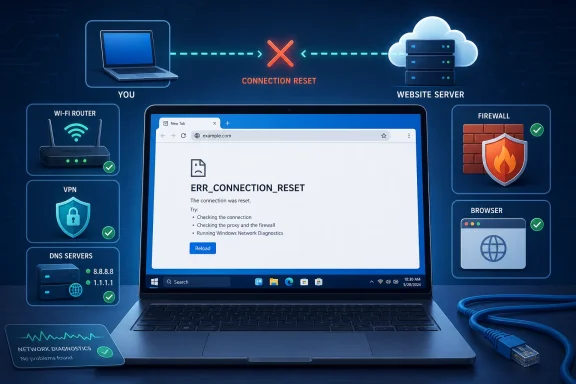 What ERR_CONNECTION_RESET Actually Means
Modern web browsing relies on TCP connections. Before a browser can load a site, it opens a connection to the site’s server, negotiates encryption for HTTPS, and then exchanges data.A normal connection ends gracefully. An
ERR_CONNECTION_RESET failure occurs when the connection is abruptly ended with a TCP reset, commonly called an RST packet.That reset can be generated by:
- A local firewall or antivirus web-protection component
- A VPN, proxy, DNS filter, parental-control tool, or browser extension
- A router or managed network appliance
- An ISP filtering or routing system
- A CDN, load balancer, reverse proxy, or web server
- The remote website’s application or hosting environment
ERR_CONNECTION_TIMED_OUT means the browser did not receive a response in time. ERR_CONNECTION_REFUSED usually means a server actively rejected a request because nothing was accepting connections on that port. A reset means the connection began but was cut off.Start With the Fastest Checks
Before changing Windows settings or resetting your network stack, narrow down the scope of the problem.1. Refresh the Page and Try a Private Window
Temporary server overload, a stale browser request, or a corrupted site session can produce a one-off reset.Press Ctrl + R to refresh the page. If it still fails, wait briefly and retry. Then open a private browser session:
- Chrome or Edge: Press Ctrl + Shift + N
- Firefox: Press Ctrl + Shift + P
- Safari on Mac: Choose File > New Private Window
2. Confirm Whether the Website Is Actually Available
Test another website first. If major sites load normally but one domain consistently fails, avoid immediately resetting your entire PC. The website may be down, may be blocking your IP address, or may have a server-side configuration issue.A useful isolation test is to try the same site:
- On another browser
- On another device using the same Wi-Fi connection
- On a phone using mobile data rather than Wi-Fi
- From a different internet connection
3. Restart the PC and Router
Restarting is not glamorous, but it can clear short-lived routing, DNS, NAT, and memory issues.- Close the browser completely.
- Restart the Windows PC.
- Turn off the modem or router.
- Wait at least 30 seconds.
- Power it back on and wait until the internet connection is restored.
- Test the affected website again.
Browser Fixes That Often Resolve the Error
Browser-level corruption is especially likely when the error affects one website or one browser only.4. Clear Browser Cache and Site Data
Browsers retain cached files, cookies, service-worker data, and local storage to make websites load faster. Occasionally, that stored information becomes outdated or corrupted.In Google Chrome:
- Open the three-dot menu.
- Select Delete browsing data.
- Set the time range to All time.
- Select Cookies and other site data and Cached images and files.
- Select Delete data.
- Open Settings.
- Select Privacy, search, and services.
- Under Clear browsing data, choose Choose what to clear.
- Select an appropriate time range, ideally All time for persistent issues.
- Clear cookies and cached files.
- Open Settings.
- Choose Privacy & Security.
- Under Cookies and Site Data, select Clear Data.
- Clear both cookies/site data and cached web content.
5. Disable Browser Extensions
Extensions can intercept traffic. Ad blockers, privacy tools, VPN extensions, security filters, download managers, and script blockers are particularly likely to interfere with page requests.Disable all extensions temporarily, then reload the affected website.
- Chrome:
chrome://extensions - Edge:
edge://extensions - Firefox: Open the extensions manager from the menu
- Safari: Open Safari > Settings > Extensions
6. Reset Chrome or Edge Settings
A browser reset is useful when extensions, search settings, proxy behavior, startup configuration, or other settings have been changed unexpectedly.For Chrome, open:
chrome://settings/resetThen select Restore settings to their original defaults.
For Edge, open:
edge://settings/resetThen choose the equivalent restore option.
A browser reset typically disables extensions and restores configuration defaults, but it does not remove bookmarks or saved passwords.
7. Update the Browser
An outdated browser can fail to negotiate with websites that have changed TLS, HTTP/2, HTTP/3, certificate, or security settings.Open the browser’s About page and install any available update:
- Chrome:
chrome://settings/help - Edge:
edge://settings/help - Firefox: Menu > Help > About Firefox
Windows Network Fixes
WhenERR_CONNECTION_RESET affects multiple browsers or websites, the problem may involve DNS, Winsock, TCP/IP, a proxy configuration, or network adapter behavior.8. Disable VPN and Proxy Connections Temporarily
A VPN can help when an ISP route or regional block is responsible, but it can also cause resets when its exit server is overloaded, blocked, misconfigured, or unstable.Fully disconnect from any VPN app, including its browser extension, then test the website. If the page works without the VPN, try another VPN server or protocol rather than leaving all protection disabled indefinitely.
To check Windows proxy settings:
- Press Win + R.
- Type
inetcpl.cpland press Enter. - Open the Connections tab.
- Select LAN settings.
- Clear Use a proxy server for your LAN unless a work, school, or network administrator requires it.
- Leave Automatically detect settings enabled in most home-network scenarios.
- Restart the browser.
9. Flush DNS and Reset Winsock and TCP/IP
DNS resolves domain names into IP addresses. Winsock provides a key Windows interface for application networking, while TCP/IP supplies the core networking configuration. If those layers have become corrupted or were altered by software, resetting them can restore normal connectivity.Open Command Prompt as Administrator, then run:
Code:
netsh winsock reset
netsh int ip reset resetlog.txt
ipconfig /release
ipconfig /renew
ipconfig /flushdnsThis is a sensible repair step when the issue affects many websites, several browsers, or multiple Windows apps. It is less likely to help when only one website fails everywhere.
10. Change the DNS Server
Your ISP’s DNS servers may be slow, unreliable, or returning incorrect cached records. Switching to a reputable public DNS resolver can improve lookup reliability, although it cannot fix a server that is genuinely offline.Common IPv4 DNS choices include:
| Provider | Primary DNS | Secondary DNS |
|---|---|---|
| Google Public DNS | 8.8.8.8 | 8.8.4.4 |
| Cloudflare | 1.1.1.1 | 1.0.0.1 |
| OpenDNS | 208.67.222.222 | 208.67.220.220 |
- Press Win + R.
- Type
ncpa.cpland press Enter. - Right-click the active Ethernet or Wi-Fi connection.
- Choose Properties.
- Select Internet Protocol Version 4 (TCP/IPv4).
- Choose Properties.
- Select Use the following DNS server addresses.
- Enter the preferred and alternate addresses.
- Select OK, then restart the browser.
11. Check Windows Firewall and Antivirus Web Protection
Security software can block traffic when it detects suspicious behavior, a problematic certificate chain, a reputation issue, or a site category restricted by policy. Antivirus products may include HTTPS scanning, web shields, encrypted-traffic inspection, and firewall modules that sit directly in the path of browser traffic.Do not leave the Windows firewall or antivirus disabled as a permanent solution.
Instead:
- Open the antivirus or firewall dashboard.
- Locate web protection, HTTPS scanning, firewall logs, or blocked-sites history.
- Check whether the affected website or browser connection was blocked.
- Temporarily pause the relevant web filter module only long enough to test.
- Re-enable it immediately.
- If that confirms the cause, update the security software or add a narrowly scoped exception only when the site is trusted.
Advanced Windows Repairs for Persistent Resets
The following steps are useful only after basic browser, DNS, VPN, and network-stack checks have failed.12. Restore TCP Auto-Tuning to Normal
Windows uses receive-window auto-tuning to optimize TCP performance. Some older guides recommend setting it to experimental mode, but experimental is not a universal fix and should not be the default choice for home PCs.First, inspect the current state:
netsh interface tcp show globalIf auto-tuning has been disabled or changed by old “network optimization” software, restore the normal setting:
netsh interface tcp set global autotuninglevel=normalRestart the PC and test again.
This is safer than applying an experimental setting without evidence that the current configuration is the problem.
13. Review ECN Only When a Specific Network Is Suspect
Explicit Congestion Notification, or ECN, is a TCP capability intended to help networks signal congestion without dropping packets. Most modern networks handle it correctly. However, poorly configured legacy equipment can occasionally interfere with ECN-capable traffic.Check the current TCP global configuration first:
netsh interface tcp show globalIf testing strongly suggests a particular ISP, router, or network appliance is mishandling ECN, a temporary diagnostic change can be made:
netsh interface tcp set global ecncapability=disabledRestart and test the affected connection. If there is no improvement, restore Windows defaults:
netsh interface tcp set global ecncapability=defaultThis should not be the first repair attempted. It changes a system-wide network behavior and is best reserved for reproducible, network-specific problems.
14. Check Network Adapter Drivers and Power Settings
A buggy Wi-Fi or Ethernet driver can cause random packet loss, dropped connections, and resets. This is especially common after major Windows upgrades, driver updates, docking-station changes, or a switch between Wi-Fi and Ethernet adapters.Open Device Manager, expand Network adapters, right-click the active adapter, and choose Properties.
Consider the following:
- Install the latest driver from Windows Update or the PC/network-adapter manufacturer.
- Avoid using generic drivers if the manufacturer provides a newer stable driver.
- Under Power Management, test whether clearing Allow the computer to turn off this device to save power improves stability.
- Remove old virtual adapters left behind by unused VPN, virtual-machine, or packet-capture software.
15. Reset Windows Network Settings
Windows Network Reset removes and reinstalls network adapters and returns many networking components to their defaults. It is a strong last-resort fix for stubborn client-side failures.On Windows 11:
- Open Settings.
- Go to Network & internet.
- Select Advanced network settings.
- Choose Network reset.
- Select Reset now.
Mobile, Mac, and Chromebook Fixes
ERR_CONNECTION_RESET is not exclusive to Windows. The same underlying causes—browser data, network filtering, DNS, VPNs, and unstable Wi-Fi—apply across platforms.Android
Start by switching between Wi-Fi and mobile data. If the site loads on mobile data but not Wi-Fi, focus on the router, DNS settings, or ISP path.Then try:
- Open Settings > Apps > Chrome > Storage.
- Select Clear cache.
- Disable any VPN or ad-blocking DNS app temporarily.
- Check Private DNS under network settings.
- Reset Wi-Fi, mobile, and Bluetooth settings if the problem is widespread.
iPhone and iPad
For Safari-related resets:- Open Settings > Safari.
- Select Clear History and Website Data.
- Disable a connected VPN under Settings > General > VPN & Device Management.
- Verify Date & Time is set automatically.
- Use Reset Network Settings only after less disruptive steps fail.
Mac
On macOS, disconnect VPN and proxy services first. Then review the active network connection under System Settings > Network.If DNS seems suspect, add a trusted resolver under the connection’s DNS settings. Renewing the DHCP lease can also help when the local network assigned an invalid route or configuration.
Chromebook
Test in an Incognito window, disable extensions, and reset Chrome settings. If the issue persists on every network and with every website, a Chromebook Powerwash may be considered only after files have been synchronized or backed up.When the Website or Server Is the Problem
If many people report the same failure, or the problem occurs across separate networks and devices, the website owner must investigate.Common Server-Side Causes
Website administrators should check:- Reverse-proxy and web-server error logs
- CDN and web-application-firewall events
- Firewall rules and connection-rate limits
- TLS certificate validity and hostname coverage
- Load-balancer health checks and backend server availability
- Application crashes, worker exhaustion, and upstream timeout behavior
- IPv4 and IPv6 routing consistency
- MTU mismatches on VPN tunnels, cloud networks, or container hosts
Useful Tests for Administrators
From a separate network, administrators can use:curl -v [Example Domain](https://example.com)The verbose output helps determine whether the reset occurs during DNS resolution, TCP connection setup, TLS negotiation, HTTP request transmission, or response delivery.
Server logs should be correlated with the precise time a visitor reports the error. A message such as “connection reset by peer” does not automatically prove the server caused the issue; it means the server observed the remote side—or an intermediary—reset the connection.
How to Prevent ERR_CONNECTION_RESET From Returning
Most connection resets are isolated events, but recurring failures deserve maintenance rather than repeated trial and error.Keep these habits in place:
- Keep Windows, browsers, router firmware, and network adapter drivers updated.
- Avoid stacking multiple VPNs, proxies, DNS filters, browser VPN extensions, and antivirus web shields.
- Remove extensions that are no longer needed.
- Use a reliable DNS provider if ISP DNS has caused recurring resolution issues.
- Restart home networking equipment occasionally, especially after a power outage or service interruption.
- Review router parental-control, threat-protection, and content-filtering features when specific sites fail.
- Keep firewall and antivirus protection enabled, using targeted exceptions rather than permanent disabling.
- Document any advanced
netshchanges so they can be reversed later.
The Practical Bottom Line
The best way to fixERR_CONNECTION_RESET is not to apply every command or disable every security feature at once. Start by identifying the scope: one browser, one device, one network, or every connection.For most Windows users, the highest-value sequence is straightforward:
- Reload the site and test in a private window.
- Check whether the site works on another network.
- Restart the browser, PC, and router.
- Clear browser data and disable extensions.
- Disconnect VPN or proxy services.
- Flush DNS and reset Winsock/TCP-IP if several sites are affected.
- Review security software, drivers, and advanced Windows networking only if the basic steps fail.
References
- Primary source: Techshali
Published: 2026-07-23T06:32:25+00:00
Fix ERR_CONNECTION_RESET: 15+ Solutions (2026 Guide)
Fix ERR_CONNECTION_RESET by flushing DNS, disabling VPN, or resetting TCP/IP. 15+ solutions for Windows, Mac, Android, and server-side.techshali.com