

Eusing Free File Recovery 2.1.0.0 arrives as a compact, click‑friendly front end for Microsoft’s command‑line recovery engine, promising to make “recover deleted files” a simpler, less technical process for Windows 10 and Windows 11 users.
Eusing Free File Recovery is a lightweight Windows utility that wraps Microsoft’s official Windows File Recovery command‑line tool in a graphical user interface (GUI). The publisher frames the product as a way to let less technical users run the same underlying recovery routines without writing CMD commands or memorizing winfr syntax. The vendor’s feature list and online help state the app supports Quick (regular) and Deep (extensive/signature) scans, works with NTFS/FAT/exFAT volumes, and can recover a broad range of file types from HDDs, SSDs, USB sticks, and memory cards. These claims are presented as compatibility with Windows 10 and Windows 11 and specifically note TRIM as a limiting factor for SSD recovery. Independent software indexes confirm the current release metadata: version 2.1.0.0 is listed in distribution sites with a notably small footprint — around 1.3 MB for the installer — and there’s also a portable build variant. The small package size aligns with the app’s role as a GUI wrapper rather than a full standalone recovery engine. Microsoft’s official documentation for Windows File Recovery (the underlying engine) makes two practical points that shape how any GUI wrapper must behave: the tool runs from the command line, the source and destination drives must be different, and there are two primary modes — Regular (uses MFT metadata on NTFS) and Extensive (signature/raw scanning for stale or formatted data). The Microsoft docs also stress that minimizing system use after deletion increases recovery success.
Source: Neowin Eusing Free File Recovery 2.1.0.0
 Background / Overview
Eusing Free File Recovery is a lightweight Windows utility that wraps Microsoft’s official Windows File Recovery command‑line tool in a graphical user interface (GUI). The publisher frames the product as a way to let less technical users run the same underlying recovery routines without writing CMD commands or memorizing winfr syntax. The vendor’s feature list and online help state the app supports Quick (regular) and Deep (extensive/signature) scans, works with NTFS/FAT/exFAT volumes, and can recover a broad range of file types from HDDs, SSDs, USB sticks, and memory cards. These claims are presented as compatibility with Windows 10 and Windows 11 and specifically note TRIM as a limiting factor for SSD recovery. Independent software indexes confirm the current release metadata: version 2.1.0.0 is listed in distribution sites with a notably small footprint — around 1.3 MB for the installer — and there’s also a portable build variant. The small package size aligns with the app’s role as a GUI wrapper rather than a full standalone recovery engine. Microsoft’s official documentation for Windows File Recovery (the underlying engine) makes two practical points that shape how any GUI wrapper must behave: the tool runs from the command line, the source and destination drives must be different, and there are two primary modes — Regular (uses MFT metadata on NTFS) and Extensive (signature/raw scanning for stale or formatted data). The Microsoft docs also stress that minimizing system use after deletion increases recovery success. What Eusing Free File Recovery actually adds
A friendly front end for winfr
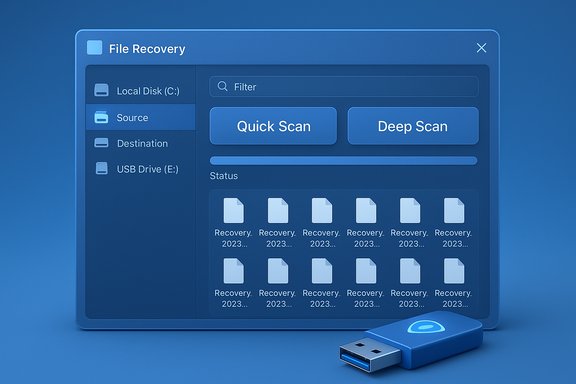
- Graphical drive detection and selection. On launch, the app scans attached storage and presents drives in an Explorer‑like list so users can pick a source and a destination for recovered files.
- Prebuilt scan modes. The two click‑options, Quick Scan and Deep Scan, match Microsoft’s Regular and Extensive modes in concept — Quick for recent deletes on healthy NTFS, Deep for older deletions, formatted volumes, or FAT/exFAT cards.
- Filtering and search. Users can narrow scans by file name, path, type, or wildcards prior to starting the operation.
- Automatic recovery folder. Recovered files are saved into a folder (Recovery_<date and time>) on the chosen destination drive; the program enforces saving to a different physical drive than the source — mirroring Microsoft’s safety requirement.
Why this matters for everyday users
Many users are uncomfortable with command prompts or are intimidated by command syntax. A GUI reduces friction, guides correct choices (for example, by preventing saving to the same drive), and can lower the risk of user error that would further reduce recovery chances. The app’s tiny installer and portable option also make it practical to keep on a USB recovery stick for troubleshooting.Technical verification and cross‑checks
To verify the core claims, three separate checks were performed against vendor documentation and independent listings:- Eusing’s own product page and help files list the GUI features, described recovery modes, and the Windows version/build requirement (Windows 10 build 19041 or later). These internal docs explicitly map Quick/Deep to the Regular/Extensive concepts of Windows File Recovery.
- Microsoft’s Windows File Recovery support page confirms the underlying tool is CLI‑based, requires a different destination drive, and documents the Regular and Extensive modes and file system behavior. That confirms the engine Eusing wraps is an official Microsoft utility and clarifies the real operational constraints users will face.
- Multiple download/index sites list version 2.1.0.0 and small file sizes, corroborating Eusing’s releases and indicating the package is a lightweight wrapper (not a full recovery engine reimplementation). This matches the expected footprint for a GUI wrapper.
Practical workflow: step‑by‑step with Eusing Free File Recovery
- Prepare a destination drive: attach an external HDD/SSD or a USB stick with free space. Do not use the source drive.
- Launch Eusing Free File Recovery — the app lists available drives. Choose the Source (where files were lost) and the Destination (the other drive).
- Pick a scan mode:
- Use Quick Scan first for recent deletions on NTFS.
- Switch to Deep Scan if Quick Scan fails or if recovering from FAT/exFAT or formatted media.
- Add filters if you know filename fragments, extensions, or folders — this gives faster results and reduces noise.
- Start the scan and wait. Deep scans read raw sectors and can take a long time on large drives.
- Preview and recover: select found files and copy them to the destination’s Recovery_<date> folder. Verify integrity before reformatting or reusing the source drive.
Strengths — where Eusing Free File Recovery shines
- Accessibility: A low barrier for novices who need to recover deleted items but don’t want to learn winfr syntax or command prompts.
- Small footprint and portable option: At ~1.3 MB the app is tiny; a portable build makes it easy to include in a technician’s USB toolbox.
- Respects safety basics: The GUI enforces the “destination must be different” rule and creates a dedicated Recovery folder to avoid accidental overwrites.
- Leverages Microsoft’s engine: Because the recovery work relies on Microsoft’s official Windows File Recovery engine, users benefit from a supported recovery core (modes for metadata‑driven and signature scans).
- Quick vs Deep options map to real recovery modes: Users can try a fast pass before committing to lengthy raw scans, improving the overall user experience.
Risks, limits, and important caveats
SSDs and TRIM: the hard reality
The single biggest limitation for modern systems is TRIM. TRIM tells an SSD which LBAs are no longer in use; once the SSD’s controller erases or zero‑fills those blocks, the original data is effectively unrecoverable by software. Multiple data recovery authorities and forensic resources confirm TRIM drastically reduces the odds of success for deleted file recovery on SSDs. In short: on TRIM‑enabled SSDs, recovery may be possible only in a very small time window or via specialized forensic hardware. Eusing’s documentation correctly flags that SSD recovery is limited by TRIM. Important practical guidance:- If the deleted file was on an SSD with TRIM enabled, minimize system use immediately and consider professional recovery services — software tools are unlikely to restore intact files once TRIM has run.
- On HDDs (mechanical drives) recovery success is typically higher because deleted data remains until overwritten.
No magic for overwritten or securely wiped data
If a file’s sectors have been overwritten, or a secure erase was performed, no software wrapper can restore the original contents. The GUI cannot change physical realities; it only simplifies the interface. This is true for any tool that relies on file system metadata or raw signature scanning.Vendor claims versus independent verification
- Eusing advertises “100% Spyware FREE.” While this is a vendor assertion and mainstream download sites report clean builds, definitive ongoing verification requires fresh multi‑engine scans and reproducible binary hashes. Treat absolute “100%” claims as marketing language unless independently re‑confirmed at the time of use.
User error and destination selection
Saving recovered files back onto the same physical disk you’re scanning is a common user mistake that can overwrite recoverable data. Eusing’s enforcement of a separate destination mitigates this risk, but users must still understand the principle. Microsoft emphasizes the same constraint in its documentation.Where Eusing’s GUI approach is the right choice — and when to choose alternatives
Choose Eusing Free File Recovery when:- You prefer a point‑and‑click recovery flow and want a quick way to run Regular/Extensive scans without learning winfr syntax.
- You’re recovering from HDDs, USB sticks, or memory cards where TRIM isn’t a limiting factor (FAT/exFAT).
- You need a tiny portable utility for a rescue USB drive.
- The affected drive is a TRIM‑enabled SSD and the delete event was not extremely recent — a professional data recovery lab with chip‑off capabilities may be required.
- You need advanced forensic features (sector‑level imaging, detailed partition editing, or RAID reconstruction) — specialized commercial or enterprise tools are more appropriate.
- You prefer a commercial tool with paid support and recovery guarantees for very high‑value data; many paid options offer staged previews, trial recovery quotas, or professional support.
Security and distribution considerations
Eusing’s official site and reputable download portals list the product and a portable variant. Mainstream indexes mark the installer as small and typically clean. Still, best practice before running any recovery tool downloaded from the web is to:- Download from the vendor’s official site or a respected repository.
- Verify the binary with a checksum if the vendor supplies one.
- Scan the installer with up‑to‑date antivirus tools (a weekday one‑time check).
- Prefer the portable build for rescue sticks so you don’t install new software on the user’s host system during recovery.
Performance expectations and real‑world tips
- Quick Scan is fast and may find recently deleted files via file system metadata. Use it first.
- Deep Scan reads raw sectors and is inherently slow on large volumes — expect hours for multi‑terabyte drives.
- Add filters (file extension, filename patterns) to reduce scanning time and false positives.
- Always recover to a separate physical drive; confirm recovered file integrity (open documents or preview images) before trusting them as final.
- If the source drive is the system disk (C
 , and the OS is still running, expect lower chances for intact recovery because the system is active and will likely write data; ideally boot from rescue media and attach the target disk as secondary. Microsoft’s guidance mirrors these tips.
Alternatives worth noting
- Windows File Recovery (CLI) — the underlying official Microsoft tool; free and powerful but command‑line oriented for advanced users. Use this if you want full control over modes and switches.
- Recuva (free) and other GUI recoverers — broadly used for quick recoveries on HDDs and removable media; some users prefer their long‑standing reputations and different scanning heuristics.
- Commercial suites (EaseUS, Tenorshare, etc. — usually provide refined GUIs, preview capability, and paid support; many offer a free scan and a limited free recovery quota. Evaluate cost vs expected data value.
Final verdict — who should use Eusing Free File Recovery
Eusing Free File Recovery 2.1.0.0 is a practical, no‑friction solution for users who need a fast, GUI‑based way to run Microsoft’s file recovery features without touching the command line. It’s especially useful for recovering recently deleted files from non‑TRIM storage (HDDs, many USB drives, and memory cards) and for technicians who want a portable, lightweight tool for a rescue kit. The app faithfully mirrors the behaviors and constraints of the underlying Windows File Recovery engine — including the crucial requirement to recover to a different physical disk and the two‑mode scanning model. However, users must have realistic expectations: TRIM‑enabled SSDs, overwritten sectors, and secure wipes remain the boundaries no GUI can cross. Vendor claims of absolute “100% spyware‑free” status should be treated as vendor assurances — practical users should still download installers from reputable sources and scan them locally before running. For truly critical or physically damaged drives, professional recovery services remain the safer route.Quick checklist before you run any recovery tool
- Stop using the impacted drive immediately (minimize writes).
- Attach a separate destination drive with enough free space.
- Use Quick Scan first; escalate to Deep Scan only if needed.
- Recover to the destination and verify recovered files before deleting anything.
- For SSDs with TRIM, act fast and consider professional help if files are critical.
Source: Neowin Eusing Free File Recovery 2.1.0.0
