

Microsoft’s June 2026 Excel update added Copilot personalization, workbook-level Copilot rules, broader file grounding for commercial users, support for more than 30 additional analysis file types, better PivotTable spill diagnostics, navigable Copilot Chat links, and Insider-only custom Copilot skills across Excel on Windows, Mac, and the web. The headline is not that Excel gained another batch of features. The headline is that Microsoft is turning the spreadsheet from a blank computational canvas into a rules-aware, organization-aware AI workbench. That shift is useful, overdue, and risky in precisely the places where Excel matters most.
Microsoft still calls these Excel features, and technically they are. They live in Excel, affect workbook editing, and change how people build models, summaries, tables, charts, and PivotTables. But June’s update list makes one thing hard to ignore: the center of gravity in Excel development has moved from formulas and grids toward Copilot as the operating layer above them.
That does not mean formulas are dead, or that the spreadsheet has become a chatbot with cells attached. Excel’s durability comes from the fact that it remains both a calculator and a programming environment for people who do not think of themselves as programmers. What Microsoft is doing now is inserting Copilot into that long-standing habit: the user describes intent, and Excel turns that intent into tables, formulas, charts, and analysis.
June’s changes matter because they focus less on raw AI spectacle and more on the mundane irritations that determine whether Copilot survives contact with real work. A model that can generate a plausible variance analysis is impressive once. A model that remembers the house style, respects workbook-specific conventions, reads the right supporting files, and shows exactly where it made changes is the difference between a demo and a workflow.
That distinction is especially important in Excel. Word can tolerate a clumsy paragraph. PowerPoint can survive a mediocre slide draft. Excel, by contrast, punishes ambiguity with silent errors, bad assumptions, and misplaced confidence. If Copilot is going to live in spreadsheets, it needs something closer to operating discipline than conversational charm.
That account-level design is the tell. Microsoft is not merely letting users customize one file. It is giving Copilot something like an Excel personality profile, a lightweight memory of how a person wants spreadsheet work to look and sound. For anyone who spends the day cleaning reports, rebuilding recurring models, or producing management packs, that is more than cosmetic.
The old Excel bargain was that the user encoded preferences manually. You set number formats, renamed value fields, adjusted chart colors, cleaned headings, and repeated those moves until muscle memory took over. Personalization aims to move some of that repetition into a standing instruction layer, letting Copilot default toward the user’s usual approach unless a prompt says otherwise.
There is a productivity argument here, but also a governance one. The more Copilot writes or edits workbooks, the more important it becomes that its output not feel like a different analyst touched the file every time. Formatting consistency is not mere vanity in finance, operations, HR, or IT reporting. It is one of the signals people use to decide whether a workbook is trustworthy.
Still, personalization has a ceiling. A user preference is not a policy, and it is not a substitute for review. If someone tells Copilot to prefer rounded numbers, simplified explanations, or a certain chart type, that may improve readability while also hiding nuance. Microsoft’s challenge is to make personalization feel like assistance without letting it become a quiet source of distortion.
A workbook is often not just a file. It is a process, a control surface, a recurring report, or a business system pretending to be a document. It may have naming conventions, protected assumptions, helper tabs, staging areas, refresh routines, sign-off cells, and formulas that should not be touched unless someone knows exactly why. Putting Copilot rules inside the workbook acknowledges that context.
This is Microsoft admitting, implicitly, that generic AI behavior is not enough for spreadsheets. A workbook may need Copilot to avoid editing certain sheets, preserve named ranges, use a particular table structure, apply regional formats, or follow departmental reporting conventions. Those instructions should travel with the file, not vanish when a different user opens it.
The
The obvious risk is that a natural-language rules layer becomes another place for ambiguity to hide. If rules are vague, stale, contradictory, or written by someone who does not understand the workbook, Copilot may produce output that appears compliant while drifting from the model’s real intent. In serious environments, workbook rules will need ownership just like macros, Power Query transformations, and protected ranges.
This is the point where Excel starts to look less like a spreadsheet app and more like a front end for Microsoft 365’s knowledge graph. A user does not just ask Copilot to analyze the table in front of them. They can ask it to reason over the workbook while drawing on a broader universe of supporting material: messages, meeting artifacts, web content, files, and structured or semi-structured data.
That is powerful because Excel has always been the place where outside reality gets flattened into rows and columns. Sales exports, inventory logs, survey results, ticket queues, CSV dumps, SQL extracts, project notes, and finance assumptions all end up in Excel eventually. Microsoft is trying to shorten that path by letting Copilot ingest and connect more of the raw material.
The addition of formats like JSON, XML, and SQL is especially important for IT pros and analysts who live between business users and systems of record. These are not glamorous file types. They are the connective tissue of modern work: API payloads, configuration exports, database snippets, application data, and logs. If Copilot can help turn those into intelligible spreadsheet analysis without a brittle import dance, it will save real time.
But broader grounding also expands the blast radius of mistakes. If Copilot pulls from the wrong meeting, misreads a JSON file, overweights an old email, or interprets a SQL script without understanding the production schema behind it, the resulting spreadsheet may look more authoritative than it deserves. The interface must make provenance visible, not merely promise that more context produces better answers.
This is not an AI feature, and that is part of why it matters. Excel remains a dense, physical environment where cells occupy space, tables grow, formulas spill, and output can collide with existing content. Dynamic arrays made Excel more fluid, but they also introduced a class of errors where the problem is not the formula’s logic but the grid’s real estate.
PivotTables are especially vulnerable because users expect them to expand and contract as data changes. A report that worked yesterday can fail today because a refreshed category list is longer, a filter changed, or someone typed notes into what used to be empty space. The resulting obstruction is not conceptually difficult, but it can be maddening to locate.
By collapsing the issue into a focused
It also shows the difference between intelligence and usability. Copilot may eventually explain why a PivotTable cannot expand, identify the obstructing cells, and offer to move the output. But the spreadsheet itself still needs sane failure states. AI does not remove the need for good application design; it raises the penalty when that design is unclear.
This is one of those features that sounds minor until you imagine the alternative. In a large workbook, “I updated the revenue assumptions and added a trend analysis” is not enough. Which sheet? Which range? Which formulas? Which chart? Which assumptions? The more Copilot does, the more dangerous it becomes for the explanation to be detached from the workbook.
Navigable links are therefore less about convenience than accountability. They make Copilot’s response behave more like a change map, giving the user a path from summary to evidence. That matters because spreadsheet trust is built through inspection. Users do not merely read an answer; they click through the cells, check the formulas, and look for the place where a model’s logic may have bent.
This is also where Microsoft’s Excel AI strategy becomes visibly different from a standalone chatbot. A chatbot can provide an answer and move on. Copilot in Excel has to coexist with the artifact it modifies. Its claims must be anchored in ranges, sheets, charts, tables, and formulas that the user can inspect.
There is still a long way to go. Serious spreadsheet review needs version history, diffing, formula lineage, dependency tracing, and clear separation between suggested and applied changes. Navigable links do not solve all of that. But they are a practical step toward the right model: Copilot should not merely say what it did; it should take users there.
This is where Copilot starts to look less like an assistant and more like an automation substrate. Excel already has several automation layers: formulas, macros, Office Scripts, Power Query, Power Pivot, add-ins, and external integrations. Custom skills appear to sit in a different space, packaging intent and procedure in a way that business teams may be able to reuse without writing traditional code.
That is attractive because much spreadsheet work is repetitive but not simple. A monthly report is rarely just “refresh the data.” It involves checking source files, applying assumptions, cleaning categories, adding commentary, comparing against prior periods, flagging exceptions, and formatting the final output for a specific audience. These are procedural workflows with judgment calls embedded throughout.
If custom skills can capture those steps reliably, Excel becomes a distribution channel for institutional knowledge. New analysts could run processes built by senior teammates. Teams could standardize recurring work without relying on a single macro wizard. Departments could reduce the gap between “the way Sarah does it” and “the way the organization does it.”
The danger is that skill reuse can launder fragile judgment into apparent automation. A bad skill is worse than a bad prompt because it carries the aura of sanctioned process. Insiders testing this feature should be asking uncomfortable questions now: who can create skills, who can approve them, how changes are tracked, how failures are surfaced, and how organizations prevent a library of half-maintained AI procedures from becoming the new macro swamp.
Excel is a particularly severe test because it sits at the intersection of productivity and risk. It is used for budgets, forecasts, pricing models, compliance trackers, audits, capacity plans, customer lists, hiring models, incident reviews, and countless unofficial systems that keep organizations running. Many of those files were never designed with enterprise-grade governance in mind, yet they influence enterprise-grade decisions.
That is why Microsoft’s emphasis on rules, grounding, navigability, and reusable skills is more significant than another clever prompt demo. The company appears to understand that Excel users do not only need Copilot to be smarter. They need it to be more predictable. Predictability is what lets admins write guidance, trainers build materials, and teams decide where AI belongs in the workflow.
For IT departments, the administrative questions will come quickly. Which users get these capabilities? Which tenants allow Copilot to ground Excel work in emails, meetings, channels, and web content? How do sensitivity labels, retention policies, data loss prevention, and conditional access interact with these new flows? What happens when Copilot-generated analysis crosses boundaries that humans would have recognized but the model does not?
For spreadsheet owners, the questions are more local but just as important. Which workbooks deserve rules? Which reports should use personalization and which should enforce standardized formatting regardless of user preference? Which Copilot outputs require review before distribution? How should teams document when AI changed formulas, added tables, or generated commentary?
The best organizations will not treat these June features as toys or threats. They will treat them as a new layer of Excel behavior that needs the same discipline they already apply, at least in theory, to macros, external connections, protected sheets, and shared workbooks. The worst organizations will discover, months later, that Copilot made spreadsheet work faster without making spreadsheet accountability any clearer.
That changes the skill profile of Excel work. Knowing formulas still matters. Understanding data structure still matters. Knowing when a PivotTable is lying to you still matters. But users will also need to become good at specifying intent, writing durable instructions, maintaining rules, and reviewing AI-generated changes.
This may flatten some barriers for casual users. Someone who understands the business question but lacks advanced Excel technique may get farther with Copilot than they could with formulas alone. That is the optimistic version: Copilot as a bridge between domain knowledge and spreadsheet implementation.
The less comfortable version is that users may accept plausible output too easily. Excel already has a long history of errors caused by hidden rows, broken formulas, copied ranges, stale links, and misunderstood assumptions. Copilot does not eliminate those failure modes. It may add new ones while making the workbook look cleaner.
The June features attempt to reduce that risk by adding memory, rules, grounding, and navigation. But the basic contract remains unchanged: Excel is a tool for calculation and analysis, not an oracle. Copilot can accelerate work, but it cannot assume responsibility for the decision that follows.
That means the benefits will not be evenly distributed. A well-run finance team with standardized workbooks, clean file storage, and review habits may get real leverage from these updates. A chaotic department with duplicate files, unclear ownership, inconsistent naming, and no model review process may simply give Copilot more ways to inherit the mess.
Excel has always reflected the organization using it. A disciplined team can build durable systems in it. A disorganized team can create an archaeological site of broken links and undocumented assumptions. Copilot does not change that. If anything, it makes the underlying culture more visible.
This is why Microsoft’s steady Excel updates deserve attention from Windows enthusiasts and IT pros, not just spreadsheet specialists. Excel is often where Microsoft 365’s grand platform ideas either become useful or become annoying. If Copilot can earn trust in Excel, it has a stronger claim elsewhere. If it cannot, users will notice quickly.
 Excel’s June Was Really a Copilot Release in Disguise
Microsoft still calls these Excel features, and technically they are. They live in Excel, affect workbook editing, and change how people build models, summaries, tables, charts, and PivotTables. But June’s update list makes one thing hard to ignore: the center of gravity in Excel development has moved from formulas and grids toward Copilot as the operating layer above them.That does not mean formulas are dead, or that the spreadsheet has become a chatbot with cells attached. Excel’s durability comes from the fact that it remains both a calculator and a programming environment for people who do not think of themselves as programmers. What Microsoft is doing now is inserting Copilot into that long-standing habit: the user describes intent, and Excel turns that intent into tables, formulas, charts, and analysis.
June’s changes matter because they focus less on raw AI spectacle and more on the mundane irritations that determine whether Copilot survives contact with real work. A model that can generate a plausible variance analysis is impressive once. A model that remembers the house style, respects workbook-specific conventions, reads the right supporting files, and shows exactly where it made changes is the difference between a demo and a workflow.
That distinction is especially important in Excel. Word can tolerate a clumsy paragraph. PowerPoint can survive a mediocre slide draft. Excel, by contrast, punishes ambiguity with silent errors, bad assumptions, and misplaced confidence. If Copilot is going to live in spreadsheets, it needs something closer to operating discipline than conversational charm.
Personalization Turns Preferences Into Product Surface
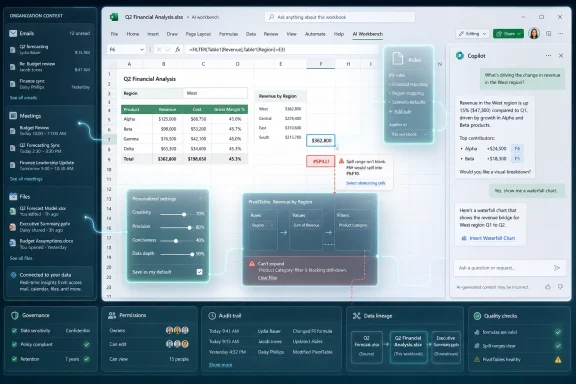
Copilot personalization is the most user-facing part of the June update, and it sounds deceptively small. Users can define preferences that shape Copilot’s responses across Excel sessions: date formats, currency formatting, preferred chart styles, PivotTable labeling, table conventions, formula style, tone of explanations, and similar working habits. These preferences are saved to the user’s account rather than embedded into each workbook.That account-level design is the tell. Microsoft is not merely letting users customize one file. It is giving Copilot something like an Excel personality profile, a lightweight memory of how a person wants spreadsheet work to look and sound. For anyone who spends the day cleaning reports, rebuilding recurring models, or producing management packs, that is more than cosmetic.
The old Excel bargain was that the user encoded preferences manually. You set number formats, renamed value fields, adjusted chart colors, cleaned headings, and repeated those moves until muscle memory took over. Personalization aims to move some of that repetition into a standing instruction layer, letting Copilot default toward the user’s usual approach unless a prompt says otherwise.
There is a productivity argument here, but also a governance one. The more Copilot writes or edits workbooks, the more important it becomes that its output not feel like a different analyst touched the file every time. Formatting consistency is not mere vanity in finance, operations, HR, or IT reporting. It is one of the signals people use to decide whether a workbook is trustworthy.
Still, personalization has a ceiling. A user preference is not a policy, and it is not a substitute for review. If someone tells Copilot to prefer rounded numbers, simplified explanations, or a certain chart type, that may improve readability while also hiding nuance. Microsoft’s challenge is to make personalization feel like assistance without letting it become a quiet source of distortion.
Workbook Rules Move the AI Contract Into the File
If personalization is about the individual, workbook rules are about the artifact. Microsoft’s June update adds the ability to define rules for Copilot in a workbook, documented in a separate.Rules sheet. That sounds like a niche implementation detail, but it may be one of the more consequential Excel changes in the batch.A workbook is often not just a file. It is a process, a control surface, a recurring report, or a business system pretending to be a document. It may have naming conventions, protected assumptions, helper tabs, staging areas, refresh routines, sign-off cells, and formulas that should not be touched unless someone knows exactly why. Putting Copilot rules inside the workbook acknowledges that context.
This is Microsoft admitting, implicitly, that generic AI behavior is not enough for spreadsheets. A workbook may need Copilot to avoid editing certain sheets, preserve named ranges, use a particular table structure, apply regional formats, or follow departmental reporting conventions. Those instructions should travel with the file, not vanish when a different user opens it.
The
.Rules sheet also fits Excel’s culture. Excel users already hide assumptions in tabs, document logic in worksheets, and turn files into self-contained systems. A rules sheet is a natural extension of that habit, even if it will need careful management. It lets the workbook say, in effect: this is how work is done here.The obvious risk is that a natural-language rules layer becomes another place for ambiguity to hide. If rules are vague, stale, contradictory, or written by someone who does not understand the workbook, Copilot may produce output that appears compliant while drifting from the model’s real intent. In serious environments, workbook rules will need ownership just like macros, Power Query transformations, and protected ranges.
Microsoft Is Giving Copilot More of the Organization to Read
For commercial customers, June’s update expands how Copilot in Excel can be grounded in work data through a file picker. Microsoft says users can connect Copilot’s analysis to more organizational context, including people, emails, meetings, channels, the web, Loop, and related work material. The company also added support for more than 30 additional file types for analysis, including JSON, XML, GIF, BMP, SVG, SQL, and ASPX.This is the point where Excel starts to look less like a spreadsheet app and more like a front end for Microsoft 365’s knowledge graph. A user does not just ask Copilot to analyze the table in front of them. They can ask it to reason over the workbook while drawing on a broader universe of supporting material: messages, meeting artifacts, web content, files, and structured or semi-structured data.
That is powerful because Excel has always been the place where outside reality gets flattened into rows and columns. Sales exports, inventory logs, survey results, ticket queues, CSV dumps, SQL extracts, project notes, and finance assumptions all end up in Excel eventually. Microsoft is trying to shorten that path by letting Copilot ingest and connect more of the raw material.
The addition of formats like JSON, XML, and SQL is especially important for IT pros and analysts who live between business users and systems of record. These are not glamorous file types. They are the connective tissue of modern work: API payloads, configuration exports, database snippets, application data, and logs. If Copilot can help turn those into intelligible spreadsheet analysis without a brittle import dance, it will save real time.
But broader grounding also expands the blast radius of mistakes. If Copilot pulls from the wrong meeting, misreads a JSON file, overweights an old email, or interprets a SQL script without understanding the production schema behind it, the resulting spreadsheet may look more authoritative than it deserves. The interface must make provenance visible, not merely promise that more context produces better answers.
The PivotTable Spill Fix Is Small, Practical, and Very Excel
The least flashy June feature may be one of the most recognizably Excel-like. When a PivotTable cannot expand because something is blocking its output range, Excel will collapse the failure into a single#SPILL! error cell. The goal is to make the obstruction easier to diagnose instead of leaving users to hunt across a messy grid.This is not an AI feature, and that is part of why it matters. Excel remains a dense, physical environment where cells occupy space, tables grow, formulas spill, and output can collide with existing content. Dynamic arrays made Excel more fluid, but they also introduced a class of errors where the problem is not the formula’s logic but the grid’s real estate.
PivotTables are especially vulnerable because users expect them to expand and contract as data changes. A report that worked yesterday can fail today because a refreshed category list is longer, a filter changed, or someone typed notes into what used to be empty space. The resulting obstruction is not conceptually difficult, but it can be maddening to locate.
By collapsing the issue into a focused
#SPILL! cell, Microsoft is making Excel’s error behavior more legible. That is the kind of work mature software has to do: not just add capabilities, but reduce the cost of diagnosing failure. In a month dominated by Copilot, this small improvement is a reminder that Excel’s core value still depends on grid mechanics being understandable.It also shows the difference between intelligence and usability. Copilot may eventually explain why a PivotTable cannot expand, identify the obstructing cells, and offer to move the output. But the spreadsheet itself still needs sane failure states. AI does not remove the need for good application design; it raises the penalty when that design is unclear.
Navigable Copilot Chat Links Address the Trust Problem
Microsoft also added navigable links in Copilot Chat, allowing users to jump directly to specific changes referenced in a Copilot response. The company marked the feature as feedback-driven, which is not surprising. If Copilot edits a workbook and then describes those edits in prose, users need a fast way to verify what actually changed.This is one of those features that sounds minor until you imagine the alternative. In a large workbook, “I updated the revenue assumptions and added a trend analysis” is not enough. Which sheet? Which range? Which formulas? Which chart? Which assumptions? The more Copilot does, the more dangerous it becomes for the explanation to be detached from the workbook.
Navigable links are therefore less about convenience than accountability. They make Copilot’s response behave more like a change map, giving the user a path from summary to evidence. That matters because spreadsheet trust is built through inspection. Users do not merely read an answer; they click through the cells, check the formulas, and look for the place where a model’s logic may have bent.
This is also where Microsoft’s Excel AI strategy becomes visibly different from a standalone chatbot. A chatbot can provide an answer and move on. Copilot in Excel has to coexist with the artifact it modifies. Its claims must be anchored in ranges, sheets, charts, tables, and formulas that the user can inspect.
There is still a long way to go. Serious spreadsheet review needs version history, diffing, formula lineage, dependency tracing, and clear separation between suggested and applied changes. Navigable links do not solve all of that. But they are a practical step toward the right model: Copilot should not merely say what it did; it should take users there.
Custom Skills Push Excel Toward Shared Expertise
Custom Copilot skills for Excel, currently available only to Insiders, are the most ambitious part of the June story. Microsoft has described skills as reusable processes that can encode team expertise for recurring spreadsheet work. In practice, that could mean a finance team defining a discounted cash flow workflow, a monthly variance analysis, a forecast refresh, or a standardized management report routine.This is where Copilot starts to look less like an assistant and more like an automation substrate. Excel already has several automation layers: formulas, macros, Office Scripts, Power Query, Power Pivot, add-ins, and external integrations. Custom skills appear to sit in a different space, packaging intent and procedure in a way that business teams may be able to reuse without writing traditional code.
That is attractive because much spreadsheet work is repetitive but not simple. A monthly report is rarely just “refresh the data.” It involves checking source files, applying assumptions, cleaning categories, adding commentary, comparing against prior periods, flagging exceptions, and formatting the final output for a specific audience. These are procedural workflows with judgment calls embedded throughout.
If custom skills can capture those steps reliably, Excel becomes a distribution channel for institutional knowledge. New analysts could run processes built by senior teammates. Teams could standardize recurring work without relying on a single macro wizard. Departments could reduce the gap between “the way Sarah does it” and “the way the organization does it.”
The danger is that skill reuse can launder fragile judgment into apparent automation. A bad skill is worse than a bad prompt because it carries the aura of sanctioned process. Insiders testing this feature should be asking uncomfortable questions now: who can create skills, who can approve them, how changes are tracked, how failures are surfaced, and how organizations prevent a library of half-maintained AI procedures from becoming the new macro swamp.
Excel’s AI Future Runs Through Governance, Not Demos
Microsoft’s June update lands at an awkward but important moment for workplace AI. The novelty phase is over. Most organizations have seen enough demos to understand that generative AI can summarize, draft, classify, and transform information. The question now is whether it can do those things inside business-critical workflows without creating new control problems.Excel is a particularly severe test because it sits at the intersection of productivity and risk. It is used for budgets, forecasts, pricing models, compliance trackers, audits, capacity plans, customer lists, hiring models, incident reviews, and countless unofficial systems that keep organizations running. Many of those files were never designed with enterprise-grade governance in mind, yet they influence enterprise-grade decisions.
That is why Microsoft’s emphasis on rules, grounding, navigability, and reusable skills is more significant than another clever prompt demo. The company appears to understand that Excel users do not only need Copilot to be smarter. They need it to be more predictable. Predictability is what lets admins write guidance, trainers build materials, and teams decide where AI belongs in the workflow.
For IT departments, the administrative questions will come quickly. Which users get these capabilities? Which tenants allow Copilot to ground Excel work in emails, meetings, channels, and web content? How do sensitivity labels, retention policies, data loss prevention, and conditional access interact with these new flows? What happens when Copilot-generated analysis crosses boundaries that humans would have recognized but the model does not?
For spreadsheet owners, the questions are more local but just as important. Which workbooks deserve rules? Which reports should use personalization and which should enforce standardized formatting regardless of user preference? Which Copilot outputs require review before distribution? How should teams document when AI changed formulas, added tables, or generated commentary?
The best organizations will not treat these June features as toys or threats. They will treat them as a new layer of Excel behavior that needs the same discipline they already apply, at least in theory, to macros, external connections, protected sheets, and shared workbooks. The worst organizations will discover, months later, that Copilot made spreadsheet work faster without making spreadsheet accountability any clearer.
The Spreadsheet Is Becoming a Negotiation With an Assistant
For individual users, the practical experience of Excel is changing in a subtle way. The old model was command-driven: click this, type that, drag here, write a formula, refresh the query, build the chart. The new model is conversational but constrained: tell Copilot what you want, then inspect, correct, and refine what it does.That changes the skill profile of Excel work. Knowing formulas still matters. Understanding data structure still matters. Knowing when a PivotTable is lying to you still matters. But users will also need to become good at specifying intent, writing durable instructions, maintaining rules, and reviewing AI-generated changes.
This may flatten some barriers for casual users. Someone who understands the business question but lacks advanced Excel technique may get farther with Copilot than they could with formulas alone. That is the optimistic version: Copilot as a bridge between domain knowledge and spreadsheet implementation.
The less comfortable version is that users may accept plausible output too easily. Excel already has a long history of errors caused by hidden rows, broken formulas, copied ranges, stale links, and misunderstood assumptions. Copilot does not eliminate those failure modes. It may add new ones while making the workbook look cleaner.
The June features attempt to reduce that risk by adding memory, rules, grounding, and navigation. But the basic contract remains unchanged: Excel is a tool for calculation and analysis, not an oracle. Copilot can accelerate work, but it cannot assume responsibility for the decision that follows.
The June Update Rewards the Careful and Punishes the Casual
The most concrete lesson from Microsoft’s June Excel release is that Copilot is becoming more useful in proportion to the structure around it. Personalization works best when users can articulate stable preferences. Workbook rules work best when teams understand their own conventions. File grounding works best when source material is organized and permissions are sane. Navigable links work best when users actually review the changes.That means the benefits will not be evenly distributed. A well-run finance team with standardized workbooks, clean file storage, and review habits may get real leverage from these updates. A chaotic department with duplicate files, unclear ownership, inconsistent naming, and no model review process may simply give Copilot more ways to inherit the mess.
Excel has always reflected the organization using it. A disciplined team can build durable systems in it. A disorganized team can create an archaeological site of broken links and undocumented assumptions. Copilot does not change that. If anything, it makes the underlying culture more visible.
This is why Microsoft’s steady Excel updates deserve attention from Windows enthusiasts and IT pros, not just spreadsheet specialists. Excel is often where Microsoft 365’s grand platform ideas either become useful or become annoying. If Copilot can earn trust in Excel, it has a stronger claim elsewhere. If it cannot, users will notice quickly.
June’s Excel Release Draws a New Line for Admins and Power Users
Microsoft’s June feature set is not a single dramatic reinvention of Excel. It is a collection of changes that point in the same direction: more persistent AI behavior, more context, more reusable process, and more need for verification. That makes the update easy to underestimate and risky to ignore.- Copilot personalization lets users define account-level preferences that shape Excel responses across workbooks and devices.
- Workbook rules let teams document file-specific Copilot instructions in a
.Rulessheet, moving some AI guidance into the workbook itself. - Commercial users can ground Copilot in a broader range of work data, including organizational content such as files, communications, meetings, channels, Loop, and web material.
- Excel can now analyze more than 30 additional file types, making Copilot more useful for semi-structured and technical data sources.
- PivotTable obstruction errors should be easier to diagnose because blocked expansions collapse into a single
#SPILL!cell. - Navigable Copilot Chat links and Insider-only custom skills show Microsoft trying to make AI edits more inspectable and repeatable.
References
- Primary source: Neowin
Published: 2026-07-01T03:12:07.346712
Loading…
www.neowin.net - Official source: support.microsoft.com
Loading…
support.microsoft.com - Related coverage: windowsreport.com
Loading…
windowsreport.com - Related coverage: windowsforum.com
Loading…
windowsforum.com - Related coverage: digitaltrends.com
Microsoft Copilot can now handle more of your finance work in Excel with reusable skills and data connectors - Digital Trends
Microsoft added reusable Skills, new financial data connectors, and traceability features to Copilot in Excel, built specifically for finance teams.www.digitaltrends.com - Official source: learn.microsoft.com
Release Notes for Microsoft 365 Copilot | Microsoft Learn
Lists the features that reach General Availability in each release of Microsoft 365 Copilot.learn.microsoft.com
- Related coverage: computerworld.com
Microsoft adds new skills — and more oversight — for Copilot in Excel – Computerworld
The new features, including connectors to third-party data sources, are aimed at making the AI assistant more useful for finance professionals. www.computerworld.com
- Related coverage: windowscentral.com
Loading…
www.windowscentral.com - Related coverage: geeky-gadgets.com
Microsoft Copilot for Excel Adds Custom Formatting Rules - Geeky Gadgets
Learn how to customize Copilot in Excel to automatically apply your preferred date formats, table styles, and modern formulas like XLOOKUP.www.geeky-gadgets.com - Related coverage: supersimple365.com
Copilot entry points in Excel are changing - Super Simple 365
Short VersionExcel's Copilot entry points are being consolidated into a single location in the bottom-right corner. Due late April to early June 2026. DetailsMicrosoft is updating how you access Copilot in Excel to provide a more consistent experience across Microsoft 365 apps. This change... supersimple365.com
- Official source: cdn-dynmedia-1.microsoft.com
- Related coverage: techriver.com