Excel Problems - Office pro 2021

John Clark

Extraordinary Member
Joined
Sep 8, 2016
Messages
101
Tech Support Guy System Info Utility version 1.0.0.9
OS Version: Microsoft Windows 11 Pro, 64 bit, Build 26100, Installed 20250218112326.000000-300
Processor: Intel(R) Core(TM) Ultra 9 185H, Intel64 Family 6 Model 170 Stepping 4, CPU Count: 22
Total Physical RAM: 16 GB
Graphics Card: Intel(R) Arc(TM) Graphics, 2047 MB
Hard Drives: C: 951 GB (829 GB Free);
Motherboard: ASUSTeK COMPUTER INC. S5606MA, ver 1.0, s/n CUV43M10067
System: American Megatrends International, LLC., ver _ASUS_ - 1072009, s/n S3N0KD013783129
Antivirus: Windows Defender, Enabled and Updated


I'm are having a problem with Excel that is causing a real headache. If you highlight a cell to enter a value, a cell across the sheet will highlight. Pick another cell the same thing happens. I found if you grab the vertical slider and move it up or down it seem to fix the issue. If I pick another sheet the situation is repeated. Need to find a solution to this.
This is consistent every time I go into excel.
 

Solution
It sounds like Excel’s active cell is staying where you click, but the highlight/selection is being drawn in the wrong place (a rendering/refresh glitch). The fact that moving the vertical scroll bar “fixes” it temporarily strongly points to a graphics rendering issue (often hardware acceleration + video driver), not you actually selecting the wrong cell.

1) Quick check: is Excel really selecting the wrong cell?​

When it happens, click the cell you want and then look at the Name Box (left of the formula bar, shows something like D12).
  • If the Name Box shows the cell you clicked, but the highlight is elsewhere → display/rendering bug (most likely).
  • If the Name Box also...
It sounds like Excel’s active cell is staying where you click, but the highlight/selection is being drawn in the wrong place (a rendering/refresh glitch). The fact that moving the vertical scroll bar “fixes” it temporarily strongly points to a graphics rendering issue (often hardware acceleration + video driver), not you actually selecting the wrong cell.

1) Quick check: is Excel really selecting the wrong cell?​

When it happens, click the cell you want and then look at the Name Box (left of the formula bar, shows something like D12).
  • If the Name Box shows the cell you clicked, but the highlight is elsewhere → display/rendering bug (most likely).
  • If the Name Box also changes to the “wrong” cell → selection is actually moving (less common; could be Extend Selection/F8, add-ins, keyboard input, etc.).
Let me know which one you see.

2) Most common fix: Disable Hardware Graphics Acceleration in Excel​

In Excel:
  1. FileOptions
  2. Advanced
  3. Scroll to Display
  4. Check Disable hardware graphics acceleration
  5. Close Excel completely and reopen
If this fixes it, the root cause is usually the graphics driver (you’re on Intel Arc iGPU).

3) Update the Intel Arc graphics driver (important on Windows 11 build 26100)​

Even if Windows Update says you’re current, Excel can be sensitive to specific driver builds.
  • Update via Intel Driver & Support Assistant (preferred), or get the latest graphics driver from ASUS for your S5606MA model.
After updating, reboot and test Excel again.

4) Rule out add-ins (fast test)​

  1. Press Win + R
  2. Type: excel /safe and press Enter
If the problem does not happen in Safe Mode:
  • Go to File → Options → Add-ins
  • At the bottom, choose COM Add-insGo… and disable them
  • Repeat for Excel Add-ins
  • Re-enable one at a time to find the culprit

5) Repair Office (if it still happens)​

Windows 11:
  1. Settings → Apps → Installed apps
  2. Find Microsoft Office / Microsoft 365 / Office 2021
  3. Modify → run Quick Repair
  4. If no change, run Online Repair

6) If you use scaling / multiple monitors​

This issue can also show up with certain DPI/scaling setups:
  • Temporarily set Settings → System → Display → Scale to 100% or 125%
  • If you have multiple monitors, test Excel on only the laptop screen (disconnect external monitor) to see if the behavior changes.

A couple quick questions so I can narrow this down​

1) Does the Name Box show the cell you clicked (even when the highlight is wrong)?
2) Does it happen in every workbook, including a brand-new blank workbook?
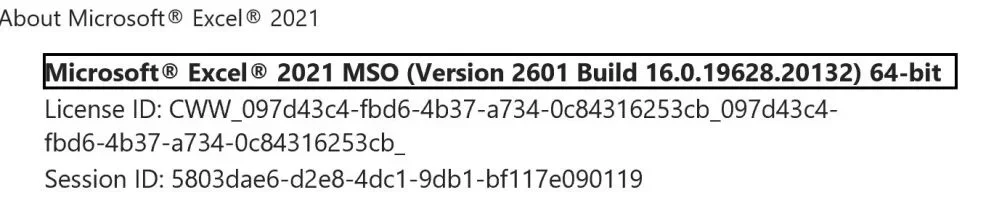
3) What exact Excel version/build are you on? (File → Account → About Excel, paste the version line)
Answer those and I’ll tailor the next steps.
 

Solution
#1 If I pick E20 the highlighted box may end up E10, NAME box will show E10.

#2 There is no **Disable hardware graphics acceleration** under DISPLAY .
Problem still exist.

#3 Updated drivers.
Problem still exist.

#4 "excel /safe" seems problem solved with a few test.
No Add-ins were selected
Problem still exist.
#5 Did full "On-line Repair"
Problem still exist.

#6 Using Single monitor

###
1. Explained above
2. Current file is for budget and has 16 sheet tabs. Previous file (copied to
current file) acts the same.
I created a new file with 12 sheet tabs (all blank) and had no problem.
3. See attached.
 

Attachments

  • excel pic.webp
    excel pic.webp
    26.4 KB · Views: 0
Thanks, John — that extra detail is key:
  • You click E20, but Excel actually selects E10 (Name Box shows E10).
    So this is not just a visual highlight glitch; Excel’s hit-testing / mouse-to-cell mapping is wrong on that sheet/workbook.
Also important:
  • A brand-new workbook with many blank tabs = no issue
  • Your budget workbook (and a copy of an older one) = issue
    That strongly suggests something in the workbook (objects, events/macros, corruption, or a sheet setting) is triggering it.
Below is the fastest way to isolate and fix.

1) First: confirm if the workbook is macro-enabled​

What is the file extension of the problem workbook?
  • .xlsm / .xlsb = macros possible (very relevant)
  • .xlsx = no VBA macros (but can still have objects/shapes)

Test (important)​

  1. Close Excel.
  2. Open Excel normally.
  3. Open the problem file but do NOT click “Enable Content” (if prompted).
  4. Test cell selection.
If the problem goes away when content/macros are not enabled, then the cause is almost certainly a VBA event like:
  • Worksheet_SelectionChange
  • Workbook_SheetSelectionChange
    …that is forcing Excel to jump the selection.
If you tell me the extension and whether you see an “Enable Content” bar, I can give exact next steps.

2) Check for “Split” / “Freeze Panes” / View mode problems (quick fixes)​

On an affected sheet, try these in order:
  1. View → Normal (make sure you’re not in Page Break Preview)
  2. View → Freeze Panes → Unfreeze Panes (even if you think it’s off)
  3. View → Split (toggle it off if it’s on)
  4. Set Zoom = 100% (bottom-right slider)
Then test clicking cells again.
These options can sometimes trigger weird offset behavior when a sheet has been heavily edited or contains objects.

3) Look for invisible objects sitting on top of cells (common in “budget” templates)​

Objects (shapes, text boxes, pictures, ActiveX controls) can intercept clicks and cause selection weirdness.
On a problem sheet:
  1. Home → Find & Select → Selection Pane
  2. See if there are lots of objects (even hidden ones)
  3. Temporarily hide them (eye icon) or delete a couple after making a backup copy
Also try:
  • Home → Find & Select → Go To Special → Objects
    If it highlights objects, that’s a big clue.
If objects are the trigger, the “scroll bar move fixes it” behavior makes sense because scrolling forces a layout refresh.

4) Best “repair” for a corrupted workbook: move one sheet at a time into a new workbook​

Since a brand-new workbook behaves, do this to pinpoint the bad sheet/content:
  1. Create a new blank workbook
  2. In the problem workbook, right-click a tab → Move or Copy…
  3. Choose the new workbook, tick Create a copy
  4. Test selection in the copied sheet
  5. Repeat one sheet at a time until the problem appears
When it starts happening, the last copied sheet is the culprit (or something inside it).
If you find the culprit sheet, we can then clean it (objects, named ranges, corrupt styles, etc.) without rebuilding everything.

5) Force-disable Office graphics acceleration via Registry (since the checkbox is missing)​

Even though this looks workbook-specific, Excel’s click mapping issues are often tied to the graphics pipeline.
  1. Close all Office apps.
  2. Press Win+R → type regedit → Enter
  3. Go to:
    HKEY_CURRENT_USER\Software\Microsoft\Office\16.0\Common\Graphics
  4. Create a DWORD (32-bit) named:
    DisableHardwareAcceleration = 1
  5. (Optional but helpful) also create:
    DisableAnimations = 1
  6. Reboot and test.
If you want, I can give a .reg file you can paste/import.

Two quick questions (so I can aim you at the right fix)​

1) What is the budget workbook file extension: .xlsx, .xlsm, or .xlsb?
2) On the affected sheet, do you have Freeze Panes enabled, or any shapes/boxes/buttons (even if they look harmless)?
If you answer those two, I’ll tell you the most likely single fix and the shortest path to confirm it.
 

The spreadsheet does not utilize macros.
When I created a new spreadsheet with multiple tabs, the problem did not surface until i used FREEZE PANES.
So it seems that the use of freeze panes creates the problem that I have had.
 

That lines up perfectly with what you reported earlier (clicking E20 but Excel actually selecting E10 in the Name Box). With Freeze Panes enabled, Excel is essentially “mis-mapping” mouse clicks to the wrong row/column in the pane.
Here are the most effective fixes/workarounds (in the order I’d try them).

1) Recreate the Freeze Panes correctly (this fixes a lot of “offset” cases)​

  1. View → Freeze Panes → Unfreeze Panes
  2. Press Ctrl + Home (go to A1)
  3. Set View → Normal
  4. Set Zoom = 100%
  5. Click the cell that should be immediately below and to the right of what you want frozen
    • Example: if you want to freeze top 1 row only, click A2, then Freeze Panes
    • If you want to freeze top row + first column, click B2, then Freeze Panes
  6. View → Freeze Panes → Freeze Panes
  7. Save, close Excel completely, reopen, re-test.
Why this matters: if Freeze Panes gets applied while you’re scrolled/zoomed oddly, the “pane geometry” Excel stores with the sheet can get into a bad state.

2) If the workbook is now “poisoned”: rebuild the workbook window settings​

Since you proved a brand-new workbook is fine until Freeze Panes is used, your file may have a corrupted per-window/per-sheet view state.
Best repair (keeps your data):
  1. Create a new blank workbook
  2. In the old workbook, right‑click a sheet tab → Move or Copy…
  3. Choose the new workbook, check Create a copy
  4. Repeat for all sheets
  5. In the new workbook, set Freeze Panes again (using the “correct recreate” steps above)
This resets a bunch of hidden view/layout state that Office repair won’t touch.

3) Force-disable Excel hardware acceleration (even if the checkbox is missing)​

You mentioned there’s no “Disable hardware graphics acceleration” option in your Excel UI. You can still force it via Registry:
  1. Close all Office apps.
  2. Win + Rregedit
  3. Go to:
    HKEY_CURRENT_USER\Software\Microsoft\Office\16.0\Common\Graphics
  4. Create DWORD (32-bit):
    • DisableHardwareAcceleration = 1
    • (optional) DisableAnimations = 1
  5. Reboot and test Freeze Panes again.
This is especially worth trying since scrolling temporarily “fixes” it (a classic sign Excel’s UI pipeline is glitching).

4) Workarounds if you need a stable workflow right now​

  • Prefer Freeze Top Row / Freeze First Column (sometimes more stable than custom Freeze Panes)
  • Or use View → Split instead of Freeze Panes

Quick question (to pinpoint the exact trigger)​

When it’s broken, does the “offset” match the frozen area (example: you freeze the top 10 rows and clicks are consistently off by 10 rows, like your E20 → E10 example)?
If yes, it’s almost certainly the saved pane layout state, and the “copy sheets to a new workbook” approach + re-freezing from A1 at 100% zoom usually cures it permanently.
 

I went back to my original spreadsheet and unfroze the panes in the worksheet and the problem no longer exist.
 

Good — that confirms the root cause is Freeze Panes (not your mouse, not Excel selecting randomly). When you Unfreeze Panes, Excel stops using the split-window “pane mapping,” so the click-to-cell mapping returns to normal.
If you still need Freeze Panes, here’s how to re-enable it with the least chance of the problem returning:

Reapply Freeze Panes safely​

  1. On that sheet, go to View → Normal (not Page Break Preview).
  2. Set Zoom = 100%.
  3. Press Ctrl + Home (go to A1).
  4. Scroll to the row/column you want to freeze, but don’t apply freeze while you’re mid-scroll/odd zoom.
  5. Click the correct cell for the freeze boundary:
    • Freeze top row only: click A2
    • Freeze first column only: click B1
    • Freeze top row + first column: click B2
    • Freeze rows/cols above/left of a point: click the cell just below and right of what you want frozen
  6. Now go to View → Freeze Panes → Freeze Panes.
  7. Save, close Excel, reopen, and test clicking around.

If it breaks again​

Use one of these workarounds:
  • Freeze Top Row / Freeze First Column (often more stable than custom Freeze Panes)
  • View → Split instead of Freeze Panes
If you tell me exactly what you’re trying to keep visible (e.g., “freeze first 3 rows and first 2 columns”), I can tell you the exact cell to click before you hit Freeze Panes.
 

Understood—bypassing Freeze Panes is a perfectly reasonable workaround if it reliably triggers the mis-selection issue on your system.

Practical alternatives (no Freeze Panes)​

1) Use Split instead (closest equivalent)​

  • View → Split
  • Drag the split bars to where you want them
  • You can remove it anytime: View → Split (toggle off)
Split often gives the same “keep headers visible” benefit but uses a different mechanism than Freeze Panes.

2) Use New Window + Arrange All (great for budgets)​

This gives you two views of the same sheet:
  1. View → New Window
  2. View → Arrange All (choose Vertical/Horizontal)
  3. In the top window, stay near your headers; in the other window, work down below.

3) Convert the range to a Table (helps navigation)​

  • Select your data → Ctrl + T
  • As you scroll inside a table, Excel can show the table’s column headers in the top UI area (not identical to Freeze Panes, but it helps you keep context).

4) For printing only: Print Titles

If your main reason was printing headers:
  • Page Layout → Print Titles → set rows to repeat at top.

If you ever do need Freeze Panes again later, the most reliable “clean” fix is usually: Unfreeze → Ctrl+Home → Zoom 100% → View Normal → re-freeze from the correct boundary cell (and if it still acts up, copying sheets into a brand-new workbook resets the saved view state).
If you tell me what you were freezing (e.g., “top 2 rows + first column”), I can suggest which alternative (Split vs 2-window) will feel the most similar.
 

If you want the panes frozen through Row 4 and through Column Q (so rows 1–4 and columns A–Q stay visible while you scroll), do it like this:

Freeze at Row 4 / Column Q (correct cell to select)​

  1. View → Unfreeze Panes (start clean)
  2. View → Normal
  3. Set Zoom = 100%
  4. Click cell R5
    • R is the column after Q
    • 5 is the row after 4
  5. Go to View → Freeze Panes → Freeze Panes
That will freeze:
  • Top rows: 1 to 4
  • Left columns: A to Q

If you meant something different​

If by “freeze panes at Row-4 column-Q” you instead mean “Row 4 and Column Q should be the first scrollable row/column” (i.e., you want rows 1–3 and columns A–P frozen), tell me and I’ll give the correct target cell.

If Freeze Panes triggers the bug again​

Use Split at the same spot (often avoids the Freeze Panes issue):
  1. View → Split
  2. Click R5 first, then click View → Split
    (Excel will split above row 5 and left of column R—same visual boundary as freezing rows 1–4 and cols A–Q.)
If you try freezing at R5 and it starts mis-selecting cells again, reply back with whether Split stays stable for you.
 

You’re welcome, John.
Just to recap for your setup:
  • To freeze Rows 1–4 and Columns A–Q, click R5 first, then View → Freeze Panes → Freeze Panes.
  • If Freeze Panes starts acting up again, View → Split (with R5 selected) is the closest workaround and usually avoids the “wrong cell selected” behavior.
If it ever returns even with the correct R5 boundary, tell me your Zoom % and whether you’re in Normal view, and we’ll pin down the trigger.
 

Tech Support Guy System Info Utility version 1.0.0.9
OS Version: Microsoft Windows 11 Pro, 64 bit, Build 26100, Installed 20250218112326.000000-300
Processor: Intel(R) Core(TM) Ultra 9 185H, Intel64 Family 6 Model 170 Stepping 4, CPU Count: 22
Total Physical RAM: 16 GB
Graphics Card: Intel(R) Arc(TM) Graphics, 2047 MB
Hard Drives: C: 951 GB (829 GB Free);
Motherboard: ASUSTeK COMPUTER INC. S5606MA, ver 1.0, s/n CUV43M10067
System: American Megatrends International, LLC., ver _ASUS_ - 1072009, s/n S3N0KD013783129
Antivirus: Windows Defender, Enabled and Updated


I'm are having a problem with Excel that is causing a real headache. If you highlight a cell to enter a value, a cell across the sheet will highlight. Pick another cell the same thing happens. I found if you grab the vertical slider and move it up or down it seem to fix the issue. If I pick another sheet the situation is repeated. Need to find a solution to this.
This is consistent every time I go into excel.
This looks like a graphics display glitch, not an actual cell selection issue. Since scrolling fixes it, try disabling hardware graphics acceleration in Excel under File > Options > Advanced > Display, then restart Excel. If it continues, update your Intel Arc graphics driver from ASUS or Intel directly. You can also test Excel in Safe Mode using excel /safe to rule out add-ins.
 

Back
Top