

Exchange Online mailbox quotas are straightforward in concept but layered in practice — and the difference between a 30 GB limit and a 1.5 TB “auto‑expanding” archive can be the difference between a smooth migration and a frustrated user locked out of email. m])
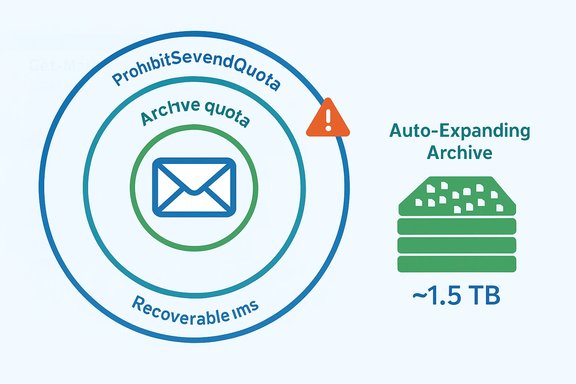
Exchange Online applies multiple, separate quota types to a mailbox: a primary mailbox quota (what stops send/receive), an archive mailbox quota (what stops adding to a given archive shard), and the Recoverable Items quota (what limits deleted/retained items). These quotas have associated warning thresholds intended to give users and administrators time to act before a hard block occurs. Most tenant plans put the primary mailbox maximum at either 2 GB (deskless), 50 GB (Exchange Online Plan 1), or 100 GB (Exchange Online Plan 2). Archive capacity and Recoverable Items behavior are influenced by archive enablement, litigation/retention holds, and the Auto‑Expanding Archive feature. The platform’s service descriptions and PowerShell cmdlets are the authoritative sources for these values.
Why
Source: Microsoft Exchange Team Blog Demystifying Exchange Online Mailbox Quotas | Microsoft Community Hub
 Background / Overview
Exchange Online applies multiple, separate quota types to a mailbox: a primary mailbox quota (what stops send/receive), an archive mailbox quota (what stops adding to a given archive shard), and the Recoverable Items quota (what limits deleted/retained items). These quotas have associated warning thresholds intended to give users and administrators time to act before a hard block occurs. Most tenant plans put the primary mailbox maximum at either 2 GB (deskless), 50 GB (Exchange Online Plan 1), or 100 GB (Exchange Online Plan 2). Archive capacity and Recoverable Items behavior are influenced by archive enablement, litigation/retention holds, and the Auto‑Expanding Archive feature. The platform’s service descriptions and PowerShell cmdlets are the authoritative sources for these values. The three quota families explained
1. ProhibitSendReceiveQuota / ProhibitSendQuota / IssueWarningQuota (primary mailbox)
- ProhibitSendReceiveQuota is the hard cap for the primary mailbox. When it’s reached the mailbox cannot send or receive mail.
- ProhibitSendQuota prevents sending (but not receiving) once reached.
- IssueWarningQuota is the warning threshold that precedes those limits.
2. ArchiveQuota / ArchiveWarningQuota (archive mailbox)
- The archive’s initial quota for cloud archives is typically 100 GB for Exchange Online Plan 2 (or 50/100 depending on license mix and add‑ons). When Auto‑Expanding Archiving is turned on, Microsoft provisions additional auxiliary archive shards and the tenant’s archive capacity can grow up to ~1.5 TB total — however that total is composed of multiple archive shards and each shard will still report a ~100 GB ArchiveQuota until extra shards are attached. Don’t expect a single ArchiveQuota value of 1.5 TB on an individual shard.
3. RecoverableItemsQuota / RecoverableItemsWarningQuota (Recoverable Items)
- The Recoverable Items folder (the “dumpster” that stores deleted items, Purges, DiscoveryHolds, Audits, etc. has its own quota rules: 30 GB default for mailboxes not on hold, and 100 GB for mailboxes that are placed on litigation or retention hold. That capacity prevents users or processes from moving more data into Recoverable Items when the limit is reached.
How Exchange Online surfaces and exposes quotas (what to check)
The PowerShell commands you’ll use
- Get the current quota values attached to a mailbox:
Get-Mailbox <user> | Format-List ProhibitSendReceiveQuota,ProhibitSendQuota,IssueWarningQuota,ArchiveQuota,ArchiveWarningQuota,RecoverableItemsQuota,RecoverableItemsWarningQuota- Get current mailbox usage for the primary mailbox:
Get-MailboxStatistics <user> | Format-List TotalItemSize,ItemCount- Get archive mailbox usage (aggregated or per‑shard):
Get-MailboxStatistics -Archive <user>or pass the ArchiveGuid / MailboxGuid of an archive shard to avoid timeouts and see per‑shard values.
Get-MailboxFolderStatistics <user> | Format-Table Name,FolderSize,ItemsInFolder,TargetQuota and look for folders with TargetQuota set to User. This reveals which folders count against the primary mailbox store. Why Get-MailboxStatistics -Archive can be slow and how to avoid timeouts
- When a mailbox has multiple archive shards (Auto‑Expanding Archive), running
Get-MailboxStatistics -Archivecan time out or return aggregated numbers only. For per‑shard statistics, pass the specific ArchiveGuid for the shard you want to inspect. This avoids long runs and surfaces shard‑level sizes cleanly.
Auto‑Expanding Archive: what it is — and what it isn’t
Auto‑Expanding Archiving is a behind‑the‑scenes provisioning mechanism that adds auxiliary archive mailboxes (shards) when a user’s primary archive reaches the configured threshold. The headline figure administrators often quote is 1.5 TB total archive capacity when Auto‑Expanding is enabled and eligible, but that capacity is made up of multiple archive shards (the MainArchive plus AuxArchives), not a single giant archive file. Each shard continues to report its own ArchiveQuota (typically ~100 GB) until auxiliary shards are provisioned and used. Key operational details:- Enabling Auto‑Expanding at the organization level is done with PowerShell (
Set-OrganizationConfig -AutoExpandingArchive). Enabling it at the mailbox level (Enable-Mailbox <user> -AutoExpandingArchive) gives that mailbox a temporary +10 GB buffer (110 GB) while Microsoft provisions extra shards. - Once Auto‑Expanding is enabled on a mailbox, you cannot off‑board that archive back to an on‑premises Exchange or recover the mailbox to an inactive state using the usual mailbox restore flows. Plan carefully before enabling Auto‑Expanding.
Recoverable Items — the often‑overlooked limiter
Recoverable Items is where retention, holds, and deleted items accumulate; it’s separate from primary and archive quota accounting and can block mailbox operations long before a user hits the primary mailbox quota if Recoverable Items fills up.- Default: 30 GB hard limit and 20 GB soft limit for non‑held mailboxes.
- Held mailboxes (litigation/in‑place/retention) automatically bump Recoverable Items capacity to 100 GB (soft 90 GB) because items on hold can’t be purged automatically. Enabling an archive and auto‑expanding can add additional small buffers (e.g., 105 GB or 110 GB behavior in specific combinations) while Auto‑Expanding provisioning completes.
- Users can’t delete items.
- Managed Folder Assistant and MRM can’t move items into Recoverable Items.
- Calendar and certain mailbox functions can start failing. Microsoft warns administrators to monitor Recoverable Items specifically for held mailboxes.
Common admin tasks, examples, and one‑line checks
- Show a mailbox’s quota settings:
Get-Mailbox [email]user@contoso.com[/email] | FL Alias,ProhibitSendReceiveQuota,ProhibitSendQuota,IssueWarningQuota,ArchiveQuota,RecoverableItemsQuota,LitigationHoldEnabled,ArchiveGuid,AutoExpandingArchiveEnabled- Show primary mailbox usage:
Get-MailboxStatistics [email]user@contoso.com[/email] | FL DisplayName,TotalItemSize,ItemCount- Show archive usage per shard (use ArchiveGuid to avoid aggregation timeouts):
Get-MailboxStatistics -Archive -ArchiveGuid <guid> | FL TotalItemSize- Inspect Recoverable Items folders:
Get-MailboxFolderStatistics [email]user@contoso.com[/email] -FolderScope RecoverableItems | Format-Table Name,FolderAndSubfolderSize,ItemsInFolderAndSubfolders
These cmdlets and examples are the standard way to audit storage and are documented on Microsoft Learn.
Migration scenarios where quotas matter — and what to do
Cross‑tenant mailbox migrations (CTMM)
A typical problem during cross‑tenant migrations is that the target tenant’s Mail User object inherits a default Recoverable Items quota of 30 GB. If the source mailbox has a larger Recoverable Items footprint (for example, because it’s on hold), the migration can fail with a QuotaExceeded error. Microsoft provides a migration‑oriented switch:Set‑MailUser <id> -EnableLitigationHoldForMigration which raises the RecoverableItemsQuota on the Mail User to 100 GB and flips on the pre‑migration hold to avoid quota failures during migration. This parameter is supported in Exchange Online and is explicitly intended for cross‑tenant migration scenarios (it doesn’t apply to hybrid scenarios with on‑premises authoritative holds). Caveats and gotchas:- Don’t apply this shortcut to hybrid migrations where on‑premises holds are the source of truth; the on‑premises AD sync can overwrite the cloud hold flag. If your source is on‑premises Exchange, enable hold on‑prem first so the state is preserved in directory sync and honored in the target tenant.
Google Workspace (Gmail) and IMAP large mailbox migrations
Microsoft offers a Large Archive Onboarding (LAO) flow and automated tooling for Gmail/IMAP sources that exceed 100 GB; the service migrates excess content into archive shards and supports a cumulative mailbox size up to ~1.6 TB (100 GB primary + 1.5 TB archives) when LAO is used. This method is the supported path for very large Google/IMAP sources and relieves admins from manual sharding of archive data.On‑premises large mailbox migrations (hybrid)
Microsoft documents a recommended approach for migrating very large on‑premises mailboxes (>100 GB) that involves enabling cloud archives, using retention policies to move data to the cloud archive, and enabling auto‑expanding archives. There are known limitations (for instance, on‑premises archives larger than 240 GB are currently unsupported for direct onboarding) and careful planning is required to ensure holds and retention settings are preserved. Microsoft’s migration guidance should be followed closely for large on‑prem migrations. Important preservation note: enabling Auto‑Expanding Archive on a mailbox that later becomes inactive prevents standard mailbox restore flows — plan carefully if you anticipate needing to export or restore a mailbox later.Practical remediation steps when a user hits a quota
- Verify the reported quota and usage:
Get-Mailboxto read quota values;Get-MailboxStatisticsto read usage.- Short‑term user actions:
- Have the user empty Junk and Deleted Items, remove very large attachments, and use Outlook’s “Clean Up Folder” tools as appropriate.
- Admin actions:
- Enable an archive mailbox and assign retention tags/policies to move older items to the archive.
- If archive is full and data must be preserved, enable Auto‑Expanding Archiving for that mailbox so auxiliary archives are provisioned. Remember: this has recovery/off‑boarding consequences.
- Recoverable Items full:
- Review Recoverable Items content with
Get-MailboxFolderStatistics -FolderScope RecoverableItemsand, where policy permits, permanently delete items or increase RecoverableItemsQuota via holds where appropriate. Be aware that placing litigation/retention hold increases quota because the data can’t be purged. ([learn.microsoft.com](Recoverable Items folder in Exchange Online, risks and admin recommendations
What Microsoft does well
- Microsoft exposes quota values and usage via PowerShell and admin portal reports so administrators can build monitoring and automation. The Auto‑Expanding Archive feature addresses the realistic need for large archives without manual sharding. Microsoft’s documentation also documents interactions between holds, Recoverable Items, and archive behavior clearly.
What still trips up admins
- The difference between per‑shard ArchiveQuota reporting and the tenant‑level total archive capacity leads some admins to misinterpret the service. Expect to see ~100 GB values on individual archive shards even when the mailbox is allowed to grow beyond that as more shards are provisioned.
- Retention holds and Recoverable Items behavior can quietly consume large amounts of capacity, causing hard failures even when the primary mailbox still has headroom. Monitor Recoverable Items explicitly.
- Enabling Auto‑Expanding is effectively irreversible for some lifecycle operations (off‑boarding, inactive mailbox recovery). Plan archiving and migration strategies with this in mind.
Recommended admin playbook (short)
- Automate daily/weekly checks of
Get-MailboxStatisticsandGet-MailboxFolderStatistics -FolderScope RecoverableItems. - Build alerts for mailboxes > 80% of ProhibitSendReceiveQuota and for Recoverable Items > 70% of RecoverableItemsQuota.
- Classify high‑volume senders and offload transactional sends to dedicated platforms (Azure Communication Services Email or third‑party ESPs), not shared user mailboxes.
What to watch for and a caution on future timelines
The Exchange platform’s outbound‑throttling and large‑mailbox migration capabilities have evolved rapidly; Microsoft has announced and iterated on tenant‑level and mailbox‑level outbound recipient controls (TERRL and the proposed per‑mailbox limit) in the past year, and administrators should watch Message Center posts for tenant‑specific enforcement changes rather than rely solely on community summaries. For migrations, Microsoft documents LAO for Gmail/IMAP and guidance for on‑premises large mailbox migration; cross‑tenant migration helps exist viaSet‑MailUser -EnableLitigationHoldForMigration. These are the supported ways to move large mailbox data without losing recoverable items due to quota mismatches. Caveat on unverified date claims: some community posts and blog summaries have quoted estimated delivery timelines for further Microsoft tooling (for example, projections about hybrid large‑mailbox migration improvements appearing in 2026). Those are editorial or planning estimates and are not replacements for Microsoft’s product roadmap, Message Center notices, or Microsoft Learn documentation. Treat any future date mentioned in community content as provisional and confirm via official tenant Message Center posts before planning migrations around those dates.Conclusion — practical priorities for admins and IT decision makers
- Understand the three quota families that can block a mailbox: primary (send/receive), archive (shard‑level limits and auto‑expansion behavior), and Recoverable Items (hold‑sensitive storage that can block deletes and moves).
- Use PowerShell (
Get‑Mailbox,Get‑MailboxStatistics,Get‑MailboxFolderStatistics) to build reliable telemetry and alerts; check archive shards by ArchiveGuid to avoid timeouts. - For migrations, use the supported large‑mailbox flows (LAO for IMAP/Gmail; retention/auto‑expanding planning for on‑prem), and apply cross‑tenant migration flags (
Set‑MailUser -EnableLitigationHoldForMigration) only where appropriate and with a firm understanding of directory‑sync implications. - When enabling Auto‑Expanding, understand the operational tradeoffs — you gain large archive capacity, but you also change off‑boarding and recovery options. Build runbooks for archive growth, eDiscovery, and tenant off‑boarding before enabling Auto‑Expanding for critical accounts.
Source: Microsoft Exchange Team Blog Demystifying Exchange Online Mailbox Quotas | Microsoft Community Hub
