

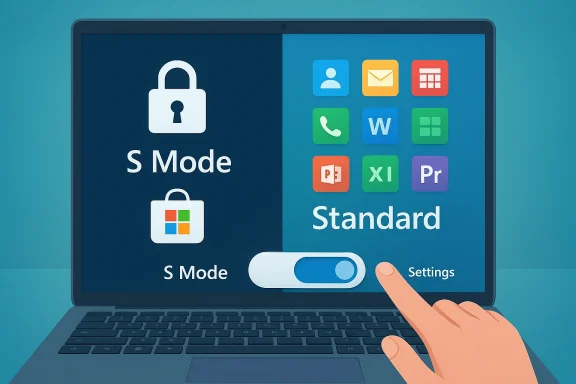
Windows’ S Mode can feel like a safety rail — comforting, but confining — and leaving it is easier than most people expect. The official process uses the Microsoft Store and typically takes only a few minutes, but that simplicity hides a handful of important trade-offs, failure modes, and administrative wrinkles you should understand before you click the button. This feature unpacks the exact steps, the reasons to stay (or leave), the common problems that block the switch, and a practical, step‑by‑step troubleshooting checklist so you can exit S Mode with confidence — and without losing data or sleeping on a surprise upgrade bill.
Background: what is Windows S Mode and why it exists
Windows S Mode is Microsoft’s intentionally restricted configuration of Windows designed for predictable performance, simplified administration, and a smaller attack surface. In S Mode, Windows only runs apps that come from the Microsoft Store; Edge is the default browser; and the platform is tuned for battery life and stability on lower‑powered devices. For students, shared devices, frontline workers, and bargain laptops, those constraints are often intentionally desirable. Microsoft’s own support documents frame S Mode as a security and performance tradeoff and make the key points crystal clear: switching out of S Mode is a one‑way decision, and there is no charge for making the switch.S Mode started as a separate SKU but is now a mode applied to Windows editions. On Windows 10 S Mode could appear on Home and Pro SKUs; on Windows 11, Microsoft’s documentation makes a key distinction: Windows 11 in S Mode is available only on Windows 11 Home, while S Mode on Windows 10 still appears on multiple SKUs. This distinction matters because the upgrade/management path for Windows 10 and Windows 11 devices can differ. Verify which Windows version and edition your device uses before you attempt any changes.
Why users want to leave S Mode (and why many shouldn’t)
The most common motivations for exiting S Mode are straightforward:- App compatibility: Many popular apps — Steam, many Adobe apps, developer tools, and bespoke business software — aren’t distributed via the Microsoft Store. If the app you need isn’t in the Store, S Mode will block it.
- Choice and customization: Power users and professionals want to install utilities, drivers, and apps from developer websites or corporate portals.
- Peripheral/driver compatibility: Some device drivers or support tools may not be available in the Store or may require an out‑of‑store installer.
- Management flexibility: IT administrators sometimes need features unavailable while the system is locked to Store‑only apps, especially for domain join, hypervisor tooling, or specialized AV agents.
How to exit S Mode — the official, supported path
Microsoft’s supported flow uses the Microsoft Store app to change your license state from “S Mode” to the standard edition. Follow these precise steps:- Open Settings (press Win + I).
- Go to Update & Security > Activation (Windows 10) or System > Activation (Windows 11).
- Look for the “Switch to” or “Switch out of S Mode” section and click the Go to the Store link.
- In the Microsoft Store app, the page titled “Switch out of S Mode” (or similar) will appear. Click Get (or Install / Switch) and wait for the confirmation message.
- After the Store confirms the switch, your PC will be able to install non‑Store (traditional Win32/x86) apps.
- It’s free. Microsoft does not charge to switch out of S Mode.
- It’s permanent. Once you switch, there is no supported way to return to S Mode without a full reset or reinstallation. Plan accordingly.
- Use the Microsoft Store app on the device. The web browser or a remote page cannot perform the licensing change — the action must happen inside the Store app on the device you’re changing.
A quick, practical checklist before you switch
- Confirm your Windows edition and version (Settings > System > About). If you’re on Windows 11, note whether your machine is Home edition (S Mode is supported there).
- Back up important data. The switch normally doesn’t touch files, but any time you perform a major system change it’s prudent to have recent backups.
- Sign in with a Microsoft account if possible. Many switch failures trace back to local accounts or account mismatches.
- Ensure you have a stable internet connection (home Wi‑Fi or cable is ideal; avoid flaky connections, captive portals, or restrictive corporate networks).
- If the device is managed by an enterprise or school (MDM, Intune, domain), check with your admin: policies can prevent switching or change which actions are allowed.
- Close the Store only after the confirmation message appears: the license change occurs serverompletes after the UI updates. Wait a minute to be safe.
Common failure modes and how to fix them (practical troubleshooting)
The “Switch out of S Mode” flow is usually smooth, but users and admins report a handful of recurring problems. Below are the typical symptoms, root causes, and reliable fixes.Symptom: the “Go to the Store” link or the Switch page is missing
Possible causes:- The device edition or activation state is incompatible or not recognized.
- Windows is outdated and lacks the necessary components.
- The Microsoft Store app is corrupted or missing.
- Confirm your edition and activation status in Settings. If activation is incomplete, resolve that first.
- Update Windows fully (Settings > Windows Update) and retry.
- Repair or reset the Microsoft Store app (Settings > Apps > Apps & features > Microsoft Store > Advanced options > Repair / Reset). Microsoft Q&A threads and community support resources frequently point to this as the first fix when the Store link is absent.
Symptom: the Store page loads but the Get button errors or the transaction fails
Possible causes:- Microsoft Store cache corruption.
- Network restrictions (firewall, proxy, VPN) blocking licensing endpoints.
- Microsoft account mismatch between Windows and Store.
- Run wsreset.exe to clear the Store cache, then retry. This clears transient corruption and is a low‑risk, often effective fix.
- Sign out of the Microsoft Store and sign back in using the same Microsoft account that’s associated with your Windows sign‑in. Many failures happen when those accounts differ.
- Avoid VPNs, enterprise proxies, and captive portal Wi‑Fi during the operation; use a direct home/phone hotspot connection if necessary. Tech tips and community threads repeatedly call out network filtering as a silent failure mode.
Symptom: the process appears to finish bul won’t install
Possible causes:- The license switch didn’t complete on Microsoft’s servers.
- Residual policy or management settings still disallow side‑loading.
- A required reboot or Store update was missed.
- Reboot and confirm Activation now shows the non‑S edition.
- Reopen the Store and check the page again — if it still shows a Get/Install option you didn’t receive confirmation. Wait for the Store confirmation dialog and keep it open until it finishes.
- If the device is managed by an organization, contact your IT team; they can confirm whether a management policy is preventing the change.
Step‑by‑step extended troubleshooting (do this sequence)
- Confirm Windows edition and activation. If activation is missing, fix that first.
- Ensure you’re signed into a Microsoft account at the OS level and in the Microsoft Store app. If not, sign in and retry.
- Update Windows completely. Restart.
- In an elevated Command Prompt, run wsreset.exe to clear the Store cache. Reopen Store.
- Try the Switch page from Settings > Activation > Go to the Store. Click Get and keep the Store open until the Store confirms the switch.
- If the page never loads, switch networks (mobile hotspot) and try again to rule out captive portals or firewall blocks.
- If it still fails, repair/reset the Store app or reinstall Store packages using PowerShell (advanced). If you’re not comfortable with PowerShell, contact Microsoft support. Microsoft Q&A posts contain community troubleshooting steps if you want diagnostic details to try before contacting support.
Enterprise, education, and management considerations
If your device is owned or managed by an organization, you’ll likely face additional constraints:- Devices enrolled in device management (Intune, MDM) or domain‑joined may have policy settings that block S Mode switching or restrict Store behavior.
- School or workplace licensing and app distribution may require the device to remain in S Mode for consistent security posture.
- You cannot rely on the S Mode switch to change corporate licensing; if an organization controls the machine, consult the IT administrator first.
Security trade‑offs: what you gain and what you risk
Leaving S Mode unlocks the full Windows experience, but it also reopens old threat vectors. Be explicit about the steps you must take after switching:- Install a reputable antivirus/endpoint protection solution and keep it current.
- Reestablish sensible UAC, SmartScreen, and browser security settings.
- Avoid installing software from unknown sites; prefer vendor sites and signed installers.
- Keep Windows and firmware patched — once S Mode’s protections are gone, patching matters more.
Special cases and gotchas (what vendors and writers often miss)
- Some Windows 11 devices ship in S Mode only as Home. If you bought a Windows 11 device expecting S Mode on Pro, double‑check the edition before troubleshooting. The distinction matters for upgrade paths and domain features.
- The Microsoft Store sometimes shows a paid “Upgrade to Pro” flow near the same part of Settings. That’s not the S Mode switch. Click only the Switch out of S Mode page in the Store (it will present a free “Get” option). Users often accidentally start a paid Windows edition upgrade instead; watch the wording carefully. Tech guides and community troubleshooting posts repeatedly warn about this incorrect click.
- If you plan to sell or repurpose a device for an environment that requires S Mode, understand you cannot revert without a full reinstall or factory image. That increases the logistical burden for schools or organizations that flip devices.
Real user reports: common pain points from community threads
Community troubleshooting threads show recurring themes: the Store page failing rs like “can’t load the page, try again later,” and confusion between the S Mode switch and paid edition upgrades. Community-sourced fixes that repeat across threads are: update Windows, clear the Store cache, and sign in with a Microsoft account (both in Windows and the Store). Those practical, real‑world fixes align with Microsoft’s troubleshooting guidance and with independent how‑to coverage.A short FAQ — quick answers to the questions people ask most
- Is switching out of S Mode free?
- Yes. Microsoft does not charge to exit S Mode.
- Can I go back to S Mode later?
- No. The change is one‑way. To return you’d need to perform a fresh reinstall or factory reset to an S Mode image (if available). Plan carefully.
- Do I need a Microsoft account to switch?
- Many real‑world reports and troubleshooting guides show that being signed in with a Microsoft account reduces failures; some systems will require it. If you’re on a local account and the Store link fails, sign in with a Microsoft account and retry.
- What if the “Switch out of S Mode” page never appears?
- Update Windows, reset/repair the Microsoft Store, run wsreset.exe, try a different network, and confirm the device isn’t managed by a policy that blocks the change. If those steps don’t help, Microsoft support can trace licensing requests.
Best practice recommendations (for consumers and IT teams)
For individual users:- Confirm your need for non‑Store apps before making the irreversible change.
- Back up data, sign in with a Microsoft account, update Windows, then perform the switch.
- After switching, install a strong endpoint protection product and update drivers from vendor websites.
- Avoid shipping devices in S Mode if your environment needs install flexibility or domain join.
- If S Mode devices are already in the field, create a controlled plan for switching — consider imaging, MDM policies, or a short help desk guide to avoid inconsistent results.
- Document the device state after switching; you can’t roll back centrally without reimaging.
Final verdict — when to leave, and when to stay
S Mode is a purposeful tradeoff: security, simplicity, and battery life for reduced flexibility. If your day‑to‑day requires only Store apps, Edge, and cloud services, staying in S Mode is often the safer, easier choice. If you need non‑Store apps, developer tools, or specialized drivers, the Store switch is the supported, free, and immediate solution — but it’s a permanent one. Before you act, confirm edition and activation, back up your data, sign in with a Microsoft account, and follow the checklist and troubleshooting sequence above. Microsoft’s documentation, community troubleshooting threads, and independent how‑to guides all converge on the same set of steps and warnings — follow them, and you’ll avoid the most common surprises.Switching out of S Mode is simple in execution but consequential in effect. Treat it like any system decision that touches your security posture: evaluate the need, prepare the environment, and perform the change with the right safeguards in place. If you run into stubborn errors after trying the steps above, gather system details (Windows version and edition, Store error text, account type, network type) and escalate to Microsoft support or your local IT team — with those facts in hand you’ll get faster, more accurate help.
Source: thedetroitbureau.com Exit Windows S Mode Easily
