

If you’re a Windows 10 user hunting for a native FaceTime installer, the short, unavoidable answer is this: there is no official FaceTime app for Windows 10 that you can download and install — but Apple now lets non‑Apple devices join FaceTime calls from a web browser, and there are several robust Windows‑native alternatives that most users will find better for everyday work and social use.
FaceTime began in 2010 as Apple’s built‑in video and audio calling service for iPhone, iPad, and Mac. Over more than a decade, FaceTime evolved from a simple one‑to‑one video tool into a full‑featured communications service with Group FaceTime, FaceTime Audio, SharePlay, and end‑to‑end encryption. It has traditionally been tightly integrated with Apple’s hardware and software ecosystem, a deliberate choice that prioritizes continuity across Apple devices. The biggest change relevant to Windows users arrived with iOS 15 / macOS Monterey: Apple introduced FaceTime links and a web client, allowing people using Chrome or Edge on Windows (and even Android) to join FaceTime calls created by an Apple user. That’s a one‑way concession — web join is possible, but Windows cannot act as an originating FaceTime host. Apple’s official support documentation is explicit about those limits and the supported browsers.
That means Windows users who also have iPhones may get a more integrated experience without abandoning Windows — but this is a Microsoft‑led bridge, not a FaceTime port. Microsoft’s approach complements Apple’s web join step and reduces the friction of working across ecosystems.
FaceTime on Windows 10 is not an installation problem so much as a compatibility choice by Apple: the company prioritized control and security while giving the broader world a safe window into FaceTime via the web. For Windows users, that’s a workable compromise for guest participation — but for ongoing, hostable, or enterprise conferencing, Windows‑native solutions remain the better option.
Source: PrioriData Download Facetime for PC Windows 10 | Priori Data
 Background
FaceTime began in 2010 as Apple’s built‑in video and audio calling service for iPhone, iPad, and Mac. Over more than a decade, FaceTime evolved from a simple one‑to‑one video tool into a full‑featured communications service with Group FaceTime, FaceTime Audio, SharePlay, and end‑to‑end encryption. It has traditionally been tightly integrated with Apple’s hardware and software ecosystem, a deliberate choice that prioritizes continuity across Apple devices. The biggest change relevant to Windows users arrived with iOS 15 / macOS Monterey: Apple introduced FaceTime links and a web client, allowing people using Chrome or Edge on Windows (and even Android) to join FaceTime calls created by an Apple user. That’s a one‑way concession — web join is possible, but Windows cannot act as an originating FaceTime host. Apple’s official support documentation is explicit about those limits and the supported browsers. What FaceTime on the web actually is — and what it isn’t
The promise: cross‑platform joining
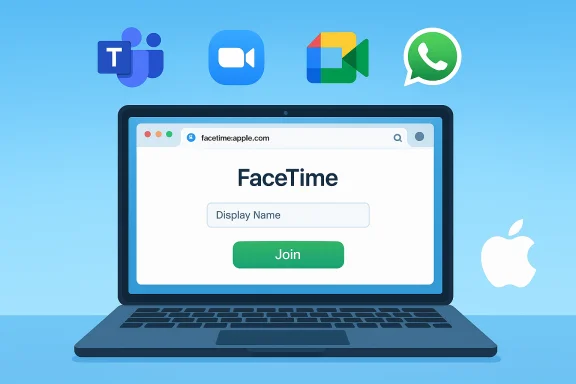
- Anyone with a modern browser (Chrome or Edge recommended) can open a FaceTime link, enter a display name, grant camera/microphone permission, and request to join the call. The Apple host must let web participants into the session.
- The browser experience covers the essentials: mute/unmute, toggle video, grid view, leave, and basic camera switching. For many ad‑hoc calls with friends and family this is perfectly adequate.
The limits: what you won’t get on Windows
- You cannot create FaceTime calls from Windows; only Apple devices can generate the link and host. The FaceTime web client lacks several advanced features such as SharePlay and full screen share, which remain Apple‑only in many cases.
- FaceTime’s maximum group size is 32 participants on Apple devices, and while web participants can join, Apple’s feature parity between native apps and the web client is deliberately partial.
Why Apple hasn’t released a FaceTime for Windows app
Apple’s ecosystem strategy has long been to keep certain services native and tightly integrated with Apple hardware. Turning FaceTime into a cross‑platform downloadable app would reduce the friction of Apple device exclusivity. The web‑link compromise keeps control where Apple wants it — Apple devices create the call and mediate access — while providing a pragmatic on‑ramp for Windows and Android guests. This design is consistent with Apple’s documentation and public statements about FaceTime links and web joins. This also means that most claims or “download FaceTime for PC” installers you might find from third‑party sites are either:- Browser‑based instructions (which are valid but don’t install anything), or
- Potentially harmful “wrappers” or scam installers that try to mimic the FaceTime brand. Exercise caution: there is no official Microsoft Store FaceTime app published by Apple.
How to join a FaceTime call from Windows 10 — step‑by‑step
- Ask an Apple device user to open FaceTime and create a shareable FaceTime link.
- Open the link in Google Chrome or Microsoft Edge on your Windows 10 PC. (Safari on Windows is not supported.
- Enter a display name and click Continue; allow the browser to use your microphone and camera when prompted.
- Click Join and wait for the host to admit you. You’ll appear as a web participant in the call.
- Use a modern browser and keep it updated for best compatibility and security.
- Close other apps that use the camera/microphone to avoid permission conflicts.
- If audio or video quality is poor, switch to a wired Ethernet connection or move closer to the Wi‑Fi access point.
Methods people try (and why they’re usually bad ideas)
iOS emulators
Some Windows users look for iOS emulators or “iPhone simulators” that promise to run FaceTime. These tools rarely provide a genuine Apple runtime, are frequently unstable, may break Apple’s terms of service, and can be vectors for malware. For reliability, privacy, and support reasons this approach is not recommended.Remote desktop to a Mac
If you own a Mac, you can remote into it from Windows and run FaceTime on the Mac remotely. This works, but it requires owning both platforms and introduces latency, bandwidth and UX compromises. It’s a niche solution for a specific use case rather than a practical general approach.Third‑party “FaceTime for PC” installers
Treat these as suspect. Apple has no official Windows binary; any claims to the contrary should be investigated carefully before downloading. The safe option is to use the web join flow or a Windows‑native video app. Always verify a download’s publisher, check digital signatures, and prefer Microsoft Store or vendor websites with strong reputations.Better options for Windows users: Windows‑native alternatives
For most Windows users the pragmatic choice is a native Windows video app. These are faster to install, integrate with Windows features, and offer more control. The following are the most relevant options, with a practical comparison of features you’ll care about.Microsoft Teams — the most Windows‑native option
- Why pick it: Teams is built for Windows, integrates with Microsoft 365, supports scheduling, recording, chat, file sharing and persistent collaboration. Microsoft documents Teams’ limits and specs — private chats can include up to 250 participants while typical call participant counts differ by meeting type and license. For many small businesses and families, Teams’ free tier is already powerful.
- Strengths:
- Deep Windows integration and single‑sign‑on with Microsoft accounts.
- Built for collaboration (files, whiteboards, persistent channels).
- Broad enterprise features when you need them.
- Caveats:
- Feature set can be overkill for casual social calls.
- Some advanced features (recording, large meeting capabilities) require paid plans.
Zoom — ubiquitous, simple meeting host controls
- Why pick it: Zoom remains a go‑to for ad‑hoc meetings, webinars, and multi‑platform compatibility. The free tier allows up to 100 participants but places time limits on group meetings for free hosts; those restrictions depend on host license type and can change, so confirm the current policy before large events.
- Strengths:
- Simple join experience for invited guests (link + browser or app).
- Strong video/audio quality and meeting controls.
- Wide third‑party integrations.
- Caveats:
- Time limitations and tiered features on the free plan.
- Occasional public perception issues have shifted over time; check up‑to‑date privacy documentation.
Skype / Microsoft migration to Teams
Microsoft announced changes to Skype’s future and has consolidated many of its consumer features into Teams. If you still use Skype, be aware the landscape has shifted toward Teams for both consumer and business use; migration paths and limits are documented by Microsoft’s consumer communications.Google Meet — quick browser‑first meetings
- Why pick it: Browser‑first experience without heavy installs, tight calendar integration for Google users. The free plan historically supports up to 100 participants for group meetings and generally enforces a 60‑minute cap for free accounts; verify current limits for long sessions.
- Strengths:
- No-install join through modern browsers.
- Solid integration with Google Workspace and Calendar.
- Familiar UX for Google account users.
- Caveats:
- Meeting length caps on free tiers and tiered feature sets.
WhatsApp Desktop — simple, encrypted small group calls
- Why pick it: End‑to‑end encrypted calls and easy contact‑based joining; WhatsApp increased group call limits in recent years and added desktop improvements. It’s ideal for small family video calls and offers strong privacy for those already in WhatsApp groups.
- Strengths:
- End‑to‑end encryption like FaceTime.
- Very simple for consumer users.
- Desktop clients available.
- Caveats:
- Historically limited to smaller participant counts than Teams/Zoom, though that has improved in recent updates.
A practical decision matrix: which route to choose
- If most of your contacts use Apple devices and they can create FaceTime links: join FaceTime via the browser. It’s simple and secure thanks to Apple’s end‑to‑end encryption, and it requires no extra installs.
- If you need to start, schedule, host, or manage meetings from Windows: choose a native Windows app (Microsoft Teams for integrated collaboration, Zoom for simplicity and scale, Google Meet for browser‑centric meetings). Each has tradeoffs in limits, features, and cost — check the vendor page for current limits and pricing before committing to a paid plan.
- If privacy and encryption parity with FaceTime matter to you: consider WhatsApp for small groups or Signal/Telegram (for messaging-first workflows), while being mindful of desktop client differences in group size and features.
Security and privacy considerations
FaceTime’s native apps use end‑to‑end encryption; the web join flow is designed to protect conversation privacy, but the link‑based model introduces user‑behavior risks. Keep these rules in mind:- Treat FaceTime links as semi‑sensitive — a leaked link can allow strangers to request entry, and hosts must manage admittance.
- Avoid installing third‑party “FaceTime for Windows” packages; there is no official Windows installer. Untrusted installers can contain malware or unwanted telemetry.
- Use the official apps and stores for Teams, Zoom, Google Meet, and WhatsApp desktop; update apps and browsers regularly to patch security vulnerabilities.
- For enterprise deployments, assess vendor enterprise agreements, compliance, and administrative controls before approving a platform for regulated data or critical meetings. Vendor features, quotas, and policies are subject to change, so document and test any tool before rolling it out at scale.
The Windows ecosystem is catching up in other ways
Microsoft has been building features to reduce friction for iPhone users on Windows. Recent Windows 11 updates and Phone Link innovations let iPhone owners pair and access basic phone features from the Windows Start menu: battery status, notification mirroring, file transfer shortcuts and limited call handling — a pragmatic step toward cross‑device convenience for mixed device households. These features are being rolled out and refined through the Windows Insider program and community testing; they require Bluetooth Low Energy support on the PC and version‑matched Phone Link components. Community and insider reports provide implementation details and compatibility notes for testers.That means Windows users who also have iPhones may get a more integrated experience without abandoning Windows — but this is a Microsoft‑led bridge, not a FaceTime port. Microsoft’s approach complements Apple’s web join step and reduces the friction of working across ecosystems.
FAQs (clarified and verified)
- Can I download FaceTime for PC Windows 10?
No. Apple does not publish a native FaceTime app for Windows 10. The only supported way to use FaceTime from Windows is to join via a FaceTime link opened in a compatible browser. - Can I start FaceTime calls from Windows?
No. Only Apple devices (iPhone, iPad, Mac with the supported OS versions) can create and host FaceTime calls; Windows users can only join links created by those hosts. - Are FaceTime calls on the web encrypted?
Apple advertises FaceTime as end‑to‑end encrypted. The browser join flow is supported by Apple and is intended to operate within that security model, though browser and OS security posture on the client side still matters for practical privacy and security. - Which Windows alternative is “best”?
It depends on needs: Microsoft Teams for integrated, enterprise collaboration; Zoom for simple scheduling and scale; Google Meet for browser‑centric calendar integration; WhatsApp for encrypted, casual calls among small groups. Confirm participant/meeting limits and paid feature sets directly with the vendor before planning large events. - Is using an iOS emulator to run FaceTime on Windows safe or supported?
No. iOS emulators generally do not provide a genuine Apple runtime and are not supported by Apple; they can be unstable and present security risks. Remote desktop into a Mac you own is a supported workaround but not convenient for most users.
Strengths and risks — editorial analysis
Strengths of the current model
- Apple’s web join compromise preserves FaceTime’s security model while easing cross‑platform guest access. For ad‑hoc cross‑platform hangouts, the experience is good enough, especially when the host already uses FaceTime.
- Windows‑native alternatives cover the full spectrum of needs: lightweight browser meetings, enterprise collaboration, and encrypted consumer calls. In practice, these solutions often offer more meeting‑control features, scheduling tools, and integrations than FaceTime’s web client.
Risks and gaps
- The fundamental asymmetry remains: Windows users can join but not originate FaceTime sessions. For households split between ecosystems this works, but teams that want every participant to host interchangeably will find the restriction limiting.
- Misleading third‑party “FaceTime for Windows” pages and fake installers create user risk. Strong, repeated warnings are warranted: if it’s not from Apple or an official store, don’t download it.
- The feature parity gap between native and web clients can cause confusion. Hosts expecting the same SharePlay, screen share and other advanced features to work for web participants will be surprised when they don’t.
- Enterprise and regulated environments must treat FaceTime web join as a consumer‑grade convenience, not a managed conferencing platform. For compliance, auditing, recording and admin controls, Teams/Meet/Zoom remain safer choices because they provide documented administrative controls and compliance features.
Final verdict — practical recommendations
- For everyday users who occasionally need to join a FaceTime call from Windows 10: use the FaceTime link in Chrome or Edge. It’s simple, secure, and there’s no official Windows installer to chase.
- For users who must host, schedule, or manage meetings from Windows: select a native Windows platform (Microsoft Teams for tight Microsoft integration, Zoom for simple host controls, Google Meet for calendar‑centric workflows). These options provide richer management tools, better enterprise controls, and clearer upgrade paths.
- Avoid emulators and unofficial installers that claim to “bring FaceTime to Windows.” If you are an enterprise IT pro, document these platform choices in your governance plan and block untrusted installers with endpoint protections.
- If you want better iPhone‑Windows continuity without leaving Windows, watch Microsoft’s Phone Link and Start Linking developments — they are closing practical gaps for mixed environments, but they do not replace FaceTime hosting.
FaceTime on Windows 10 is not an installation problem so much as a compatibility choice by Apple: the company prioritized control and security while giving the broader world a safe window into FaceTime via the web. For Windows users, that’s a workable compromise for guest participation — but for ongoing, hostable, or enterprise conferencing, Windows‑native solutions remain the better option.
Source: PrioriData Download Facetime for PC Windows 10 | Priori Data
