

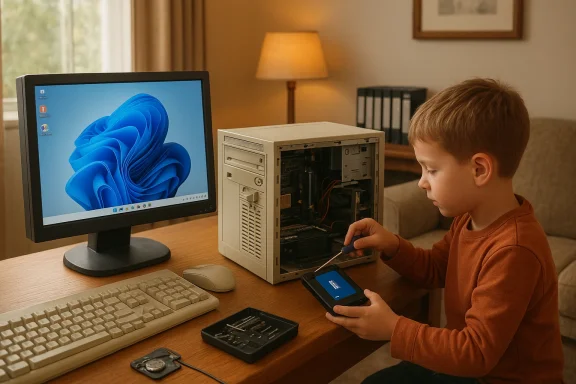
A routine family favor turned into a small lesson in modern Windows plumbing when a tech-savvy nephew prepared to upgrade his aunt’s aging PC — only to discover the machine had already upgraded itself to a newer Windows release and quietly modernized its software stack. What looks like a harmless success story—an old machine refreshed, tapes queued for digitization, and legacy apps still working—actually exposes a tangle of compatibility, policy, and security trade-offs that every Windows user and DIY upgrader should understand.
Background: the swap that almost didn’t happen
A nephew bought his aunt a used office PC as an upgrade: an ex-corporate desktop with an Intel 7th‑generation Core i5, 8 GB of RAM, and a fresh SSD and CMOS battery. He installed Windows 11 locally and migrated her data, only to find, on a later visit, that the aunt’s original machine had been updated to Windows 10 automatically and was running far better than before. The old experience—Windows 8 on a HDD-bound first‑generation i3—was transformed into something slow but usable, and the family celebrated regained usability: Office 2003 still opened her letters, Picasa (the defunct Google desktop photo tool) still ran, and a capture card driver behaved well enough to keep tape transfers going.That simplele outcome — a cleaner desk, faster boots, and rescued photo archives — raises questions that go beyond family satisfaction. How did Windows Update decide a Windows 8 machine should move to Windows 10? How did Office 2003 and other legacy apps continue to run on modern Windows builds? And critically: what does the experience tell us about installing Windows 11 on older, borderline hardware like Intel 7th‑gen processors?
Overview: what actually happened — a practical summary
- The aunt’s old PC was originally running Windows 8 and felt painful to use.
- A newer used machine (7th‑gen i5, 8 GB, SSD) was provisioned with a clean Windows 11 install by the nephew.
- On a later visit, the aunt’s original PC had auto‑updated to Windows 10, improving responsiveness and usability without manual intervention.
- Legacy apps — notably Office 2003 and Picasa — continued to function on the upgraded systems, though they remain unsupported by their vendors.
- The nephew observed unnecessary cabling and legacy hardware connected under the desk, removed clutter, migrated media, and the family celebrated a smoother, more modern setup.
Windows upgrade mechanics: how a Windows 8 machine winds up on Windows 10
Windows Update has long been the primary delivery mechanism for feature upgrades and security patches. During Microsoft’s big push to Windows 10 in the mid‑2010s, many systems were offered in‑place upgrades through Windows Update and setup assistants — sometimes with surprising automatic behavior depending on update settings. It’s plausible — especially on consumer systems with the default Windows Update settings — that an eligible machine receiving updates, combined with Microsoft offering free upgrades and in‑place upgrade flows during that era, would be moved to Windows 10 with minimal user action.At the enterprise and enthusiast level, community support threads historically document a wide range of upgrade behaviors and troubles when moving between major Windows versions, including problems with automatic rollouts and rollback errors. These community archives illustrate that automatic upgrades can and do happen — sometimes smoothly, sometimes badly — and that users often rely on forum guidance to troubleshoot upgrade issues. ocial rules, practical exceptions
Microsoft’s baseline: hardware requirements
Microsoft’s official Windows 11 system requirements are clear on the essentials: a compatible 64‑bit processor, UEFI firmware with Secure Boot, and TPM 2.0, plus minimum RAM and storage allotments. The published spec lists a 1 GHz or faster 2‑core CPU, 4 GB RAM, and 64 GB storage as the base, with security features (Secure Boot and TPM 2.0) enforced for supported installs.The CPU question: where 7th‑gen fits
Crucially for this story, official guidance from Intel and Microsoft effectively positions 8th‑generation Intel Core processors and newer as the line of officially supported CPUs for Windows 11. Intel’s compatibility guidance explicitly states that 8th gen and above are the supported family for Windows 11 on Intel platforms, and Microsoft’s supported CPU lists and messaging have consistently prioritized newer silicon because of modern virtualization‑based security requirements. That means many 7th‑gen chips are not on Microsoft’s compatibility whitelist for official Windows 11 support.So how did Windows 11 install smoothly on a 7th‑gen machine?
There are several reasons an install can succeed on unsupported hardware:- Workarounds and bypasses. Enthusiast tools and install options — including registry tweaks during setup or specialized imaging tools — can bypass the TPM or CPU checks. Guides and utilities to skip hardware checks have circulated widely. These are practical but unsupported.
- OEM/driver compatibility. A particular OEM board and its UEFI implementation might expose the features Windows 11 requires (Secure Boot, certain firmware features), making the installer accept the machine even if the CPU isn’t on the supported list.
- Real‑world tolerance. Microsoft’s installer and update mechanisms may allow an in‑place install to complete on many machines that fail the formal compatibility checklist; the difference is that such systems are unsupported and may not receive all feature updates reliably.
Legacy software: Office 2003 and Picasa — why they still work (and why that’s risky)
Office 2003: functionally present, officially dead
Office 2003 stopped receiving support and security updates years ago. Microsoft’s product lifecycle pages remind users that although legacy Office versions may still run, they do not receive security updates and are therefore a potential attack surface. In practice, many users and small businesses have continued to run old Office suites for decades because they “just do what’s needed” for basic documents and correspondence. Microsoft documentation and community threads show Office 2003 can be installed on modern Windows builds, but problems with file format compatibility and activation can surface, and Microsoft explicitly warns of security risks.Picasa: discontinued but resilient
Google discontinued the Picasa desktop app in 2016 and pivoted to Google Photos. That retirement means Picasa no longer receives updates, but users who keep the installer or an existing copy often find it continues to run on newer Windows versions. The software’s final builds are preserved in community archives and remain functional for basic photo organization and legacy workflows. The nephew’s success in running Picasa is unsurprising: the tool is resilient, but unsupported and potentially brittle in future Windows updates.Practical takeaway: legacy apps may work, but support and security are gone
- Legacy apps can be serviceable for single‑user tasks and local workflows.
- There’s a hidden cost: no security updates, compatibility risk in future OS updates, and potential licensing/activation oddities.
- For businesses or users handling sensitive data, relying on unsupported software is a material security risk.
The good parts: why this story resonates with PC enthusiasts
There’s a comforting, almost romantic element to the tale: a tenacious older PC is given new life through modest hardware upgrades (an SSD, a CMOS battery) and simple human attention (taming under‑desk cable chaos). The family gains:- Faster boot times and application responsiveness from an SSD.
- Enough RAM (8 GB) to make day‑to‑day tasks acceptable.
- Retained access to decades of personal data — videos, scanned tapes, and correspondence.
- A workable software environment that preserves the user’s mental model (Office 2003 UI, Picasa workflows).
The risks and caveats: what can go wrong
Beneath the upbeat outcome lie clear hazards that any upgrader must weigh:- Unsupported Windows 11 installs. Machines not on Microsoft’s compatibility list may run Windows 11, but they are outside update guarantees and may lose driver and feature updates. This can erode security or break hardware over time.
- Legacy software security holes. Office 2003 is not receiving security patches. Running it on an internet‑connected machine increases exposure to malware and document‑based attacks.
- Driver and capture device fragility. Older capture cards and USB devices may rely on drivers that weren’t written for modern WDDM and driver models, making them susceptible to failure after an update.
- Windows Update surprises. Auto‑upgrades or forced feature updates have historically produced both smooth transitions and catastrophic failures; community archives display a wide spectrum of upgrade problems. Backups and recovery options are essential.
- Future‑proofing and EOL timelines. Windows 10 support and extended‑support timelines matter for older machines: eventually, unsupported systems may be left without security patches unless extended update programs are purchased or alternative mitigations are applied.
A practical checklist for upgrading a family PC (what the nephew did — and what you should do)
- Back up everything first. Create image backups and copy user data to external media or cloud storage.
- Replace the storage device with an SSD for immediate perceived performance gains.
- Replace or test the CMOS battery if the machine shows date/time or BIOS settings drift.
- Verify firmware: switch BIOS to UEFI where possible and enable Secure Boot only after confirming driver compatibility.
- Check CPU and TPM support if you plan an official Windows 11 install. Use Microsoft’s PC Health Check and Intel’s compatibility resources as a starting point.
- Install the OS cleanly when practical; an in‑place upgrade saves time but can carry forward driver or registry baggage.
- Migrate applications conservatively: keep installers for legacy tools and test in a controlled manner.
- Remove unnecessary hardware and cleanup cabling — tidy desks and simpler power strips reduce accidental disconnections and make troubleshooting simpler.
- Document serial numbers, product keys, and take screenshots of settings so you can recover if an update misbehaves.
- Keep a recovery USB and a tested system image available in case a major update bricks the system.
When to accept an auto‑update and when to stop it
Windows Update’s default behavior caters to average consumers who prefer “set‑and‑forget” security. But for older hardware or systems running legacy apps, auto‑updates can be a double‑edged sword.- Accept auto‑updates when:
- The machine is on supported hardware and you prioritize security over compatibility.
- You have recent backups and a recovery path.
- Stop or delay them when:
- You run mission‑critical legacy software that is known to break on new builds.
- The device uses drivers or hardware with no modern support.
The ethics of unsupported installs and vendor messaging
There’s an ethical angle here: manufacturers and platform vendors must balance security with user autonomy. Microsoft’s insistence on TPM 2.0 and recent CPUs reflects a push for stronger security primitives across the ecosystem. That is beneficial for the long term, but it alienates users with fully functional older machines who must choose between unsupported workarounds and new purchases.Community forums and archives show the friction: users trying to avoid regressions, technicians juggling service contracts, and families trying to preserve beloved workflows. Those lived experiences — the same kind that produced the nephew’s success story and the community threads about update failures — are an important corrective to purely policy‑driven product decisions.
Technical verification of key claims in the anecdote
- Windows 11’s published system requirements include UEFI, Secure Boot capability, and TPM 2.0 as firm items for supported installations; Microsoft’s official spec page lists these baseline requirements.
- Intel and platform guidance put 8th‑generation Intel Core processors and newer squarely in the “supported” category for Windows 11; many 7th‑gen CPUs are not on Microsoft’s compatibility roster, which explains why some 7th‑gen installs are technically possible but unsupported.
- Office 2003 reached end of support long ago and is not receiving security updates, though community reports and Q&A entries confirm that it can often be installed and run on modern Windows, with caveats on file formats and activation. Users should treat Office 2003 as legacy, not secure.
- Picasa was officially discontinued by Google in 2016; the desktop app remains runnable if preserved by the user but is no longer supported by Google.
- Community support archives show a long, complicated history of Windows upgrades and update errors; those threads frame the natural tension between automated updates and the messy real world of heterogeneous hardware and software.
Recommendations for Windows enthusiasts, family IT volunteers, and small businesses
- Maintain a clear upgrade policy: decide whether you prefer stability (defer feature updates) or the latest security features (accept updates quickly).
- Keep full, tested backups before any major change. Image backups are faster to restore than reinstallation.
- If a machine runs essential legacy applications, consider single‑purpose virtualization (a small VM running an older Windows build) to isolate legacy apps from the daily OS.
- For DIY installs of Windows 11 on older hardware, document every workaround and understand that future feature updates may fail or create regressions.
- When possible, favor hardware with official Windows 11 support for devices that need long‑term updates — especially for users handling financial or health data.
Conclusion: the human story and the technical lesson
On the surface, this family anecdote is a feel‑good story about rescuing a workload from slowness and operational friction. Delve a little deeper and it becomes a compact case study about the modern Windows ecosystem: the tension between convenience and control, the way legacy software survives in the margins, and the risks of trusting unsupported configurations to remain stable over the long term.The nephew’s upgrade delivered immediate value — more responsive machines, a cleaned workspace, and rescued memories from old tapes. Those are outcomes worth celebrating. But the underlying technical realities are a reminder that what “just works” today may be insecure or unsupported tomorrow. For anyone playing the role of family IT, a small dose of discipline — backups, compatibility checks, and a long view on software lifecycle — will keep happy endings from turning into late‑night recovery sessions.
Source: TwistedSifter Tech Savvy Kid Tried Updating His Aunt’s PC, But Quickly Found Out That The PC Had Gone Into Auto Update
