

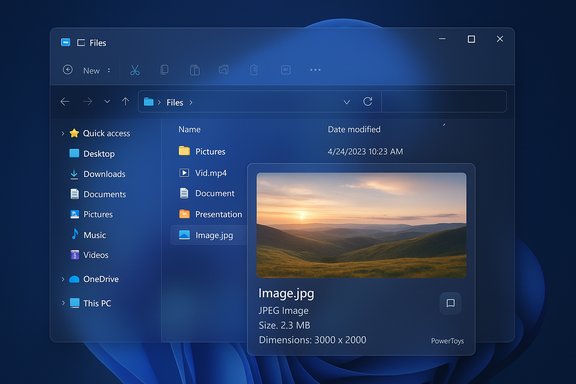
Files’ latest update makes one of the smartest Windows 11 workflows even smoother: with Files v4.0.24 the third‑party file manager now recognizes Microsoft PowerToys’ Peek, letting users preview files by selecting them and tapping the spacebar — the same quick‑look behavior macOS users expect — without opening heavyweight apps or leaving the Files UI. This change is small on the surface but significant in practice: it shortens common file‑browsing loops, reduces context switches, and folds a widely recommended productivity utility into an already polished file manager experience.
From a community standpoint, this is a good example of complementary open‑source and first‑party tools interworking: Files focuses on file management UX refinements while PowerToys invests in consistent, system‑level utilities. The result is a stronger ecosystem with clearer responsibilities and faster user value delivery.
Files v4.0.24’s Peek support is a tidy but meaningful upgrade: it brings an efficient, modern preview‑first workflow to a third‑party file manager many Windows users already prefer, and it does so by leaning on PowerToys rather than duplicating effort. The result is faster triage, fewer app launches, and a more consistent preview experience across tools — provided users and administrators account for hotkey choices, device capabilities, and managed‑environment constraints. For anyone who spends time hunting content in folders, this update reduces friction in a way that’s immediately noticeable and sustainably maintainable.
Source: Windows Central https://www.windowscentral.com/soft...s-11-apps-just-joined-forces-move-over-macos/
 Background
Why Peek matters to Windows users
For many power users, the missing piece in Windows’ file‑browsing ergonomics has been a reliable Quick Look–style preview. PowerToys’ Peek provides that: select a file and invoke Peek (default activation is the Space key) to see an overlay showing the file’s contents — images, Office documents, PDFs, Markdown, finished video and audio previews, and more — without launching the host application. Peek also supports keyboard navigation between items in the same folder and offers lightweight actions such as opening the file in its default app or deleting it from the preview overlay. Microsoft documents Peek as a system utility that is designed to be fast, transient, and minimally intrusive. PowerToys itself is a modular toolkit maintained by Microsoft and the community, designed to fill high‑value gaps in the Windows experience. Editors and community roundups routinely recommend it as part of a “day‑one” toolkit for Windows 11, because its small, focused utilities (FancyZones, PowerRename, Text Extractor, Peek, etc. return outsized productivity gains for a modest footprint.Files (the third‑party file manager)
Files is a modern, open‑source file manager that has become a favorite alternative to Windows File Explorer for users who prize tabbed browsing, a polished UI, dual‑pane workflows, and customizable power features. The Files team releases frequent updates through their blog, GitHub releases, and the Microsoft Store. v4.0.24 — announced as rolling out to users during the week around Christmas — includes Peek integration as the headline UX improvement.What Files v4.0.24 actually adds
PowerToys Peek support — the practical details
Files v4.0.24 adds a small but practical integration: when PowerToys is installed, selecting an item in Files and pressing the Space key will summon Peek, showing a preview overlay for that file. The Files release note is explicit: no additional configuration is required beyond having PowerToys installed; Peek will handle the preview rendering and Files simply forwards the activation. This mirrors the behavior PowerToys implements for native File Explorer and aligns Files with the ecosystem of PowerToys‑enabled workflows. Key points:- Activation: select a file in Files, press Space (default Peek activation). The activation key is configurable in PowerToys settings if you want to avoid conflicts.
- Automatic: If PowerToys is present and Peek is enabled, Files will invoke Peek without additional plugin installs.
- File types: Peek leverages its internal previewers and, when available, File Explorer preview handlers to render content. That means common images, Office documents, Markdown, PDFs, video formats (including WebM), WebP images, and even audio files can be previewed directly. PowerToys’ Peek has expanded format support in recent releases, adding WebP, WebM, and audio previews in v0.80.x.
Other changes shipped in v4.0.24
Files’ changelog bundles a handful of smaller productivity and UI improvements that matter day‑to‑day:- Copy actions added to right‑click menus in the sidebar and home widgets.
- Faster file and folder creation by pre‑filling and auto‑selecting default names.
- Omnibar styling consistency and status center text wrapping improvements.
- Search that supports AND/OR operators for tag filters.
- Stability fixes for Dual Pane resizing, Git merge branch switching, and icon rendering.
How Peek works inside Files (technical and UX notes)
Activation and behavior
Peek is implemented as a PowerToys module that can be invoked with a keyboard shortcut (Space by default as of recent PowerToys versions). Once invoked on a selected file, Peek opens a lightweight overlay that:- Renders a quick preview of the file content (images, text, Office files, supported media formats).
- Shows file metadata (size, type, last modified) on hover.
- Allows simple actions: open with Enter, delete with Delete (with optional confirmation), and pin the preview window for persistent view.
- Supports keyboard navigation between files in the folder with arrow keys.
Supported formats and preview fidelity
Peek’s supported formats have broadened iteratively. The PowerToys team added support for WebP/WebM and audio previewing in a notable release (PowerToys v0.80.x), and Peek also relies on File Explorer preview handlers when available — meaning that if your machine has a PDF handler or Office preview handlers installed, Peek can surface those previews too. In short, Peek aims to preview:- Images (.png, .jpg, .webp, .svg via add‑ons)
- Documents (Office files, PDFs through handlers)
- Text and markup (plain text, Markdown, source files)
- Video/audio containers (WebM, common codecs)
- Other formats supported by installed File Explorer preview handlers.
Why this integration matters — practical benefits
Faster triage and fewer app launches
Previewing a dozen candidate resumes or a folder of similar screenshots no longer requires opening Word or your image app repeatedly. Peek’s overlay returns the necessary visual or textual information in place. For workflows that involve sorting, tagging, or quick checks, this reduces time-to-task completion and conserves system resources by avoiding heavyweight application launches.Uniform preview experience across explorers
Some power users mix third‑party file managers with native File Explorer; when the preview capability exists only in one app, it fragments workflows. Files’ adoption of Peek unifies the quick‑look experience across the systems where users work, bringing third‑party explorer parity with native File Explorer for previewing.Leverages investment in PowerToys
Because Peek is part of PowerToys, improvements to Peek (format support, bug fixes) propagate to Files without additional work by Files’ developers. This distribution of responsibility lets each project focus on its core strengths: PowerToys on utilities, Files on file management UX.Risks, limitations, and trade‑offs
Hotkey conflicts and application interference
Peek’s default activation has been a point of friction historically. Some development environments (IDEs), design tools, and apps bind Ctrl+Space or Space for critical interactions. When PowerToys introduced Peek, community reports flagged conflicts where a global activation could intercept keystrokes intended for other apps. PowerToys has since made the activation shortcut configurable and updated defaults, but users should verify and, if needed, remap the key to avoid workflow breakage. Files’ use of the Space key follows PowerToys’ activation settings, so conflicts depend on the configuration of Peek, Files, and other software.Performance considerations
PowerToys is lightweight, but it is another background process. Enabling Peek adds runtime costs — especially when previewing large files or many media files in rapid succession. Files itself is a feature‑rich app; its authors and many community reports note occasional performance variability on lower‑powered hardware. If you’re on an older laptop or a very constrained VM, test the combination of Files + PowerToys to confirm acceptable responsiveness. Running only needed PowerToys modules and closing unnecessary apps mitigates resource pressure.Security and privacy considerations
Preview functionality requires parsing file contents, which increases the attack surface if preview parsers have vulnerabilities. Preview handlers for Office or PDFs run in users’ contexts and thus attackers sometimes target these code paths. Peek attempts to minimize risk by limiting the scope of previews and by running without elevation when possible, but administrators and cautious users should consider policies for sensitive environments. On managed devices, security teams may prefer to restrict installation of PowerToys or control which handlers are enabled. Additionally, preview behavior for files stored in cloud services may be mediated by the cloud provider’s thumbnail/preview pipeline, not local preview handlers.Elevation and network share quirks
PowerToys’ Peek includes an option to “always run without elevation,” because elevation mismatches between PowerToys and other apps can prevent access to network shares or certain protected locations. Files’ integration depends on how PowerToys is running and whether it’s permitted to query or open networked content. Users who run PowerToys or Files elevated may need to adjust settings to ensure seamless previews for remote files.Enterprise and IT perspective
- App policy and manageability: PowerToys is open‑source but distributed through Microsoft channels, and IT teams can deploy it via winget, Intune, or Group Policy controls. That said, many organizations limit third‑party utilities on managed endpoints; IT should validate compatibility and security posture before broadly allowing Peek.
- ADMX/Intune controls and configuration: PowerToys supports deployment channels and has documentation for configuring module availability. Organizations can disable Peek or limit modules as part of sanctioned imaging. Files itself is less likely to be permitted on corporate endpoints without explicit IT sign‑off. Administrators should test the preview pipeline against internal compliance and DLP tools to verify there’s no unintended exposure.
- Incident response and forensics: Previewing files does not “open” them in the traditional sense, but it can trigger routine file access logs. For security teams, understanding whether previews generate file reads or partial renders is important for audit trails and data governance.
How to enable and use the feature (practical steps)
- Install PowerToys (if not already installed): preferred channels are the Microsoft Store, GitHub releases, or winget for scripted installs.
- Open PowerToys and ensure Peek is enabled. Confirm the activation shortcut and change it if you anticipate conflicts.
- Install or update Files to v4.0.24 (app will normally prompt for updates; or download from Files’ official site / Microsoft Store).
- In Files, select any supported file and press Space. Peek should open automatically and render a preview. If it doesn’t, check that Peek is enabled and that PowerToys is running.
- If you use a keyboard shortcut that conflicts with an IDE or app, pick an alternate activation (for example, Alt+Space or Ctrl+Shift+Space) in PowerToys settings.
- If previewing PDFs or Office files fails, verify which preview handlers are installed on the machine and whether File Explorer’s preview pane works for the same format. Peek can leverage those handlers.
Alternatives and complementary tools
- QuickLook and Seer: Community third‑party utilities offer Quick Look–style previews for Windows and have their own plugin ecosystems. These can be lighter choices if you don’t want a broad toolkit like PowerToys.
- Native File Explorer Preview Pane: PowerToys’ File Explorer add‑ons also extend native preview and thumbnail support for SVG, Markdown, PDFs, and many source code types; Files + Peek complements rather than replaces that capability.
- Strict corporate environments where PowerToys isn’t allowed.
- Very constrained systems where a single minimal preview tool has a smaller footprint.
- Users who require specialized plugin support not provided by Peek’s current handlers.
Developer and community implications
Files’ decision to integrate Peek signals a pragmatic approach by open‑source desktop app authors: rather than reimplementing previewers, they leverage an established utility maintained by a larger project (PowerToys). That lowers maintenance costs and ensures users benefit from centralized improvements to preview engines.From a community standpoint, this is a good example of complementary open‑source and first‑party tools interworking: Files focuses on file management UX refinements while PowerToys invests in consistent, system‑level utilities. The result is a stronger ecosystem with clearer responsibilities and faster user value delivery.
Final assessment — strengths, weak points, and recommendations
Strengths- Instant productivity gains. Previewing files with the spacebar saves repeated app launches and reduces context switches for common tasks like triage and sorting.
- Low friction integration. No additional setup beyond having PowerToys installed; Files simply triggers the system preview.
- Future‑proofing via PowerToys improvements. As Peek gains format support and reliability, Files users benefit without separate updates.
- Hotkey conflicts. Verify and remap the Peek activation to avoid disrupting toolchains like IDEs.
- Performance on low‑end hardware. The combined footprint of Files + PowerToys may be noticeable on older devices. Test before deploying widely.
- Managed environment constraints. Corporate policy, compliance, and DLP considerations may restrict use on enterprise endpoints. Admins should evaluate preview handlers and audit behaviors.
- If you routinely preview many files during normal work, install PowerToys and update Files to v4.0.24 — the spacebar preview is a net time saver.
- Remap the Peek activation if you use software that relies on the Space or Ctrl+Space shortcuts. Quick change in the PowerToys settings prevents long troubleshooting sessions.
- On managed machines, coordinate with IT: test the preview pipeline for compatibility with corporate PDFs, DLP, and network share access before recommending broad adoption.
Files v4.0.24’s Peek support is a tidy but meaningful upgrade: it brings an efficient, modern preview‑first workflow to a third‑party file manager many Windows users already prefer, and it does so by leaning on PowerToys rather than duplicating effort. The result is faster triage, fewer app launches, and a more consistent preview experience across tools — provided users and administrators account for hotkey choices, device capabilities, and managed‑environment constraints. For anyone who spends time hunting content in folders, this update reduces friction in a way that’s immediately noticeable and sustainably maintainable.
Source: Windows Central https://www.windowscentral.com/soft...s-11-apps-just-joined-forces-move-over-macos/
