

When a fast Windows 11 laptop starts to feel sluggish and its memory meter lives in the red, the instinctual response is often to blame the hardware — and sometimes that’s right. More often, however, short, deliberate software changes and a modest maintenance routine can reclaim gigabytes of working memory and restore the snappy experience you expected from the start. This piece takes a practical look at five simple, low‑risk ways to stop Windows 11 from guzzling RAM — summarizing the quick fixes, verifying how and why they work, and offering a balanced analysis of the trade‑offs and potential pitfalls. The methods are the ones many users reach for first: tame the browser, prune startup apps, restrict background tasks, use Microsoft’s PC Manager for light housekeeping, and remember that a reboot still works wonders.
Windows 11 runs a lot of work under the hood: visual effects, background services, cloud sync agents, and modern browsers are all optimized to keep data close at hand, which is good for responsiveness — until it isn’t. On systems with limited RAM, or machines that have accumulated a lot of long‑running apps and caches, the result is elevated paging, CPU contention, and a perceived slowdown even when the CPU is not pegged. The good news is most of the high‑impact fixes are built into Windows or provided by a lightweight Microsoft utility, and they’re reversible.
Windows manages memory aggressively by design: caching frequently used data and keeping things resident to avoid slow disk I/O. That means high memory use is not always a problem — but it becomes one when working sets push the system to swap, or when background processes consume memory without offering the user benefit. Effective optimization focuses on removing unnecessary background drains, reducing redundant caches, and preventing unnecessary programs from launching automatically.
Practical steps (quick):
What to do:
Best practice (safe approach):
How to restrict background activity:
When to be cautious:
What PC Manager does:
Where PC Manager falls short:
Why it helps:
Optimizing Windows 11 memory use is mostly about sensible housekeeping — a mix of browser discipline, startup restraint, and targeted background permissions. The five steps described here reclaim perceptible responsiveness on the vast majority of machines without risky tinkering. They’re quick to apply, reversible, and they put the system back under the user’s control — which, ultimately, is the most sustainable performance strategy.
Source: Pocket-lint 5 simple ways I stop my Windows 11 PC from guzzling up all my RAM
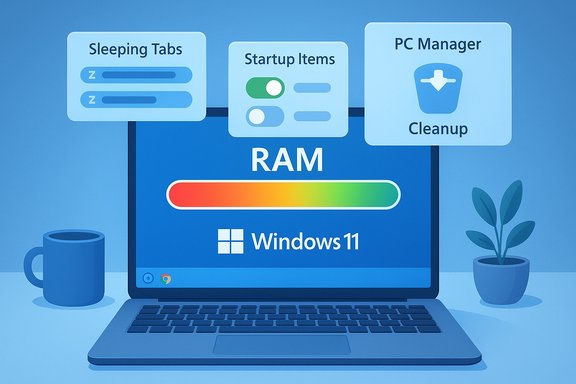 Background / Overview
Windows 11 runs a lot of work under the hood: visual effects, background services, cloud sync agents, and modern browsers are all optimized to keep data close at hand, which is good for responsiveness — until it isn’t. On systems with limited RAM, or machines that have accumulated a lot of long‑running apps and caches, the result is elevated paging, CPU contention, and a perceived slowdown even when the CPU is not pegged. The good news is most of the high‑impact fixes are built into Windows or provided by a lightweight Microsoft utility, and they’re reversible.Windows manages memory aggressively by design: caching frequently used data and keeping things resident to avoid slow disk I/O. That means high memory use is not always a problem — but it becomes one when working sets push the system to swap, or when background processes consume memory without offering the user benefit. Effective optimization focuses on removing unnecessary background drains, reducing redundant caches, and preventing unnecessary programs from launching automatically.
1. Optimize the browsing experience: put your browser in its place
Modern browsers are the single biggest and most common consumers of RAM on desktop systems. Chrome, Edge, and other Chromium‑based browsers create a process for tabs, extensions, and renderer tasks, which adds up quickly when you hoard tabs. The most reliable, low‑risk steps:- Close unused tabs and group long‑term research into a bookmark folder or a session manager.
- Remove or disable browser extensions you no longer use.
- Use built‑in tab management features such as sleeping tabs / tab discarding to reduce the footprint of inactive tabs.
- Periodically clear cookies, caches, and site data for sites you rarely visit.
Practical steps (quick):
- In Edge: open Settings → System and toggle Sleeping tabs; configure the idle period or add sites to the whitelist.
- In Chrome: close unnecessary extensions and use tab managers; enable relevant experimental features only if you understand the trade‑offs.
2. Dial back startup apps: fewer guests, faster lunches
A long list of programs that launch at login is a classic cause of RAM pressure right after boot. Many apps register themselves for auto‑start by default — cloud sync clients, chat apps, update agents, and media updaters. Trimming that list often produces the fastest perceptible improvement.What to do:
- Open Settings → Apps → Startup and toggle off anything that doesn’t need to run immediately at sign‑in. Task Manager → Startup tab shows measured “Startup impact” to prioritize changes.
- Keep essential security and backup clients enabled; disable auto‑updaters, chat apps, and rarely used launchers.
Best practice (safe approach):
- Disable a handful of items, reboot, and observe. If nothing breaks, proceed with a few more.
- Leave anti‑malware, disk encryption, and crucial sync clients enabled unless you deliberately manage backups another way.
3. Rein in background apps and processes
Windows differentiates app types — Store (UWP) apps and legacy Win32 apps — and many keep background tasks running for notifications and syncing. But not every app needs to keep running. Windows 11 supplies per‑app controls to restrict background execution, and using them conservatively helps both RAM and battery life.How to restrict background activity:
- Settings → Apps → Installed apps → click the three‑dot menu for a specific app → Advanced options → Background app permissions → set to Always, Power optimized (recommended), or Never.
- For Win32 apps that don’t expose that toggle, check the app’s internal settings or remove it from the Startup list.
When to be cautious:
- Don’t indiscriminately block background access for security or backup clients.
- If you rely on real‑time sync (shared collaboration, instant backups), keep those specific apps allowed.
4. Leverage Microsoft PC Manager: one‑tap maintenance (and know its limits)
For many users who prefer a simple interface, Microsoft’s free PC Manager bundles common maintenance tasks — a one‑click Boost function, Deep cleanup, startup management, and a lightweight process manager. PC Manager can rapidly free up temporary files and close idle processes to recover memory in seconds.What PC Manager does:
- PC Boost: terminates inactive processes and clears temporary files to free RAM immediately.
- Smart Boost: an automated mode that cleans once usage passes a threshold.
- Deep cleanup: identifies large or duplicate files and Windows update leftovers.
- Startup and process controls: provides a simplified interface for toggling startup items and ending misbehaving apps.
Where PC Manager falls short:
- The gains are often transient. Windows manages RAM dynamically and will repopulate caches as you continue using apps; Boost is a temporary reset, not a permanent rearchitecture.
- Some deep cleanup choices (e.g., clearing prefetch or cached elements) may carry small temporary slowdowns as Windows rebuilds those caches.
- PC Manager can nudge Microsoft defaults (prompts that favor Microsoft services); users should review suggestions before accepting changes.
5. Restart your PC: the underrated reset
It’s simple and it’s often effective: a reboot clears transient memory allocations, resets driver state, and restarts services that have leaked memory over long uptimes. If you’ve changed startup settings or disabled background apps, a restart ensures those changes apply cleanly and eliminates stray processes that survived sign‑out.Why it helps:
- Reboot flushes process memory and many forms of cache that only live in RAM.
- It’s the lowest‑risk way to resolve temporary memory leaks and return the system to a known baseline.
- After disabling startup items or background permissions.
- If Task Manager shows many processes with growing working set sizes.
- When you see "Memory pressure" in Resource Monitor or frequent swapping.
- Save work and close apps.
- Reboot rather than using hybrid shutdown if you want to ensure all kernel and user processes fully restart.
- If problems persist after reboot, use Resource Monitor or Task Manager to identify which processes rebuild memory rapidly — that points to apps that need deeper configuration or removal.
Practical checklist — apply these in 20 minutes
- Trim startup: Settings → Apps → Startup — toggle off nonessentials. Reboot.
- Tame the browser: close tabs, remove unused extensions, enable sleeping tabs or Memory Saver features.
- Restrict background apps: Settings → Apps → Installed apps → Advanced options → Background app permissions.
- Quick PC Manager pass: install Microsoft PC Manager from the Store and run Boost → Deep cleanup for a fast reclaim.
- Reboot and measure using Task Manager → Performance to compare memory and boot responsiveness.
Deeper analysis: strengths, limits, and risks
Strengths of these five moves- Low friction: all are built into Windows or available via Microsoft’s free PC Manager; none requires risky registry edits or paid third‑party “boosters.”
- High impact for most users: trimming startup items and cleaning storage often deliver the most consistent day‑to‑day responsiveness gains.
- Reversible and safe: toggles in Settings are easy to undo if a change causes a problem.
- Transient wins: memory freed by Boost or deleted caches may return as the system repopulates caches; these are maintenance wins, not hardware upgrades.
- Not a GPU/CPU fix: these measures reduce overhead and background contention — they don’t increase single‑thread CPU performance or GPU throughput.
- Hardware still matters: systems with 4–8 GB of RAM will hit physical limits faster and may benefit more from an actual RAM upgrade or moving to an NVMe SSD to reduce paging penalties.
- Overenthusiastic debloating: community scripts that remove large numbers of built‑in Windows components can break features or create update problems. Use caution and back up before aggressive cleans.
- Critical background services: disabling an auto‑start or background permission for an antivirus, backup agent, or sync client can interrupt essential protection or data replication. Leave these enabled unless you understand the consequences.
- Marketing numbers should be treated skeptically: aggregate claims about “trillions of MB saved” are useful to show scale but do not translate into a specific per‑device guarantee. Flag those as vendor‑reported metrics, not independent proof.
Advanced diagnostics: when simple fixes aren’t enough
If you’ve applied the five methods above and RAM pressure remains a daily problem, use these diagnostic steps:- Task Manager → Processes / Performance: sort by Memory and watch which processes climb after a fresh reboot. That identifies the primary memory consumers.
- Resource Monitor: look for high commit charge and which processes hold large private working sets.
- Use Performance Monitor and create a simple memory trace for repeatable scenarios (open your normal set of apps/tabs and record memory usage over time).
- Consider a clean boot or Safe Mode test to see whether a third‑party service is the culprit.
- If persistent memory leaks are observed (process memory keeps growing without bound), consider uninstalling the offending app or contacting its vendor; some apps are known to leak and require updates to fix.
- Upgrade RAM if you consistently use heavy multitasking workloads (VMs, large IDEs, professional editing tools).
- Move to an NVMe SSD if your system pagefile is heavily used — faster storage reduces the pain of swapping. These hardware upgrades typically provide the biggest single jump in responsiveness.
Accessibility and UX trade‑offs: visual polish vs performance
Disabling transparency effects, turning off some animations, or selecting Adjust for best performance in Performance Options removes some of Windows 11’s visual polish, but on constrained hardware the result is a snappier UI and lower GPU/CPU background overhead. These are reversible and per‑user choices: if you rely on certain UI cues for accessibility, selectively disable only the offending effects.Final verdict and recommended workflow
For most users, the fastest path to fewer RAM headaches is:- Audit and disable unnecessary startup apps. This is the single fastest, lowest‑risk improvement.
- Tame the browser: close long‑unused tabs and enable sleeping/discarding for inactive tabs. Configure exceptions for sites that must remain live.
- Use background app permissions to limit store apps that run for little value.
- Run Microsoft PC Manager for a friendly one‑click Boost and an occasional deep cleanup; treat it as maintenance, not a cure.
- Reboot regularly and use Task Manager/Resource Monitor to measure improvements.
Optimizing Windows 11 memory use is mostly about sensible housekeeping — a mix of browser discipline, startup restraint, and targeted background permissions. The five steps described here reclaim perceptible responsiveness on the vast majority of machines without risky tinkering. They’re quick to apply, reversible, and they put the system back under the user’s control — which, ultimately, is the most sustainable performance strategy.
Source: Pocket-lint 5 simple ways I stop my Windows 11 PC from guzzling up all my RAM
