

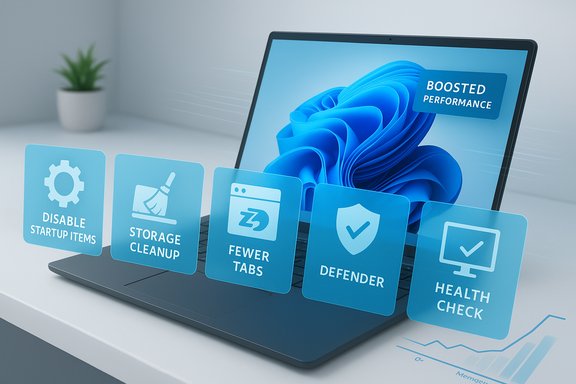
Most Windows laptops and desktops feel blistering-fast the day you unbox them — then slowly, quietly, they get bogged down. The five small, repeatable actions described in the Pocket‑lint piece — trimming startup programs, uninstalling unused apps, using Microsoft PC Manager, tuning your browser, and scanning for malware — are precisely the kind of low‑risk, high‑return maintenance moves that revive a slow PC and restore the responsive Windows 11 experience most of us expect. These fixes are fast to perform, reversible, and together address the most common causes of sluggishness: background processes, wasted storage, browser memory bloat, and unwanted software.
A slow Windows PC is rarely a hardware mystery: most performance drag comes from software behavior — apps that launch at sign‑in, background workers that keep memory occupied, full system storage that forces frequent paging, or browsers and extensions that monopolize RAM. These five practical steps attack those problems directly and safely, using built‑in Windows controls and a free Microsoft utility many readers already have access to. The guidance below expands the Pocket‑lint list with verification, alternatives, and cautions so you can apply the tips on any Windows 11 machine and know what to expect.
Source: Pocket-lint 5 easy things I did to give my slow PC a new life
 Background / Overview
A slow Windows PC is rarely a hardware mystery: most performance drag comes from software behavior — apps that launch at sign‑in, background workers that keep memory occupied, full system storage that forces frequent paging, or browsers and extensions that monopolize RAM. These five practical steps attack those problems directly and safely, using built‑in Windows controls and a free Microsoft utility many readers already have access to. The guidance below expands the Pocket‑lint list with verification, alternatives, and cautions so you can apply the tips on any Windows 11 machine and know what to expect.Why these five fixes matter
- Startup programs directly affect boot time and first‑minute responsiveness because each auto‑launched app consumes CPU, disk I/O and RAM right away. Disabling nonessential items is the fastest, safest single improvement for perceived speed.
- Unused apps take storage, may register background tasks, and sometimes add drivers or services that slow the system over time. A monthly spring‑clean prevents the slow creep.
- Microsoft PC Manager and similar tools bundle monitoring, cleanup, and one‑click boost functions that make maintenance approachable for non‑experts, although they are not a replacement for targeted troubleshooting.
- Browser optimization is critical because modern browsers are heavy RAM consumers; minimizing extensions, enabling sleeping tabs or memory‑saver features, and preventing background processes keeps overall system memory free for other apps.
- Malware scanning removes stealth resource hogs (adware, miners, spyware) that can cripple responsiveness; Windows Security (Defender) is good baseline protection, and targeted third‑party scanners are useful for cleanup.
Disable unnecessary startup programs
What to change and where to look
Disabling startup items is straightforward and reversible. Two reliable routes:- Task Manager → Startup tab (Ctrl + Shift + Esc). The Startup impact column helps prioritize what to disable.
- Settings → Apps → Startup: toggle the apps you don’t want to auto‑launch.
Why this gives the biggest immediate win
Startup apps consume CPU cycles, memory, and disk bandwidth during the critical post‑boot window. Trimming them reduces I/O spikes and early paging, shortening the perceived time to a usable desktop. For many systems, this single tweak produces the largest snappiness improvement with the least risk.Practical checklist
- Identify high‑impact items in Task Manager.
- Keep security, encryption, and sync clients enabled if you need real‑time protection or backups.
- Reboot and observe Task Manager → Performance to confirm the improvement.
- Revisit startup items after major app updates — some apps re‑add themselves.
Remove unused apps (monthly spring‑clean)
Why uninstalling matters
Apps left installed can occupy gigabytes, register background services, and add scheduled tasks or update agents that quietly consume CPU and RAM. Regularly cleaning out software prevents the registry and component store from becoming unnecessarily bloated.How to clean safely
- Settings → Apps → Installed apps (or Apps & features). Sort by Last used or Size to find candidates.
- Uninstall via the app’s menu or the system installer; follow prompts and accept restarts if requested.
- Reserve large or seldom‑used files (photos, video projects) for external storage or cloud archives rather than the system drive.
- Consider a checklist: remove trialware, demo apps, duplicate utilities, and old installers you no longer need.
Caveats
Some OEM utilities or drivers appear as user apps but are tied to hardware functionality; verify before removing anything labeled by your laptop maker. When in doubt, create a System Restore point before mass uninstalls.Install and use Microsoft PC Manager: what it does and what it doesn’t
The appeal
Microsoft PC Manager (free) aggregates a health dashboard, quick cleanup tools, and simple startup/process controls into a single interface. For users who prefer an easy, one‑screen view of memory, storage, and startup behavior, it speeds routine maintenance. The “Health check” and “Boost/Deep cleanup” options can free temporary files and terminate idle processes in seconds.Strengths
- Consolidates common maintenance tasks into one app.
- Automates temporary‑file cleanup and highlights obvious space hogs.
- Provides a low‑risk way to reclaim memory quickly without registry edits.
Limits and risks
- PC Manager’s one‑click boosts clear caches and terminate processes that appear idle — temporary wins that can quickly reappear as the system repopulates caches. These are maintenance gains, not hardware upgrades.
- Avoid relying on any “system‑tuning” app to perform invasive changes (service removals, registry cleanups) without understanding the consequences. Use PC Manager for tidyups and visibility, and rely on targeted troubleshooting for persistent issues.
Optimize browser settings: tame the biggest memory hog
The browser is often the real performance culprit
Modern browsers can use tens of gigabytes of RAM across many tabs and extensions. That isn’t a bug — it’s how browsers accelerate page loads and keep tabs instantly responsive — but on machines with limited RAM it causes paging and system slowdown. Minimizing background browser activity is an essential part of “make PC faster” work.Browser‑specific tips
- Microsoft Edge: enable Sleeping Tabs and disable background processes and extensions when the browser is closed. These settings reduce background memory and CPU use.
- Google Chrome: enable Memory Saver (or “Tab Discarding”) and remove or disable extensions you rarely use. Consider profile separation if you run many web apps simultaneously.
- General: clear caches periodically for long‑running sessions, use bookmarklets or tab managers rather than keeping hundreds of tabs open, and prefer web apps that support offline or lightweight modes.
When to consider a different browser
If your daily workflow relies on dozens of tabs and heavy web apps, using a browser optimized for low memory usage (or splitting tasks across profiles) can reduce memory pressure. Measure the change using Task Manager before committing.Scan for viruses and malware — security equals speed
Built‑in protection and additional cleanup
Windows Security (Microsoft Defender) provides robust baseline protection and often suffices for many users, but stubborn adware, PUPs (potentially unwanted programs), and miners sometimes slip through. Occasional second‑opinion scans with specialized tools such as Malwarebytes are a practical way to remove those threats.Recommended scanning routine
- Keep Windows and Defender definitions up to date.
- Run a full offline scan using Windows Security if you suspect persistent malware.
- If sluggishness persists and scans are clean, run a reputable second‑opinion scanner to find adware and PUPs.
- After cleanup, reboot and recheck Task Manager → Processes to confirm the resource usage is back to normal.
Cautions
Real‑time protection should remain enabled; disabling startup entries for antivirus or backup clients can eliminate protection and cause data loss. Use scans for cleanup, and re‑enable protections immediately if you temporarily paused them for troubleshooting.Beyond the five: practical follow‑ups that compound gains
The five steps are fast and effective. If you want to push further, these measured follow‑ups deliver additional, verified improvements.1. Free up storage and use Storage Sense
Low free space on the system drive forces Windows to use the page file heavily, increasing disk I/O and latency. Use Settings → System → Storage and enable Storage Sense to automate temporary‑file removal; run Disk Cleanup for deeper cleanup when needed. For HDDs, use Optimize Drives (defragmentation); for SSDs, let Windows manage TRIM.2. Adjust visual effects and power mode
On machines with integrated graphics or 8 GB of RAM or less, turning off transparency and reducing animations in Performance Options yields a perceptibly snappier UI. Switching to Best performance or High performance power mode while plugged in prevents aggressive CPU downclocking during heavy tasks. These are reversible, low‑risk changes.3. Run DISM and SFC for system health
If system files are corrupted, performance can suffer. Use sfc /scannow and DISM cleanup commands from an elevated command prompt to repair system images and reclaim space in the component store when warranted. These are safe, documented maintenance steps.4. Monitor and diagnose with Resource Monitor and Performance Monitor
If you still see odd slowdowns, identify the guilty process with Resource Monitor or Performance Monitor and trace whether it’s a memory leak, scheduled task, or heavy I/O operation. Persistent memory leaks usually indicate a specific app or driver issue that needs updating or removal.5. When hardware upgrades are the right fix
If you constantly hit physical limits (regular paging, consistent >80% RAM use under normal workloads), then adding RAM or moving the OS to an NVMe SSD is the single most impactful upgrade. Upgrading storage from an HDD to any SSD typically produces the largest single latency improvement for boot and app launch times.Measurable tests: how to confirm improvements
Anecdotes are persuasive; data is decisive. Use these quick before/after checks:- Measure cold boot time (power on to desktop ready) with a stopwatch or Task Manager metrics.
- Note Task Manager → Startup impact and the number of enabled entries before and after.
- Time heavy app launches (browser with typical tabs, IDE, office suite) and repeat each test three times.
- Observe Task Manager → Performance for CPU, Memory, Disk I/O trends during the same workload.
Critical analysis: strengths, limits, and risks
Strengths
- Low barrier and reversible: All five steps use built‑in controls or a free Microsoft app; they avoid risky registry hacks and are easy to undo.
- High ROI for most users: Many systems regain most of their snappiness after these quick fixes, especially machines with limited RAM or old HDDs.
- Good first triage: These steps are the right first response before considering reformatting or hardware upgrades.
Limits
- Temporary improvements: Memory freed by a boost or cache cleanup may return as caches repopulate; these are maintenance steps, not permanent performance multipliers.
- Hardware ceiling remains: No amount of cleanup will match the speed gains of additional RAM or moving from HDD to NVMe SSD — those are structural upgrades.
Risks and warnings
- Don’t disable critical services: Disabling an antivirus, disk‑encryption client, or backup agent at startup can stop protections or backups; keep essential security and sync tools enabled.
- Beware “one‑click” debloaters that remove system components: Avoid community scripts or third‑party tools that surgically remove built‑in features unless you fully understand the fallout. Use Microsoft PC Manager for safe tidyups and official tools or vendor docs for deeper changes.
- Back up before mass changes: If you plan to uninstall many things, run a full backup or create a System Restore point first. That makes rollback painless.
Practical 20‑minute routine (step‑by‑step)
- Open Task Manager → Startup. Disable 4–6 nonessential items (messaging apps, auto‑updaters). Reboot.
- Run Settings → System → Storage → Temporary files. Remove safe temporary files and enable Storage Sense if desired.
- Uninstall 2–3 unused apps from Settings → Apps → Installed apps. Prefer largest or oldest unused apps first.
- Install/run Microsoft PC Manager (or open it if already installed) and run Health check / Deep cleanup for another pass.
- Open your browser and disable or remove unused extensions, enable sleeping tabs/memory saver. Restart the browser.
- Run a full Windows Security scan; if you suspect adware, follow up with a second‑opinion scan. Reboot and verify Resource Monitor for abnormal activity.
Conclusion
The five straightforward actions outlined by Pocket‑lint — disabling unnecessary startup apps, removing unused programs, using Microsoft PC Manager for health checks, optimizing browser settings, and scanning for malware — form a compact, highly effective playbook for reviving a slow Windows 11 PC. They are safe, reversible, and address the most common software causes of sluggishness. For sustained gains, combine those moves with periodic storage cleanup, measured adjustments to visual and power settings, and hardware upgrades when your workloads demand more RAM or an NVMe SSD. Measure results, change one thing at a time, and keep backups handy — those habits will keep your system feeling fast and reliable for years.Source: Pocket-lint 5 easy things I did to give my slow PC a new life
