

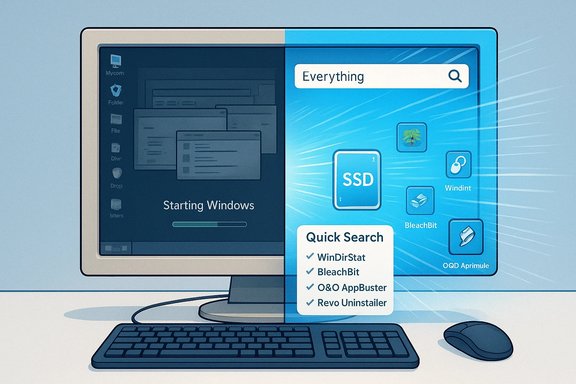
If your old Windows PC has started taking forever to boot, stutter during everyday tasks, or feel simply sluggish, a small set of focused utilities can often restore snappy performance without buying new hardware. Recent roundups that target aging Windows machines recommend a compact toolkit — a PC booster/cleaner, a superfast file search, a lightweight launcher, a safe debloater, and a reliable uninstaller — to reclaim responsiveness and practicality from systems hampered by software bloat.
Over time, Windows installations accumulate leftover files, orphaned registry entries, unnecessary background services, outdated indexes, and preinstalled “bloatware.” These software artifacts increase disk I/O, raise memory usage, and multiply startup tasks, all of which slow down boot times and daily responsiveness. The result is a machine that feels older than its components truly are — and often the hardware itself (HDD vs SSD, or insufficient RAM) is only part of the story. Practical, low-overhead apps can clear the software friction and meaningfully improve perceived performance.
This article synthesizes the most useful, free and lightweight tools recommended by recent reviews and community testing for speed‑ing up an aging Windows PC. It explains how each tool works, when it's appropriate, and the practical risks to watch for. The goal is to give Windows users a safe, step‑by‑step playbook to optimize performance and extend the usable life of older hardware without trading security or stability for quick wins.
That said, there are hardware realities: switching from a mechanical HDD to an SSD and adding RAM are the single most effective upgrades for boot and application launch times. The software toolkit discussed here is not a magical substitute for insufficient hardware, but it is an excellent first line of action that often postpones or reduces the need for immediate upgrades.
Why it helps: repeated Explorer searches and slow index queries cause disk I/O spikes that make an old HDD feel worse. Everything avoids repetitive heavy I/O and gives immediate results, so your workflow spends less time waiting. Practical tip: enable the Everything service for real‑time indexing on machines where files change often; on slower disks you can instead run manual refreshes to avoid background I/O.
Alternatives: Search utilities such as Windows' built‑in indexer (tuned properly) or other launchers with integrated search can help, but Nothing matches Everything's raw speed and low overhead for filename lookups.
Caveat: Everything indexes filenames and metadata — it is not a deep content search replacement unless you enable content indexing features, and content indexing increases disk I/O and resource use.
Why it helps: fewer UI transitions and fewer Explorer windows mean less subjective waiting, especially on slow disks. Practical tip: enable only the plugins you need to keep memory use low; configure shortcuts to replace repetitive workflows.
Alternatives: Alfred‑style launchers and Windows-based tools such as PowerToys Run can deliver similar benefits. Microsoft PowerToys' Run, for example, is tightly integrated and safe for mainstream users.
Caveats and risks: aggressive debloaters can remove functionality or break dependent features. Use reputable tools, avoid automatic “fix all” buttons without reviewing actions, and keep backups. For enterprise or multi‑user systems prefer documented Microsoft tools or group policy approaches.
Why it helps: tab bloat and memory leaks across years of daily browsing steadily chew through RAM and CPU; a cleaner, optimized browser profile reduces background resource use. Practical tip: clear browser caches and disable or remove unused extensions; consider an extension manager to keep background scripts off until needed.
Alternatives: if privacy and lean performance are priorities, consider browsers designed for low resource usage, or split workflows across a primary browser and a second “light” browser for single‑purpose tasks.
Why it helps: fully removing applications stops scheduled tasks, background update services, and leftover DLLs from spiking disk or CPU usage later. Practical tip: use the uninstaller’s “monitor/advanced” mode where available to ensure full cleanup; export a list of installed apps first so you can restore if needed.
Caveat: take care with “powerful” cleanup options — always confirm what’s being removed and use restore points before taking aggressive action.
Weak points and risks: Aggressive cleaning or debloating carries the risk of removing features or breaking update paths, especially with OEM-customized systems. Different users and workloads will see different results; performance claims vary with testing methodology, number of browser tabs, installed extensions, and background services. Always verify the tools and actions you take on a single machine before applying them broadly.
Practical verdict: For most users, the five‑app approach outlined here — instant search, a keyboard launcher, targeted debloater/cleaners, an optimized browser, and a robust uninstaller — is the best first step to speed up an old Windows PC. These tools deliver high impact with low risk when used carefully, and they give you a measured, reversible path to reclaiming day‑to‑day productivity without immediate hardware spending. If that still falls short, prioritize an SSD and additional RAM as the next investment.
This plan is practical, repeatable, and aligned with community‑tested recommendations for speeding up aging Windows systems. Use the checklist above, keep backups, and proceed deliberately — small, well‑informed changes deliver the best long‑term results for getting an old PC feeling young again.
Source: SlashGear 5 Apps That Can Breathe New Life Into Your Old Windows PC - SlashGear
 Background / Overview
Over time, Windows installations accumulate leftover files, orphaned registry entries, unnecessary background services, outdated indexes, and preinstalled “bloatware.” These software artifacts increase disk I/O, raise memory usage, and multiply startup tasks, all of which slow down boot times and daily responsiveness. The result is a machine that feels older than its components truly are — and often the hardware itself (HDD vs SSD, or insufficient RAM) is only part of the story. Practical, low-overhead apps can clear the software friction and meaningfully improve perceived performance.This article synthesizes the most useful, free and lightweight tools recommended by recent reviews and community testing for speed‑ing up an aging Windows PC. It explains how each tool works, when it's appropriate, and the practical risks to watch for. The goal is to give Windows users a safe, step‑by‑step playbook to optimize performance and extend the usable life of older hardware without trading security or stability for quick wins.
Why apps often beat a hardware panic
Before spending money on a new PC, remember two truths: one, software configuration is a leading cause of sluggish Windows behavior; and two, small, targeted fixes often deliver big perceived speedups. Reclaiming free disk space, disabling needless startup items, and replacing slow built‑in utilities with faster alternatives can deliver immediate improvements. Solid improvements are frequently delivered by tools that attack the high‑impact bottlenecks: disk clutter, search/index slowness, background processes, and inefficient app management.That said, there are hardware realities: switching from a mechanical HDD to an SSD and adding RAM are the single most effective upgrades for boot and application launch times. The software toolkit discussed here is not a magical substitute for insufficient hardware, but it is an excellent first line of action that often postpones or reduces the need for immediate upgrades.
The five essential apps (and what they do)
Below are five app categories that consistently produce the best returns on older Windows systems. For each category, recommended apps are described along with tips, alternatives, and safety notes.1) Superfast file search — Everything (instant local search)
Everything by Voidtools is the de facto choice when you want near‑instantaneous filename search on Windows. Unlike the built‑in Windows indexer, Everything indexes file names extremely quickly and returns results as you type, dramatically reducing the time spent hunting for documents, installers, or downloads. On most systems it builds and maintains an index with a small memory footprint and finds files across drives in milliseconds.Why it helps: repeated Explorer searches and slow index queries cause disk I/O spikes that make an old HDD feel worse. Everything avoids repetitive heavy I/O and gives immediate results, so your workflow spends less time waiting. Practical tip: enable the Everything service for real‑time indexing on machines where files change often; on slower disks you can instead run manual refreshes to avoid background I/O.
Alternatives: Search utilities such as Windows' built‑in indexer (tuned properly) or other launchers with integrated search can help, but Nothing matches Everything's raw speed and low overhead for filename lookups.
Caveat: Everything indexes filenames and metadata — it is not a deep content search replacement unless you enable content indexing features, and content indexing increases disk I/O and resource use.
2) Keyboard‑first launcher — Flow Launcher (fast app launch & plugins)
Flow Launcher (and similar keyboard launchers) replaces repeated Start menu and Explorer navigation with a single, keyboard-driven entry. It launches apps, opens folders, and runs plugins or custom actions in a fraction of the time, reducing the friction of everyday tasks and making the system feel faster even without changes to raw CPU or disk speed. For power users, the time saved launching and switching apps compounds across the day.Why it helps: fewer UI transitions and fewer Explorer windows mean less subjective waiting, especially on slow disks. Practical tip: enable only the plugins you need to keep memory use low; configure shortcuts to replace repetitive workflows.
Alternatives: Alfred‑style launchers and Windows-based tools such as PowerToys Run can deliver similar benefits. Microsoft PowerToys' Run, for example, is tightly integrated and safe for mainstream users.
3) Debloater & cleanup utilities — BleachBit, WinDirStat, and O&O AppBuster
Cleaning disk clutter and uninstalling preinstalled apps (often called bloatware) are high‑impact, low‑risk steps to speed up old machines. A trio of utilities often recommended together covers the job:- WinDirStat — provides a visual treemap of disk usage so you can find and remove space hogs at a glance. It helps you understand what's consuming your drive so you can target large caches, old installers, or duplicated media.
- BleachBit — an advanced cleaner that removes temporary files, caches, and traces left by many apps. It’s useful for deeper cleanup beyond what Storage Sense does.
- O&O AppBuster (and similar debloaters) — lists preinstalled Microsoft Store and OEM apps and lets you remove the ones you don’t use. This reduces background update activity and frees disk space.
Caveats and risks: aggressive debloaters can remove functionality or break dependent features. Use reputable tools, avoid automatic “fix all” buttons without reviewing actions, and keep backups. For enterprise or multi‑user systems prefer documented Microsoft tools or group policy approaches.
4) Optimized browser — choose a browser tuned for memory and extensions
Browsers are frequently the biggest resource consumers on modern Windows PCs. Replacing a heavy, extension‑laden browser profile with an optimized browser (or a leaner profile) can reduce RAM pressure and page‑load latency. Options such as Vivaldi or Brave, used with a small curated extension set, can feel noticeably lighter than a cluttered Chrome/Edge profile. Another strategy is to use a browser that supports sleeping tabs or robust tab management.Why it helps: tab bloat and memory leaks across years of daily browsing steadily chew through RAM and CPU; a cleaner, optimized browser profile reduces background resource use. Practical tip: clear browser caches and disable or remove unused extensions; consider an extension manager to keep background scripts off until needed.
Alternatives: if privacy and lean performance are priorities, consider browsers designed for low resource usage, or split workflows across a primary browser and a second “light” browser for single‑purpose tasks.
5) Robust uninstaller — Revo Uninstaller, IObit Uninstaller (safe removal)
Windows’ built‑in uninstallers often leave folders, files, and registry keys behind. A robust uninstaller such as Revo Uninstaller or IObit Uninstaller performs the standard removal and then scans for leftover items to fully clear the app’s footprint. This reduces orphaned registry entries and stray background services that can consume resources over time.Why it helps: fully removing applications stops scheduled tasks, background update services, and leftover DLLs from spiking disk or CPU usage later. Practical tip: use the uninstaller’s “monitor/advanced” mode where available to ensure full cleanup; export a list of installed apps first so you can restore if needed.
Caveat: take care with “powerful” cleanup options — always confirm what’s being removed and use restore points before taking aggressive action.
Step‑by‑step: a safe one‑hour plan to speed up an old Windows PC
- Backup first: create a system restore point or a quick disk image. This is essential before removing apps or running aggressive cleaners.
- Run WinDirStat to visualize disk usage and remove large unused installers or media. Delete only files you recognize or move them to external storage.
- Install and run Everything for instant file search; use it to find large or duplicate files quickly. Enable the service only if you’re comfortable with continuous indexing.
- Use O&O AppBuster (or Microsoft’s own “Optional features” and Settings > Apps) to remove clearly unwanted OEM store apps. Back up before removing items you don’t recognize.
- Run BleachBit or Storage Sense to clear caches and temp files; avoid sweeping system‑level items unless you know what they do.
- Replace your browser profile with a leaner setup: disable unused extensions, clear the cache, or install a lightweight browser.
- Use a robust uninstaller to remove apps that left behind services or scheduled tasks. Reboot and confirm faster startup times.
Deeper maintenance (when one hour isn’t enough)
If the one‑hour plan helps but performance remains unsatisfactory, consider these next steps:- Add an SSD: migrating Windows from an HDD to an SSD is the single most effective upgrade for boot time and app launches. Clone the system drive or perform a clean install for a fresh start.
- Add RAM: if your daily workload routinely consumes available memory, adding RAM reduces paging and I/O thrashing. Use Task Manager to confirm memory pressure before purchasing modules.
- Use Sysinternals utilities: Autoruns and Process Explorer help diagnose stubborn startup items and runaway processes that mainstream cleaners miss. These are recommended for power users who are comfortable with advanced diagnostics.
Risks, caveats, and how to avoid common pitfalls
- Don’t assume every “speed-up” button is safe: many one‑click optimizers promise dramatic improvements but can disable critical services, cause update issues, or remove needed components. Use well‑reviewed tools and inspect suggested changes before applying them.
- Watch for bundled software: some installer packages try to add extra toolbars or trial software. Prefer official downloads or Microsoft Store packages to reduce the risk of unwanted extras.
- Keep backups: before mass removals or registry edits, create a restore point and a file backup. This simple precaution avoids hours of recovery time if something goes wrong.
- Understand limits: no amount of cleanup can overcome physical hardware constraints entirely. If your workflow requires heavy multitasking, large virtual machines, or video editing, there will be a ceiling where hardware upgrades become necessary.
What to expect: realistic gains and longevity
When applied correctly, the toolkit above commonly yields these outcomes:- Faster boot and login times if startup apps are trimmed and a large amount of disk I/O is removed.
- Quicker file access and near‑instant search via Everything, which saves minutes per day for users who hunt for files often.
- Lower background CPU and memory consumption after safe debloating and uninstallation of unnecessary services.
Recommended toolkit at a glance
- Superfast search: Everything — instant filename search with minimal memory overhead.
- Launcher: Flow Launcher or PowerToys Run — keyboard-first app and action launchers that cut navigation time.
- Disk & cleanup: WinDirStat, BleachBit — visualize disk usage and safely reclaim temporary files.
- Debloater: O&O AppBuster (or manual Apps & Features audits) — safe removal of preinstalled store apps.
- Uninstaller: Revo Uninstaller or IObit Uninstaller — remove apps and scan for leftovers.
Final analysis: strengths, weak points, and a practical verdict
Strengths: The curated suite of small, focused utilities attacks the key software causes of sluggishness — disk clutter, inefficient search, background bloat, and leftover application artifacts. They’re mostly free, low-overhead, and safe when used with caution. Combined with modest hardware upgrades (SSD, RAM), they can extend the usable life of an older Windows PC by months or years for typical productivity workloads.Weak points and risks: Aggressive cleaning or debloating carries the risk of removing features or breaking update paths, especially with OEM-customized systems. Different users and workloads will see different results; performance claims vary with testing methodology, number of browser tabs, installed extensions, and background services. Always verify the tools and actions you take on a single machine before applying them broadly.
Practical verdict: For most users, the five‑app approach outlined here — instant search, a keyboard launcher, targeted debloater/cleaners, an optimized browser, and a robust uninstaller — is the best first step to speed up an old Windows PC. These tools deliver high impact with low risk when used carefully, and they give you a measured, reversible path to reclaiming day‑to‑day productivity without immediate hardware spending. If that still falls short, prioritize an SSD and additional RAM as the next investment.
This plan is practical, repeatable, and aligned with community‑tested recommendations for speeding up aging Windows systems. Use the checklist above, keep backups, and proceed deliberately — small, well‑informed changes deliver the best long‑term results for getting an old PC feeling young again.
Source: SlashGear 5 Apps That Can Breathe New Life Into Your Old Windows PC - SlashGear
