

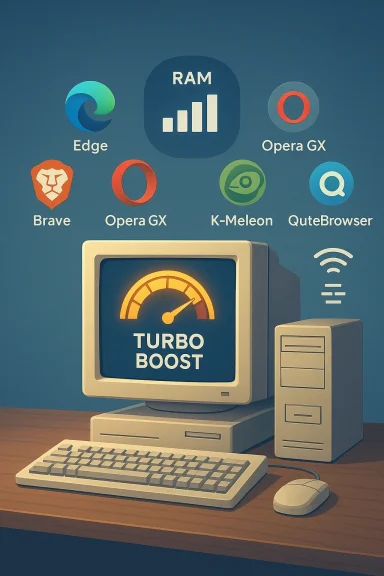
For owners of aging hardware or slow network connections, switching browsers can be the single easiest way to get a noticeable speed boost without spending a dime — and six free options stand out for making older PCs feel like they’ve been given new life. A recent roundup highlights Microsoft Edge, Opera, Opera GX, Brave, K‑Meleon, and QuteBrowser as practical, free choices that trade heavy features for better resource handling, smart throttling, and focused toolsets that work well on limited RAM and slow links.
The browser you pick matters more than most people realize. Modern web habits — dozens of open tabs, persistent background scripts, video-heavy pages, and tracking pixels — make the browser the dominant consumer of memory, CPU, and network bandwidth on many Windows systems. Replacing a bloated profile or switching to a browser designed for efficiency can deliver a dramatic usability improvement on older hardware. Recent editorial roundups and community tests consistently recommend lighter, privacy‑aware, or highly configurable browsers as part of a low-cost strategy to revive slow machines.
This feature examines each recommended browser in detail, verifies the most important performance claims where possible, and offers practical configuration steps to squeeze the best speed from each option. Where a claim is environment-dependent or unverifiable from the supplied material, that limitation is flagged and concrete next steps are suggested.
Key verification priorities:
Why Edge is a strong pick for older Windows PCs:
Standout strengths:
Why Opera GX can make an old PC feel “new”:
Security and privacy positives:
Strengths:
Who should consider QuteBrowser:
Actionable next steps:
Conclusion
Replacing a heavy, long‑lived browser profile with one of these six free alternatives is one of the clearest performance wins available for older Windows PCs and slow networks. Whether you prioritize OS integration, network compression, deterministic resource usage, privacy by default, or ultra‑minimal memory consumption, there’s a browser on this list tailored to that need. Test one, tune it, and you may find an old machine feeling—and acting—much newer than it did yesterday.
Source: ZDNET My 6 favorite browsers that can make your old PC run like new again (and they're free)
 Background / Overview
The browser you pick matters more than most people realize. Modern web habits — dozens of open tabs, persistent background scripts, video-heavy pages, and tracking pixels — make the browser the dominant consumer of memory, CPU, and network bandwidth on many Windows systems. Replacing a bloated profile or switching to a browser designed for efficiency can deliver a dramatic usability improvement on older hardware. Recent editorial roundups and community tests consistently recommend lighter, privacy‑aware, or highly configurable browsers as part of a low-cost strategy to revive slow machines.This feature examines each recommended browser in detail, verifies the most important performance claims where possible, and offers practical configuration steps to squeeze the best speed from each option. Where a claim is environment-dependent or unverifiable from the supplied material, that limitation is flagged and concrete next steps are suggested.
How these browsers were selected and verified
The six browsers here were selected for one or more of the following characteristics: low RAM footprint, built-in bandwidth/CPU controls, content compression, aggressive tracker/ad blocking, or an inherently minimal architecture. The core claims from the source material were cross-checked with community analysis and product documentation available in the provided files; where a technical claim could not be independently confirmed from those files, it was marked as needing further verification on the vendor or project pages.Key verification priorities:
- Memory footprint estimates with a representative tab set.
- Presence of built-in throttles (network/CPU/RAM) or compression features.
- Platform availability and update cadence.
- Compatibility tradeoffs (JavaScript/Widevine/modern web features).
Microsoft Edge — balanced memory management and platform integration
Microsoft Edge is a Chromium‑based browser that has made large strides in resource management and platform integration. In practical tests cited in the roundup, Edge used roughly 790 MB with ten open tabs — a competitive figure that reflects improvements in tab management and memory throttling. Edge offers features well suited for constrained systems: automatic tab sleeping, content throttling, ad‑blocking options, and webpage compression that benefits slow networks.Why Edge is a strong pick for older Windows PCs:
- Tight Windows integration reduces duplicate background services and benefits from OS-level optimizations.
- Automatic tab sleeping frees RAM from idle tabs while maintaining fast tab switching.
- Built‑in protections and frequent security updates keep legacy machines safer without needing third‑party add‑ons.
- Edge’s close integration with Microsoft services can be a plus for convenience but raises privacy tradeoffs for those who prefer minimal telemetry. Users who want strict privacy may prefer a Chromium fork with hardened defaults.
- Enable Sleeping Tabs and set a short inactivity timer.
- Turn on the built‑in Tracking Prevention and consider enabling the ad‑blocking feature if available.
- Keep Edge updated through Windows Update for security fixes.
Opera — turbo modes, content compression, and sensible defaults
Opera is another Chromium derivative that balances features with efficiency. The reported memory footprint for a ten‑tab session is around 899 MB, yet Opera’s Turbo mode and integrated content compression can dramatically improve page load times on slow connections. Additional built‑ins like a free VPN, ad blocker, and DNS preloading make Opera especially useful where network performance is the primary bottleneck.Standout strengths:
- Turbo/content compression for slow or metered networks.
- Workspaces and visually lightweight UI customizations to reduce task switching overhead.
- Solid tab management that minimizes background CPU and memory churn.
- Some built‑in features (VPN, built‑in ad blocker) are convenient but may not match dedicated tools for privacy or performance in every scenario.
- Opera’s feature breadth means it’s not the lightest Chromium fork available, but its network optimizations give it a real advantage on slow links.
- Turn on Turbo when on a slow connection.
- Use Workspaces to split heavy workloads and reduce simultaneous tab memory usage.
- Disable unnecessary extensions that run background scripts.
Opera GX — resource limiters for predictable performance
Opera GX reimagines the browser for gamers, but its CPU/RAM/network limiters make it uniquely useful for older machines. If your system has constrained memory (for example, 4–8 GB), GX’s resource caps prevent the browser from consuming an unpredictable share of system RAM or saturating a slow uplink during streaming or updates. The browser also includes an ad blocker and optional VPN functionality on desktop platforms.Why Opera GX can make an old PC feel “new”:
- Deterministic resource usage: set hard limits to stop the browser from monopolizing RAM or CPU.
- Fast tab switching and sensible UI defaults that reduce background load.
- GX’s custom visual effects are cosmetic; disabling animated elements reduces GPU/CPU overhead on weaker machines.
- As a gaming‑focused build, some built‑in integrations (twitch, Razer, etc. can be disabled for a lighter footprint.
- Configure RAM and CPU limiters to sensible values (e.g., cap browser RAM to a portion of system RAM).
- Disable GX marketing integrations and animations.
- Use the built-in ad blocker to reduce page rendering overhead.
Brave — privacy-first performance with page acceleration features
Brave defaults to blocking ads and trackers, which reduces network traffic and CPU cycles for content parsing — the result is fewer heavy third‑party scripts and faster page loads. For ten tabs, the reported memory usage is approximately 920 MB, slightly higher than some lightweight builds but still respectable given Brave’s privacy stack. Brave also includes page load acceleration, content compression techniques, fast tab switching, and DNS preloading — all helpful on slow networks.Security and privacy positives:
- Native ad and tracker blocking by default.
- Optional Tor integration for anonymous browsing sessions.
- Frequent updates and a focus on reducing third‑party script workloads.
- Brave’s blocking model sometimes breaks sites that rely on third‑party content; whitelist necessary domains sparingly.
- Users who require DRM (Widevine) for streaming services should verify playback support in their configuration.
- Keep Shields on for general browsing; disable per-site only when necessary.
- Avoid heavy extension sets; use Brave’s built‑in protections instead.
- Clear and restrict background permissions for sites that use push notifications or persistent workers.
K‑Meleon — ancient UI, tiny footprint, and targeted tradeoffs
K‑Meleon is a Windows‑only, Gecko‑based browser built specifically for very low‑resource environments. The roundup reports a very small memory footprint (~200 MB for 10 tabs) thanks to its minimal architecture: ad/tracker blocking, minimal UI, cached rendering, and absence of JavaScript/Java/Flash support by default (which dramatically reduces runtime overhead). K‑Meleon is practical where web pages are simple or where the priority is raw speed and low RAM usage.Strengths:
- Extremely low memory usage on Windows.
- Minimalist design that minimizes background processes and script execution.
- Good fit for older hardware with 1–4 GB of RAM.
- Many modern websites rely heavily on JavaScript; disabling JS can significantly degrade functionality and user experience.
- K‑Meleon’s development cadence is slow and the last major update (as of the source material) was reported some years prior — this raises security and compatibility concerns that must be evaluated before long‑term use. Verify the current release and security patch status on the official project page before deploying widely.
- Use K‑Meleon for lightweight tasks (email, static sites, documentation) rather than dynamic web apps.
- If a site breaks, consider a fallback browser for critical services rather than enabling risky legacy plugins.
- Confirm the browser version and security updates before installing on devices that handle sensitive data.
QuteBrowser — keyboard-first minimalism and astonishing efficiency
QuteBrowser is a radically different proposition: a keyboard‑driven, minimal UI browser that emphasizes text input and low overhead. It’s reported to use about 4 MB of RAM per tab, a figure that makes it one of the most memory‑efficient modern browsers. QuteBrowser intentionally omits JavaScript support (or limits it), so pages load very quickly, and navigation is performed via keyboard commands (for example, pressing “o” then Enter to open a URL).Who should consider QuteBrowser:
- Power users comfortable with keyboard-driven workflows.
- Administrators and tinkerers who need a fast way to open documentation, simple web pages, or text‑centric sites.
- Users who need extremely low memory usage on Linux, macOS, or Windows.
- The learning curve is steep for users expecting a traditional point‑and‑click interface.
- Lack of JavaScript severely limits compatibility with many modern web apps.
- Not suitable as a general‑purpose daily driver for users dependent on interactive web platforms.
- Read the built‑in help page on first run; it provides essential command examples.
- Map common workflows to custom key bindings to speed daily tasks.
- Use QuteBrowser for specific high‑performance tasks and retain a mainstream browser for heavy web apps.
Cross‑browser considerations: compatibility, DRM, extensions, and updates
Choosing a browser for an old PC is not purely about memory numbers. The following practical points determine whether a switch will be smooth or introduce hidden costs.- JavaScript and site compatibility: Browsers that disable JavaScript or limit script execution (K‑Meleon, QuteBrowser) will be faster but will also break many modern sites. Keep a mainstream browser as a fallback.
- DRM and streaming: If you rely on streaming services (Netflix, Disney+, Prime Video), verify Widevine or equivalent DRM support before switching; some minimalist browsers will not support DRM playback out of the box.
- Extension ecosystem: Chromium derivatives (Edge, Opera, Brave, Opera GX) benefit from the vast Chrome extension ecosystem but also inherit the risks of extensions (background scripts, memory leaks). Limit extensions to a curated few.
- Update cadence and security: Lightweight or niche browsers sometimes have slower update cycles. For any browser installed on machines that handle sensitive tasks, confirm how frequently security patches are released. K‑Meleon, for example, has a slower development pace and should be used with caution on sensitive systems until its patch status is verified.
- Platform support: Confirm that the browser supports your OS — QuteBrowser is cross‑platform (Linux, macOS, Windows), K‑Meleon is Windows‑only, and the mainstream Chromium browsers support all major desktop and mobile platforms.
Practical, step‑by‑step plan to speed up an old PC using a browser swap
- Back up critical data and create a system restore point. This is the safest first step before making system changes.
- Identify your primary bottleneck:
- Low RAM: prioritize ultra‑light browsers (K‑Meleon, QuteBrowser), or use Opera GX to cap memory.
- Slow network: opt for Opera with Turbo mode or a browser with content compression (Opera, Edge).
- Privacy/third‑party script overhead: choose Brave or a strict ad/tracker blocking profile.
- Install the browser and run a clean profile (no legacy extensions or synced settings from long‑running profiles).
- Configure built‑in performance features:
- Sleeping tabs (Edge), RAM/CPU limits (Opera GX), Turbo/compression (Opera), Shields (Brave).
- Test critical websites (email, bank, streaming) and keep a mainstream browser for sites that fail.
- Maintain a small, curated set of extensions and update the browser regularly.
Risks and caveats — what to watch for
- Compatibility breakage: Minimal browsers often disable JavaScript or plugins, which will break many modern web apps. Always have a fallback browser for necessary functionality.
- Security/updates: Browsers with slow development cycles or infrequent updates introduce risk. Verify update cadence before relying on them for sensitive or credentialed tasks. Flagged claims about last update dates should be confirmed on official project pages.
- Privacy tradeoffs: Built‑in conveniences (integrated VPNs, sync services) can be useful but should be evaluated against your privacy needs. Not all VPNs provide the anonymity or trust model of a paid, audited service.
- Extensions and background processes: Extensions can nullify the gains of a lightweight browser. Audit and disable any background extension you don’t actively use.
Quick recommendations — which browser to pick based on typical scenarios
- Best all‑round choice for old Windows PCs with need for compatibility: Microsoft Edge (memory-savvy, built for Windows).
- Best for slow or metered networks: Opera (Turbo mode, compression, built-in VPN).
- Best for predictable resource limits: Opera GX (RAM/CPU/network limiters).
- Best for privacy-first users who still want decent performance: Brave (default ad/tracker blocking).
- Best extreme lightweight, Windows‑only option: K‑Meleon (minimal RAM use; check compatibility).
- Best for advanced keyboard-first users: QuteBrowser (ultra‑low RAM per tab; steep learning curve).
Final analysis — balancing speed, security, and everyday usability
A browser swap is a high‑leverage, low‑cost way to breathe life into an old PC. For most users, a Chromium‑based browser with strong tab management and built‑in content controls (Edge, Opera, Brave) offers the best combination of speed, compatibility, and security. For specialized scenarios — extremely low RAM or keyboard specialists — K‑Meleon and QuteBrowser deliver extraordinary efficiency at the cost of compatibility and convenience. Opera GX fills a unique niche when predictable resource allocation matters most. These options are free, widely available, and supported across major desktop platforms in most cases.Actionable next steps:
- Choose a candidate browser from the recommendations above and install a fresh profile.
- Follow the configuration checklist in this article to enable sleeping tabs, caps, or compression as appropriate.
- Run your daily workflows for a week in the new browser and keep the old one available for sites that don’t work.
Conclusion
Replacing a heavy, long‑lived browser profile with one of these six free alternatives is one of the clearest performance wins available for older Windows PCs and slow networks. Whether you prioritize OS integration, network compression, deterministic resource usage, privacy by default, or ultra‑minimal memory consumption, there’s a browser on this list tailored to that need. Test one, tune it, and you may find an old machine feeling—and acting—much newer than it did yesterday.
Source: ZDNET My 6 favorite browsers that can make your old PC run like new again (and they're free)
