

If your PC feels sluggish and you're resisting the sticker shock of a replacement, a few smart apps and careful maintenance steps can add noticeable pep to an aging Windows machine without opening the case or emptying your wallet. A recent roundup highlighted five lightweight utilities that deliver real-world improvements to search, launching, archiving, and everyday housekeeping—practical options for anyone looking to speed up Windows, optimize Windows 11 performance, or rescue an older laptop from daily lag. Those recommendations align with long‑standing system maintenance guidance and are most effective when combined with basic hardware checks and safe usage practices.
Older PCs slow down for familiar reasons: cluttered storage, many startup items, poorly indexed files, background processes, and the limitations of spinning hard drives or constrained RAM. Built‑in Windows utilities (Storage Sense, Task Manager, Optimize Drives) solve some problems, but third‑party tools often provide faster, more convenient workflows and automation for users who don’t want to dig through Settings every time. That’s the premise behind the five apps spotlighted in the recent feature: targeted, low‑overhead utilities that address specific bottlenecks rather than promising a mythical “one‑click” cure.
These tools are not a substitute for hardware upgrades when your machine is physically limited—moving from an HDD to an SSD or adding RAM remains the single most effective way to speed up Windows boot times and app launches. But the right apps can postpone an upgrade, streamline workflows, and reclaim storage and responsiveness for months or years.
Also note that lists of “essential” apps are partly subjective and depend on individual workflows and risk tolerance. The recent roundup’s five utilities are well‑chosen for common bottlenecks, but no single list is universal—test tools on a noncritical system or create a restore point before wide deployment. This recommendation landscape is shaped by user needs, not blanket guarantees.
Conclusion: pragmatic tools plus sensible backups and a readiness to upgrade hardware when necessary offer the best path to keep older Windows machines useful and responsive.
Source: bgr.com 5 Essential Windows Apps That Can Speed Up Your Aging Computer - BGR
 Background / Overview
Older PCs slow down for familiar reasons: cluttered storage, many startup items, poorly indexed files, background processes, and the limitations of spinning hard drives or constrained RAM. Built‑in Windows utilities (Storage Sense, Task Manager, Optimize Drives) solve some problems, but third‑party tools often provide faster, more convenient workflows and automation for users who don’t want to dig through Settings every time. That’s the premise behind the five apps spotlighted in the recent feature: targeted, low‑overhead utilities that address specific bottlenecks rather than promising a mythical “one‑click” cure.These tools are not a substitute for hardware upgrades when your machine is physically limited—moving from an HDD to an SSD or adding RAM remains the single most effective way to speed up Windows boot times and app launches. But the right apps can postpone an upgrade, streamline workflows, and reclaim storage and responsiveness for months or years.
The five apps that commonly speed up an aging Windows PC
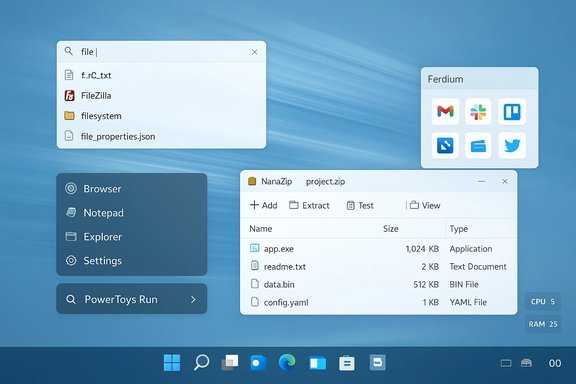
Below are the five utility categories and the representative apps that have gained traction because they solve high‑impact frictions with minimal system overhead.Everything — instant local filename search
Everything is a minimalist, lightning‑fast file search tool that indexes file and folder names and returns results as you type. It focuses on filenames and metadata by default, which keeps indexing fast and memory use low even on very large drives. Developers and long‑time users report indexing times measured in seconds for hundreds of thousands of files and a small memory footprint, making it a practical replacement for the native Windows indexer when you want instant file discovery.- Why it speeds up your workflow: instant results reduce time spent hunting for files and avoid repeated Explorer queries that cause disk I/O.
- Practical tip: run Everything with its service enabled for real‑time indexing on systems where files change often; on slower disks or shared machines, use manual refresh to avoid extra I/O.
Flow Launcher (and similar launchers) — keyboard-first app and action launcher
Flow Launcher (and comparable launchers) aims to replace repeated Start menu and Explorer navigation with a keyboard-first launcher. It can start apps, open files, and run custom actions or plugins with a few keystrokes. For power users, this reduces the friction of launching heavy apps and repeatedly opening folders—small time savings that add up.- Why it helps: fewer UI transitions and quicker app launches feel like a faster PC, even if raw performance hasn’t changed.
- Practical tip: enable only the plugins you use to keep Flow Launcher light on memory.
NanaZip (or a modern archiver) — fast, integrated archive handling
NanaZip and similar modern archivers replace older context‑menu archivers with a faster, Windows‑store friendly experience. Archiving and unarchiving large files can bog down systems when the tool is inefficient; a modern archiver with good integration avoids unnecessary CPU spikes and lets you manage compressed files more smoothly.- Why it helps: efficient compression/decompression saves time on large file operations and reduces CPU load spikes during archive work.
- Practical tip: prefer store‑packaged or well‑maintained releases and avoid installers bundled with additional software.
Microsoft PowerToys — productivity and performance tweaks
Microsoft PowerToys is a well‑known utility suite that contains a number of small but powerful modules (FancyZones, PowerRename, Image Resizer, PowerToys Run). It’s maintained by Microsoft and designed to be lightweight and modular: enable only the modules you actually use to keep memory and CPU overhead down. PowerToys Run offers fast launching similar to Flow Launcher but backed by Microsoft support and a familiar update cadence.- Why it helps: practical productivity improvements speed daily tasks and reduce perceived lag from repetitive actions.
- Practical tip: keep PowerToys updated through the official release channel and disable unused modules.
Ferdium (or web app aggregators) — reduce browser tab bloat
Ferdium and similar web‑app aggregators consolidate multiple web services into a single, lightweight windowed app. That reduces the number of open browser tabs (each of which consumes memory) and can reduce the background workload your browser imposes on the system. For users who juggle many web apps, an app like Ferdium reduces context switching and memory overhead from large browser sessions.- Why it helps: less browser tab bloat equals lower memory pressure and fewer processes competing for limited RAM.
- Practical tip: isolate sensitive accounts in hardened browser profiles; aggregators are convenient but introduce a single point of failure for multi‑account setups.
How these apps actually speed up Windows: the mechanisms
Knowing why these utilities work helps you set realistic expectations and use them safely.- Instant indexing vs. background indexing: Tools like Everything use name‑based indexes that are extremely fast and lightweight; Windows’ built‑in indexer is more featureful (full‑text) but can be heavier. For filename lookups, Everything is almost always faster.
- Reducing UI friction: Launchers and PowerToys Run reduce time spent in menus and UI transitions, which improves perceived performance even if CPU/Disk numbers are unchanged.
- Lowering memory pressure: Aggregating web apps and trimming browser tabs reduces overall memory consumption, which can stop heavy swapping on systems with limited RAM.
- Avoiding inefficient I/O: Modern archivers and better file managers reduce short bursts of disk I/O that can freeze low‑end HDD systems during file operations.
A 20‑minute tune‑up routine you can run today
- Create a System Restore point or a simple backup (external drive or cloud). This makes rollback painless.
- Disable unnecessary startup items: open Task Manager → Startup and turn off nonessential entries. This reduces boot time and frees RAM.
- Run Storage Sense or the cleanup features in Microsoft PC Manager to remove large temp files and clear browser caches. Use the app’s review step; don’t accept every deletion blindly.
- Install Everything (or enable it if it’s already present) and test a few filename searches to confirm near‑instant results.
- Install a launcher (Flow Launcher or PowerToys Run), configure it with a few frequently used apps, and try launching via keyboard to feel the speed gains.
Safety, privacy, and risk analysis — what could go wrong
These apps are powerful, but with convenience comes responsibility. The biggest risks are:- Over‑aggressive cleaners and “one‑click” optimizers: some third‑party cleaners historically removed files or settings that caused problems or bundled unwanted software. Use reputable tools, review actions before confirming, and keep a backup. The history of cleanup tools shows a mixed record—use caution and prefer well‑documented or open‑source projects when privacy is a concern.
- Service and background indexing trade‑offs: real‑time indexing services (for speed) can increase background I/O and slightly elevate memory use. On HDD‑based systems, that can be noticeable. If you have limited resources, configure the indexer for manual or scheduled refreshes.
- Centralizing web accounts: aggregators lower tab bloat but create a single app containing many accounts—treat that as a high‑value target and secure it accordingly (strong password, MFA).
- Installer sources and supply‑chain risks: always install from official websites, Microsoft Store, or an official GitHub release page. Avoid unknown bundles or third‑party repackagers.
Hardware upgrades: when software stops being enough
No amount of cleanup will change physics. If Task Manager shows frequent paging, sustained 80%+ RAM usage in normal workloads, or disk I/O frequently pegged at 100% during normal use, the machine is hitting a hardware ceiling. For most users:- Add RAM: the fastest way to reduce swapping and increase multitasking headroom.
- Move the OS to an SSD (prefer NVMe on modern machines): this yields the most dramatic improvements in boot time and app launch responsiveness. Observed user reports and tests consistently show SSDs turning a slow HDD boot sequence into a fast, snappy experience.
Practical, conservative recommendations
- Use Microsoft PC Manager or built‑in Storage Sense for routine, low‑risk maintenance if you prefer a first‑party solution that integrates into Windows. It offers one‑click boosts and storage analysis while minimizing risky behavior. However, treat all “automatic repair” suggestions as recommendations to review, not as mandates.
- For fast file searches, install Everything and test it for a week. Disable its real‑time service if you notice excessive disk activity on HDD systems.
- For launch speed and productivity, pick either Flow Launcher or PowerToys Run; both reduce UI friction without changing core system behavior. Prefer PowerToys if you want a Microsoft‑supported, modular suite.
- Avoid “one‑click” registry cleaners and unknown optimizers; they promise dramatic speed gains but often deliver minimal benefits and nontrivial risks. When in doubt, use well‑known, open or widely audited tools.
What to expect — realistic gains, not miracles
Expect measurable but modest wins: faster file lookups, fewer UI clicks to open apps, reduced browser memory usage if you consolidate tabs, and cleaner storage. These translate into a noticeably smoother day‑to‑day experience for many users, especially those with older HDDs and limited RAM. They are unlikely to make a decade‑old CPU behave like a modern processor, so temper expectations and prioritize hardware upgrades when you need permanent, significant speed improvements.Also note that lists of “essential” apps are partly subjective and depend on individual workflows and risk tolerance. The recent roundup’s five utilities are well‑chosen for common bottlenecks, but no single list is universal—test tools on a noncritical system or create a restore point before wide deployment. This recommendation landscape is shaped by user needs, not blanket guarantees.
Final verdict
If your goal is to speed up your aging computer without spending on hardware, start with safe housekeeping and add targeted, reputable utilities: a fast file search (Everything), a keyboard launcher (Flow Launcher or PowerToys Run), a modern archiver, a lightweight productivity toolkit (PowerToys), and thoughtful browser/tab consolidation (Ferdium or similar). Combine those applications with routine Windows maintenance and an honest assessment of hardware limits, and you’ll reclaim responsiveness and productivity for weeks, months, or longer—often at no cost. Use official distribution channels, back up first, and avoid aggressive, opaque “one‑click” optimizers. These measures deliver the highest reward for minimal risk when the goal is to optimize Windows 11 performance and speed up your aging computer.Conclusion: pragmatic tools plus sensible backups and a readiness to upgrade hardware when necessary offer the best path to keep older Windows machines useful and responsive.
Source: bgr.com 5 Essential Windows Apps That Can Speed Up Your Aging Computer - BGR
