

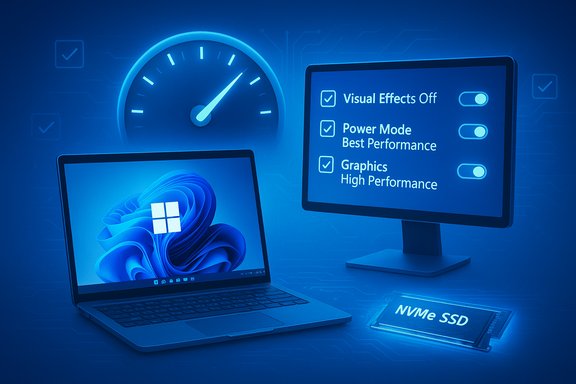
I rarely recommend fiddly registry edits or risky third‑party “optimizers” for everyday Windows users — yet a handful of built‑in, reversible changes can make a Windows 11 PC feel significantly faster in minutes. Pocket‑lint’s recent how‑to — a short checklist of five practical tweaks — is exactly that: low‑risk, high‑reward maintenance you can do today to speed up Windows 11 without new hardware. The steps are simple (tone down visual effects, use a higher power mode, force heavy apps onto your dedicated GPU, run regular cleanup and updates, and limit background/startup apps) and deliver measurable gains for older laptops, HDD‑based systems, and busy desktops alike. Pocket‑lint’s writeup is a useful starting point and the advice is supported by Windows’ own settings and mainstream tech guidance, though a few claims are anecdotal and some trade‑offs deserve careful attention.
Windows 11 ships with polished visuals, background services, and a set of defaults aimed at broad compatibility rather than maximum snappiness. Over time, installed apps, background processes, driver versions, and full storage can quietly degrade responsiveness. Most perceived slowness is software‑driven, not hardware failure. That means sensible configuration and basic maintenance often reclaim large amounts of performance for free.
The five quick actions Pocket‑lint recommends are pragmatic because they:
Strengths:
These are practical, everyday optimizations that make the Windows 11 experience feel fresher — and in most cases they keep you comfortably on your existing hardware a little longer.
Conclusion
Small, safe system tweaks — reducing visual effects, choosing a performance‑focused power profile while plugged in, directing heavy apps to your discrete GPU, cleaning storage and drivers, and trimming startup/background apps — combine into a powerful, no‑cost boost for Windows 11. Back up first, change one thing at a time, and if your machine still struggles after these steps, prioritize an SSD or more RAM as the next high‑value upgrade. The five steps are a practical maintenance routine that will keep most Windows 11 PCs feeling fast and responsive without risky hacks or new‑hardware expense.
Source: Pocket-lint I sped up my Windows 11 PC with these 5 easy changes
 Background / Overview
Windows 11 ships with polished visuals, background services, and a set of defaults aimed at broad compatibility rather than maximum snappiness. Over time, installed apps, background processes, driver versions, and full storage can quietly degrade responsiveness. Most perceived slowness is software‑driven, not hardware failure. That means sensible configuration and basic maintenance often reclaim large amounts of performance for free.The five quick actions Pocket‑lint recommends are pragmatic because they:
- Use built‑in Windows controls (no registry hacks).
- Are reversible (you can revert if you dislike the visual trade‑offs).
- Target the most common causes of sluggishness: UI overhead, power throttling, unnecessary background work, and storage congestion.
1. Tone down the visual effects — immediate UI snappiness
Why this helps
Windows 11’s animations, shadows, and translucency make the OS feel modern — but all that compositing and animation costs GPU and CPU cycles. On integrated‑graphics laptops or older machines, turning off unneeded effects reduces rendering work and can make windowing and basic interactions feel snappier.How to do it (verified)
There are two main, trustworthy ways to cut visual effects:- Quick toggles in Settings: open Settings > Accessibility > Visual effects and turn off Transparency effects and Animation effects. This reduces compositor and animation load without touching deeper system options.
- Deeper control via the classic Performance Options dialog:
- Press Win+R → type sysdm.cpl → Enter.
- Advanced tab → Performance → Settings…
- Choose Adjust for best performance (disables all the visual effects), then Apply → OK. This is the same dialog Windows has used for years.
What to expect
- Perceptible reduction in animation lag and faster window minimize/maximize transitions.
- Slight CPU/GPU savings; on very old hardware this can feel like a major improvement.
- Aesthetic trade‑off: Windows will look more utilitarian. If readability matters, keep “Smooth edges of screen fonts” enabled while disabling others.
Caveats
If you rely on visual cues (transparency, subtle animations) for accessibility or workflow, turn off only the effects you don’t need. Remember this is a perceptual optimization — it makes the interface feel faster, but it won’t fix heavy disk or CPU contention from other apps.2. Edit your PC’s power plan — prefer Best performance when appropriate
Why this helps
Windows can throttle CPU and GPU behavior to save energy. The Balanced default works well most of the time, but if you want the system to prioritize responsiveness (especially while plugged in), switching to a higher power profile reduces throttling and keeps clocks higher more of the time.How to change it (official path)
- Modern Settings method: Start > Settings > System > Power & battery → Power mode → select Best performance when plugged in. Microsoft documents this exact path.
- Classic Control Panel plan: Control Panel > Hardware and Sound > Power Options → choose High performance or a custom plan if you prefer. Note: if a custom power plan is active you might not see the slider in Settings.
What to expect
- Faster app launches and more consistent frame rates in games or GPU‑heavy tasks while on AC power.
- Higher power draw and warmer temperatures; shorter battery life on laptops unless you switch back to Balanced or Better Battery when unplugged. Microsoft’s power slider guidance explains the trade‑offs between Better Battery, Better Performance, and Best Performance.
Practical advice
- Use Best performance when you need snappy responsiveness (desktop workstation, plugged‑in laptop during gaming or editing).
- Revert to Balanced/Better Battery for battery longevity or for quiet/fan‑sensitive use.
- For fleets or enterprise environments, control power policies with Group Policy / MDM rather than manual toggles.
3. Set apps to use your dedicated GPU — force heavy workloads to the right silicon
Why this helps
On systems with both integrated and discrete GPUs (common in laptops and modern desktops with power‑efficient iGPU), Windows sometimes runs apps on the integrated GPU. That saves power but can severely limit performance for games and creative apps. Forcing demanding apps to use the discrete GPU restores expected performance.Verified steps (Microsoft and OEM guidance)
- Settings path: Start > Settings > System > Display → scroll to Graphics (or search “Graphics settings”). Add the desktop app (browse to the .exe) or select a Microsoft Store app, then click Options for that app and choose High performance (which maps to your discrete GPU). Several vendors and Microsoft QA threads confirm this workflow.
When to use it
- Games, GPU‑accelerated editing apps (Photoshop, Premiere, DaVinci Resolve), and certain browsers for web‑GPU workloads.
- If an app is sluggish despite ample CPU headroom, check whether it’s running on the integrated GPU and set High performance.
Notes and gotchas
- Some GPUs (and their vendor control panels) still offer their own settings; sync Windows settings with NVIDIA/AMD control panels if an app continues to misbehave. OEM documentation often recommends checking both places.
- On battery, Windows may prefer the iGPU. To force discrete GPU use on battery you’ll likely need to set power mode to Best performance and ensure vendor drivers don’t override Windows settings.
4. General maintenance — Disk Cleanup, Windows Update, and GPU drivers
Why this helps
Low free space increases paging and IO contention, old update leftovers and caches bloat the system, and outdated GPU drivers can cause stutters, crashes, or low in‑game performance. These are classic maintenance items that actually change measurable behavior.Disk Cleanup and Storage Sense (what to run)
- Disk Cleanup (cleanmgr.exe) is still available and the “Clean up system files” option lets you remove Windows Update leftovers and previous installations. Microsoft support and community guidance confirm using Disk Cleanup or Settings > System > Storage > Temporary files/ Cleanup recommendations.
- Storage Sense can be enabled to automatically clear temp files and empty the Recycle Bin on a schedule.
- Run Settings > System > Storage > Temporary files and clear safe entries.
- Optionally run Disk Cleanup → select C: → Clean up system files to free additional space.
- Reboot after major cleanup operations.
Keep Windows and drivers updated
- Check Settings > Windows Update and install quality and feature updates; Microsoft specifically resolves some app‑performance bugs via cumulative patches.
- For GPU drivers, use vendor tools: NVIDIA GeForce Experience, AMD Software: Adrenalin Edition, or Intel Driver & Support Assistant to fetch the latest WHQL/optional drivers as needed.
What to expect
- Recovered disk space, fewer IO stalls, and smoother app startups.
- Sometimes a Windows update or driver update can introduce new behavior; validate after updates and be prepared to roll back drivers if necessary.
Caveats
- Don’t indiscriminately delete Windows.old or other recovery files if you rely on rollback capabilities after feature updates.
- Some “cleaners” are aggressive — stick to Windows’ own Disk Cleanup/Storage Sense or well‑known vendor tools. Community guides repeatedly warn against one‑click debloaters that remove required features.
5. Manage background and startup apps — reclaim RAM and CPU
Why this helps
Too many apps automatically launching at sign‑in or running in the background consumes RAM, CPU and disk I/O. Reducing startup load and closing unneeded background apps often produces the single biggest perceived speed improvement.Two official management points (Microsoft verified)
- Settings > Apps > Startup shows apps with toggles (On/Off) for startup behavior.
- Task Manager → Startup tab shows the same list plus the Startup impact column so you can prioritize disabling High impact items first. Microsoft documents both methods.
- Open Task Manager (Ctrl+Shift+Esc) → Processes tab → End tasks for clearly unneeded running apps.
- Startup tab → right‑click and Disable non‑essential autostart items (messengers, auto‑updaters, vendor utilities you don’t need immediately).
- Reboot and measure the change.
What to watch for
- Do not disable antivirus, disk‑encryption clients, backup agents, or corporate endpoint protections unless you have alternatives. Disabling such services can leave you unprotected. Community analysis flags this common pitfall.
- Some apps re‑add themselves after updates; re‑check startup items periodically.
The hardware reality: when software tweaks aren’t enough
Pocket‑lint and broader testing communities agree: the single biggest, irreversible performance win is upgrading the boot drive from an HDD to an SSD, ideally NVMe. That change transforms boot and app‑load times in ways no software tweak can match. Independent benchmarks of modern NVMe drives (e.g., Samsung 980 PRO and similar PCIe 4.0 drives) show sequential read/write speeds and random IOPS orders of magnitude higher than platter drives — the practical result is much faster application launches and a far snappier desktop. AnandTech and Tom’s Hardware reviews quantify those throughput and IOPS benefits. If your system still runs slowly after the five changes above and you’re using an HDD, an SSD swap is the most cost‑effective upgrade for general responsiveness. If you have low RAM (8 GB or less) and you multitask heavily, adding RAM is also a high‑value upgrade.Cross‑checking key claims — verification and nuance
- Claim: “Adjust for best performance” speeds up Windows by disabling animations and effects. Verified: the Performance Options dialog still exposes Adjust for best performance and this behavior is documented in Windows help and reputable Windows guides. Expect visual simplification and modest CPU/GPU savings.
- Claim: “Switch to Best performance or High performance for maximum responsiveness.” Verified: Microsoft’s Settings > System > Power & battery includes a Power mode slider; Best performance prioritizes responsiveness over power savings. Use when plugged in.
- Claim: “You can force apps to use your dedicated GPU in Graphics settings.” Verified: Windows’ Graphics Settings let you add apps and choose High performance vs Power saving and multiple OEMs document this. Expect to match vendor control panel settings where necessary.
- Claim: “Disk Cleanup and Storage Sense free space safely and improve performance.” Verified: Microsoft maintains Disk Cleanup and Storage Sense; cleaning system files reclaims update leftovers and temporary files. Use caution with files you may want to keep (e.g., Windows.old).
- Claim: “Disabling startup apps speeds boot and reduces background load.” Verified: Microsoft’s documentation shows managing startup apps via Settings or Task Manager and recommends using the Startup impact column to decide.
Risks, trade‑offs, and when not to apply a tweak
- Visual effects: turning everything off can harm readability (font smoothing) and remove subtle UI cues that help navigation. Use Custom to selectively disable heavy effects while keeping fonts crisp.
- Power mode: using Best performance increases power consumption and thermal output. For laptops, this can shorten battery life and increase fan noise. Switch back when unplugged.
- GPU assignment: forcing the discrete GPU on battery can seriously reduce battery runtime. Also, some games or apps choose GPU at launch; you may need to restart the app or system for changes to take effect.
- Disk Cleanup: deleting some system components (Windows.old) is irreversible. Back up important data before mass deletions. Also, automatic cleanup tools can remove files you expect to keep — double‑check selections.
- Fast Startup (not one of Pocket‑lint’s five core steps, but often mentioned alongside them): it accelerates boot by using a hibernation‑like save of kernel state, but it can cause problems for dual‑boot setups and certain firmware/driver workflows. Disable Fast Startup if you dual‑boot or if device detection fails after resume. Multiple reputable outlets document both the steps to toggle it and the compatibility trade‑offs.
- Disabling startup items: do not disable endpoint protection, backup clients, or encryption services unless you understand the consequences. Community guidance repeatedly warns that turning off the wrong service can leave data or security gaps.
A practical 20‑minute maintenance routine
- Open Task Manager (Ctrl+Shift+Esc) → Startup → Disable 4–6 nonessential high‑impact items. Reboot.
- Settings > System > Storage > Temporary files — remove safe temp items and run Cleanup recommendations. If you’re comfortable, run Disk Cleanup → Clean up system files.
- Settings > Accessibility > Visual effects — toggle off Transparency and Animation. For deeper change: sysdm.cpl → Advanced → Performance Settings → Adjust for best performance (or custom).
- Settings > System > Power & battery → Power mode → Best performance when plugged in (revert when on battery).
- Settings > System > Display → Graphics → add heavy apps (games, Photoshop, browsers) → Options → High performance. Restart the app.
- Check Windows Update and run a GPU driver update via the vendor app. Reboot and verify behavior.
Final verdict — strengths, caveats, and next steps
The five Pocket‑lint changes are an excellent first line of defense for a sluggish Windows 11 PC: zero cost, reversible, and backed by Microsoft’s settings and mainstream tech guidance. They address the most common causes of perceived slowness and often deliver immediate, noticeable gains.Strengths:
- Low risk and reversible.
- No special tools required; everything is built into Windows.
- Immediate perceptual wins (UI responsiveness, fewer background processes).
- They don’t replace needed hardware upgrades — an SSD or extra RAM remains the most durable solution for slow storage or memory limits. Independent SSD benchmarks show dramatic I/O improvements that materially shorten boot and app load times.
- Some settings (Fast Startup, forced GPU use, power profiles) can create compatibility or battery trade‑offs; test one change at a time and keep a restore point or backup.
- Avoid third‑party “cleaners” that claim 10x speedups — they’re often unnecessary and sometimes harmful. Community and Microsoft guidance favor built‑in tools and controlled changes.
These are practical, everyday optimizations that make the Windows 11 experience feel fresher — and in most cases they keep you comfortably on your existing hardware a little longer.
Conclusion
Small, safe system tweaks — reducing visual effects, choosing a performance‑focused power profile while plugged in, directing heavy apps to your discrete GPU, cleaning storage and drivers, and trimming startup/background apps — combine into a powerful, no‑cost boost for Windows 11. Back up first, change one thing at a time, and if your machine still struggles after these steps, prioritize an SSD or more RAM as the next high‑value upgrade. The five steps are a practical maintenance routine that will keep most Windows 11 PCs feeling fast and responsive without risky hacks or new‑hardware expense.
Source: Pocket-lint I sped up my Windows 11 PC with these 5 easy changes
