

Windows 11’s Start menu has quietly grown into a full-blown workspace on many machines: taller, wider, and now often bridged to your phone — which is great for some users but an unwelcome takeover for others. This article walks power users and everyday readers through safe, practical ways to make the Start menu smaller and less intrusive — using only built‑in settings, and (for those who want deeper control) using the Windhawk modding tools. Along the way I verify key numbers, explain the risks, and provide step‑by‑step guidance so you can choose the approach that fits your tolerance for change.
Windows 11’s newer Start experience is a deliberate design shift: Microsoft consolidated different Start areas into a single, vertically scrollable canvas and introduced closer Phone Link integration so your connected phone can appear inside Start. That change has produced a taller, more information‑dense Start surface on many devices — which is why the idea of shrinking it has become a hot topic.
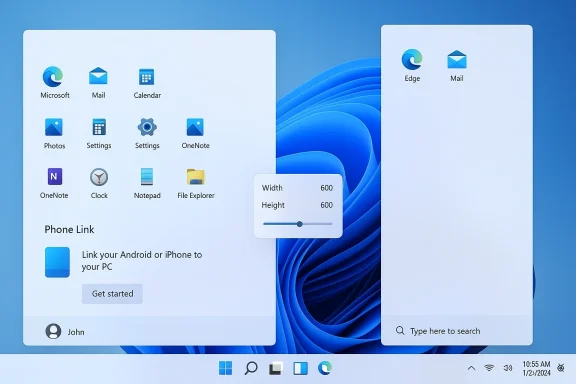
Microsoft added an explicit control in Settings for the phone panel — labeled “Show mobile device in Start” — so you can hide the phone integration without removing Phone Link entirely. The same Personalization → Start area also contains options that let you hide the “Recommended” content that occupies much of the middle of the redesigned Start. These built‑in toggles are the safest first step for anyone who wants a cleaner, less imposing Start.
If you want pixel‑level control — a Start menu sized to specific width and height in pixels — community tools built on the open Windhawk platform now offer that capability. The Windhawk Start Menu Size mod explicitly allows you to override Start’s width and height and lists the approximate sizes for the classic menu (642 × 726) and the redesigned Start (roughly 834 wide and full‑screen high), giving a practical reference for what “smaller” means.
MinWidth = 600
MaxWidth = 600
MinHeight = 400
MaxHeight = 400
That example forces a fixed Start box, but it is mod‑specific and will interact with the Start Menu Size mod or with future Windows updates; treat such edits as experimental. Always save a copy of theme presets before editing.
If you want precise, pixel‑level control, Windhawk’s Start Menu Size mod and the Windows 11 Start Menu Styler are proven, actively maintained community tools that deliver the functionality many users want — but they do come with the usual tradeoffs of third‑party system mods. Back up first, keep expectations realistic about temporary breakage after Windows updates, and prefer mods with transparent source code and active issue trackers.
Whether you choose the supported path or the modding path, the two complementary approaches — built‑in toggles for content and Windhawk for pixel control — give you options to tame the increasingly huge Start menu without resigning yourself to a crowded desktop.
Conclusion: Start small, test fast, and make a backup before you make big UI changes. The Start menu should help you get work done — not steal your screen.
Source: Make Tech Easier How to Resize the Increasingly Huge Start Menu in Windows 11 - Make Tech Easier
 Background / Overview
Windows 11’s newer Start experience is a deliberate design shift: Microsoft consolidated different Start areas into a single, vertically scrollable canvas and introduced closer Phone Link integration so your connected phone can appear inside Start. That change has produced a taller, more information‑dense Start surface on many devices — which is why the idea of shrinking it has become a hot topic.Microsoft added an explicit control in Settings for the phone panel — labeled “Show mobile device in Start” — so you can hide the phone integration without removing Phone Link entirely. The same Personalization → Start area also contains options that let you hide the “Recommended” content that occupies much of the middle of the redesigned Start. These built‑in toggles are the safest first step for anyone who wants a cleaner, less imposing Start.
If you want pixel‑level control — a Start menu sized to specific width and height in pixels — community tools built on the open Windhawk platform now offer that capability. The Windhawk Start Menu Size mod explicitly allows you to override Start’s width and height and lists the approximate sizes for the classic menu (642 × 726) and the redesigned Start (roughly 834 wide and full‑screen high), giving a practical reference for what “smaller” means.
Why the Start Menu Feels Huge Now
The Start menu’s growth comes from three related choices:- Microsoft’s redesign consolidates Pinned apps, Recommended items, and All apps into one vertically scrollable interface. The visual shift increases the default vertical footprint.
- Phone Link integration (the “mobile device” pane) adds a right‑side panel that displays phone status, recees and more — useful, but space‑consuming.
- The new layout is adaptive to screen size and aims to improve discoverability, but it removed the manual corner drag handles that let users resize Start in Windows 10. That absence means users must either accept Microsoft’s layout, hide sections, or use third‑party methods.
Built‑in ways to make Start look smaller (recommended first)
If you want to reduce how much Start appears to occupy without installing third‑party software, these built‑in controls should be your first stop. They are safe, reversible, and supported by Microsoft.1. Hide the mobile device (Phone Link) panel
- Open Settings (Windows + I) → Personalization → Start.
- Toggle Show mobile device in Start to Off.
2. Turn off Recommendations and recent items
- Settings → Personalization → Start → uncheck the options under Recommended/browsing (or similar labels depending on your build) to hide recently opened files and app suggestions.
3. Choose All apps view carefully
Some builds surface All apps at the top of the Start layout by default. If your version lets you choose or collapse it, do so. The exact controls depend on the Windows 11 build, so if you don’t see an obvious toggle in Personalization → Start, your build might be in a staged rollout. Microsoft’s update notes explain the staged rollout approach for the redesigned Start, which is why settings can vary between systems.When built‑in options aren’t enough: Windhawk explained
If the built‑in toggles still leave a Start menu that’s too big for your taste, Windhawk offers a practical community solution. Windhawk is an open modding framework that injects safely scoped changes into Windows processes — notably the Start process — to alter behavior without replacing system files.- The Start Menu Size mod for Windhawk lets you specify a custom width and height for Start, overriding the default values. The mod’s page documents the classic and redesigned default sizes and provides the UI to set pixel values.
- The Windows 11 Start Menu Styler is a second Windhawk mod that applies themes and style changes to the Start menu; some themes intentionally reduce the Start’s visual footprint (for example, OnlySearch or Wi. The Styler mod is broadly popular and provides theme presets and advanced controls.
Why Windhawk is a realistic choice now
- It modifies UI elements at runtime, which means you don’t replace system DLLs or install shell hooks that keep working across some Windows updates.
- The Start Menu Size mod documents default sizes such as 642 ×834 × full‑height** (redesigned) so you can target sane values when shrinking. These baseline numbers make it easy to experiment: try 500 × 600 or 300 × 700 and see what fits your screen.
Step‑by‑step: Use Windhawk to resize Start (practical walkthrough)
Note: the steps below summarize the typical experience reported by many power users. Before you begin, create a Windows restore point or a full backup if you want the maximum safety net.- Download and install Windhawk (follow the official Windhawk app installer instructions inside the Windhawk UI). The Windhawk app manages mods from its catalog.
- In Windhawk, open the “Explore other mods” / catalog and search for Start Menu Size. Open the mod’s details and press Install. The Windhawk client will show developer details and a prompt; review the author and changelog before accepting.
- After installation, switch to the mod’s Settings tab. You will see Width and Height fields. The mod page lists defaults (classic = 642 × 726; redesigned ≈ 834 × full screen). Start with a conservative reduction: try Width = 600, Height = 600 or Width = 500, Height = 700, then click Save Settings.
- Reopen Start and evaluate. If you want a slimmer, taller shape, try Width = 300, Height = 700. Keep iterating until you find a layout that fits the rest of your desktop. Because Windhawk saves configurations, you can toggle the mod off to return to Microsoft’s default instantly.
Step‑by‑step: Use Start Menu Styler themes for visual slimming
If your goal is not only to physically shrink Start but also to strip elements that make it feel large, the Styler mod is useful.- Install **Windows 11 sing the same Windhawk catalog flow. Inspect the available themes and presets before applying.
- In Settings → Theme, select a compact theme such as UniMenu, DownAero, RosePine, or OnlySearch (the latter converts Start into a minimal search bar). Apply and Save.
- Advanced users can edit theme control styles to forcibly change sizing of specific Start elements with rules such as:
MinWidth = 600
MaxWidth = 600
MinHeight = 400
MaxHeight = 400
That example forces a fixed Start box, but it is mod‑specific and will interact with the Start Menu Size mod or with future Windows updates; treat such edits as experimental. Always save a copy of theme presets before editing.
Practical examples and what they look like
- Conservative: Width = 600, Height = 600 — still roomy but far less dominant on a 1920 × 1080 laptop display. This preserves most Start functionality while avoiding the “giant overlay” feeling.
- Slim + Tall: Width = 300, Height = 700 — good for users who prefer a narrow app list with more vertical scrolling and less horizontal real estate taken away.
- Classic re‑creation: Width = 642, Height = 726 — replicates the old Windows 10-ish size to bring back a familiar feel while keeping the redesigned Start’s behavior in other ways.
Safety, reliability, and compatibility — what to watch for
Windhawk and its mods are powerful but not risk‑free. Here’s what you need to know:- Compatibility can break when Microsoft changes the Start host process or its layout. There are active issue reports where themes or mods rendered incorrectly after an update; the Windhawk project and individual mod maintainers frequently update to restore compatibility. If you use Windhawk, expect occasional updates or temporary breakage.
- Malicious or poorly written mods can compromise stability or privacy. Only install mods from authors you trust and prefer widely used mods with active source code and changelogs. Windhawk’s UI shows developer details and a user count; check those before installing.
- Some third‑party UI customizers conflict with Windhawk (ExplorerPatcher, StartAllBack, Start11, etc.). If you have other taskbar or Start tools installed, remove or disable them first to avoid unpredictable interactions. Community reports show users resolving issues by purging conflicting tools.
- Create a System Restore point or full image backup.
- Close other Start/taskbar tweakers.
- Install Windhawk and test with one mod at a time.
- Keep the Windhawk UI and mods updated.
- If Start misbehaves, toggle the mod off: Windhawk preserves the default state and lets you revert instantly.
Troubleshooting common problems
- Start disappears or looks broken after applying a mod: Open Windhawk and disable the mod’s toggle to revert immediately. If disabling doesn’t help, restart the Start process (Task Manager → Details → End task on StartMenuExperienceHost.exe; it will restart automatically).
- Search in Start stops returning results: Some style mods affect the search WebView; try disabling the Styler or switching to a different theme. The Styler mod exposes CSS‑style controls for the search WebView, but misconfiguration can hide content. Revert to defaults to verify.
- Windhawk fails to run or compile a mod: Antivirus or security software sometimes blocks Windhawk’s on‑the‑fly compilation. Temporarily whitelisting Windhawk or re‑installing it after disabling antivirus (briefly and carefully) resolved issues for many users; see Windhawk community troubleshooting for details.
- Compatibility break after a Windows update: Check the mod’s changelog and the Windhawk issues feed; maintainers frequently publish updates. If an update isn’t available, disable the mod until a fix ships. Community channels and GitHub are the best places to follow progress.
What Microsoft says (and what that implies)
Microsoft’s official support documentation documents the Phone Link in‑Start experience and the toggle to hide it. They also clearly state the redesigned Start is rolling out gradually through servicing updates and that the experience can differ per device while the rollout is underway. That staged approach explains why you might see different Start behavior across different PCs and why Microsoft hasn’t reintroduced a manual pixel resize control as of their documented updates. Use built‑in toggles if you prefer Microsoft‑supported, low‑risk changes.Pros and cons — how to decide which path to take
- Built‑in Settings (Personalization → Start)
- Pros: Safe, supported, reversible, no third‑party software required.
- Cons: Limited — hides content but does not change pixel bounds or return the classic drag‑resize affordance.
- Windhawk + Start Menu Size mod
- Pros: Precise control (width/height in pixels), themes and presets, reversible via Windhawk toggle, active community.
- Cons: Third‑party risk, possible breakage after a Windows update, potential conflicts with other UI tools. Back up first.
Advanced tips and developer notes
- Combine both approaches: disable the Recommended section and the mobile device pane in Settings, then apply a modest Windhawk size change to reduce the final footprint even further. That combination often yields the cleanest result with the least intrusive mod settings.
- If you’re a theme author or tinker with the Styler’s Control Styles, prefer named resources and small incremental changes. Avoid hardcoding extreme values that may break on ultrawide or multi‑monitor setups.
- For enterprise admins: Windhawk operates per‑user and is not designed for broad managed deployments. Evaluate security policy and AV exclusions carefully before allowing producers or exec staff to run modding frameworks on corporate hardware.
Final verdict and recommendations
The simplest, safest way to “shrink” Windows 11’s Start menu is to use Microsoft’s built‑in controls: hide the Phone Link panel and disable Recommendations in Settings → Personalization → Start. That gives a cleaner, less imposing Start experience without third‑party software.If you want precise, pixel‑level control, Windhawk’s Start Menu Size mod and the Windows 11 Start Menu Styler are proven, actively maintained community tools that deliver the functionality many users want — but they do come with the usual tradeoffs of third‑party system mods. Back up first, keep expectations realistic about temporary breakage after Windows updates, and prefer mods with transparent source code and active issue trackers.
Whether you choose the supported path or the modding path, the two complementary approaches — built‑in toggles for content and Windhawk for pixel control — give you options to tame the increasingly huge Start menu without resigning yourself to a crowded desktop.
Conclusion: Start small, test fast, and make a backup before you make big UI changes. The Start menu should help you get work done — not steal your screen.
Source: Make Tech Easier How to Resize the Increasingly Huge Start Menu in Windows 11 - Make Tech Easier
